


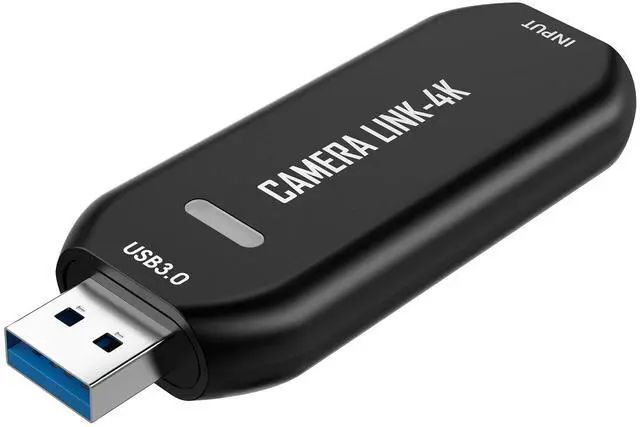
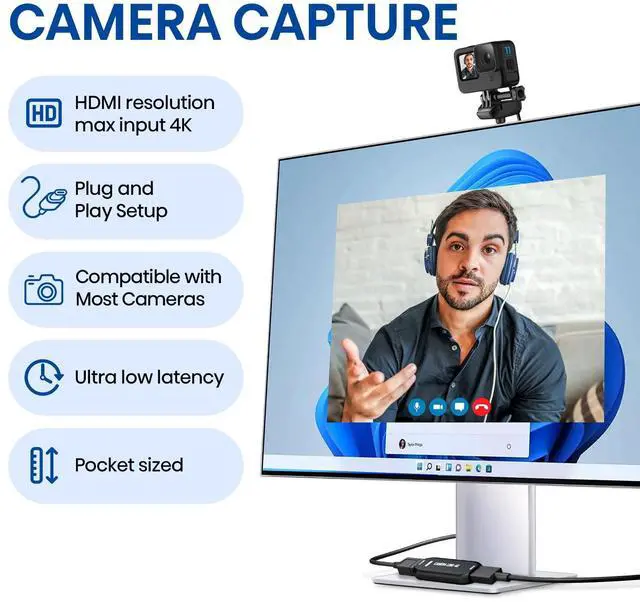
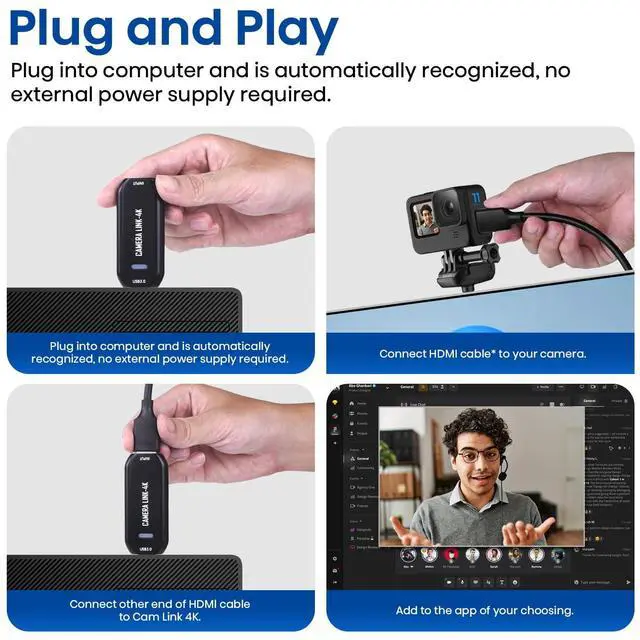
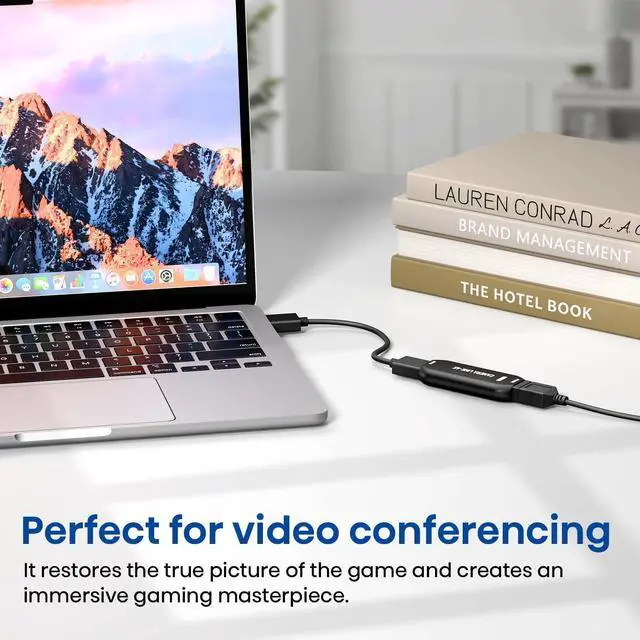
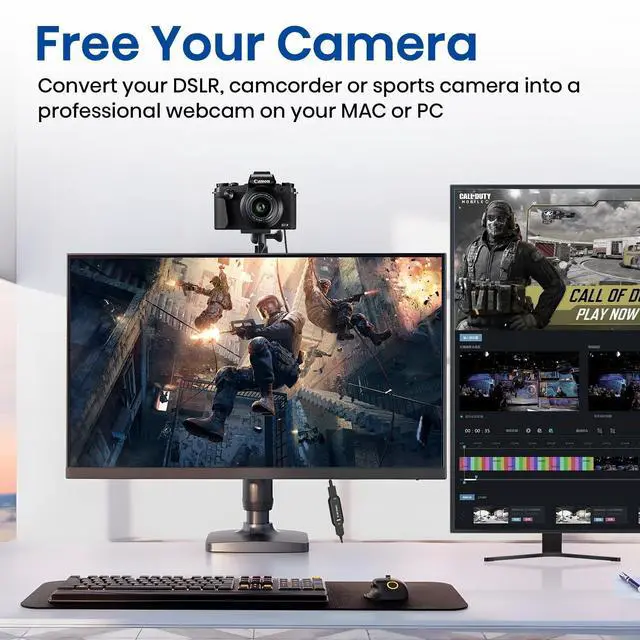


Turn Your Camera into a Pro Webcam
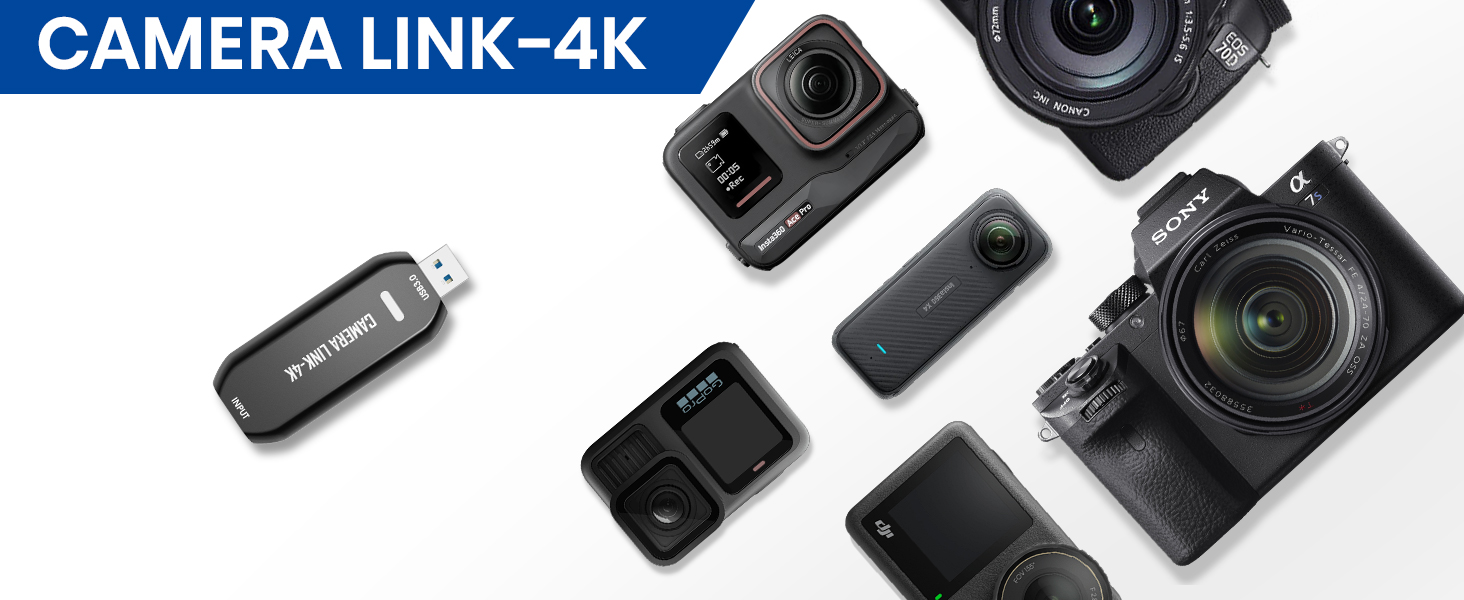
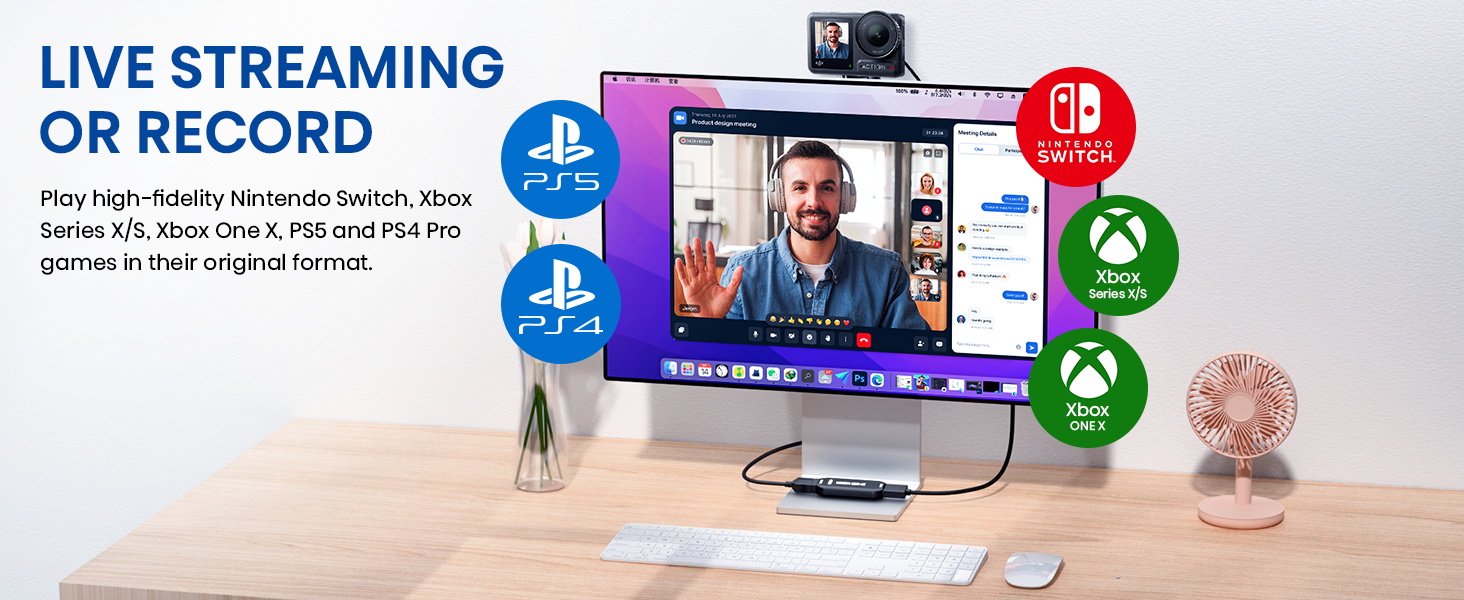
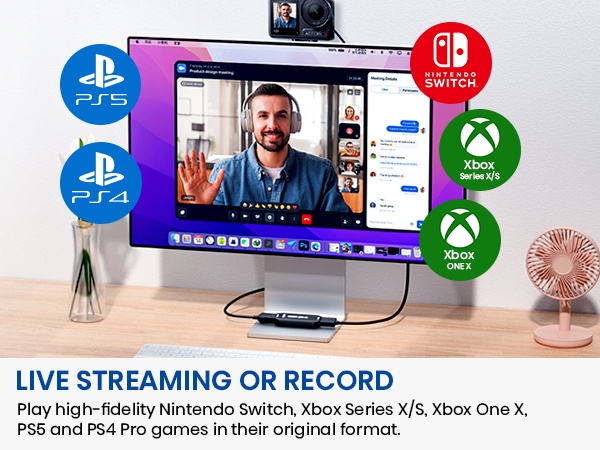
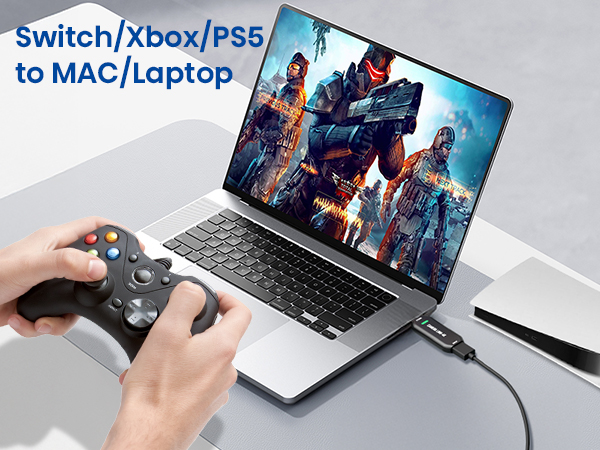
Upgrade your DSLR, camcorder, or action cam for streaming, calls, and online events — all with one simple HDMI connection.
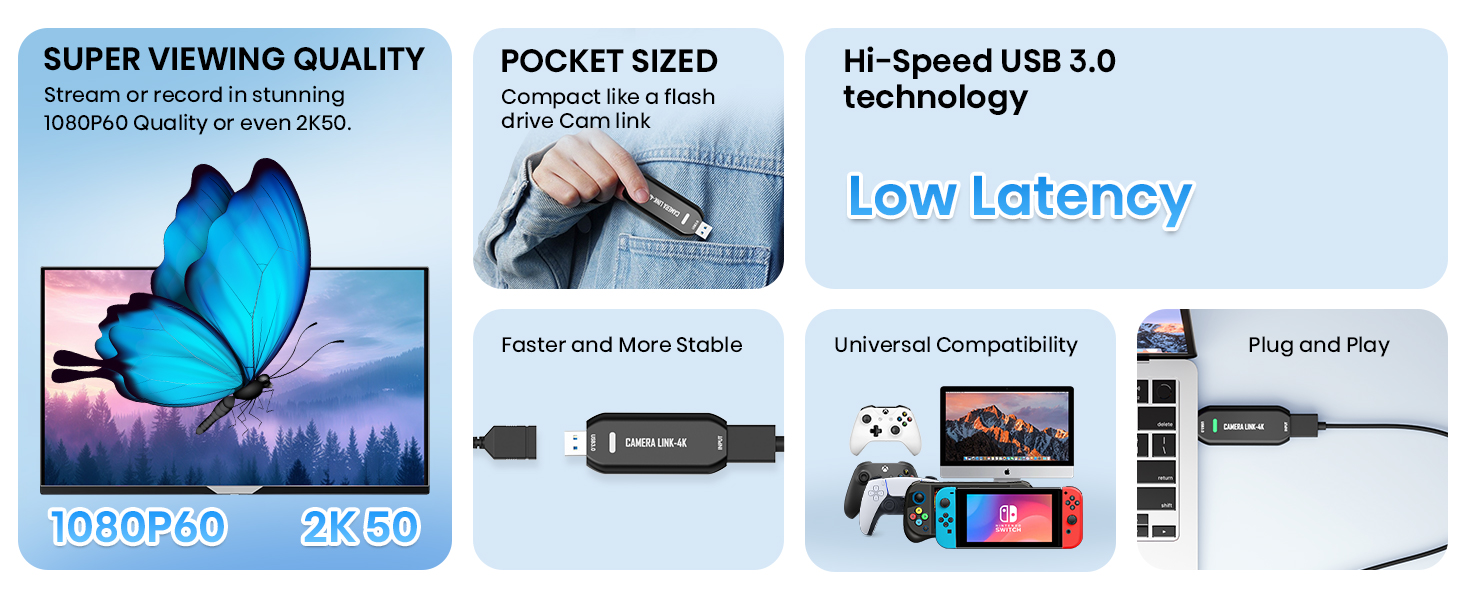
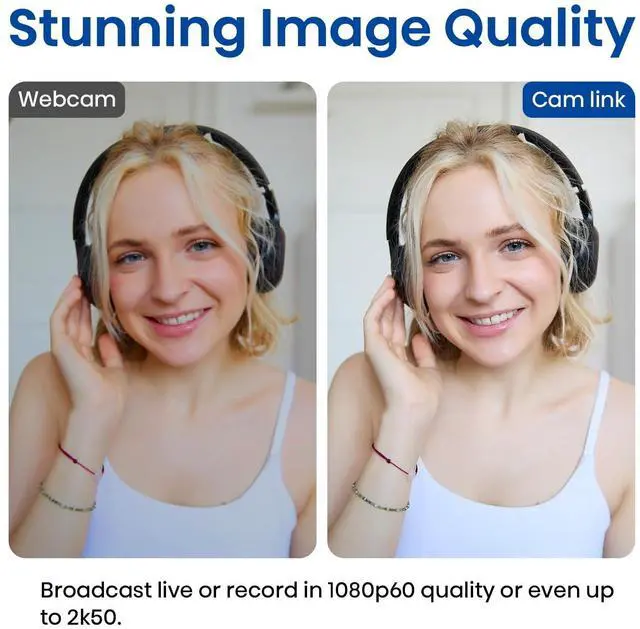
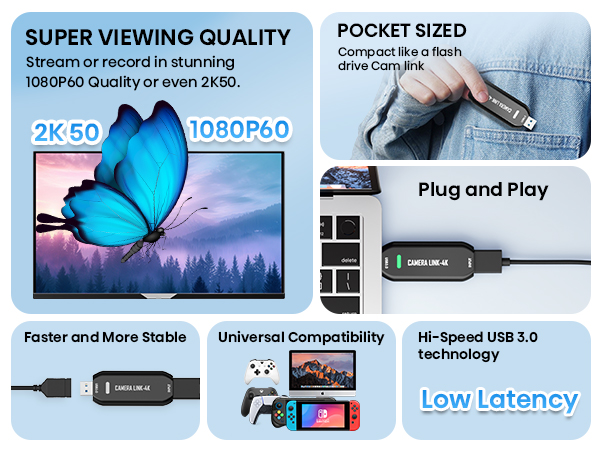
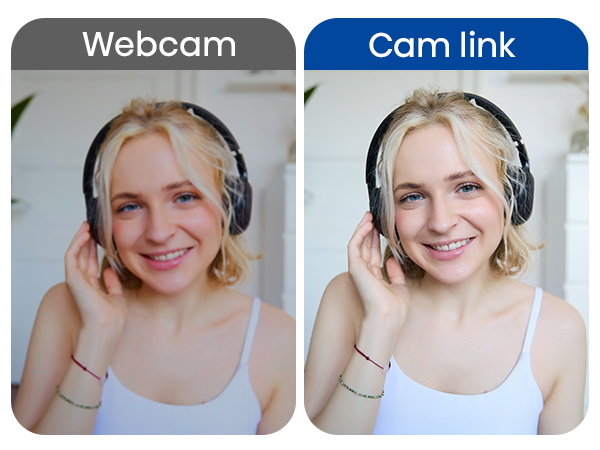
Stunning Image Quality up to 2K50
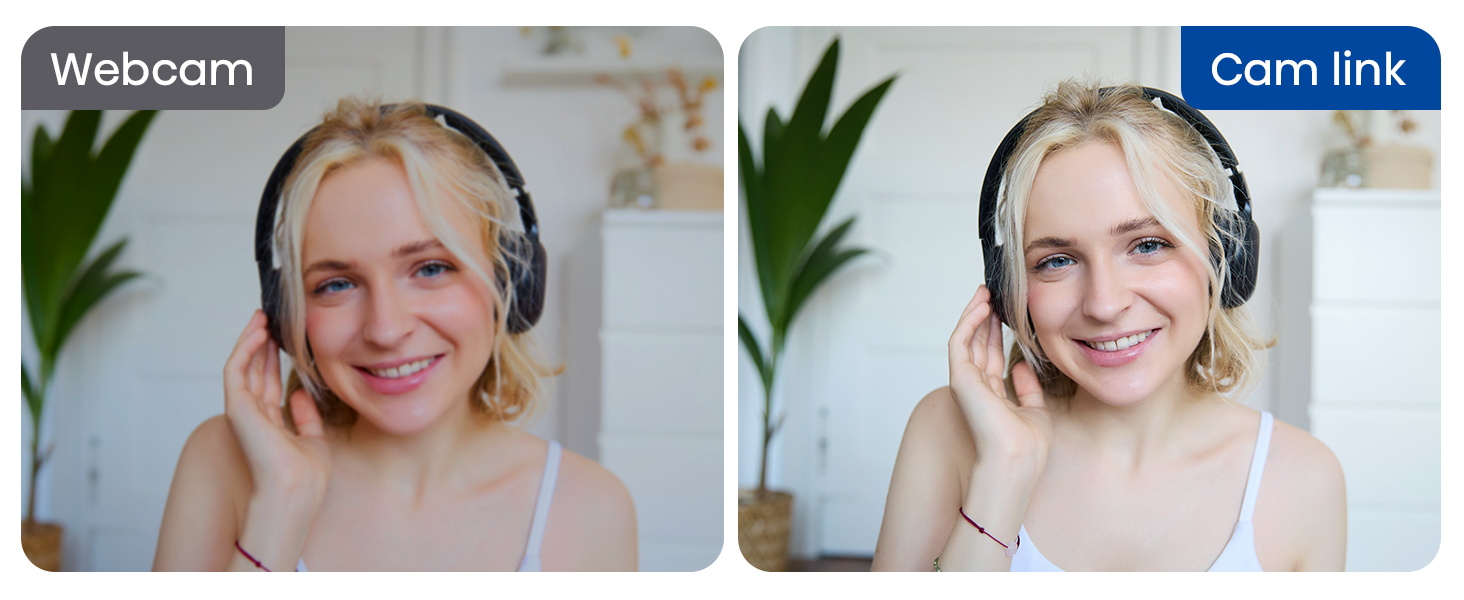
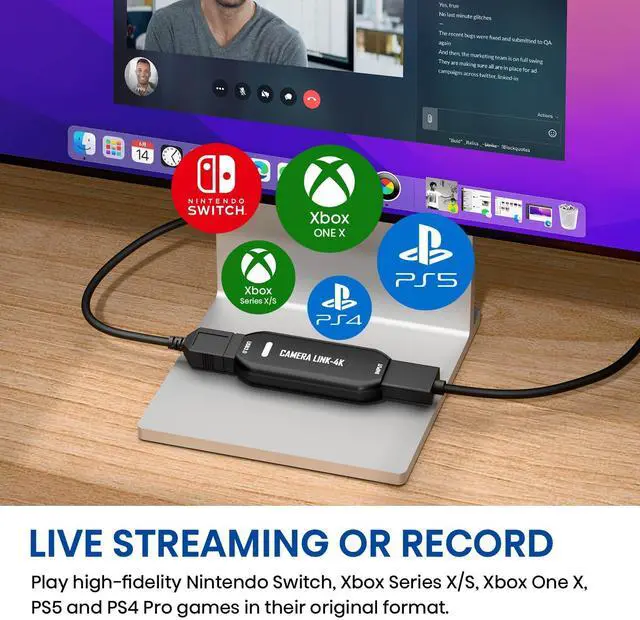
Stream and record in smooth 1080p60 or ultra-detailed 2K50. Perfect for creators who demand sharp, vibrant visuals.
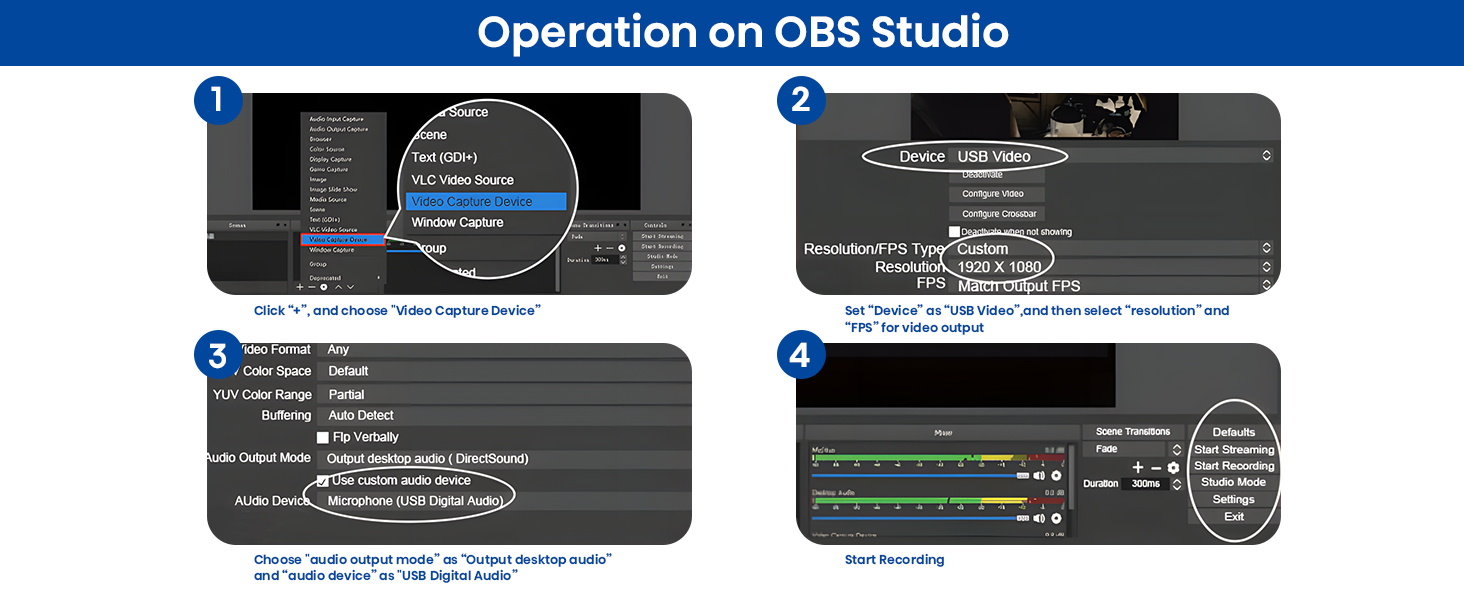
OBS Studio Setup
1. Open OBS, create a new source under Sources by clicking "+", select "Video Capture Device", name it, then set:
Device: USB3.0 Video. Audio Output Mode: Capture Mode Only; Use custom audio device: Digital Audio Interface (USB 3.0 Audio)
2. In OBS settings ? Audio:
Disable all Global Audio Settings except Mic/Auxiliary Audio; Set Mic/Auxiliary Audio to Digital Audio Interface (USB 3.0 Audio)
3. Under the Audio tab:
Right-click Mic/Auxiliary Audio ? Advanced Audio Properties ? Set Audio Monitoring to "Monitor Only (Mute Output)"
4. In PC settings ? System ? Sound:
Set Input to Laptop Microphone; All Sound Devices ? Input Devices ? Digital Audio Interface. Ensure it is NOT set to default. All Sound Devices ? Input Devices ? Laptop Microphone. Ensure it IS set to default.
5. In Discord:
If prompted to switch audio device, choose "don't switch" User Settings > Voice & Video > Input > Laptop Microphone. User Settings > Voice & Video > Output > Laptop Speakers.
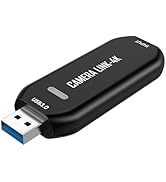
Does Cam Link 4K support 4K video input or output?
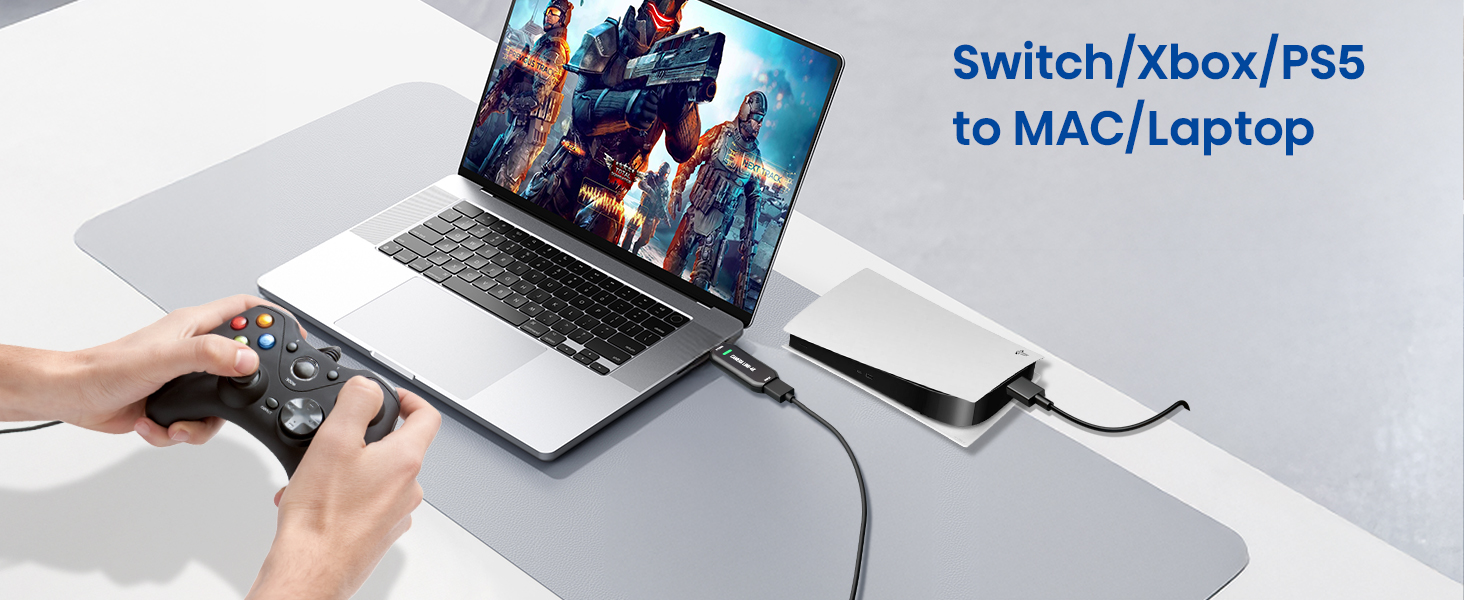
Cam Link 4K supports up to 4K HDMI input, but the maximum output resolution is 2K. It captures video at 1080p/60fps or ultra-detailed 2K50fps, delivering smooth, high-quality output that's perfect for live streaming, gaming, and video conferencing.
Do I need any other equipment?
To connect to Cam Link 4K, you may need a Micro HDMI to HDMI cable or a Mini HDMI to HDMI cable depending on your camera model. Depending on your computer's ports, you may also need a USB-C to USB-A adapter.
Note: HDMI to HDMI cable (included)
Can I use any USB port?
Cam Link 4K features a USB-A port and requires connection to a USB 3.0 or higher port to achieve optimal performance.
What should I do if the device fails to recognize/work when using Cam Link 4K?
Perhaps your drivers are out of date. After connecting via USB, check Device Manager to confirm that "USB 3.0 Video" appears under camera drivers. If you see a yellow exclamation mark, please use the Driver Update Tool to update.

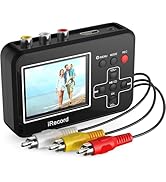
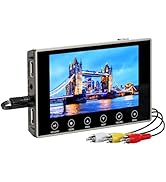
VHS to Digital Converter
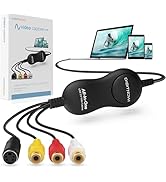
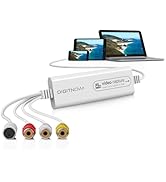
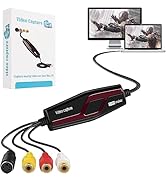
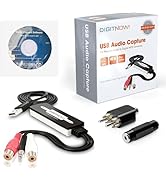
Video Capture Card
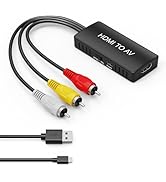
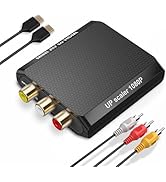
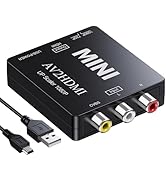
HDMI Converter
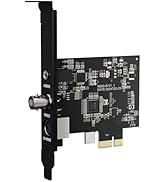
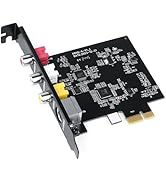
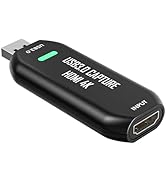
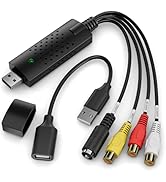
Capture Card
DigitPro: Connecting the Future
DigitPro offers innovative video converters and capture cards designed for seamless TV connectivity. Whether for home entertainment, gaming, or professional video production, our reliable products ensure smooth video conversion. With superior technology, rigorous quality control, and dedicated service, DigitPro is the trusted choice for users worldwide. Enhance your viewing experience with DigitPro now!
Turn Your Camera into a Pro Webcam
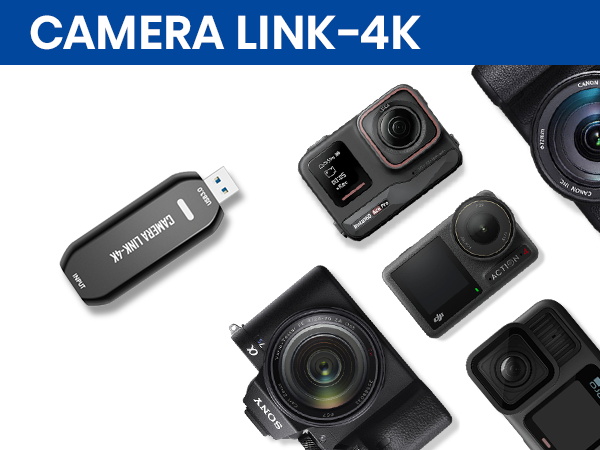
Upgrade your DSLR, camcorder, or action cam for streaming, calls, and online events — all with one simple HDMI connection.
Stunning Image Quality up to 2K50
Stream and record in smooth 1080p60 or ultra-detailed 2K50. Perfect for creators who demand sharp, vibrant visuals.
OBS Studio Setup
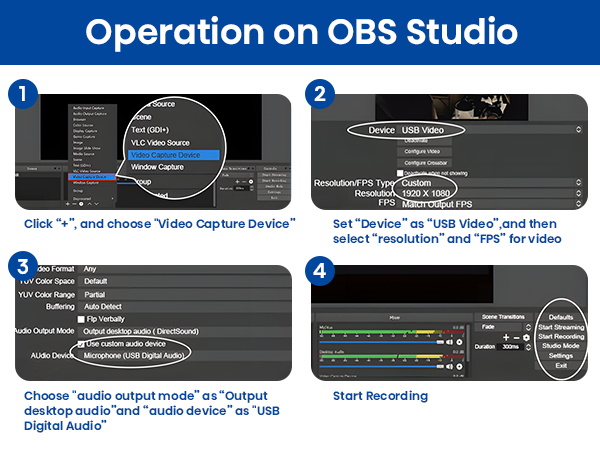
1. Open OBS, create a new source under Sources by clicking "+", select "Video Capture Device", name it, then set:
Device: USB3.0 Video. Audio Output Mode: Capture Mode Only; Use custom audio device: Digital Audio Interface (USB 3.0 Audio)
2. In OBS settings ? Audio:
Disable all Global Audio Settings except Mic/Auxiliary Audio; Set Mic/Auxiliary Audio to Digital Audio Interface (USB 3.0 Audio)
3. Under the Audio tab:
Right-click Mic/Auxiliary Audio ? Advanced Audio Properties ? Set Audio Monitoring to "Monitor Only (Mute Output)"
4. In PC settings ? System ? Sound:
Set Input to Laptop Microphone; All Sound Devices ? Input Devices ? Digital Audio Interface. Ensure it is NOT set to default. All Sound Devices ? Input Devices ? Laptop Microphone. Ensure it IS set to default.
5. In Discord:
If prompted to switch audio device, choose "don't switch" User Settings > Voice & Video > Input > Laptop Microphone. User Settings > Voice & Video > Output > Laptop Speakers.
Does Cam Link 4K support 4K video input or output?
Cam Link 4K supports up to 4K HDMI input, but the maximum output resolution is 2K. It captures video at 1080p/60fps or ultra-detailed 2K50fps, delivering smooth, high-quality output that's perfect for live streaming, gaming, and video conferencing.
Do I need any other equipment?
To connect to Cam Link 4K, you may need a Micro HDMI to HDMI cable or a Mini HDMI to HDMI cable depending on your camera model. Depending on your computer's ports, you may also need a USB-C to USB-A adapter.
Note: HDMI to HDMI cable (included)
Can I use any USB port?
Cam Link 4K features a USB-A port and requires connection to a USB 3.0 or higher port to achieve optimal performance.
What should I do if the device fails to recognize/work when using Cam Link 4K?
Perhaps your drivers are out of date. After connecting via USB, check Device Manager to confirm that "USB 3.0 Video" appears under camera drivers. If you see a yellow exclamation mark, please use the Driver Update Tool to update.
VHS to Digital Converter
Video Capture Card
HDMI Converter
Capture Card
DigitPro: Connecting the Future
DigitPro offers innovative video converters and capture cards designed for seamless TV connectivity. Whether for home entertainment, gaming, or professional video production, our reliable products ensure smooth video conversion. With superior technology, rigorous quality control, and dedicated service, DigitPro is the trusted choice for users worldwide. Enhance your viewing experience with DigitPro now!