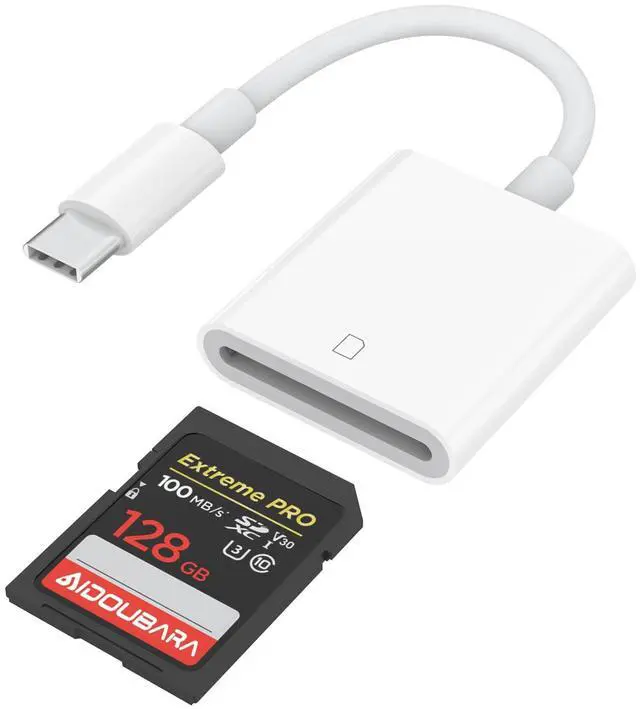
SD Card Reader USB C for iPhone 17/16/15 Series, AIDOUBARA Memory Card Reader, Digital Camera Adapter Compatible with iPad, Mac, MacBook Pro/Air, Kodak Pixpro and More Type C Devices
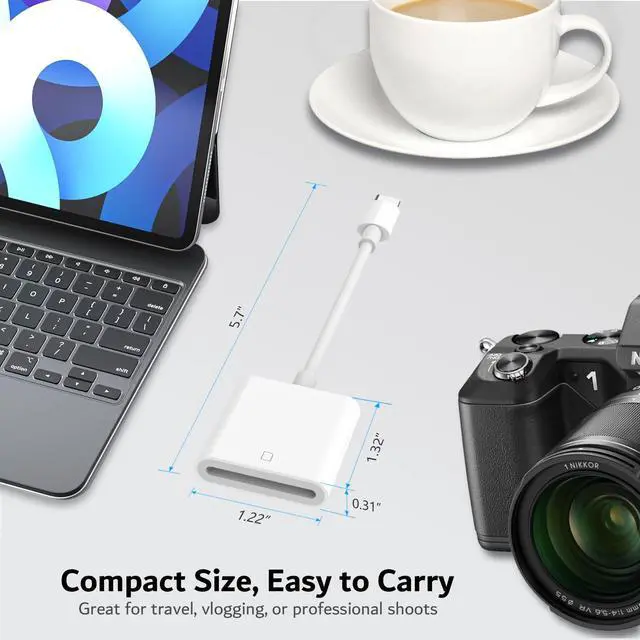
USB C SD Card Reader For iPhoneThe USB C SD card reader for iPhone 17/16/15 use the newest USB TYPE-C plug, easy to transfer photos and data to your TYPE-C laptop, smartphone and tablets. With over-current and short-circuit protection, safety is ensured for your important files.
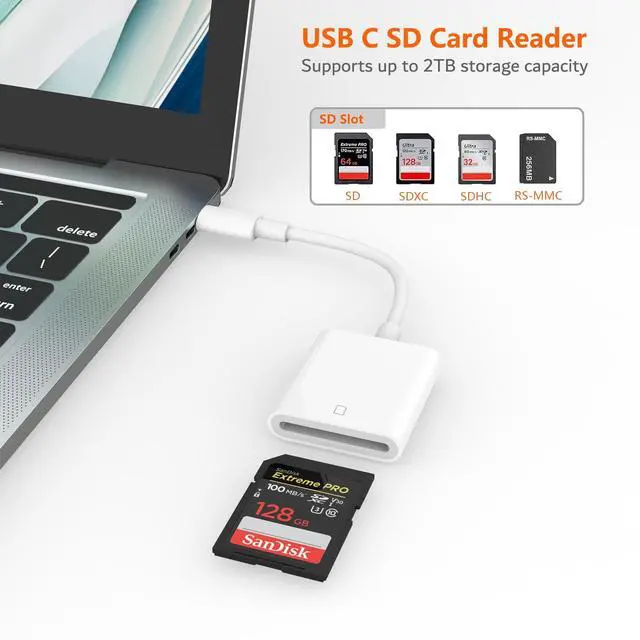
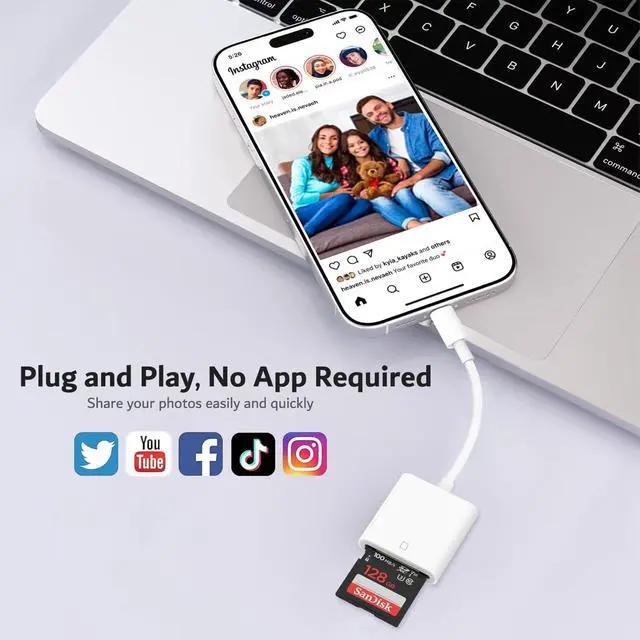
Adapter For Digital Camera to PhoneThe digital camera adapter is compatible with SD/SDHC/SDXC/RS-MMC/MicroSD/MicroSDXC/MicroSDHC memory cards. It is a essential photography accessories for Kodak PixPro FZ55/ FZ45 Canon Nikon Sony Digital Camera. No apps, No drivers, plug and play, you only need to use the iOS built-in "Files" app to import and export photos and videos.
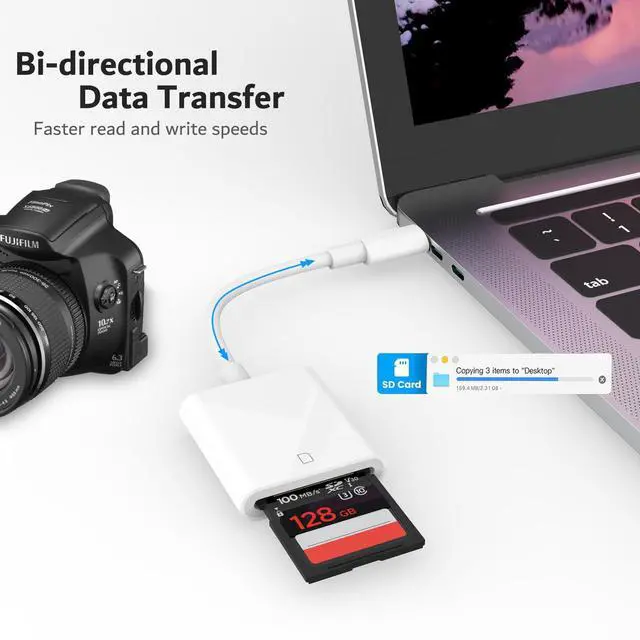
Experience blazing-fast two-way transfers This sd card adapter support transfer files/photos/music/video from SD/ Micro SD card to iPhone/iPad/Mac or your other usbc device in seconds, enables bi-directional transfer and helps free up storage space.It's ideal memory card reader, sync your happiness with family and friends in real-time.
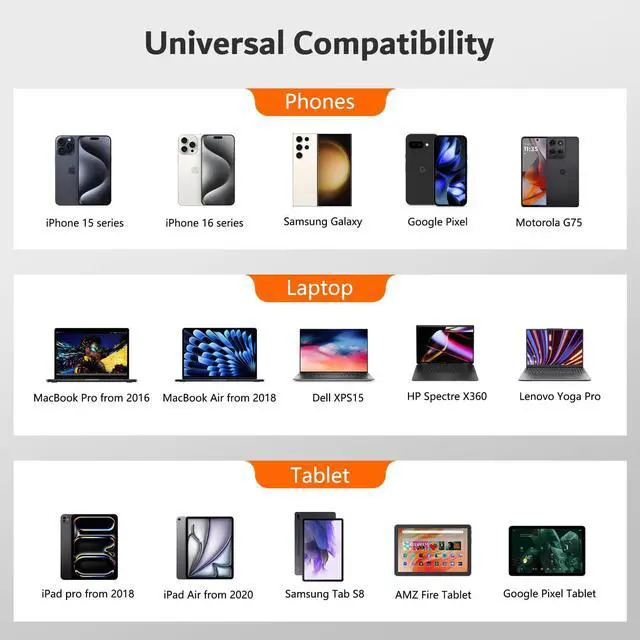
Universal CompatibilityWorks with iPhone 17/ 16/ 15 series, MacBook Pro/Air, iMac, Mac Mini after 2018, iPad Pro 2022/2021/2020, iPad Air 2022, Surface Book 2, Surface Go, Surface Pro 7, Dell XPS 13/15 Samsung Galaxy S20/S21/S22/S23/S25,Google Pixel,tablet, laptop, and more USB-C devices (make sure phone has OTG function).
+
+
Overview
Specs
Reviews
Any questions? Our AI mode will help you find out quickly.
Try me now
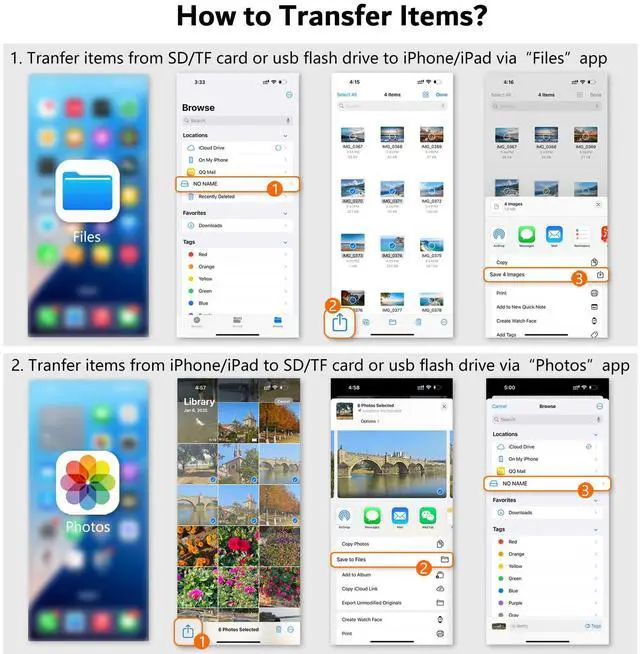
Transfer from SD Card to iPhone
Transfer from iPhone to SD Card
Q&A
Q1
Plug and play, but no response on iPhone or iPad?
-
IOS13 and later versions, after inserting the memory card reader on iPhone, the window will not pop up automatically, you need to open the Files APP manually to read the memory card.
Q2
Why is my device not compatible?
-
1. The USB C Card Reader that do not support the "Lightning" and "USB-A"interface.
-
2. Some SD cards with encryption or special formats (such as camera-specific formats)
-
3. Android phones and tablets that do not support OTG function (OTG support can be checked in settings or official specifications)
Q3
What to do if the card reader does not work?
-
1. Make sure the card is inserted in the correct orientation.
-
2. Devices that support the OTG function, enable OTG on your device and find the SD card in the settings.
-
3. If it still does not work, you can always ask us and we will help you solve it as soon as possible.
Q4
How to find files on SD Card on iPhone?
-
Insert the SD card into the card reader > plug the card reader into thhe iPhone(TYPE-C) > click on the "FILES" app > click on the "Browse" > click on Browse's SD card name> Now you can view your files from your SD card on "SD card name"
Q5
Error message when transferring files?
-
1. If you fail to transfer large files, please try to format the SD cards to the right format for your devices. Recommend using MS-DOS (FAT) for 32GB or smaller cards, and exFAT for 64GB cards.
-
2. macOS system devices can only read NTFS by default, but not write.
Transfer from SD Card to iPhone
Transfer from iPhone to SD Card
Q&A
Q1
Plug and play, but no response on iPhone or iPad?
-
IOS13 and later versions, after inserting the memory card reader on iPhone, the window will not pop up automatically, you need to open the Files APP manually to read the memory card.
Q2
Why is my device not compatible?
-
1. The USB C Card Reader that do not support the "Lightning" and "USB-A"interface.
-
2. Some SD cards with encryption or special formats (such as camera-specific formats)
-
3. Android phones and tablets that do not support OTG function (OTG support can be checked in settings or official specifications)
Q3
What to do if the card reader does not work?
-
1. Make sure the card is inserted in the correct orientation.
-
2. Devices that support the OTG function, enable OTG on your device and find the SD card in the settings.
-
3. If it still does not work, you can always ask us and we will help you solve it as soon as possible.
Q4
How to find files on SD Card on iPhone?
-
Insert the SD card into the card reader > plug the card reader into thhe iPhone(TYPE-C) > click on the "FILES" app > click on the "Browse" > click on Browse's SD card name> Now you can view your files from your SD card on "SD card name"
Q5
Error message when transferring files?
-
1. If you fail to transfer large files, please try to format the SD cards to the right format for your devices. Recommend using MS-DOS (FAT) for 32GB or smaller cards, and exFAT for 64GB cards.
-
2. macOS system devices can only read NTFS by default, but not write.
SD Card Reader USB C for iPhone 17/16/15 Series, AIDOUBARA Memory Card Reader, Digital Camera Adapter Compatible with iPad, Mac, MacBook Pro/Air, Kodak Pixpro and More Type C Devices
Learn more about the Detailed Specifications
Additional Information
First Listed on Newegg
June 24, 2026
There are no reviews yet.
Do you own this product?
Warranty & Returns
Warranty, Returns, And Additional Information
Warranty
Please contact the Seller directly for warranty information. Warranty information may also be found on the Manufacturer's website.