




- Netac was founded in 1999 based in the China and intent to become a leading manufacturer of memory and storage solutions.
- We strive to provide the highest quality product and work with worldwide partners, and provide complete solutions which include usb flash drives,solid state drives, memory cards and DDR4.
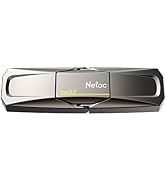
Backup files at any time
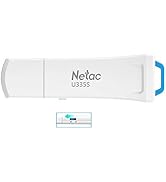
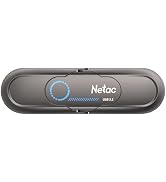
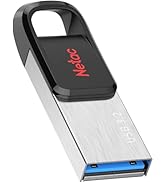
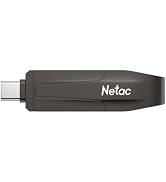
USB drive
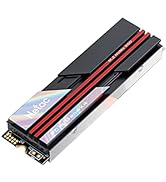
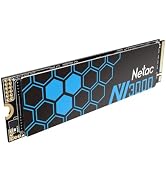
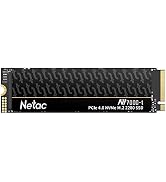
High-Performance Storage
aplus content video
Kindly Reminder
We recommend having back-up for reducing the chances of loss of data
- Some of the storage capacity is used for formatting and other purposes and is not available for data storage. 1GB equals 1 billion bytes. Not all capacities available at initial launch.
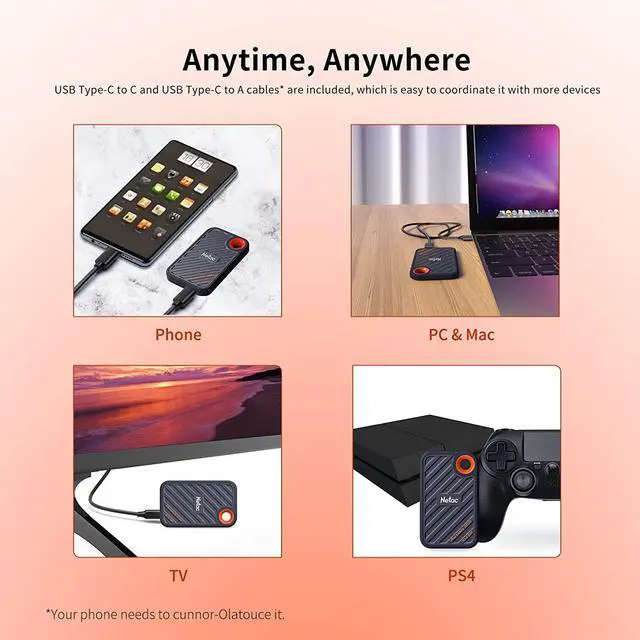
- Compatibility may vary and may be contingent on device formatting and host capabilities.
- Avoid Shock, Vibration.
- Clean the Product: We recommend cleaning the ZX20 Shield by gently wiping its surface with a soft cloth.
Personal files should be backed up often
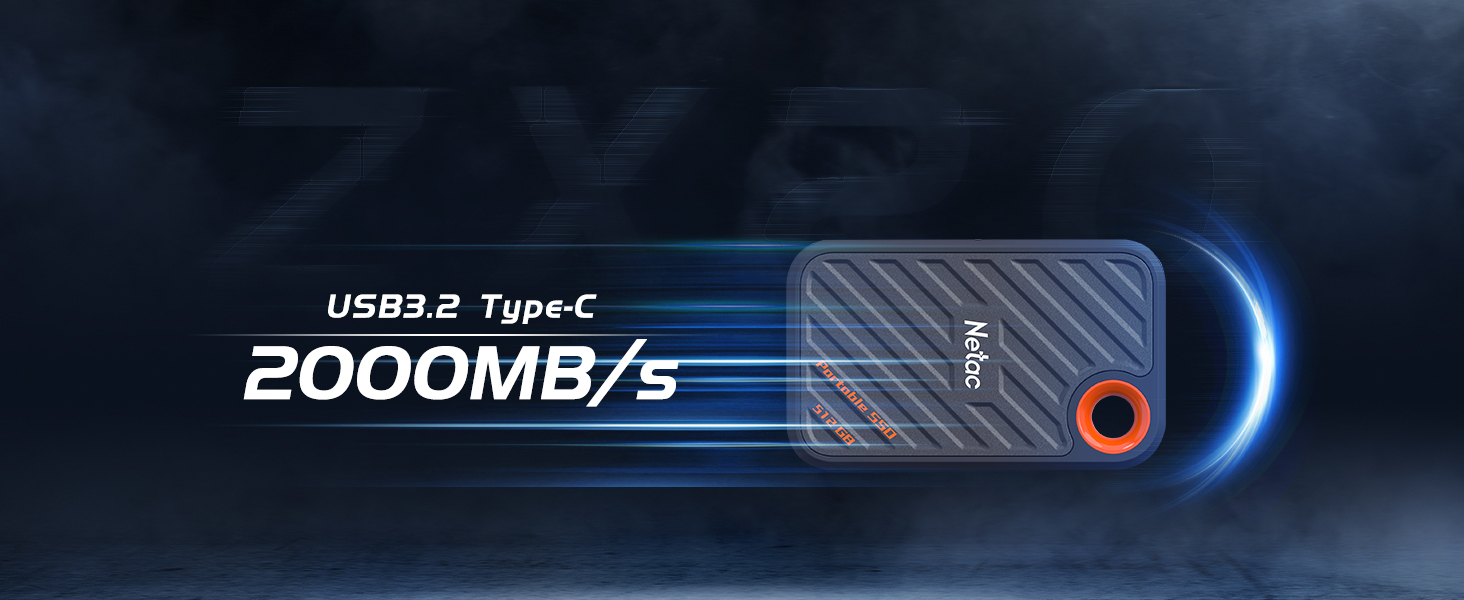
- Making regular backups of your computer a priority will save you money and time in the event of an emergency. The Nvme Portable SSD pefect for business travel, students, photographers, vlogger, content creators and gaming.
Keep your most important files with you at all times
- High speed, file transfer at speeds up to 2000MB/s and 1700MB/s
- Steady for transferring a library of materials. Use it to house images, portfolio, and music
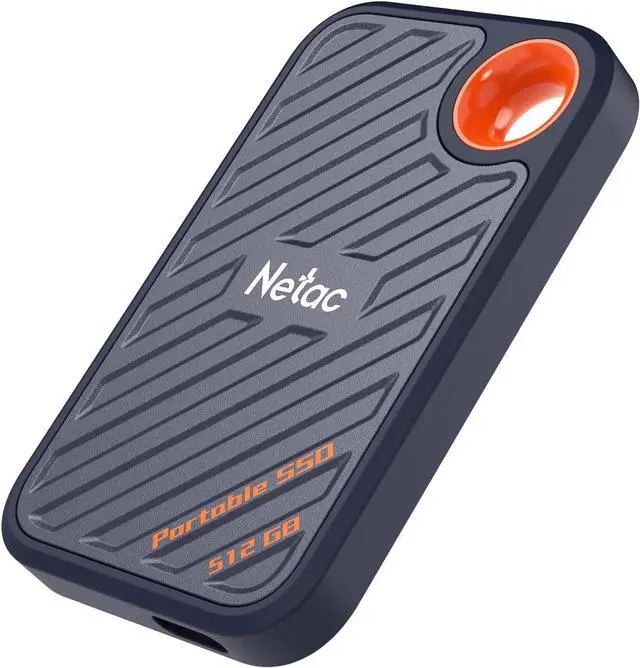
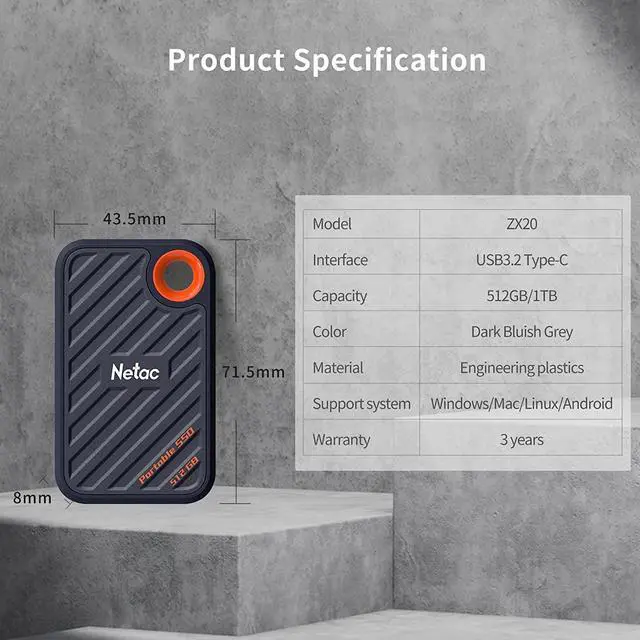
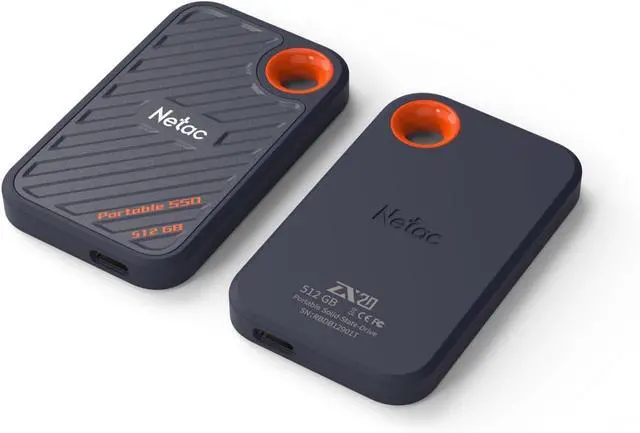
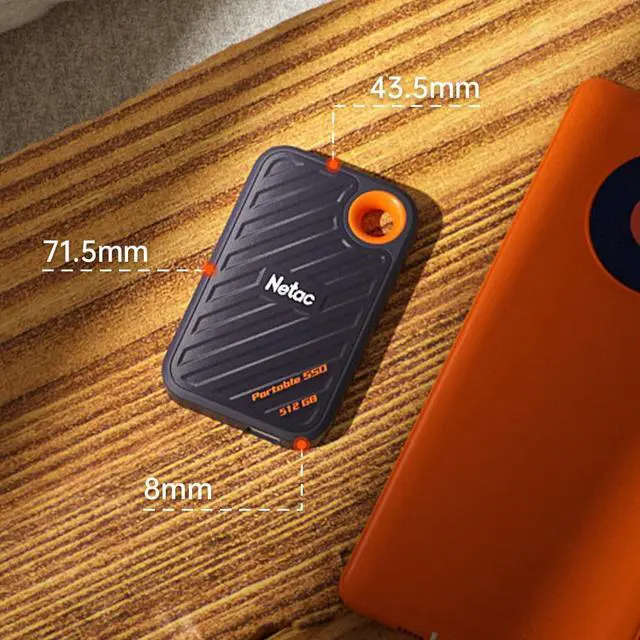
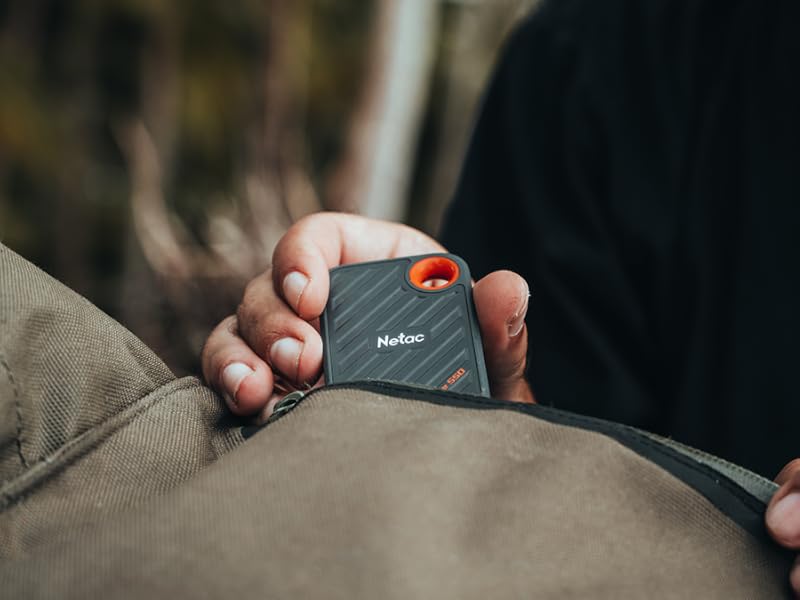
- A pocket-sized design. Portable-slim and sporty design
Netac external SSD help you hold everything and more. Games are getting bigger and bigger so this is a simple solution.
Business files should be backed up often
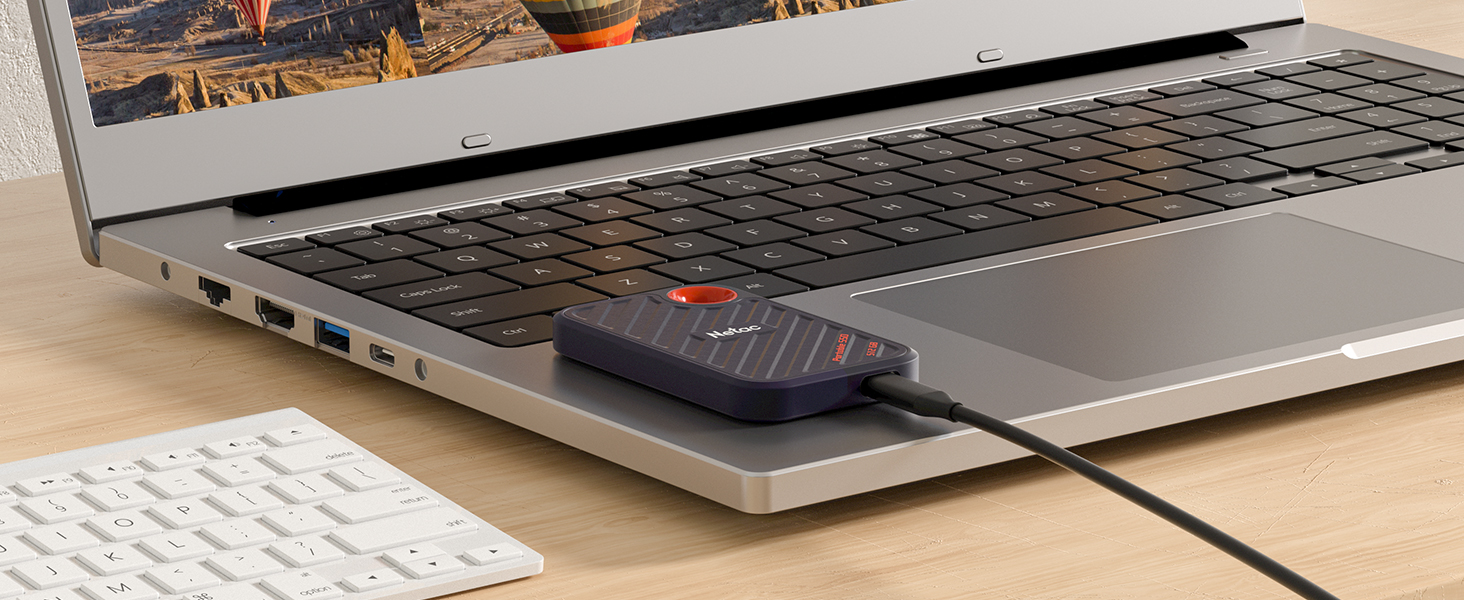
Regularly make copies of important business documents, and even data files and firmware upgrades.
Why is the transfer speed not matching the labeled speed?
1. Verify the PSSD interface information, which should be USB 3.2 GEN2 (10Gbps).
2. Writing large data for a long time generates a huge amount of heat, the surface temperature exceeds the set value, and it will be downclocked automatically.
What if I can't format the drive?
1. Replace the cable and try again, disconnect and connect the drive, and try again.
2. Connect the SSD to a different device port and another computer check if the drive is recognized.
3. Check the BIOS settings.
Store and Share Quickly
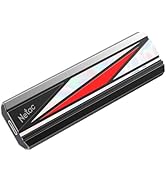
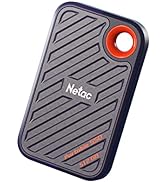
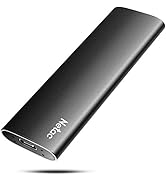
 Extreme Portable SSD ZX20 |  Photos Stick USB SSD US5 |  Primer Portable SSD Zslim |
|---|---|---|
Speeds up to Transfer speeds of up to 2000MB/s read and 1700MB/s write | Speeds up to Transfer speeds of up to 550MB/s read and 450MB/s write | Speeds up to Transfer speeds of up to 500MB/s read and 450MB/s write |
Security Protection Photos stick's tiny size, plug-and-stay, high-speed USB 3.2 flash drive. | Security Protection Photos stick's tiny size, plug-and-stay, high-speed USB 3.2 flash drive. | Work Safer Back up your content, perfer for students and family. |
aplus content video
Kindly Reminder
We recommend having back-up for reducing the chances of loss of data
- Some of the storage capacity is used for formatting and other purposes and is not available for data storage. 1GB equals 1 billion bytes. Not all capacities available at initial launch.
- Compatibility may vary and may be contingent on device formatting and host capabilities.
- Avoid Shock, Vibration.
- Clean the Product: We recommend cleaning the ZX20 Shield by gently wiping its surface with a soft cloth.
Personal files should be backed up often
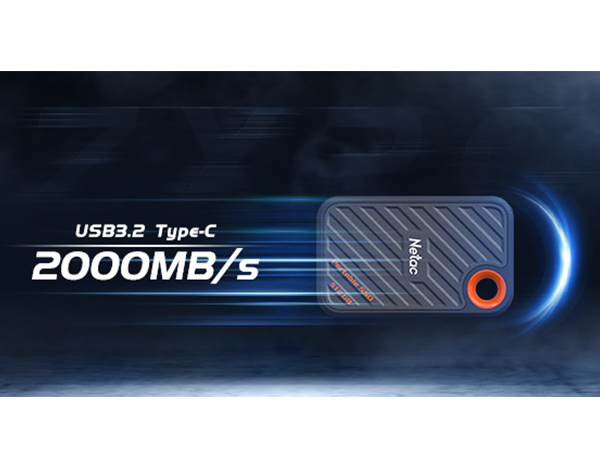
- Making regular backups of your computer a priority will save you money and time in the event of an emergency. The Nvme Portable SSD pefect for business travel, students, photographers, vlogger, content creators and gaming.
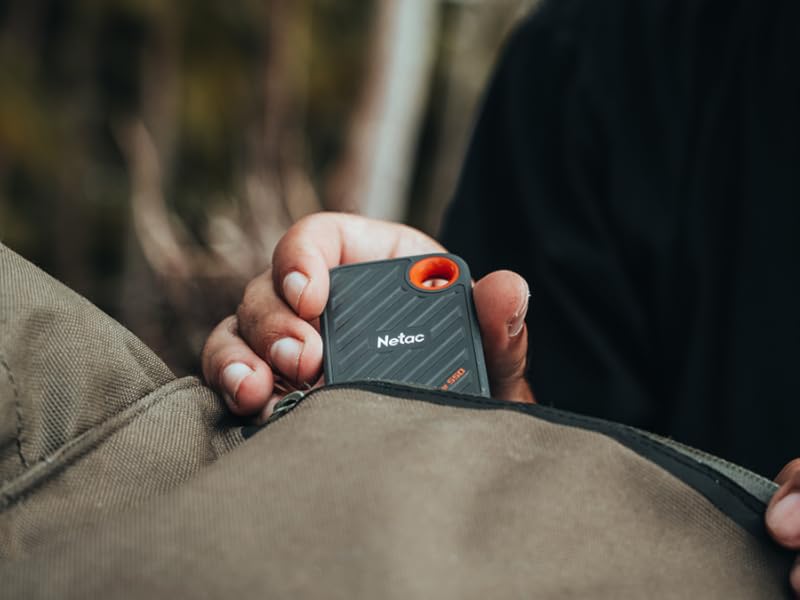
Keep your most important files with you at all times
- High speed, file transfer at speeds up to 2000MB/s and 1700MB/s
- Steady for transferring a library of materials. Use it to house images, portfolio, and music
- A pocket-sized design. Portable-slim and sporty design
Netac external SSD help you hold everything and more. Games are getting bigger and bigger so this is a simple solution.
Business files should be backed up often
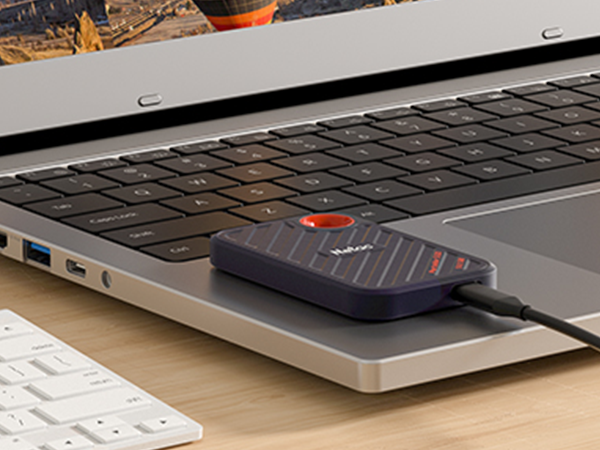
Regularly make copies of important business documents, and even data files and firmware upgrades.
Why is the transfer speed not matching the labeled speed?
1. Verify the PSSD interface information, which should be USB 3.2 GEN2 (10Gbps).
2. Writing large data for a long time generates a huge amount of heat, the surface temperature exceeds the set value, and it will be downclocked automatically.
What if I can't format the drive?
1. Replace the cable and try again, disconnect and connect the drive, and try again.
2. Connect the SSD to a different device port and another computer check if the drive is recognized.
3. Check the BIOS settings.
Store and Share Quickly
- Netac was founded in 1999 based in the China and intent to become a leading manufacturer of memory and storage solutions.
- We strive to provide the highest quality product and work with worldwide partners, and provide complete solutions which include usb flash drives,solid state drives, memory cards and DDR4.
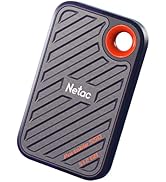
Backup files at any time
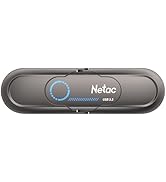
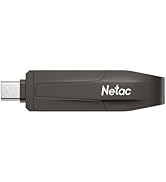
USB drive
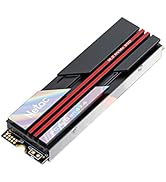
High-Performance Storage
