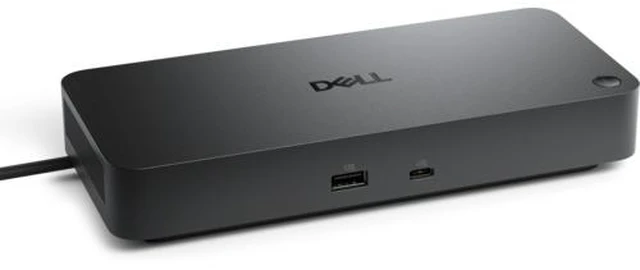
The Dell Pro Thunderbolt 5 Dock WD25TB5 is a high-connectivity laptop dock for professionals who want to connect up to four displays, USB peripherals, and 2.5GbE Ethernet through a Thunderbolt 5 setup; supported display configurations depend on the computer.
Recommended For
- Desk-based professionals with a compatible Thunderbolt 5 laptop who want one cable to connect multiple high-resolution displays, wired networking, and USB peripherals.
- Users building a multi-monitor workstation: Dell lists support for up to four external displays, with achievable resolutions depending on the laptop and display configuration.
- Owners of compatible, higher-power Dell laptops who want the dock to handle laptop charging as well as desk connectivity; Dell specifies up to 300W power delivery for Dell systems.
- Professionals with a Thunderbolt 5 computer and bandwidth-heavy desk setups who want to connect newer displays and peripherals through a Thunderbolt 5 dock.
Real-World Use Scenarios
- At a home or office desk, connect a compatible laptop to the dock to use external monitors, wired Ethernet, and USB peripherals from one cable; unplug the laptop when leaving instead of disconnecting each accessory separately.
- For a work setup with several monitors, use the dock to connect displays through one laptop connection and spread documents, calls, and other apps across the screens; the actual display count and resolution depend on the laptop’s graphics and display support.
- At a permanent workstation, leave a keyboard, mouse, headset, and other USB accessories connected to the dock, so reconnecting a compatible laptop restores access to the desk setup without moving those accessories between devices.
- For a laptop that supports the dock’s power delivery, use the dock connection for charging as well as desk connections; this can reduce the need to plug in a separate laptop charger, though charging depends on the computer’s compatibility and power needs.
- When moving between a work laptop and another computer at the same desk, use the dock as a shared connection point by reconnecting its host cable; it is not a substitute for checking that both computers support the displays and dock features you plan to use.




 here!