

Out of stock
This item is currently out of stock and it may or may not be restocked.
Most customers receive within 5-7 days.
Shop it at NeweggBusiness.

Meet Your Seller

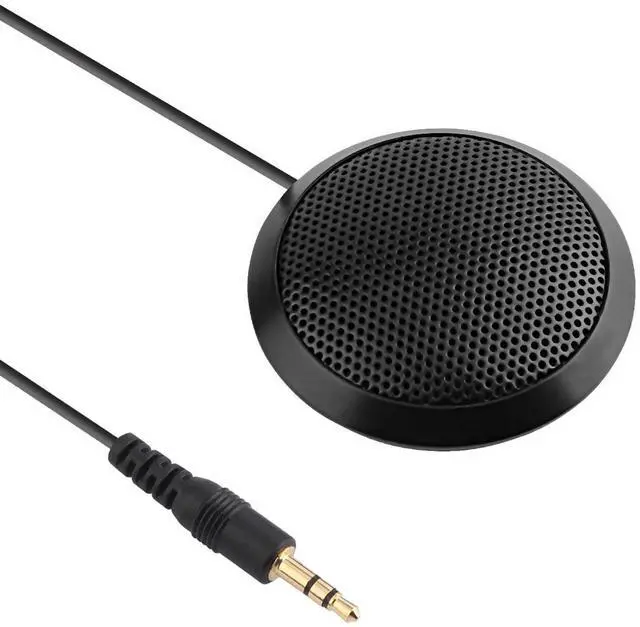
Conference Microphone 3.5mm Desktop Computer Mic for Computer Desktop and Laptop 360° Omnidirectional Condenser Mic for Online Meeting/Class, Skype, Recording, Chatting, Gaming

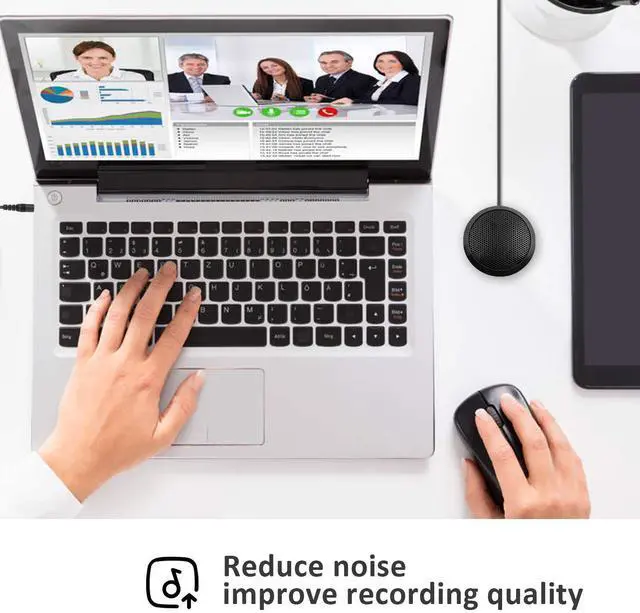
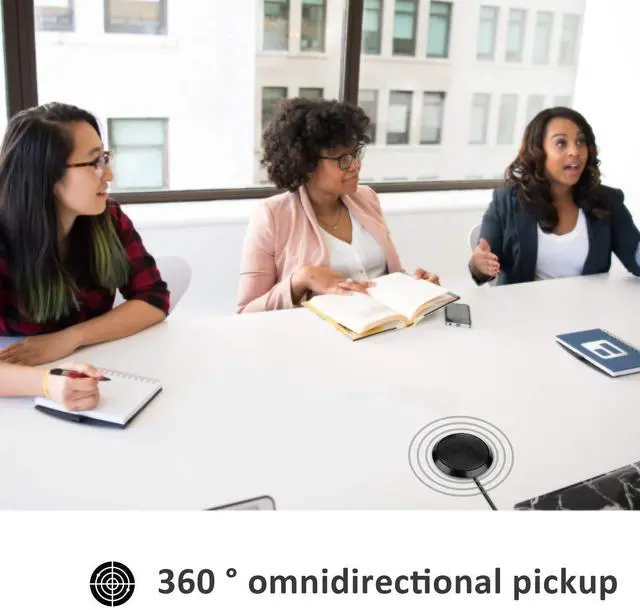
  • Stereo & Clear SoundOffers crystal clear voice capturing on meeting calls with 360°sensitivity pickup range(3m/10ft), 10 times better than a traditional computer microphone.
  • Works PerfectlyThe 3.5mm microphone is very small but powerful. Use it for Skype and online conferences, usually place it in front of you when you talk, but even if I leave it far, they can still hear the voice very well.
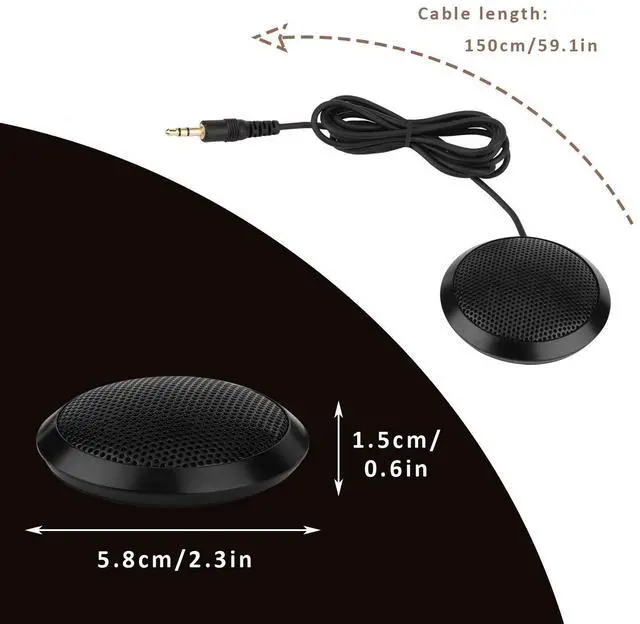
  • Compact & PortableThe portable design makes the microphone take up less space. In a small size as your hand's palm and space-saving, and you can put it in your pocket or briefcase and take it wherever you want. (It's just a microphone, not a speaker).
  • Plug & Play DirectlyThis conference microphone for PC is so easy to use. It's designed to plug & play. You don't have to install any software or complex settings. Just connect to your Desktop or Laptop computers and start your video conference or gaming.
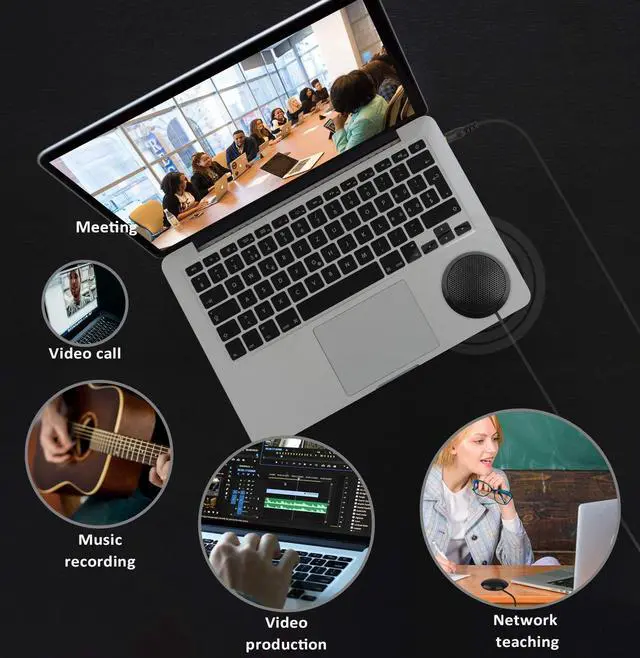
  • Widely UseThis conference microphone has a multi-purpose use, such as online meeting/teaching, business/family video calls, ideal for small group meetings, and virtual learning.
Overview
Specs
Reviews
avatar

Any questions? Our AI beta will help you find out quickly.

PINGPAI
DK051

Dreokee 3.5mm Conference Microphone

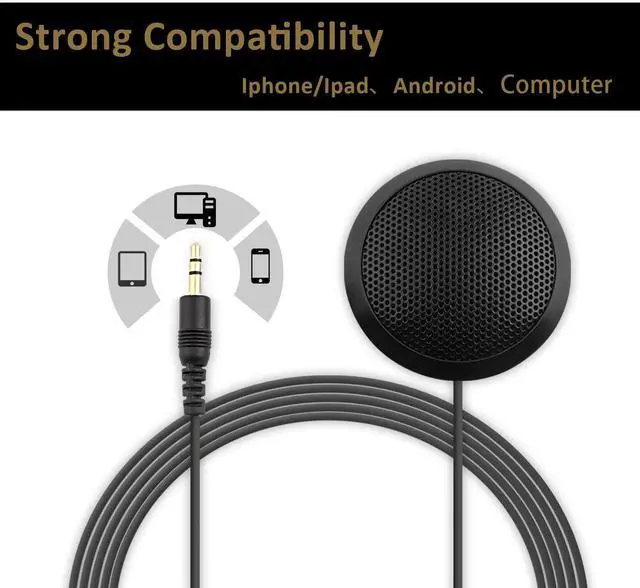
  • 3.5mm connector
  • Stereo and clear sound
  • Portable

Environmental & Distance Tips:

For best performance, use the microphone in a relatively quiet environment (to reduce background noise interference) and maintain a distance of 5–15cm between the user’s mouth and the microphone.

Specification

  • Frequency Response: 40Hz-16kHz
  • Connect Cable: 1.5m
  • 3.5mm plug
  • 3m effective distance
360 pick up

Applications

Stereo and clear sound

  • Stereo and clear sound
  • Will not take to much of your space
  • Easy to use, plug to connect
  • Portable
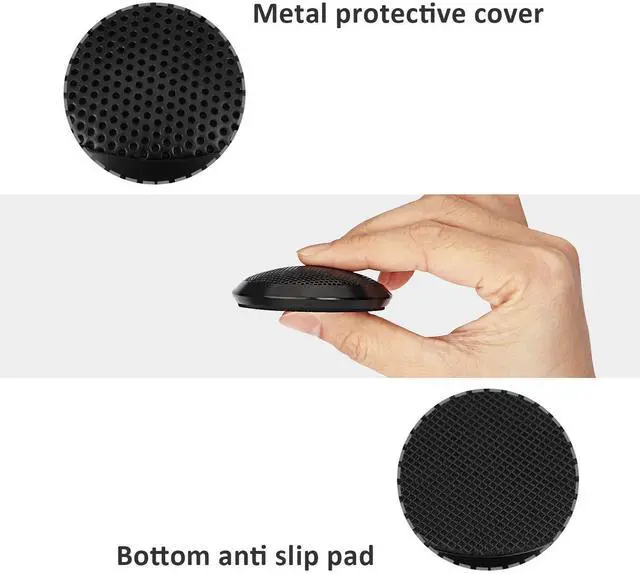
  • Non-slip pad

DK051

Online meeting

dk051

Office conference

DK051

Distance Learning

How to connect

How to Connect?

  1. Insert microphone 3.5mm plug into the 3.5mm audio interface on your pc (with the color of pink normally), plug to connect;
  2. If your computer can not recognize it, please right-click the “Volume” icon and select “Recording Devices”; enter the “Recording” tab and select “Microphone” which is the system default recording device, and click “Properties”;
  3. Choose the “Levels” tab, drag the volume slider to 80, then drag the boost slider to 0 or +10.0 dB

https://m.media-amazon.com/images/S/aplus-media-library-service-media/b85a7156-6695-46dc-91cf-acb60a09a636.__CR0,0,150,300_PT0_SX150_V1___.jpg
Conference Microphone
https://m.media-amazon.com/images/S/aplus-media-library-service-media/64adaef5-6ffb-4271-9a1e-85238deedb69.__CR0,0,150,300_PT0_SX150_V1___.jpg
Conference Microphone
Customer Reviews
Price no data
TYPE 3.5mm connector USB
LENGTH 150mm 195mm
PINGPAI
DK051

Dreokee 3.5mm Conference Microphone

  • 3.5mm connector
  • Stereo and clear sound
  • Portable

Environmental & Distance Tips:

For best performance, use the microphone in a relatively quiet environment (to reduce background noise interference) and maintain a distance of 5–15cm between the user’s mouth and the microphone.

Specification

  • Frequency Response: 40Hz-16kHz
  • Connect Cable: 1.5m
  • 3.5mm plug
  • 3m effective distance

Stereo and clear sound

Applications
360 pick up

  • Stereo and clear sound
  • Will not take to much of your space
  • Easy to use, plug to connect
  • Portable
  • Non-slip pad

DK051

Online meeting

dk051

Office conference

DK051

Distance Learning

How to connect

How to Connect?

  1. Insert microphone 3.5mm plug into the 3.5mm audio interface on your pc (with the color of pink normally), plug to connect;
  2. If your computer can not recognize it, please right-click the “Volume” icon and select “Recording Devices”; enter the “Recording” tab and select “Microphone” which is the system default recording device, and click “Properties”;
  3. Choose the “Levels” tab, drag the volume slider to 80, then drag the boost slider to 0 or +10.0 dB

https://m.media-amazon.com/images/S/aplus-media-library-service-media/b85a7156-6695-46dc-91cf-acb60a09a636.__CR0,0,150,300_PT0_SX150_V1___.jpg
Conference Microphone
https://m.media-amazon.com/images/S/aplus-media-library-service-media/64adaef5-6ffb-4271-9a1e-85238deedb69.__CR0,0,150,300_PT0_SX150_V1___.jpg
Conference Microphone
Customer Reviews
Price no data
TYPE 3.5mm connector USB
LENGTH 150mm 195mm
Conference Microphone 3.5 mm Desktop Computer Mic for Computer Desktop and Laptop 360° Omnidirectional Condenser Mic for Online Meeting/Class, Skype, Recording, Chatting, Gaming

Warranty & Returns

Warranty, Returns, And Additional Information

Warranty

  • Please contact the Seller directly for warranty information. Warranty information may also be found on the Manufacturer's website.
  • CONTACT

Return Policies

Manufacturer Contact Info

LOADING...