


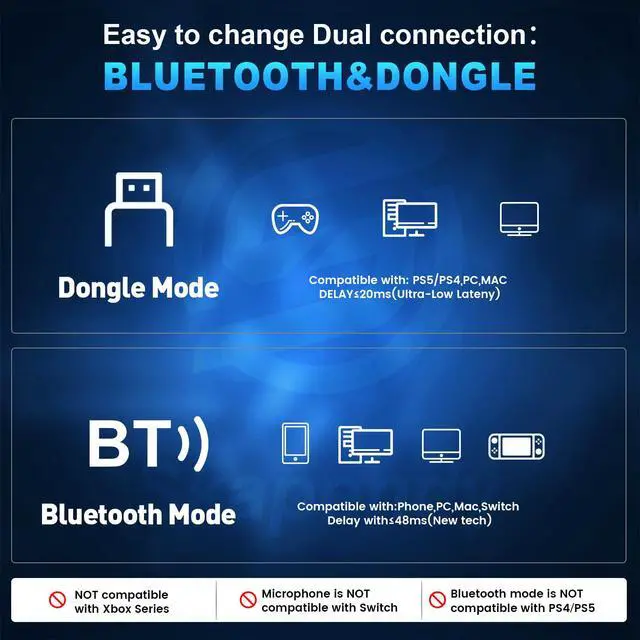


Is the Microphone not compatible with the Switch?
That's correct. The Switch does not support Bluetooth audio devices or USB microphones. Therefore, the microphone cannot be used – this is a limitation of the console, not a fault of the headset.
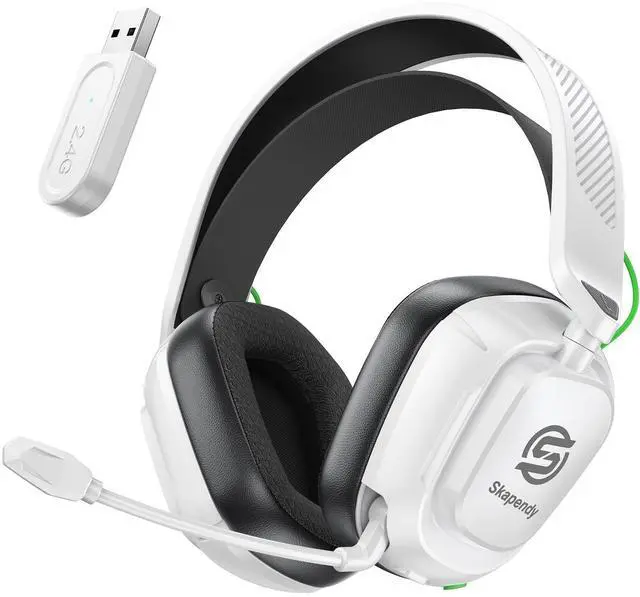
How do I connect the headset to my PS4/PS5?
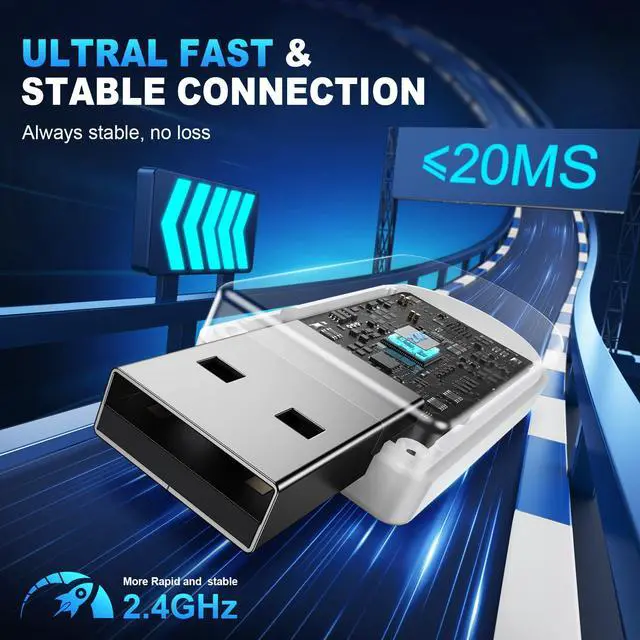
1. Plug the USB dongle into your PS4/PS5.
2. Press and hold the microphone button for 2 seconds to switch to 2.4 GHz mode.
3. Then, go to Settings > Devices > Audio Devices and select "VK84" as both the input and output device.
Is this headset compatible with Xbox devices?
No. The VK84 headset is not compatible with Xbox 360, Xbox One, Xbox One S/X, or Xbox Series X/S.
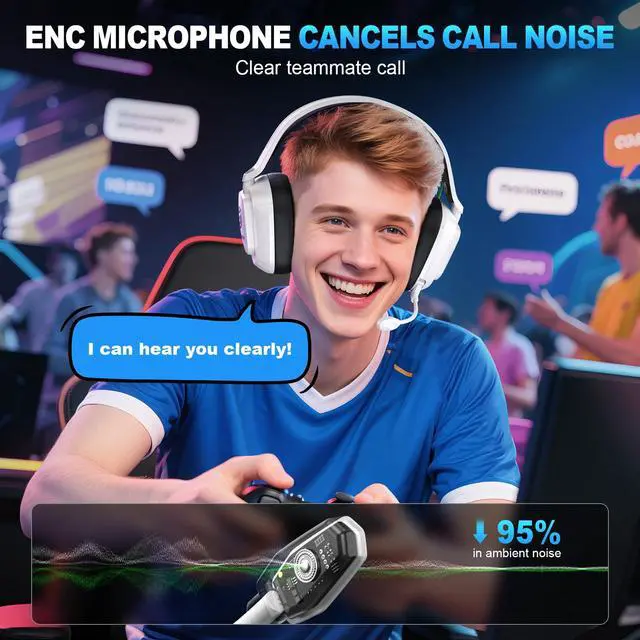
My microphone isn't picking up any sound. What should I do?
1. Turn on the microphone, clean it, and check for any obstructions.
2. Select it as the input device in your audio settings.
3. Test it on another device.
4. Keep it away from wind and electronic devices to avoid interference.






Is the Microphone not compatible with the Switch?
That's correct. The Switch does not support Bluetooth audio devices or USB microphones. Therefore, the microphone cannot be used – this is a limitation of the console, not a fault of the headset.
How do I connect the headset to my PS4/PS5?
1. Plug the USB dongle into your PS4/PS5.
2. Press and hold the microphone button for 2 seconds to switch to 2.4 GHz mode.
3. Then, go to Settings > Devices > Audio Devices and select "VK84" as both the input and output device.
Is this headset compatible with Xbox devices?
No. The VK84 headset is not compatible with Xbox 360, Xbox One, Xbox One S/X, or Xbox Series X/S.
My microphone isn't picking up any sound. What should I do?
1. Turn on the microphone, clean it, and check for any obstructions.
2. Select it as the input device in your audio settings.
3. Test it on another device.
4. Keep it away from wind and electronic devices to avoid interference.