



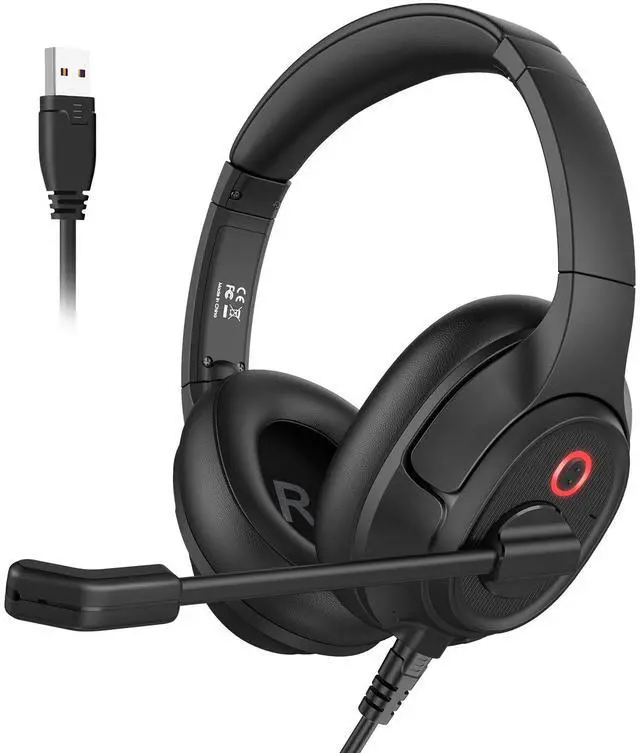




We at EKSA Telecom, the office headset brand of EKSA, hold true to our mission of building a flexible and efficient communication system to filter surrounding noises while retaining clear voices. Our noise-cancelling, hands-free headsets use ENC technology ideal for various workplace environments like call centers, warehouses, and more. Be heard anywhere.


EKSA Wired Headset





Headset with Microphone for PC
Merchant VideoEKSA H2 USB Headset with Microphone for PC


40mm Audio Driver
The excellent 40mm speaker and noise-canceling microphone ensure your voice sounds clear and natural.

Mute Switch
Effortlessly mute distractions with our headset's convenient mute button.

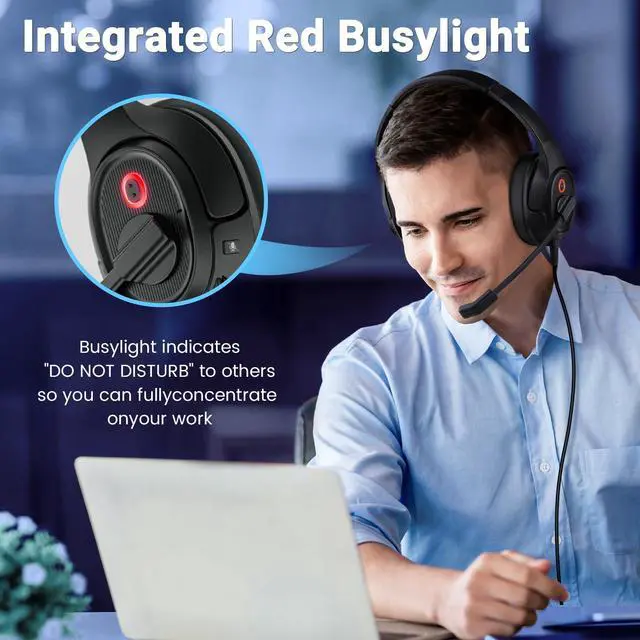
BusyLight
Stay on top of your work with the built-in busy light on H2 usb headset, ensuring uninterrupted focus during important calls.

Soft Earmuff
The pads are breathable, soft and comfortable to wear, and the overall ergonomic design makes them comfortable to wear all day long.


How to identify the cause when a headset stops working?
Cross-test: Try headset on another device. If it works, original device has issues (port/driver/settings). If problem persists, headset is faulty.
Check cable: Gently bend sections while listening for sound changes to locate internal breaks.
If the microphone is not working?
Check System Settings
Windows: Input device/mic in sound settings. Mac: Sound > Input. Phone: Confirm during calls.
App Permissions
Check app audio settings & system permissions for mic access.
If there is no sound in the headphones1
Check Volume/Mute
Ensure system/player volume isn't low/muted.
Confirm Playback Device
Windows: Right-click volume icon ? Sound settings ? Select headset as output.
Mac: Click menu bar volume icon ? Choose headset.
If there is no sound in the headphones2
Check Port/Cable
Test headset in other devices to confirm it works. Clean plug/port with cotton swab.
Driver Issues (PC Only)
Check Device Manager for sound card errors (yellow mark). Update/reinstall drivers.
EKSA Computer Headsets
 Wired USB Headset H2 |  Bluetooth Headset H6 |  Bluetooth Headset H5 |  Wired 3.5mm Headset H12 | |
|---|---|---|---|---|
Customer Reviews | — | — | — | — |
Price | — | — | — | — |
Connection | USB | Bluetooth | Bluetooth | 3.5MM |
USB Dongle | ? | ? | ? | ? |
ENC Microphone | ? | ? | ? | ? |
Cable Length | 1.8 meters | Wireless | Wireless | 1.8 meters |
Mute Switch | ? | ? | ? | ? |
Volume Control | ? | ? | ? | ? |
Microphone Direction | Unidirectional | Omnidirectional | Omnidirectional | Omnidirectional |
Ear Shape | over ear | over ear | over ear | on ear |
Headset with Microphone for PC
Merchant VideoEKSA H2 USB Headset with Microphone for PC

40mm Audio Driver
The excellent 40mm speaker and noise-canceling microphone ensure your voice sounds clear and natural.
Mute Switch
Effortlessly mute distractions with our headset's convenient mute button.
BusyLight
Stay on top of your work with the built-in busy light on H2 usb headset, ensuring uninterrupted focus during important calls.
Soft Earmuff
The pads are breathable, soft and comfortable to wear, and the overall ergonomic design makes them comfortable to wear all day long.


How to identify the cause when a headset stops working?
Cross-test: Try headset on another device. If it works, original device has issues (port/driver/settings). If problem persists, headset is faulty.
Check cable: Gently bend sections while listening for sound changes to locate internal breaks.
If the microphone is not working?
Check System Settings
Windows: Input device/mic in sound settings. Mac: Sound > Input. Phone: Confirm during calls.
App Permissions
Check app audio settings & system permissions for mic access.
If there is no sound in the headphones1
Check Volume/Mute
Ensure system/player volume isn't low/muted.
Confirm Playback Device
Windows: Right-click volume icon ? Sound settings ? Select headset as output.
Mac: Click menu bar volume icon ? Choose headset.
If there is no sound in the headphones2
Check Port/Cable
Test headset in other devices to confirm it works. Clean plug/port with cotton swab.
Driver Issues (PC Only)
Check Device Manager for sound card errors (yellow mark). Update/reinstall drivers.
EKSA Computer Headsets
Wired USB Headset H2 | Bluetooth Headset H6 | Bluetooth Headset H5 | Wired 3.5mm Headset H12 |
|---|---|---|---|
| Customer Reviews | |||
| — | — | — | — |
| Price | |||
| — | — | — | — |
| Connection | |||
| USB | Bluetooth | Bluetooth | 3.5MM |
| USB Dongle | |||
| ? | ? | ? | ? |
| ENC Microphone | |||
| ? | ? | ? | ? |
| Cable Length | |||
| 1.8 meters | Wireless | Wireless | 1.8 meters |
| Mute Switch | |||
| ? | ? | ? | ? |
| Volume Control | |||
| ? | ? | ? | ? |
| Microphone Direction | |||
| Unidirectional | Omnidirectional | Omnidirectional | Omnidirectional |
| Ear Shape | |||
| over ear | over ear | over ear | on ear |
We at EKSA Telecom, the office headset brand of EKSA, hold true to our mission of building a flexible and efficient communication system to filter surrounding noises while retaining clear voices. Our noise-cancelling, hands-free headsets use ENC technology ideal for various workplace environments like call centers, warehouses, and more. Be heard anywhere.


EKSA Wired Headset


