




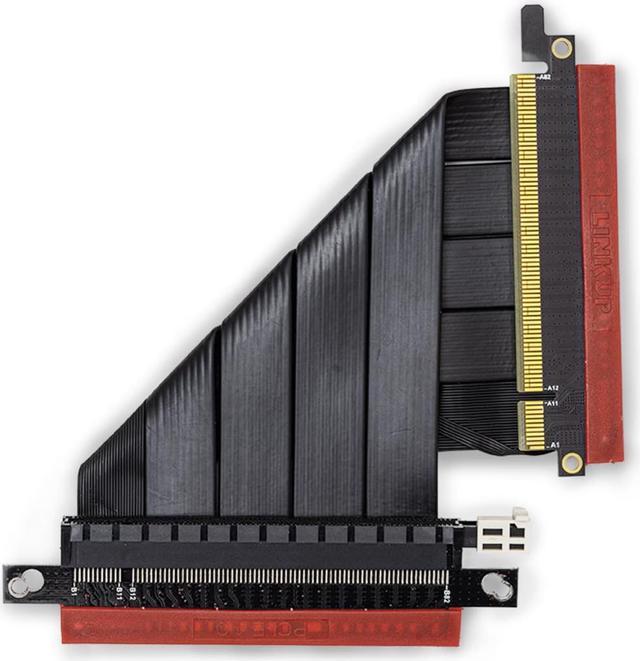
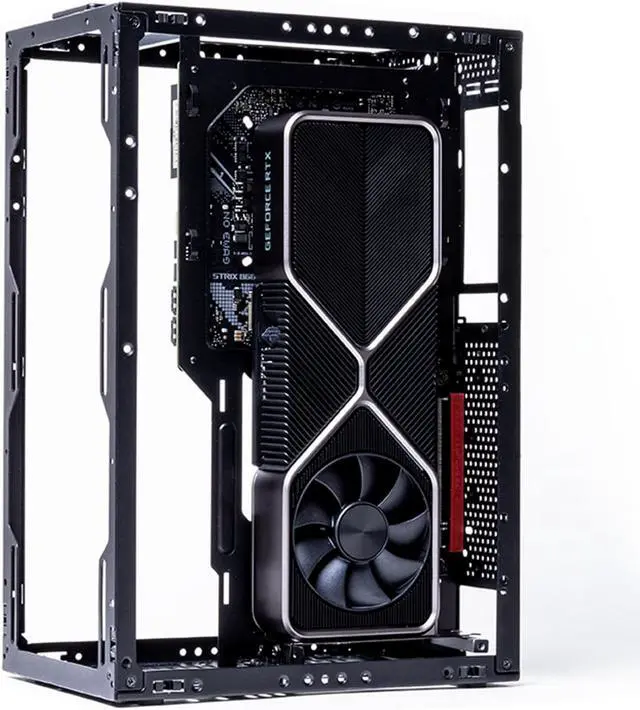
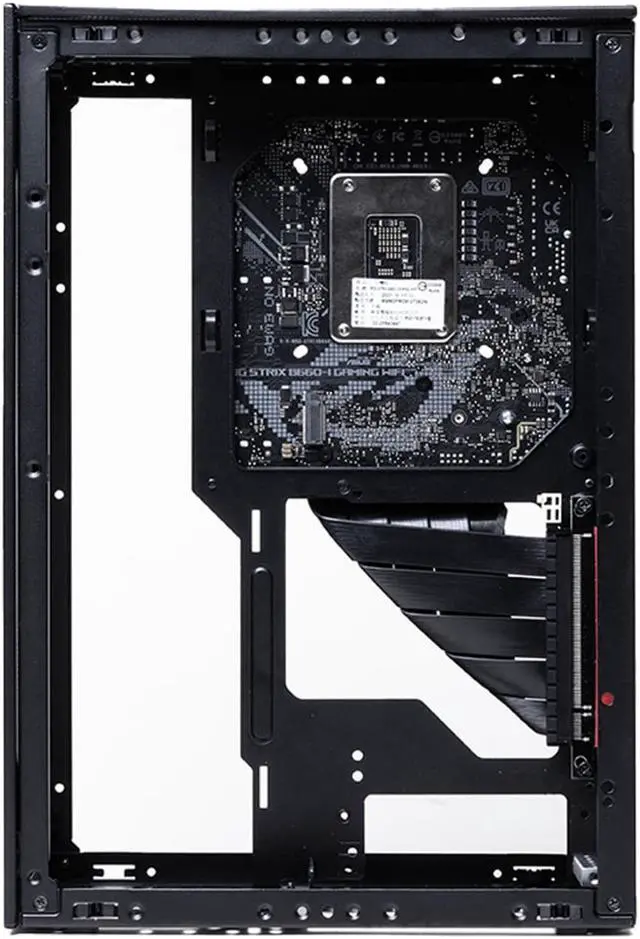


PCI-E 4.0 Riser Cable is custom fitted for Meshroom S and Meshlicious, fully tested and fully compatible with newly released NVIDIA RTX4000 series GPU, AMD RX7000 series GPU and Intel Z790 motherboards, AMD X670 motherboards.
Diverse length for different layouts
Compatible with PCI-E 4.0 standard
Quality hand soldered gold-plated contacts for signal integrity
Over 64GB/s (bi-directional) true PCIe 4.0 performance riser via rare shielded extreme high-speed wires and dedicated power lines for lossless signals at range

Welcome to Ssupd, where passion meets design. Elevating the builder experience, we forge emotional connections with PC hardware and accessories. Our mission: to make PC building intuitive, enjoyable, and fun. Leading in high-performance PC hardware, our products offer superior cost efficiency. From sleek cases to premium accessories, each component delivers an impactful experience. Empower creativity with quality & affordability for enhanced PC setups.

- Enhancing performance with 360mm AIO
- Installing GPU at rear position to broaden space

27cm PCIe riser cable allows to install GPU at front position with ATX/MATX MB.

- Create space for ATX motherboard and ATX power supply
- System Downsize compatibility
| PCIe standard | PCIe Gen 3.0 x 16 |
|---|---|
| PCIe standard | PCIe Gen 4.0 x 16 |
| Cable width | 116 mm |
| Cable color | Black |
| PCIe length support ITX MB | Vertical rear GPU: 145mm dual reverse, 220mm straight Horizontal GPU: 270mm straight, 220mm straight |
|---|---|
| PCIe length support DTX MB | Vertical rear GPU: 175mm straight / 220mm straight Horizontal GPU: 270mm straight / 320mm straight |
| PCIe length support MATX MB | Vertical front GPU: 175mm straight / 220mm straight Vertical rear GPU: 385mm female reverse |
| PCIe length support ATX MB | Vertical front GPU: 270mm straight / 320mm straight Vertical rear GPU: 440mm female reverse |
| Cable dimensions | 10mm thick and 116mm wide, with length that varies based on the specific cable |
|---|---|
| Package dimensions (L x W x H) | 225 x 147 x 35 mm / 8.86 x 5.79 x 1.38 inch |
| Net weight | The weight of the cable varies between 0.05kg and 0.09kg, depending on the specific cable variant. |
| Gross weight | The gross weight varies between 0.1kg and 0.14kg, depending on the specific cable variant. |
| Package contents | PCIe Riser cable |