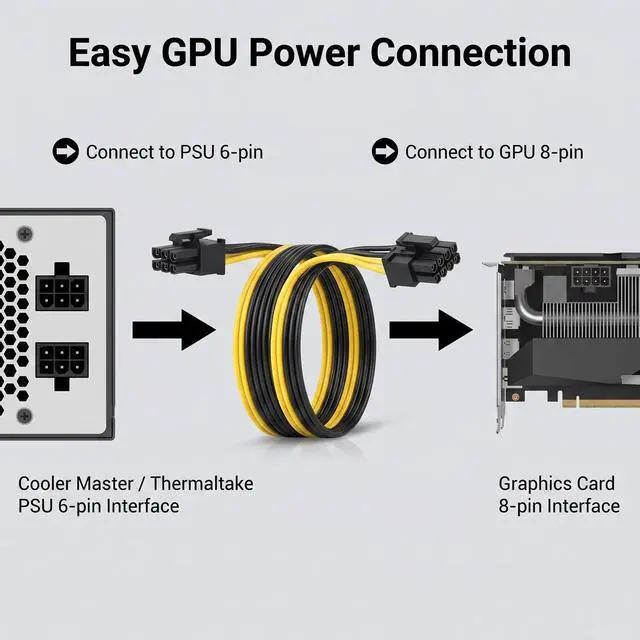
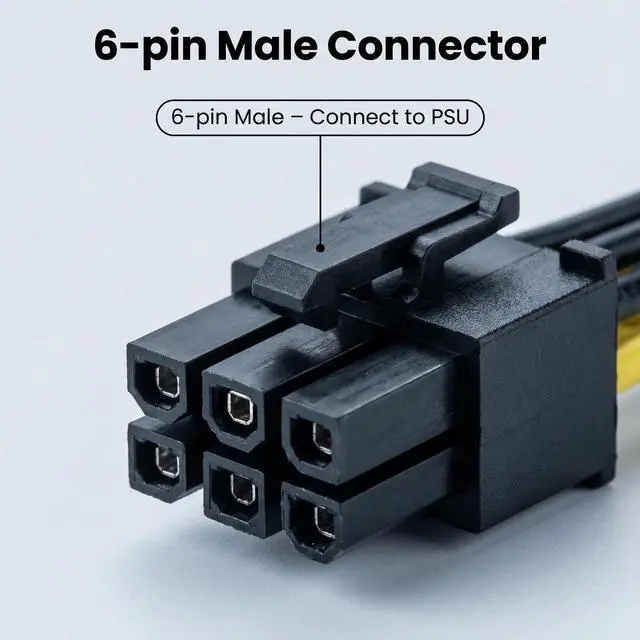
About this item- PCIe 6-PIN ONLY NOT FOR 6-PIN PERIPHERAL PORT The 6-pin male end is a PCIe 6-pin connector. It MUST be plugged into your PSUs 6-pin PCIe port NOT a 6-pin peripheral port (used for SATA/Molex devices). Plugging this cable into a 6-pin peripheral port WILL burn or damage your PSU and GPU. The 6-pin PCIe port has 3x +12V lines; the 6-pin peripheral port has only 1x +12V line. Check the port label before connecting.
- MAX 75W FOR LOW-POWER GPUs ONLY CHECK YOUR GPU TGP PCI-SIG standard: 6-pin PCIe = 75W max. 8-pin PCIe = 150W. This adapter converts a 6-pin source to an 8-pin output, but the maximum available power remains 75W. NVIDIA official warning: 6-pin to 8-pin power adapters could damage your computer. Suitable for GPUs with TGP 75W (GTX 1650, RX 6400, low-power professional cards). Do NOT use for GPUs requiring more than 75W (most modern 8-pin GPUs). NOT for RTX 3060/4060 or any GPU with 8-pin requiring >75W.
- FOR COOLERMASTER & THERMALTAKE 6-PIN PCIE PORTS ONLY Designed for CoolerMaster and Thermaltake PSUs with standard 6-pin PCIe ports. NOT compatible with EVGA, Corsair, Antec, or other brand PSUs different modular pinouts may cause damage. The 6-pin male end plugs into the PSUs 6-pin PCIe port; the 8-pin (6+2) male end plugs into the GPU. Verify your PSU brand and port type before ordering.
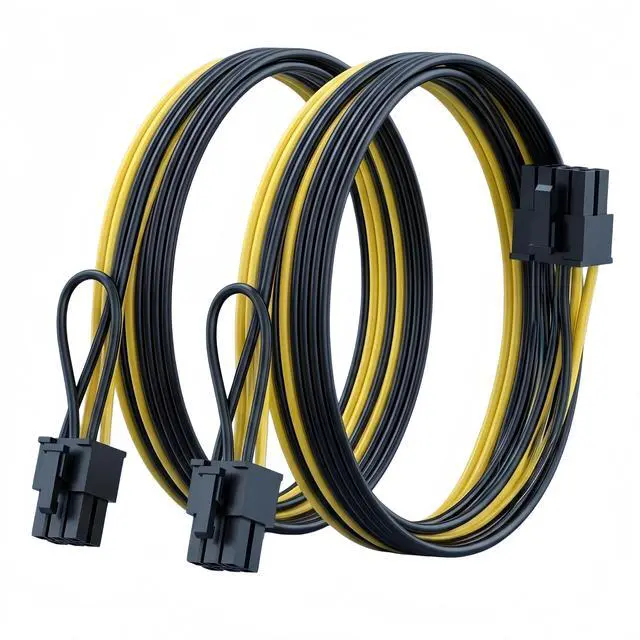
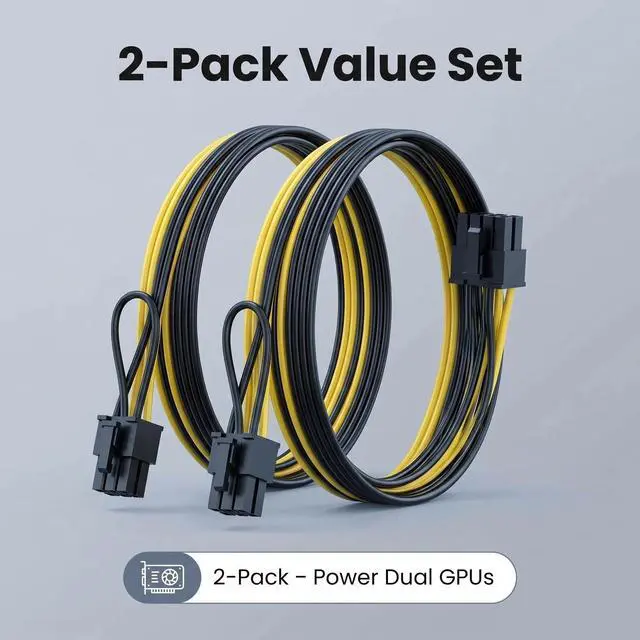
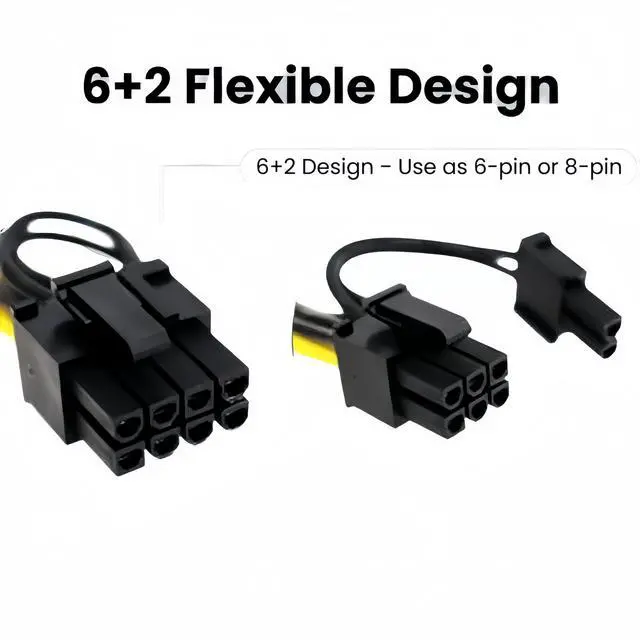
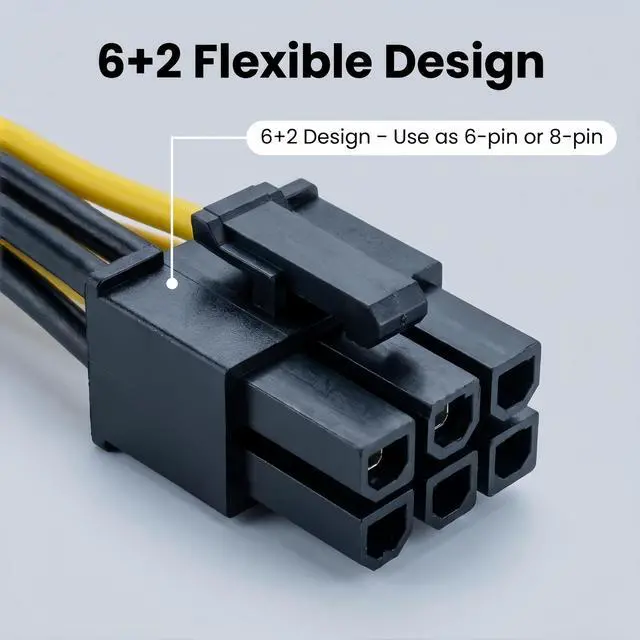
- 18AWG TINNED COPPER 51CM (20 INCH) LENGTH 2-PACK Built with 1007-18AWG tin-coated copper wire for stable power delivery. 51cm (20 inch) length including connectors standard for mid-tower and full-tower routing. 2-pack included ideal for dual-GPU setups, SLI/CrossFire, or as a spare. The 8-pin (6+2) end features a detachable 2-pin section for 6-pin GPUs.
- FACTORY-TESTED 1-YEAR WARRANTY Each cable is factory-tested for continuity and correct pinout. Backed by a 1-year warranty against manufacturing defects. Key safety rule: Do NOT combine two 6-pin sources into one 8-pin output this exceeds the safe capacity of a single 6-pin source. Each cable is designed for one 6-pin source one GPU connection. Turn off PC power and unplug before installation.
- IMPORTANT NOTES: PCIe 6-pin port ONLY. NOT for 6-pin peripheral. Misplugging WILL burn hardware. Max 75W. For GPUs with TGP 75W only. NOT for most modern 8-pin GPUs. CoolerMaster/Thermaltake 6-pin PCIe ports ONLY. NOT for EVGA/Corsair/Antec. Do NOT combine two 6-pin sources into one 8-pin output. Turn off PC power and unplug before installation.
- ATTENTION: this cable is NOT compatible with EVGA, Corsair, Thermaltake toughpower and Antec PSUs and other power supplies !!!!!
Product descriptionDoes your power supply have unused 6-pin PCIe ports, but your new graphics card requires 8-pin power connectors? This 2-Pack PCIe 6 Pin to 8 Pin (6+2) Adapter Cable is the simple, cost-effective solution.
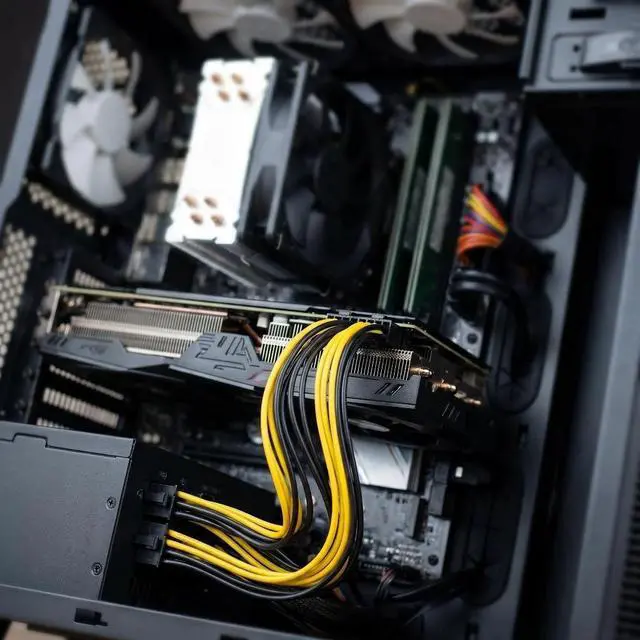
Instead of buying a new power supply, simply connect these adapter cables to your existing 6-pin PCIe ports and power your modern GPU with confidence.
Specifications| Cooler Master | Compatible (with standard 6-pin PCIe port) |
| Thermaltake | Compatible (with standard 6-pin PCIe port) |
| Other PSUs | Check pinout Most follow the standard 6-pin PCIe, but verify before use |
| Connector A (PSU Side) | 1x PCIe 6-pin Male |
| Connector B (GPU Side) | 1x PCIe 8-pin (6+2) Male |
| Cable Length | 20 inches / 51 cm (including connectors) |
| Wire Gauge | 18AWG Tinned Copper |
| Maximum Power | 150W (shared from 6-pin source, which is rated for 75W check your PSU) |
| Quantity | 2 cables per pack |
| Compatible GPUs | ASUS, ASRock, Gigabyte, Radeon, Sapphire, NVIDIA Tesla, and all standard GPUs |
*The 6-pin PCIe connector follows a standard pinout (12V, 12V, 12V, GND, GND, GND). Most major brands (EVGA, Corsair, Seasonic, Antec) adhere to this standard, but always verify your PSUs documentation before use.*
The 8-pin (6+2) output works with virtually all graphics cards that require 6-pin or 8-pin power:
NVIDIA Series:
- RTX 40 Series: 4060, 4070, 4080, 4090
- RTX 30 Series: 3060, 3070, 3080, 3090
- RTX 20 Series, GTX 16/10 Series
- Tesla Series: Tesla K80, M40, M60, P40, P100, V100, T4, A100 (with appropriate power adapters)
AMD Series:
- RX 7000 Series: 7600, 7700, 7800, 7900
- RX 6000 Series: 6600, 6700, 6800, 6900
- RX 5000/500 Series
Brand Compatibility: ASUS, ASRock, Gigabyte, Radeon, Sapphire, and all major AIB partners





 here!
here!