here!
here!
I’m your shopping assistant for PC builds, upgrades, and everything tech.
Got questions? Ask away!
Start a conversation
here!
I’m your shopping assistant for PC builds, upgrades, and everything tech.
Got questions? Ask away!
Start a conversationShipped by Selected Electronic Store

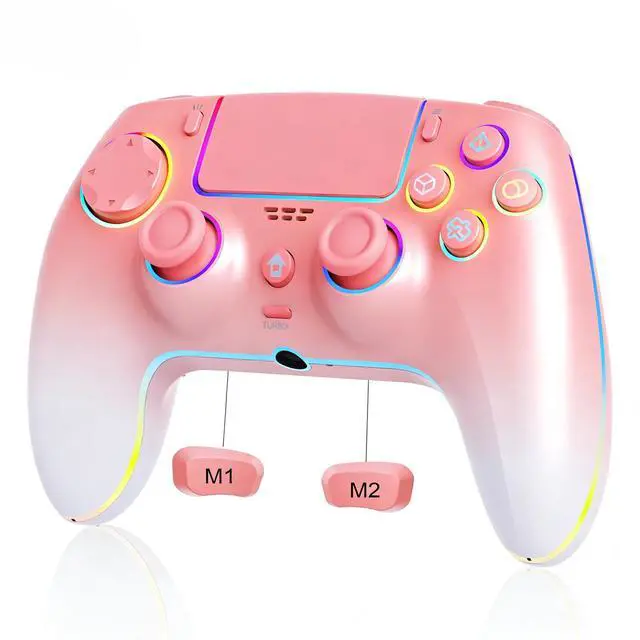
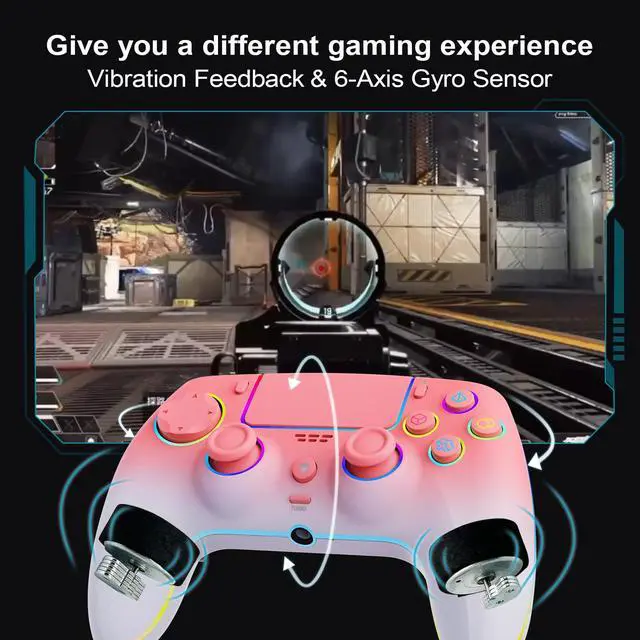

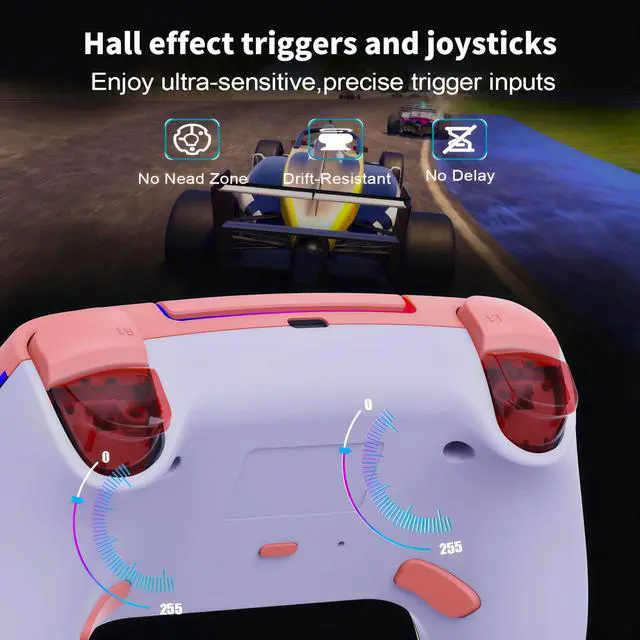
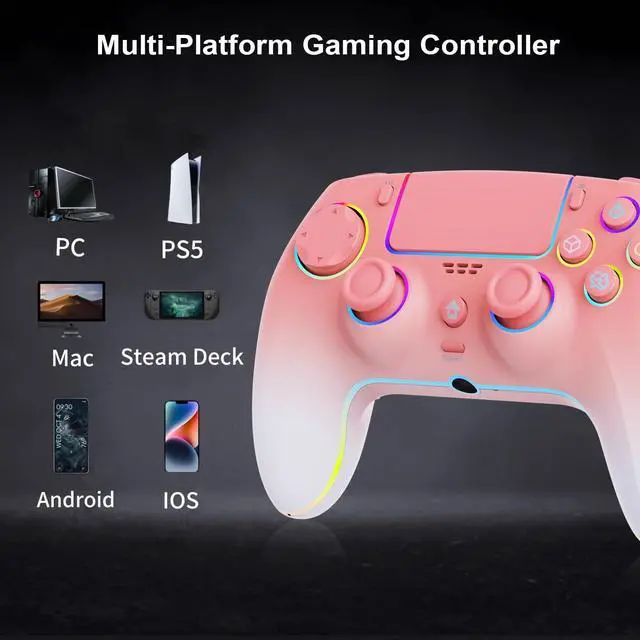



Any questions? Ask CelesteSM will help you find out quickly.

1. Connect to PS5
When your controller hasn’t been paired with your current PS-5 console or has been connected to another console, Use a USB cable to connect the controller to your PS-5 console. During the connection, the system will automatically pair the controller. Once paired, remove the USB cable and press the HOME button. The controller will now connect wirelessly via Bluetooth. The LED light will stay on with a steady color, indicating it’s successfully connected to your console.
2. Connect to Windows PC
Turn off the controller. Press and hold the SHARE button and theHOME button together. Hold both for 3 seconds. The LED light will flash white. On your PC, open Bluetooth settings and start searching for devices. Find and click on "DualSenseWireless Controller" in the device list to pair. When paired successfully, the LED light will stay on.
3. Connect to Steam Deck
Turn off your controller. Press and hold the SHARE button and the HOME button together. Hold both for 3 seconds. The LED light will flash white. Open Bluetooth settings on your Steam Deck. Find and click on "DualSense Wireless Controller" to connect. Once connected, the LED light will stay on.
4. Connect to Mac
Open System Preferences > Bluetooth and turn Bluetoothon. With the controller off, hold SHARE + HOME (PS button) together for 3 seconds until its light flashes white. On your Mac, find "DualSense Wireless Controller" in the Bluetooth devices list, click Pair, and wait a few seconds—it'll connect automatically.

Programming a Button:
Canceling a Programmed Button:

(1)Press and hold the LIGHT button + press down on the R3 joystick (right stick) to cycle through lighting modes (Rainbow, Solid Color, Color-Changing Breath, Solid Color Breath). Each press changes the mode.
(2)In Rainbow mode, press and hold the LIGHT button + press down on the L3 joystick (left stick) to pause the current rainbow lighting effect.
(3)In Solid Color mode, press and hold the LIGHT button + press down on the L3 joystick (left stick) to change the light color.
(4)In Color-Changing Breath mode, press and hold the LIGHT button + press down on the L3 joystick (left stick) to pause the current breath state. Press again to resume the Color-Changing Breath mode.
(5)In Solid Color Breath mode, press and hold the LIGHT button + press down on the L3 joystick (left stick) to switch between different Solid Color Breath states.
(6)In Rainbow, Solid Color, or Color-Changing Breath modes, press the LIGHT button + UP/DOWN on the D-pad to adjust the RGB brightness. Each press increases or decreases the brightness level.
(7)Press and hold the L3 and R3 joysticks for 3 seconds to turn the RGB lights on or off. The lighting settings are saved automatically, so your preferences will be remembered next time you use the controller.


 JUNHUAN Wireless Pink White gradient Controller for PS5 Pro/PlayStation-5/PC/... |  JUNHUAN Wireless Controller for PS5 Pro/PlayStation-5/PC/Mac with Hall Effect... |  JUNHUAN Wireless Controller for PS5 with Hall Effect joystick /Back Paddles/M... | |
|---|---|---|---|
| Customer Reviews | — | — | — |
| Price | — | — | — |
| Color | Pink white gradient | Night black | Gray |
| Platform | PS5/PC/Mac/iOS/Android/Steam Deck | PS5/PC/Mac/iOS/Android/Steam Deck | PS5/PC/Mac/iOS/Android/Steam Deck |
| Dual Vibration Motors | ? | ? | ? |
| Wake up the console | ? | ? | ? |
| Six-axis gyroscope | ? | ? | ? |
| Hall-Effect Joystick and Trigger | ? | ? | Hall-Effect Joystick |
| TURBO | ? | ? | ? |
| Speaker | ? | ? | ? |
| Microphone | X | X | X |
1. Connect to PS5
When your controller hasn’t been paired with your current PS-5 console or has been connected to another console, Use a USB cable to connect the controller to your PS-5 console. During the connection, the system will automatically pair the controller. Once paired, remove the USB cable and press the HOME button. The controller will now connect wirelessly via Bluetooth. The LED light will stay on with a steady color, indicating it’s successfully connected to your console.
2. Connect to Windows PC
Turn off the controller. Press and hold the SHARE button and theHOME button together. Hold both for 3 seconds. The LED light will flash white. On your PC, open Bluetooth settings and start searching for devices. Find and click on "DualSenseWireless Controller" in the device list to pair. When paired successfully, the LED light will stay on.
3. Connect to Steam Deck
Turn off your controller. Press and hold the SHARE button and the HOME button together. Hold both for 3 seconds. The LED light will flash white. Open Bluetooth settings on your Steam Deck. Find and click on "DualSense Wireless Controller" to connect. Once connected, the LED light will stay on.
4. Connect to Mac
Open System Preferences > Bluetooth and turn Bluetoothon. With the controller off, hold SHARE + HOME (PS button) together for 3 seconds until its light flashes white. On your Mac, find "DualSense Wireless Controller" in the Bluetooth devices list, click Pair, and wait a few seconds—it'll connect automatically.
Programming a Button:
Canceling a Programmed Button:
(1)Press and hold the LIGHT button + press down on the R3 joystick (right stick) to cycle through lighting modes (Rainbow, Solid Color, Color-Changing Breath, Solid Color Breath). Each press changes the mode.
(2)In Rainbow mode, press and hold the LIGHT button + press down on the L3 joystick (left stick) to pause the current rainbow lighting effect.
(3)In Solid Color mode, press and hold the LIGHT button + press down on the L3 joystick (left stick) to change the light color.
(4)In Color-Changing Breath mode, press and hold the LIGHT button + press down on the L3 joystick (left stick) to pause the current breath state. Press again to resume the Color-Changing Breath mode.
(5)In Solid Color Breath mode, press and hold the LIGHT button + press down on the L3 joystick (left stick) to switch between different Solid Color Breath states.
(6)In Rainbow, Solid Color, or Color-Changing Breath modes, press the LIGHT button + UP/DOWN on the D-pad to adjust the RGB brightness. Each press increases or decreases the brightness level.
(7)Press and hold the L3 and R3 joysticks for 3 seconds to turn the RGB lights on or off. The lighting settings are saved automatically, so your preferences will be remembered next time you use the controller.
JUNHUAN Wireless Pink White gradient Controller for PS5 Pro/PlayStation-5/PC/... | JUNHUAN Wireless Controller for PS5 Pro/PlayStation-5/PC/Mac with Hall Effect... | JUNHUAN Wireless Controller for PS5 with Hall Effect joystick /Back Paddles/M... | |
|---|---|---|---|
| Customer Reviews | — | — | — |
| Price | — | — | — |
| Color | Pink white gradient | Night black | Gray |
| Platform | PS5/PC/Mac/iOS/Android/Steam Deck | PS5/PC/Mac/iOS/Android/Steam Deck | PS5/PC/Mac/iOS/Android/Steam Deck |
| Dual Vibration Motors | ? | ? | ? |
| Wake up the console | ? | ? | ? |
| Six-axis gyroscope | ? | ? | ? |
| Hall-Effect Joystick and Trigger | ? | ? | Hall-Effect Joystick |
| TURBO | ? | ? | ? |
| Speaker | ? | ? | ? |
| Microphone | X | X | X |