


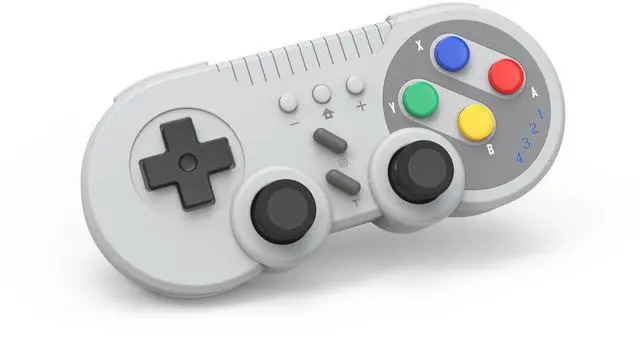
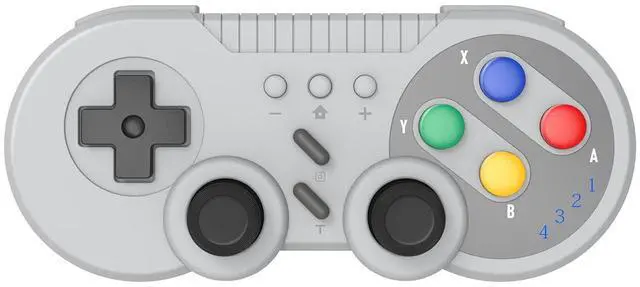


Wireless Controller for Nintendo Switch
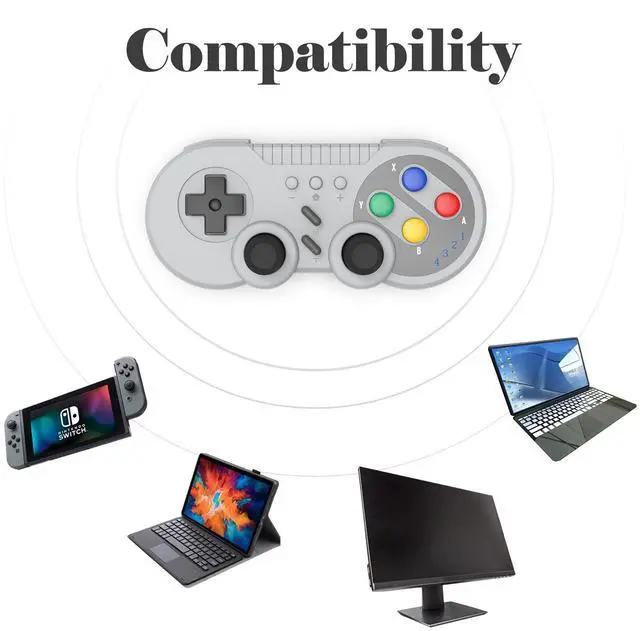
This wireless gamepad compatible with switch console and also supports Windows PC.
Adopt new wireless connection technology, strong anti-interference ability, more stable connection.
Built-in large capacity battery for long time use.
Support wake-up function, built-in gyroscope to provide motion control and built-in dual motor to provide dual vibration function.
You can use the Turbo and screen-capture buttons to implement corresponding functions.

HOW TO CONNECT?
First Connection:
1.Select the [ Controller ] Menu.
2.Select the [ Change Grip/Order ] Menu.
3.Press and Hold the [ HOME ] key 4 seconds on the [ Change Grip/Order ] Page and 4 indicators blinks fast.(Enter the search configuration.)
4.After the connection is successful,the LED lights indicate the corresponding game player.
Connect The Controller To The Console Again:
Switch Console In the Open state, press the [ HOME] button to start the controller, and the gamepad will be automatically connected to the console.
At the same time also supports the [ HOME ] button to wake up the console, wired to connect the computer and other functions, please see the manual operation.

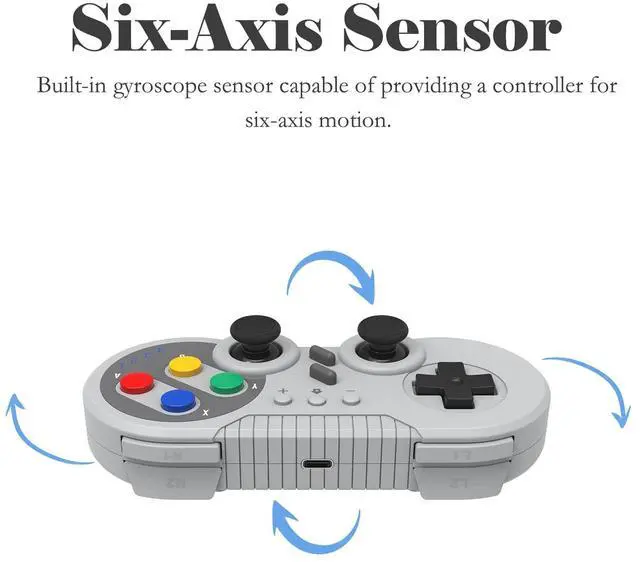
Support Controller Six-axis Sensing Function
The Switch gamepad, which has a gyroscope sensor built in, allows you to provide six-axis induction control in games.
It can directly use the controller to control the steering of the car, the aim of the arrow and other application scenarios. Provide you with more rich game experience.

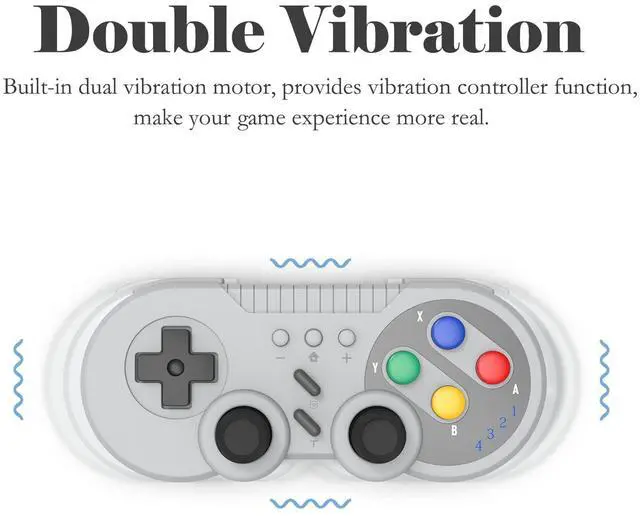
About Dual Vibration
Dual motors are built in to provide dual vibration function.
1. Press and Hold [ T ] key + [ Up ] key to enhance vibration.
2. Press and Hold [ T ] key + [ Down ] key to reduce vibration.

About Turbo
Provides Turbo Function.
1.Press the [ Turbo ] key to enable the combo function.
2.Press the [ Turbo ] key again to disable the combo function.
Pressing [ Turbo ] allows you to reduce the number of times you have to press a key, improving your game efficiency.

About ScreenShot
Provides ScreenShot Function.
Press the [ Screenshot ] button to capture a moment of the game.


Wireless Controller for Nintendo Switch
This wireless gamepad compatible with switch console and also supports Windows PC.
Adopt new wireless connection technology, strong anti-interference ability, more stable connection.
Built-in large capacity battery for long time use.
Support wake-up function, built-in gyroscope to provide motion control and built-in dual motor to provide dual vibration function.
You can use the Turbo and screen-capture buttons to implement corresponding functions.
HOW TO CONNECT?
First Connection:
1.Select the [ Controller ] Menu.
2.Select the [ Change Grip/Order ] Menu.
3.Press and Hold the [ HOME ] key 4 seconds on the [ Change Grip/Order ] Page and 4 indicators blinks fast.(Enter the search configuration.)
4.After the connection is successful,the LED lights indicate the corresponding game player.
Connect The Controller To The Console Again:
Switch Console In the Open state, press the [ HOME] button to start the controller, and the gamepad will be automatically connected to the console.
At the same time also supports the [ HOME ] button to wake up the console, wired to connect the computer and other functions, please see the manual operation.
Support Controller Six-axis Sensing Function
The Switch gamepad, which has a gyroscope sensor built in, allows you to provide six-axis induction control in games.
It can directly use the controller to control the steering of the car, the aim of the arrow and other application scenarios. Provide you with more rich game experience.
About Dual Vibration
Dual motors are built in to provide dual vibration function.
1. Press and Hold [ T ] key + [ Up ] key to enhance vibration.
2. Press and Hold [ T ] key + [ Down ] key to reduce vibration.
About Turbo
Provides Turbo Function.
1.Press the [ Turbo ] key to enable the combo function.
2.Press the [ Turbo ] key again to disable the combo function.
Pressing [ Turbo ] allows you to reduce the number of times you have to press a key, improving your game efficiency.
About ScreenShot
Provides ScreenShot Function.
Press the [ Screenshot ] button to capture a moment of the game.