


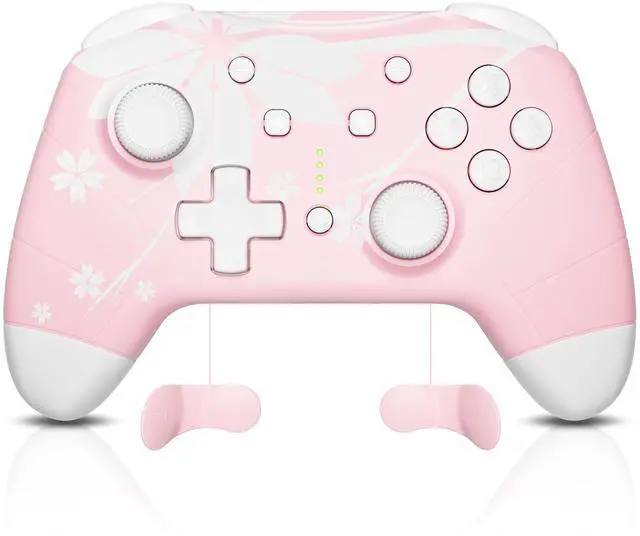


Sakura Controller
Merchant Video


How to Connect the Pro Controller to Switch/Windows PC /Android/ iOS/ Steam


Controller Series
 Sakura Controller |  Pink Controller |  Multi-Platform Controller |  Zero-Kirin RGB Controller |  Gradient Pink Controller |  Bear Controller |  Bamboo Controller | |
|---|---|---|---|---|---|---|---|
Customer Reviews | — | — | — | — | — | — | — |
Price | — | — | — | — | — | — | — |
HOME Wake-Up | ? | ? | ? | ? | ? | ? | ? |
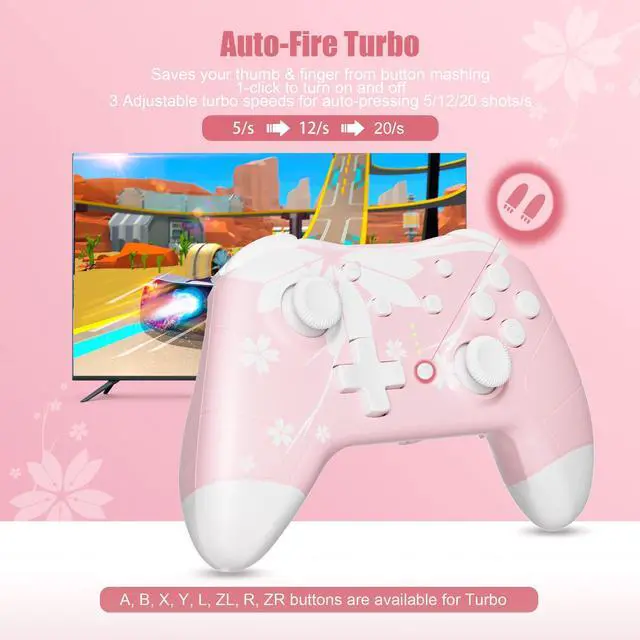
Auto-Fire/Vibration | ? | ? | ? | ? | ? | ? | ? |
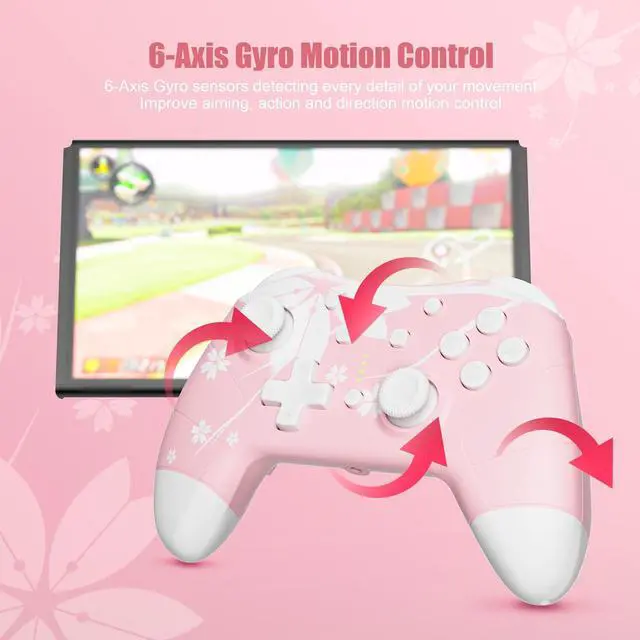
Motion Control/Screenshot | ? | ? | ? | ? | ? | ? | ? |
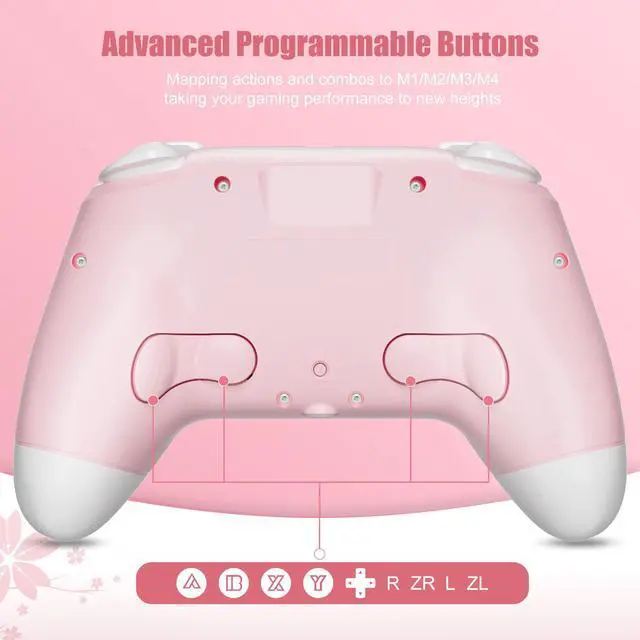
Programmable buttons | 4 Programmable buttons | 2 Programmable buttons | 2 Programmable buttons | 2 Programmable buttons | 2 Programmable buttons | 2 Programmable buttons | Nah |
Turbo Speed | 5/15/25 shots/s | 5/15/25 shots/s | 5/15/25 shots/s | 5/15/25 shots/s | 5/15/25 shots/s | 5/12/20 shots/s | 5/12/20 shots/s |
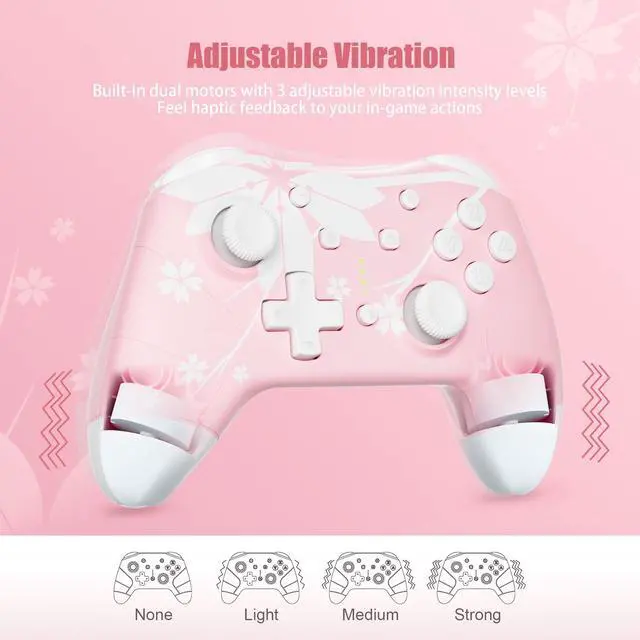
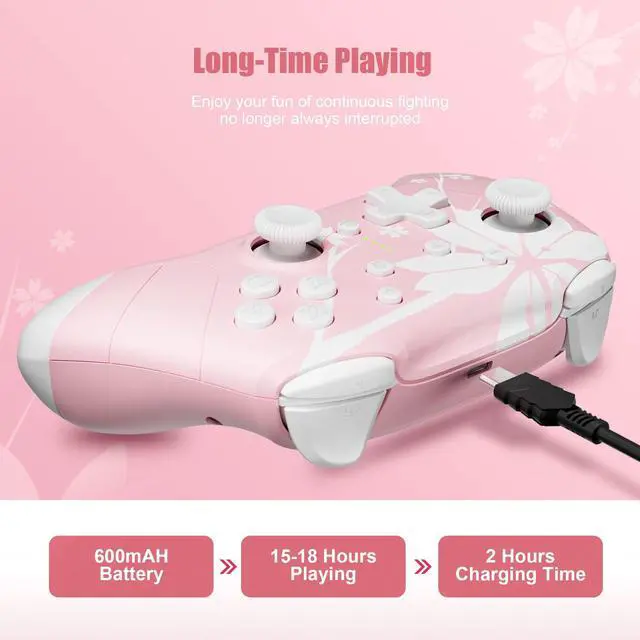
Battery Supply | 600mAh, rechargeable | 600mAh, rechargeable | 600mAh, rechargeable | 600mAh, rechargeable | 600mAh, rechargeable | 300mAh, rechargeable | 300mAh, rechargeable |
Game controller's functions | Headphone Jack | Headphone Jack&RGB Light | Headphone Jack&RGB Light | Headphone Jack&RGB Light | Headphone Jack&RGB Light | Headphone Jack&RGB Light | Headphone Jack |
Compatible with | Switch/Switch Lite/Switch OLED | Switch/Switch Lite/Switch OLED | Switch/Switch Lite/Switch OLED | Switch/Switch Lite/Switch OLED | Switch/Switch Lite/Switch OLED | Switch/Switch Lite/Switch OLED | Switch/Switch Lite/Switch OLED |
Hardware Platform | Windows PC/Android/iOS/Steam | Windows PC/Android/iOS/Steam | Windows PC/Android/iOS/Steam | Windows PC/Android/iOS/Steam | Windows PC/Android/iOS/Steam | NA | Steam |
Wireless or Wired | Wireless or Wired 2 in 1 | Wireless or Wired 2 in 1 | Wireless or Wired 2 in 1 | Wireless or Wired 2 in 1 | Wireless or Wired 2 in 1 | Wireless or Wired 2 in 1 | Wireless or Wired 2 in 1 |
Charging Ports | USB Type-C | USB Type-C | USB Type-C | USB Type-C | USB Type-C | Wireless or Wired 2 in 1 | Wireless or Wired 2 in 1 |
Tips for Using the Sakura Controller:
1. When using the wireless controller for the first time, it is recommended to have both the Controller Joysticks and Motion Control calibrated before using.
2. Please DO NOT use high-wattage chargers to charge your controllers. You can charge the controller using the Switch charger, the Switch Dock, 5V2A power adapter, or USB power supplies with the USB Type C to A cable included in the box.
3. The audio function will ONLY work in Wired Connection Mode with a Switch console. It will NOT work during wireless connection, or when the controller is wired connected to a PC.
4. In the "Xbox Mode", button "A" and "B" are reversed, button "X" and "Y" are reversed. You might be able to adjust the button layout setting in your game or on your gaming platform; Or you can utilize the Programmable Buttons, mapping buttons to the ML/MR button (Detailed steps could be found in the user manual).
5. When plugging in the USB cable for charging or wired connection, please DO NOT touch any joysticks or buttons to avoid causing the joystick drifting issue.
6. If the Joystick drifting issue occurs, resetting the controller and calibrating the Control Joysticks would help with the drifting issue.
7. Please keep the controller away from dust, water, and static electricity for better maintenance.
8. If you encounter any issues, feel free to reach out to us at any time, we will be very happy to assist you.
Sakura Controller
Merchant Video


How to Connect the Pro Controller to Switch/Windows PC /Android/ iOS/ Steam
| For Switch: | 1.Wireless Connection: Press and hold the “SYNC” button for 5 seconds, all 4 LEDs flash quickly; 2. Wired Connection: Via USB charging cable |
|---|---|
| For Multi Platform: (Wireless) | Three Wireless Connection Modes for Widows PC, Steam Deck, PC STEAM platform, Android (10.0 above) and iOS devices (iOS 13.4 above), select your preferred connection mode |
| Pro Controller Mode: | Press and hold the “SYNC” button, 4 LEDs flash in turn, select the “Pro Controller” under the Bluetooth device list |
| Xbox Mode: | Press the “Sync” and “X” buttons together for 3 seconds , LED1 and LED4 flash, select the "Xbox Wireless Controller" under the Bluetooth device list (Please Note: In the Xbox mode, button “A” becomes “B”, “B” becomes “A”, “X” becomes “Y”, and “Y” becomes “X”) |
| Android Mode: | Press the “Sync" and “Y” buttons together for 3 seconds , LED2 and LED3 will flash, select the "Mytrix-M01" under the Bluetooth device list |
| For Multi Platform: (Wired) | Two Wired Connection Modes for Windows PC, Steam Deck (Wired connection for Android and iOS devices is not supported) |
| Pro Controller Mode: | Press down the right joystick vertically and connect the Windows PC/ Steam Deck with the USB cable, LED1 have steady light, it will be recognized as the “Pro Controller” |
| "Xbox 360 " Mode (X-INPUT) | Connect the Windows PC/ Steam Deck with the USB cable, LED1 and LED4 have steady light, it will be recognized as "Xbox 360" controller (Please Note: In the X-INPUT mode, button "A" becomes "B", "B" becomes "A", "X" becomes "Y", and "Y" becomes "X") |


Controller Series
Sakura Controller | Pink Controller | Multi-Platform Controller | Zero-Kirin RGB Controller | Gradient Pink Controller | Bear Controller | Bamboo Controller |
|---|---|---|---|---|---|---|
| Customer Reviews | ||||||
| — | — | — | — | — | — | — |
| Price | ||||||
| — | — | — | — | — | — | — |
| HOME Wake-Up | ||||||
| ? | ? | ? | ? | ? | ? | ? |
| Auto-Fire/Vibration | ||||||
| ? | ? | ? | ? | ? | ? | ? |
| Motion Control/Screenshot | ||||||
| ? | ? | ? | ? | ? | ? | ? |
| Programmable buttons | ||||||
| 4 Programmable buttons | 2 Programmable buttons | 2 Programmable buttons | 2 Programmable buttons | 2 Programmable buttons | 2 Programmable buttons | Nah |
| Turbo Speed | ||||||
| 5/15/25 shots/s | 5/15/25 shots/s | 5/15/25 shots/s | 5/15/25 shots/s | 5/15/25 shots/s | 5/12/20 shots/s | 5/12/20 shots/s |
| Battery Supply | ||||||
| 600mAh, rechargeable | 600mAh, rechargeable | 600mAh, rechargeable | 600mAh, rechargeable | 600mAh, rechargeable | 300mAh, rechargeable | 300mAh, rechargeable |
| Game controller's functions | ||||||
| Headphone Jack | Headphone Jack&RGB Light | Headphone Jack&RGB Light | Headphone Jack&RGB Light | Headphone Jack&RGB Light | Headphone Jack&RGB Light | Headphone Jack |
| Compatible with | ||||||
| Switch/Switch Lite/Switch OLED | Switch/Switch Lite/Switch OLED | Switch/Switch Lite/Switch OLED | Switch/Switch Lite/Switch OLED | Switch/Switch Lite/Switch OLED | Switch/Switch Lite/Switch OLED | Switch/Switch Lite/Switch OLED |
| Hardware Platform | ||||||
| Windows PC/Android/iOS/Steam | Windows PC/Android/iOS/Steam | Windows PC/Android/iOS/Steam | Windows PC/Android/iOS/Steam | Windows PC/Android/iOS/Steam | NA | Steam |
| Wireless or Wired | ||||||
| Wireless or Wired 2 in 1 | Wireless or Wired 2 in 1 | Wireless or Wired 2 in 1 | Wireless or Wired 2 in 1 | Wireless or Wired 2 in 1 | Wireless or Wired 2 in 1 | Wireless or Wired 2 in 1 |
| Charging Ports | ||||||
| USB Type-C | USB Type-C | USB Type-C | USB Type-C | USB Type-C | Wireless or Wired 2 in 1 | Wireless or Wired 2 in 1 |
Tips for Using the Sakura Controller:
1. When using the wireless controller for the first time, it is recommended to have both the Controller Joysticks and Motion Control calibrated before using.
2. Please DO NOT use high-wattage chargers to charge your controllers. You can charge the controller using the Switch charger, the Switch Dock, 5V2A power adapter, or USB power supplies with the USB Type C to A cable included in the box.
3. The audio function will ONLY work in Wired Connection Mode with a Switch console. It will NOT work during wireless connection, or when the controller is wired connected to a PC.
4. In the "Xbox Mode", button "A" and "B" are reversed, button "X" and "Y" are reversed. You might be able to adjust the button layout setting in your game or on your gaming platform; Or you can utilize the Programmable Buttons, mapping buttons to the ML/MR button (Detailed steps could be found in the user manual).
5. When plugging in the USB cable for charging or wired connection, please DO NOT touch any joysticks or buttons to avoid causing the joystick drifting issue.
6. If the Joystick drifting issue occurs, resetting the controller and calibrating the Control Joysticks would help with the drifting issue.
7. Please keep the controller away from dust, water, and static electricity for better maintenance.
8. If you encounter any issues, feel free to reach out to us at any time, we will be very happy to assist you.