Your Browsing History
- Free 30-day Returns
$70.89
Ships from China.
Meet Your Seller
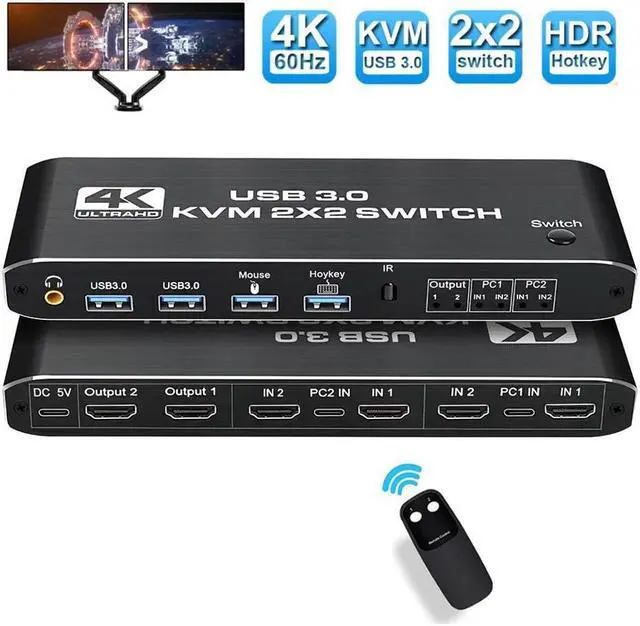
BUCIER 2 in 2 Out 4K HDMI 2.0 KVM Switch with 3.5mm Jack Audio Output, USB 3.0 HDMI KVM Switch 2x2 for 2 Computers and 2 Monitors 4K @60Hz with 3 Display Method, Hot Key Switching, IR Control
Limited time offer, ends 08/07 By Electronics store
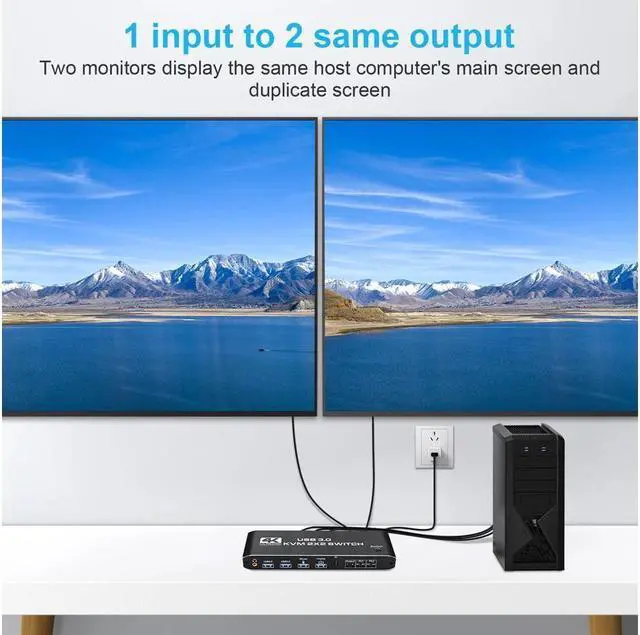
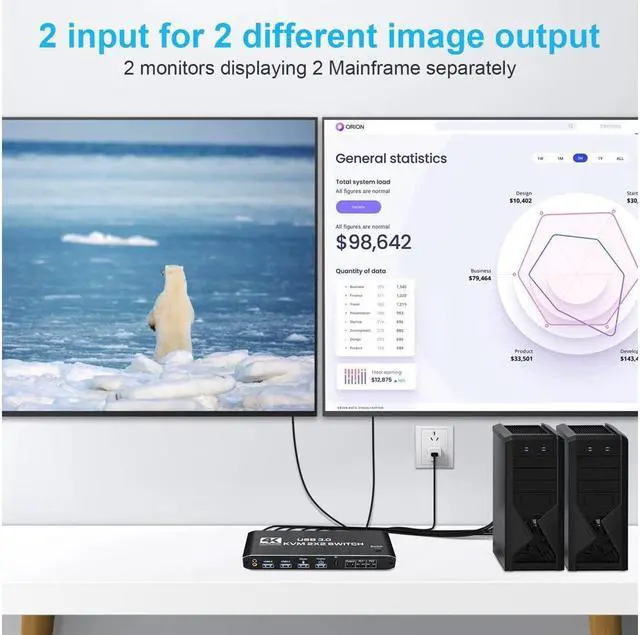
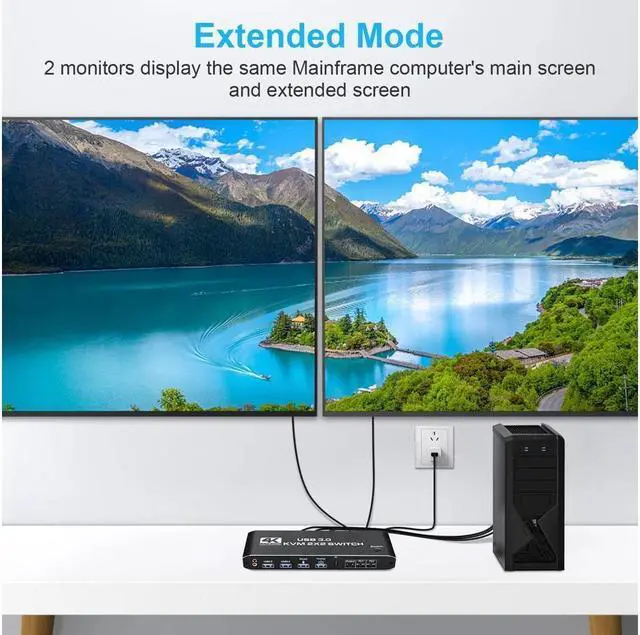
- [KVM Switch Dual Monitor] The KVM switch allow a one-click swap control up to 2 computers or laptops with 1 set of USB keyboard, mouse, and share dual monitors for extended or copy display without constantly changing cables or setting up complicated Tethering software.
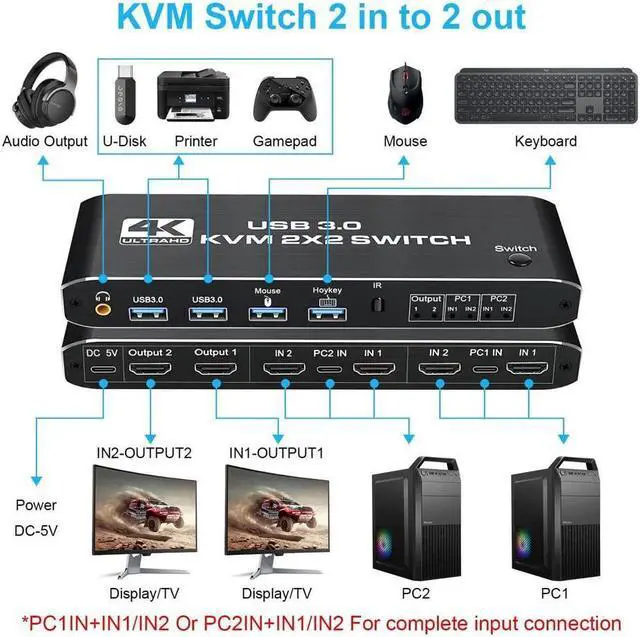
- [Connection display mode notification] PC1 IN+PC2 IN connected at the same time, can realize a set of mouse and keyboard to control 2 computers function PC1 IN+IN1+IN2+PC2 IN+IN1+IN2, connected at the same time, to achieve Extend Display function.
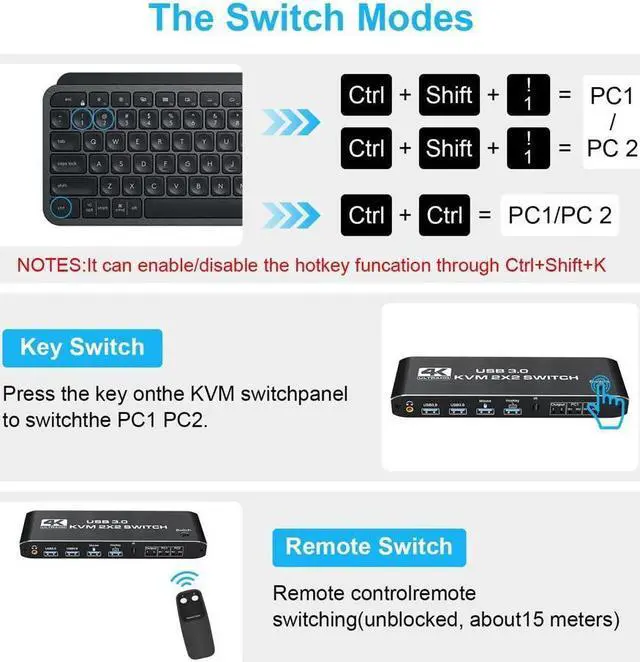
- [with 3 Switch Modes] The KVM Switch is equipped with 3 switching modes.no need to install any driver to easily switch between 2 computers without disconnecting any cables or any other operations
- [Ultra HD 4K@60Hz Visual Enjoyment] Supports resolutions up to 4K@60Hz, making the image display more fascinating and vividly colorful. It also comes with 2USB 2.0 ports and 2 USB3.0 ports.
- [Widely Compatible] Drive free for Windows, macOS, Linux, UNIX and other operating systems.
+
+
Overview
Specs
Reviews
Any questions? Our AI beta will help you find out quickly.
Try me now
2 Port KVM Switch HDMI Dual Monitor -- Consoles control up to 2 computers or laptops with 1 set of USB keyboard, mouse, and share dual monitors for extended or copy display.
UHD 4K@60Hz HDMI KVM Dual Monitor -- Support 3840*2160@60Hz/3D/1080P resolution, compliance with HDMI 2.0 standard, built-in Auto EDID make the image display more exquisite and realistic.
The KVM provides 2 USB 2.0 ports and 2 USB 3.0 port (USB 3.0 *2+Mouse(USB 2.0 )+keyboard(USB 2.0 )), supporting various USB devices. The USB device can be used on any computer without repeated plug and unplug.
Warm Tip:
1, Please connect the mouse and keyboard to the K/M interface, otherwise the hotkey switch cannot be used. please make sure each computer/laptop have 2 HDMI cables and 1 USB TO TYPE-C cable connected to the KVM switch.
2, It requires every computer support 2 screen or above display functions. If your computer supports this function, and just one HDMI interface, you can use a converter or conversion cable, such as VGA/DVI/DP to HDMI converter or conversion cable.
· KVM Switch BOX with 3 Switch Modes --
NO
1. You can choose hotkey switch (For the hotkey switching method, please refer to the hotkey operation instructions on the following page. ).
NO
2. You also can switch the two signal sources by the panel buttons, the status light tells you which port is active.
NO
3. Remote switching via remote control(unblocked, about 15 meter), no need to get up frequently (remote control does not come with batteries)
*** NOTICE***
--If your PC has only one HD-MI port, you need to convert other signal output ports on the PC, such as DP port, VGA port, etc., to HD-MI signals with
corresponding conversion cables, and then connect them to KVM SWTCH.
The signals output by "Output1" are "IN1" of PC1 and "IN1" of PC2, and the signals output by "Output2" are "IN2" of PC1 and "IN2" of PC2, so their
combination should be:
when switching to PC1, the signal of IN1 of the PC1 group is output by the Output1 channel, and the signal of IN2 is output by the Output2
channel.
When switching to PC2, the IN1 signal of the PC2 group is output from the Output1 channel, and the IN2 signal is output from the Output2 channel.
Connection description
· Step 1: Connect the USB TO TYPE-C Cable to power it.
· Step 2: Connect PC1 and KVM with 1 USB TO TYPE-C cable and 2HD-MI cables.
· Step 3: Connect PC2 and KVM with 1 USB TO TYPE-C cable and 2HD-MI cables.
· Step 4: Connect the keyboard and mouse to KVM SWITCH.
· Step 5: Connect two monitors and KVM SWTCH with two HD-MI cables.
Note:
1, Please use the original USB to TYPE-C data cable.
2, Please use a good quality 19+1 26AWG HD- -MI cable, no longer than 5meters.
3, Please insert the keyboard into the designated USB port, do not insert into other USB ports, otherwise you will lose the keyboard hotkey switching function.

UHD 4K@60Hz HDMI KVM Dual Monitor -- Support 3840*2160@60Hz/3D/1080P resolution, compliance with HDMI 2.0 standard, built-in Auto EDID make the image display more exquisite and realistic.
The KVM provides 2 USB 2.0 ports and 2 USB 3.0 port (USB 3.0 *2+Mouse(USB 2.0 )+keyboard(USB 2.0 )), supporting various USB devices. The USB device can be used on any computer without repeated plug and unplug.
Warm Tip:
1, Please connect the mouse and keyboard to the K/M interface, otherwise the hotkey switch cannot be used. please make sure each computer/laptop have 2 HDMI cables and 1 USB TO TYPE-C cable connected to the KVM switch.
2, It requires every computer support 2 screen or above display functions. If your computer supports this function, and just one HDMI interface, you can use a converter or conversion cable, such as VGA/DVI/DP to HDMI converter or conversion cable.
· KVM Switch BOX with 3 Switch Modes --
NO
1. You can choose hotkey switch (For the hotkey switching method, please refer to the hotkey operation instructions on the following page. ).
NO
2. You also can switch the two signal sources by the panel buttons, the status light tells you which port is active.
NO
3. Remote switching via remote control(unblocked, about 15 meter), no need to get up frequently (remote control does not come with batteries)
*** NOTICE***
--If your PC has only one HD-MI port, you need to convert other signal output ports on the PC, such as DP port, VGA port, etc., to HD-MI signals with
corresponding conversion cables, and then connect them to KVM SWTCH.
The signals output by "Output1" are "IN1" of PC1 and "IN1" of PC2, and the signals output by "Output2" are "IN2" of PC1 and "IN2" of PC2, so their
combination should be:
when switching to PC1, the signal of IN1 of the PC1 group is output by the Output1 channel, and the signal of IN2 is output by the Output2
channel.
When switching to PC2, the IN1 signal of the PC2 group is output from the Output1 channel, and the IN2 signal is output from the Output2 channel.
Connection description
· Step 1: Connect the USB TO TYPE-C Cable to power it.
· Step 2: Connect PC1 and KVM with 1 USB TO TYPE-C cable and 2HD-MI cables.
· Step 3: Connect PC2 and KVM with 1 USB TO TYPE-C cable and 2HD-MI cables.
· Step 4: Connect the keyboard and mouse to KVM SWITCH.
· Step 5: Connect two monitors and KVM SWTCH with two HD-MI cables.
Note:
1, Please use the original USB to TYPE-C data cable.
2, Please use a good quality 19+1 26AWG HD- -MI cable, no longer than 5meters.
3, Please insert the keyboard into the designated USB port, do not insert into other USB ports, otherwise you will lose the keyboard hotkey switching function.
Warranty & Returns
Warranty, Returns, And Additional Information
Warranty
- Please contact the Seller directly for warranty information. Warranty information may also be found on the Manufacturer's website.
- CONTACT
Return Policies
- Return for refund within: 30 days
- Return for replacement within: 30 days
- This item is covered by Electronics store Return Policy
Manufacturer Contact Info
- For a directory of all our manufacturers, please click below.
- Manufacturers Directory
LOADING...