






Installation of Anycast Dongle on an HDTV display (TV/Projector/Monitor,etc)

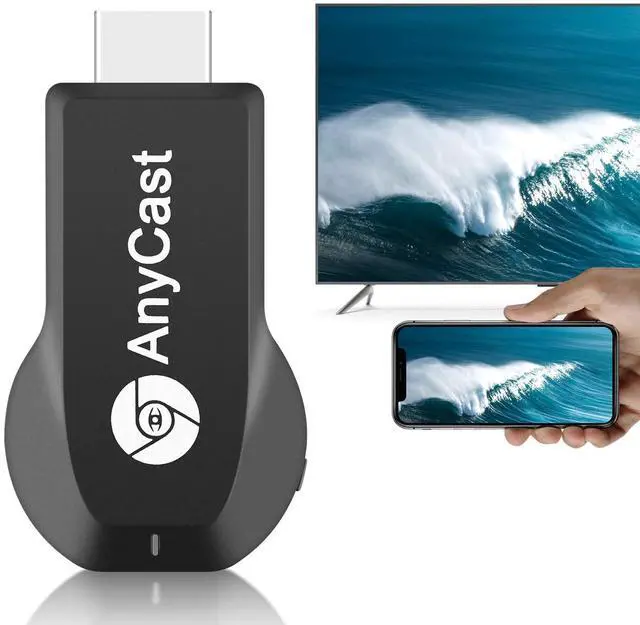
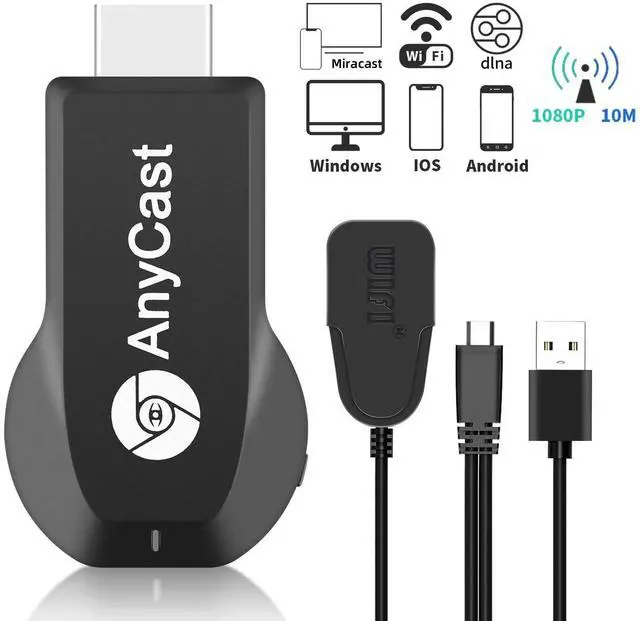
Plug AnyCast dongle into HDTV port on TV and switch TV to the right input source.

Connect WiFi cable (micro USB head) to AnyCast dongle. Plug USB cable into an external USB power adapter(power adapter is not inculded).

After connection, AnyCast page shows up on your display now.
Connection Anycast Dongle on iOS Devices

Setup on your Phone/Pad/Mac
Step 1. Connect AnyCast in WiFi Setting on Phone
Step 2. Go to Safari and input 192.168.203.1 to come to the setting menu
Note: In setting menu, you can connect your home wifi here by clicking "Internet" and Choosing your home Wifi to connect. Once connected, no need to reconnect again. Also, language , Anycast password, and Resolution can be changed by yourself in setting page.
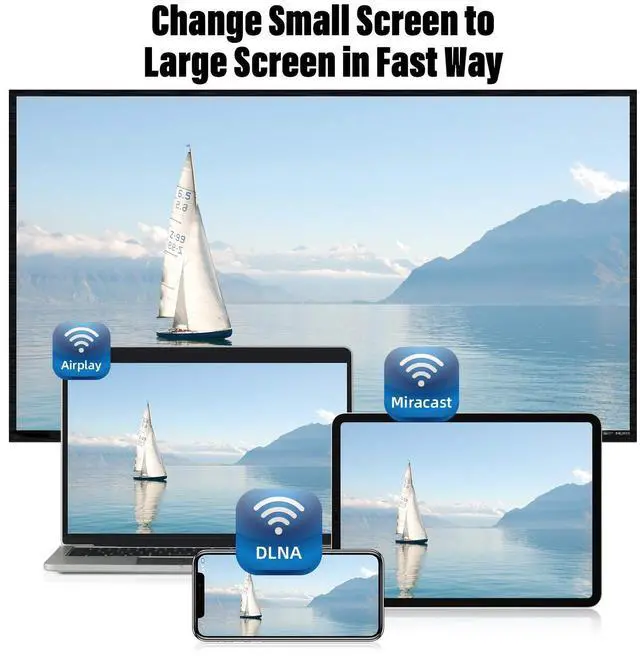
Step 3. Pull up the Control Center on Phone and go to Airplay mirroring, and select AnyCast dongle to start to mirror.
Setup on your Android device
Step 1. Press the button on the dongle to switch to Android mode
Step 2. Find Miracast(wireless display/smartview/play to etc) on your Android device, and pair with Anycast to start mirror.
Note: if you are not sure about Miracast, you can download our EZMira app to pair with Anycast dongle to mirror directly.
To access the setting menu of Anycast dongle:
1. Connect AnyCast in WiFi Setting on your device
2. Go to a browser and input 192.168.203.1 on the very top searching bar to come to the setting menu, you can set all setting of Anycast here.
Note: Not compatible with the apps that have protocol protection, such as Netflix/ Video/ HBO go/ Hulu Plus sky go/DIRECTV etc
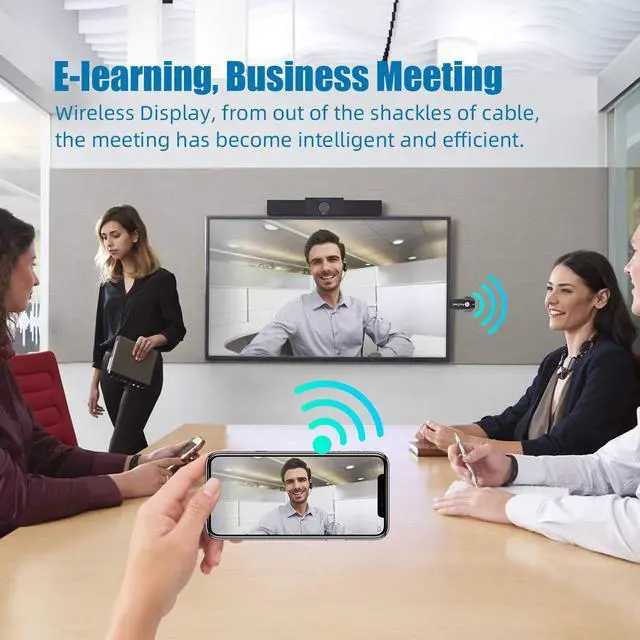
Wide Usage: Watch with colleagues in meeting-Mirroring screen to projector, share PPT, mail, documents and other content wirelessly.
Watch with students in classroom-Mirroring screen to big screen, share teaching content wirelessly.
Watch with your family at home-Mirroring screen to TV, share photos, videos, movies wirelessly. Carry it while travelling, share your phone to TV anytime.

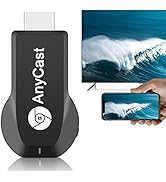

Installation of Anycast Dongle on an HDTV display (TV/Projector/Monitor,etc)
Plug AnyCast dongle into HDTV port on TV and switch TV to the right input source.
Connect WiFi cable (micro USB head) to AnyCast dongle. Plug USB cable into an external USB power adapter(power adapter is not inculded).
After connection, AnyCast page shows up on your display now.
Connection Anycast Dongle on iOS Devices
Setup on your Phone/Pad/Mac
Step 1. Connect AnyCast in WiFi Setting on Phone
Step 2. Go to Safari and input 192.168.203.1 to come to the setting menu
Note: In setting menu, you can connect your home wifi here by clicking "Internet" and Choosing your home Wifi to connect. Once connected, no need to reconnect again. Also, language , Anycast password, and Resolution can be changed by yourself in setting page.
Step 3. Pull up the Control Center on Phone and go to Airplay mirroring, and select AnyCast dongle to start to mirror.
Setup on your Android device
Step 1. Press the button on the dongle to switch to Android mode
Step 2. Find Miracast(wireless display/smartview/play to etc) on your Android device, and pair with Anycast to start mirror.
Note: if you are not sure about Miracast, you can download our EZMira app to pair with Anycast dongle to mirror directly.
To access the setting menu of Anycast dongle:
1. Connect AnyCast in WiFi Setting on your device
2. Go to a browser and input 192.168.203.1 on the very top searching bar to come to the setting menu, you can set all setting of Anycast here.
Note: Not compatible with the apps that have protocol protection, such as Netflix/ Video/ HBO go/ Hulu Plus sky go/DIRECTV etc
Wide Usage: Watch with colleagues in meeting-Mirroring screen to projector, share PPT, mail, documents and other content wirelessly.
Watch with students in classroom-Mirroring screen to big screen, share teaching content wirelessly.
Watch with your family at home-Mirroring screen to TV, share photos, videos, movies wirelessly. Carry it while travelling, share your phone to TV anytime.
HDTV Wireless Display Adapter
