




Physical Setup:
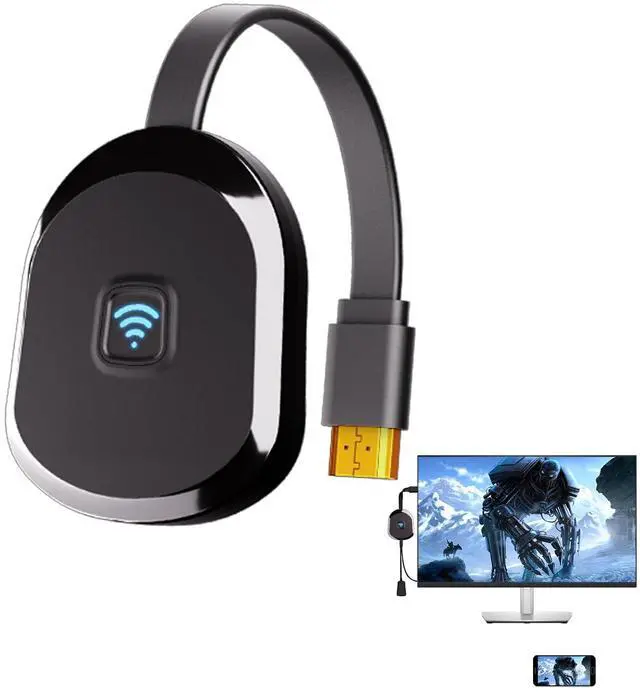
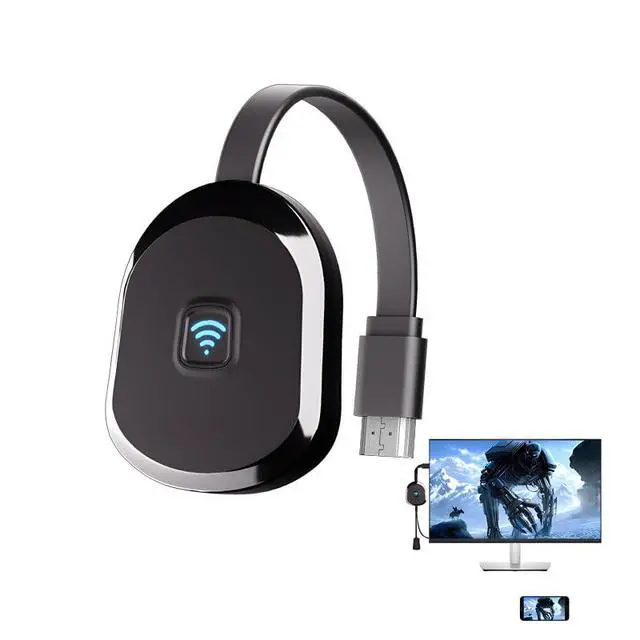
1.Connect the dongle to the TV's HDMI port.
2.Connect the dongle's USB cable to the TV's USB port or a USB power block.
3.Turn on the TV and set the input to the dongle's HDMI port.
4.Make sure the device's black main screen appears on the TV.
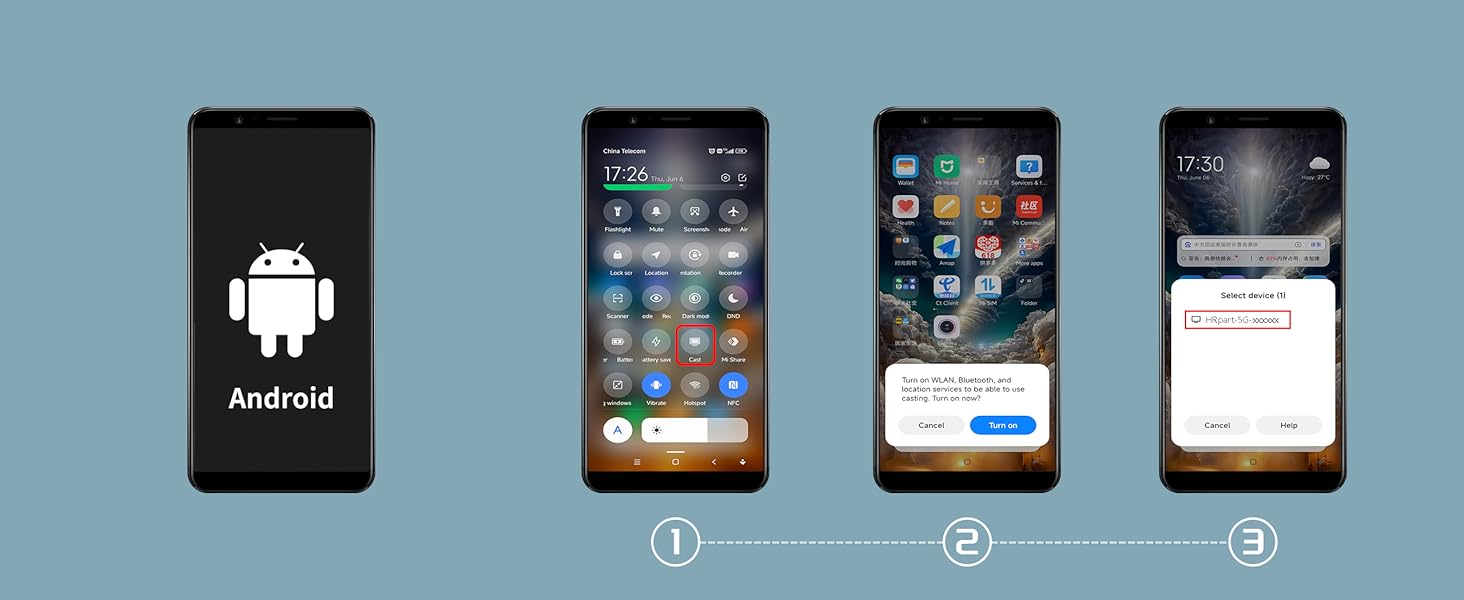
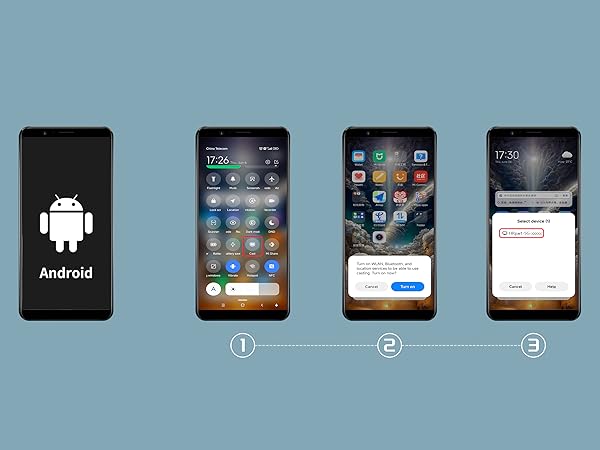
Android System Mirroring
1.Confirm that the device's black main screen appears on the TV.
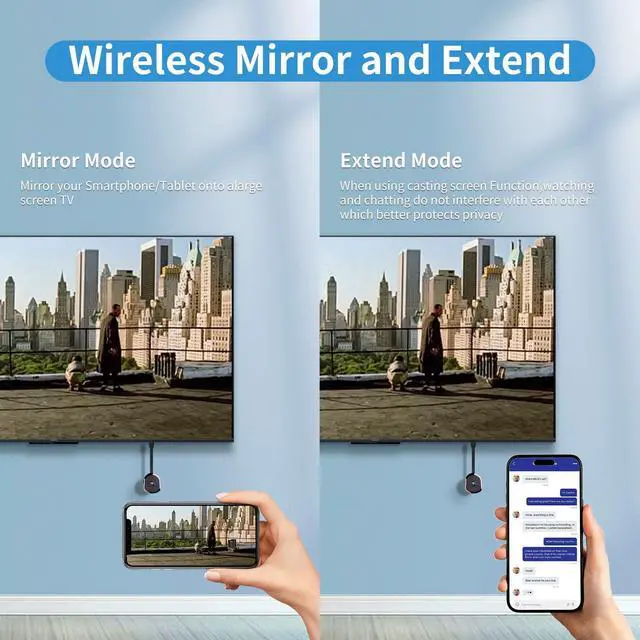
2.In the "Cast " function, select the 'HRpart-5G-XXXXX' device, wait for a few seconds, and the phone screen will automatically appear on the TV after a successful connection.
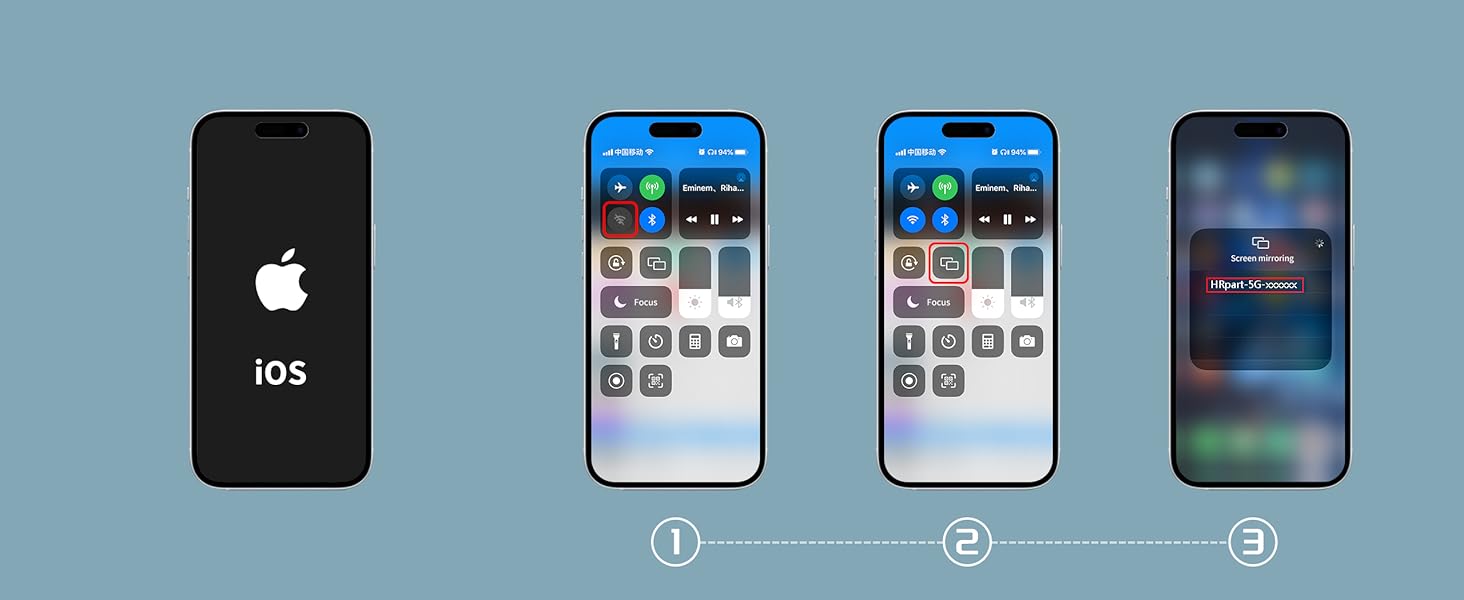
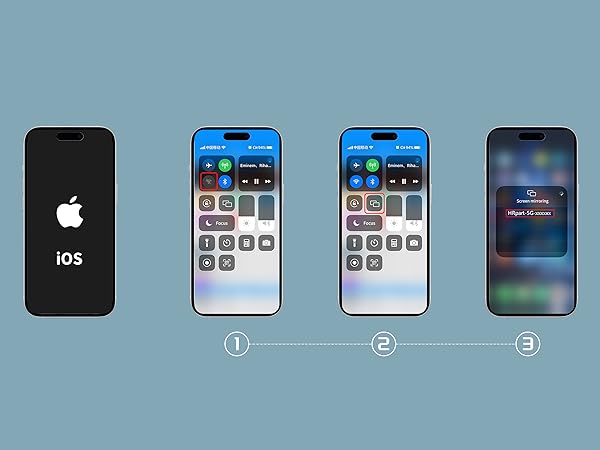
iOS System Mirroring
1.Go to Settings > Wi-Fi > OTHER NETWORKS > select "HRpart-5G-XXXXX" and enter the password "1234"
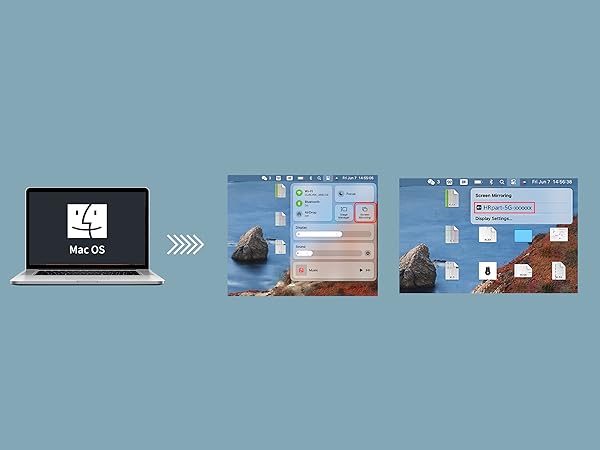
2.Tap "Screen Mirroring" > choose "HRpart-5G-XXXXX"
Note: Android systems can use the mirroring function while connected to home Wi-Fi, but Apple devices need to have phone data enabled to use the mirroring function.
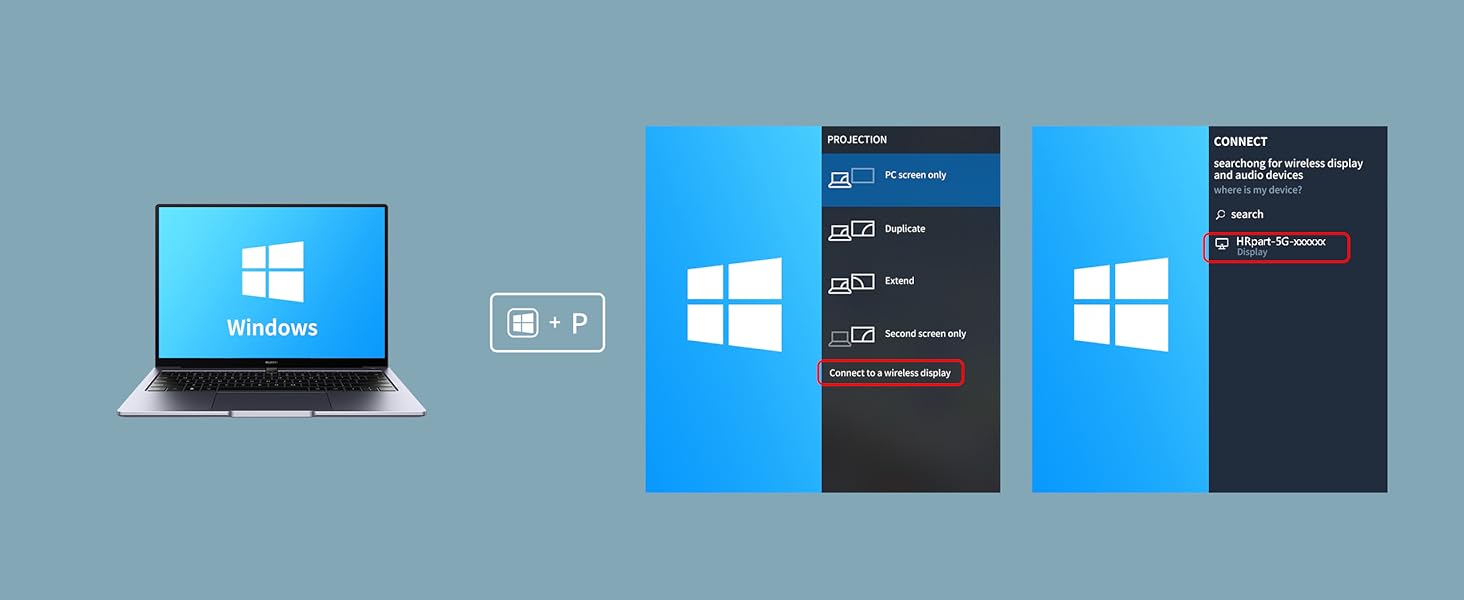
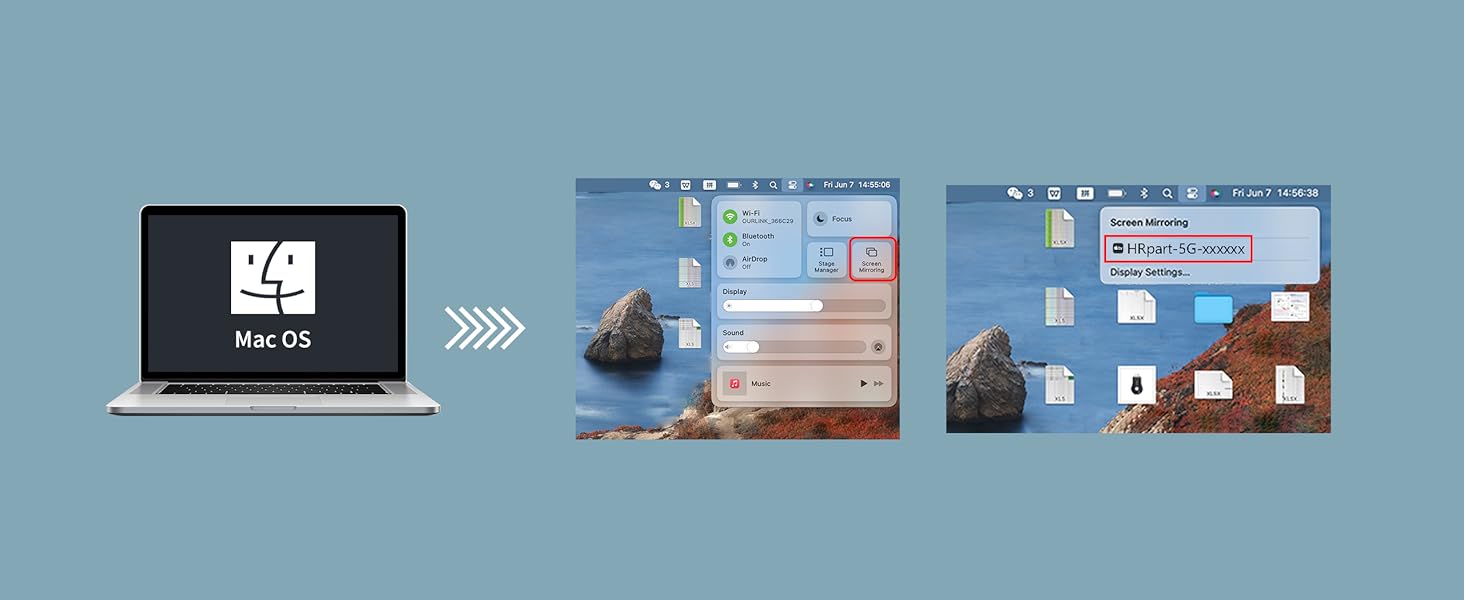
To set up DLNA, you first need to establish a network connection between the device and the router. For specific steps, please refer to Section B.5 (5.1 to 5.2) of the instruction manual.
Question:
How to use DLNA functionality on Android and iOS phones
Answer:
Open the audio and video app on your phone, select the program source you want to play, and after it starts playing, tap the DLNA/Airplay screen casting button in the top right corner of the video. Search for "HRpart-5G-XXXXX" and tap on it to start using DLNA/Airplay playback.
Note:
1.In DLNA mode, all you need to do is set up the network for the first time. After that, it will automatically connect to the WiFi you initially connected to whenever you turn it on.
2.If you have already established a network connection between the device and the router but cannot find "HRpart-5G-XXXXX" on your mobile device, you need to check if your router's name contains special characters such as spaces.
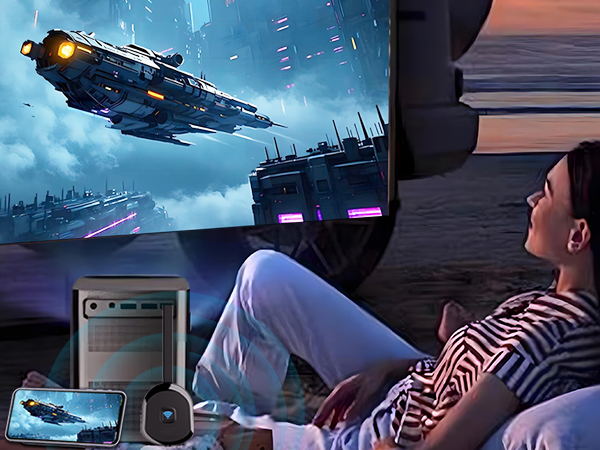
Physical Setup:
1.Connect the dongle to the TV's HDMI port.
2.Connect the dongle's USB cable to the TV's USB port or a USB power block.
3.Turn on the TV and set the input to the dongle's HDMI port.
4.Make sure the device's black main screen appears on the TV.
Android System Mirroring
1.Confirm that the device's black main screen appears on the TV.
2.In the "Cast " function, select the 'HRpart-5G-XXXXX' device, wait for a few seconds, and the phone screen will automatically appear on the TV after a successful connection.
iOS System Mirroring
1.Go to Settings > Wi-Fi > OTHER NETWORKS > select "HRpart-5G-XXXXX" and enter the password "1234"
2.Tap "Screen Mirroring" > choose "HRpart-5G-XXXXX"
Note: Android systems can use the mirroring function while connected to home Wi-Fi, but Apple devices need to have phone data enabled to use the mirroring function.
To set up DLNA, you first need to establish a network connection between the device and the router. For specific steps, please refer to Section B.5 (5.1 to 5.2) of the instruction manual.
Question:
How to use DLNA functionality on Android and iOS phones
Answer:
Open the audio and video app on your phone, select the program source you want to play, and after it starts playing, tap the DLNA/Airplay screen casting button in the top right corner of the video. Search for "HRpart-5G-XXXXX" and tap on it to start using DLNA/Airplay playback.
Note:
1.In DLNA mode, all you need to do is set up the network for the first time. After that, it will automatically connect to the WiFi you initially connected to whenever you turn it on.
2.If you have already established a network connection between the device and the router but cannot find "HRpart-5G-XXXXX" on your mobile device, you need to check if your router's name contains special characters such as spaces.