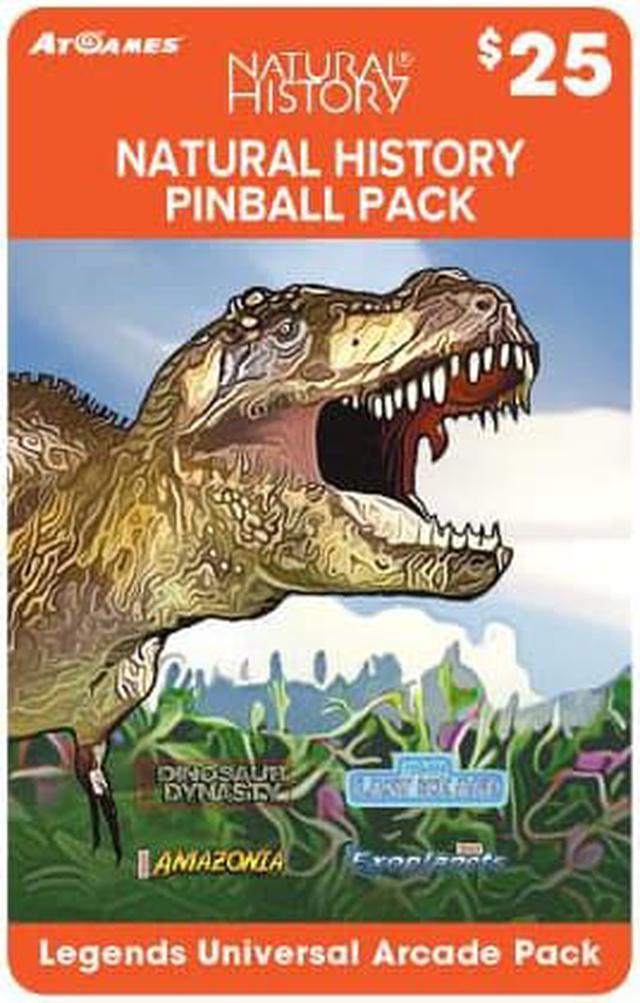
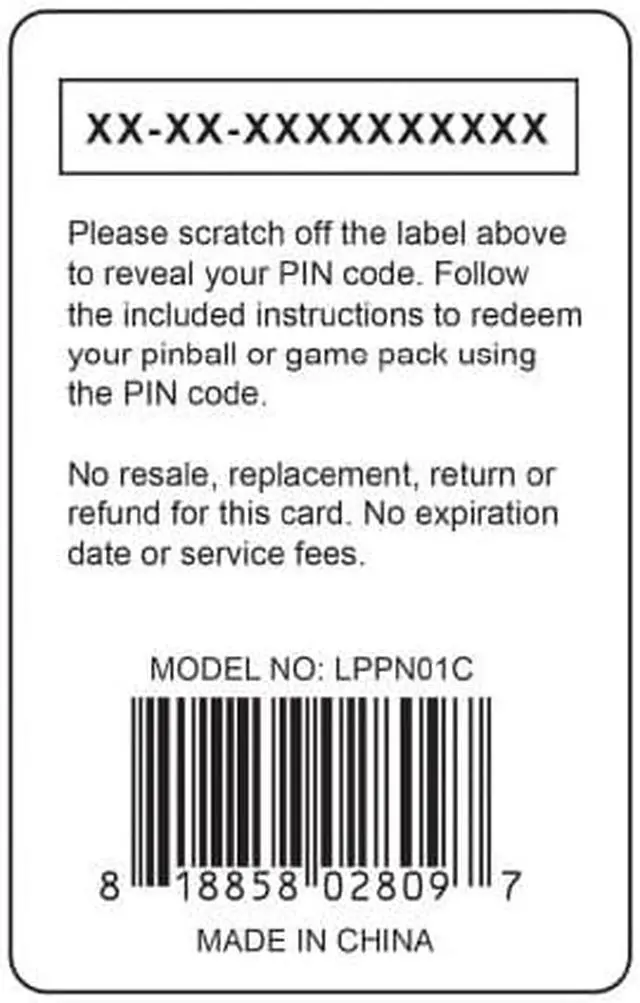
When receive the purchased game card, please scratch off the label on the back to reveal your digital game code.
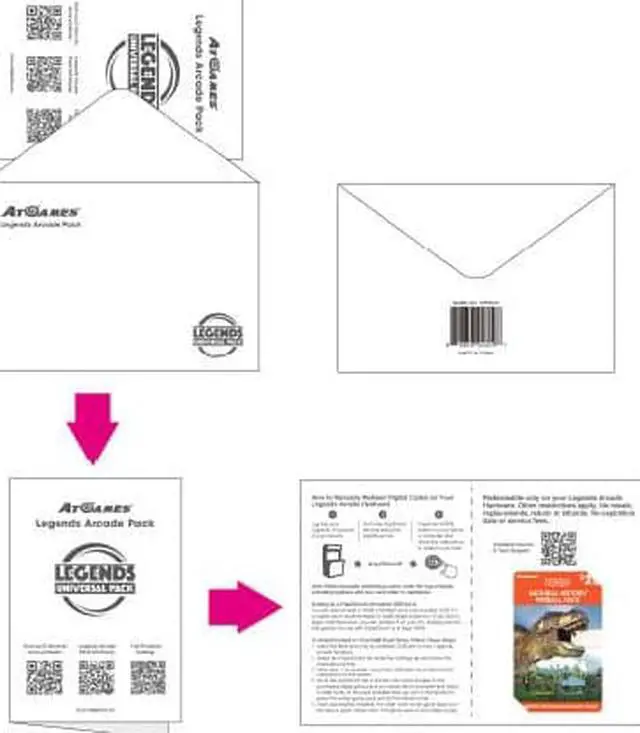
How to Manually Redeem Digital Codes on
Your Legends Arcade Devices:
1. Please connect your Legends device to WiFi or Ethernet, and log in with your Legends ID and password from the Sign In tile under the Settings tab.
2. Go to the AppStoreX tab (top menu) and navigate to the purchased digital game pack you would like to download and install to your device. Remember to select the actual game pack and not the attract mode.
3. Press the AtGames/HOME button on your device or controller and follow the on-screen prompts to redeem your code.
4. When manually redeeming a code, enter the code exactly as shown including the exact case and including the hyphens.
5. If a white circle appears on the game tile, this indicates the game is ready for download. Press the A button, then the Start button and follow the on-screen instructions to download the game.
6. Once successfully installed, the white circle on the game pack icon will have a green check mark. The game pack is now ready to play.
Note: Some devices include built-in flash memory and don't require a USB flash drive. Only those that require an external flash drive will need to perform the steps below:
Setting Up a FlashDriveX-formatted USB Drive: If you have a USB flash drive larger than 32GB, you can partition it from your PC.
The first partition, for use with FlashDriveX, recommended to be at least 16GB and not to exceed 32GB.
To Install Content to Your USB Flash Drive, please
see the following:
1. Insert the flash drive into an available USB port on your Legends Arcade hardware.
2. Select the FlashDriveX tile under the Settings tab and follow the on-screen prompts.
3. Now select the Mount option to mount the USB flash drive following the on-screen instructions. Once mounted, return to step #5 and #6 (above) to complete the game installation.


 Holiday Shipping Details & Extended Holiday Returns


