





OBS Studio Setup
1. Open OBS, create a new source under Sources by clicking "+", select "Video Capture Device", name it, then set:
Device: USB3.0 Video; Audio Output Mode: Capture Mode Only; Use custom audio device: Digital Audio Interface (USB 3.0 Audio)
2. In OBS settings ? Audio:
Disable all Global Audio Settings except Mic/Auxiliary Audio; Set Mic/Auxiliary Audio to Digital Audio Interface (USB 3.0 Audio)
3. Under the Audio tab:
Right-click Mic/Auxiliary Audio ? Advanced Audio Properties ? Set Audio Monitoring to "Monitor Only (Mute Output)"
4. In PC settings ? System ? Sound:
Set Input to Laptop Microphone; All Sound Devices ? Input Devices ? Digital Audio Interface. Ensure it is NOT set to default. All Sound Devices ? Input Devices ? Laptop Microphone. Ensure it IS set to default.
5. In Discord:
If prompted to switch audio device, choose "don't switch"; User Settings > Voice & Video > Input > Laptop Microphone; User Settings > Voice & Video > Output > Laptop Speakers.


VIXLW: Connecting Infinite Possibilities
Users usually encounter problems such as image delays and impaired image quality during video transmission and conversion. To solve these problems, VIXLW was born with a passion for video technology, determined to create the ultimate experience of video capture cards and converters.
Choosing VIXLW means choosing quality and professionalism to start a wonderful video journey together.
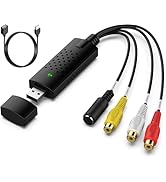
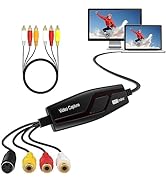
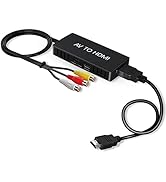
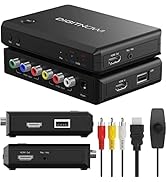
Video Converter
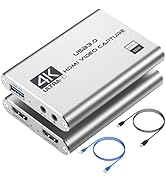
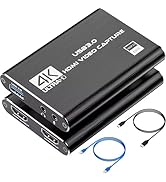
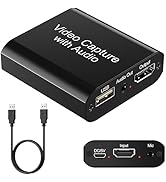
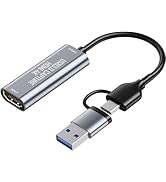
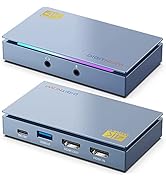
Capture Card
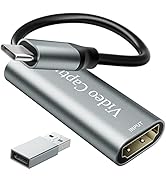
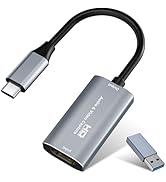
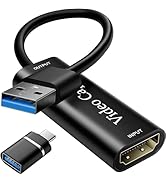
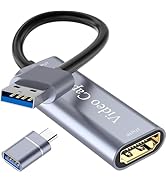
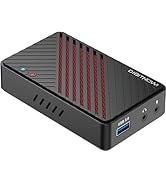
Video Capture Card
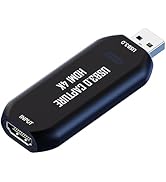
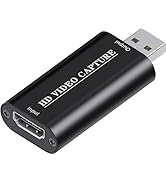
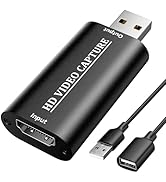
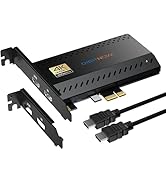
Cam Link 4K
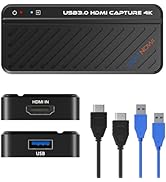
HDMI Capture Card


OBS Studio Setup
1. Open OBS, create a new source under Sources by clicking "+", select "Video Capture Device", name it, then set:
Device: USB3.0 Video; Audio Output Mode: Capture Mode Only; Use custom audio device: Digital Audio Interface (USB 3.0 Audio)
2. In OBS settings ? Audio:
Disable all Global Audio Settings except Mic/Auxiliary Audio; Set Mic/Auxiliary Audio to Digital Audio Interface (USB 3.0 Audio)
3. Under the Audio tab:
Right-click Mic/Auxiliary Audio ? Advanced Audio Properties ? Set Audio Monitoring to "Monitor Only (Mute Output)"
4. In PC settings ? System ? Sound:
Set Input to Laptop Microphone; All Sound Devices ? Input Devices ? Digital Audio Interface. Ensure it is NOT set to default. All Sound Devices ? Input Devices ? Laptop Microphone. Ensure it IS set to default.
5. In Discord:
If prompted to switch audio device, choose "don't switch"; User Settings > Voice & Video > Input > Laptop Microphone; User Settings > Voice & Video > Output > Laptop Speakers.
VIXLW: Connecting Infinite Possibilities
Users usually encounter problems such as image delays and impaired image quality during video transmission and conversion. To solve these problems, VIXLW was born with a passion for video technology, determined to create the ultimate experience of video capture cards and converters.
Choosing VIXLW means choosing quality and professionalism to start a wonderful video journey together.
Video Converter
Capture Card
Video Capture Card
Cam Link 4K
HDMI Capture Card