here!
here!
I’m your shopping assistant for PC builds, upgrades, and everything tech.
Got questions? Ask away!
Start a conversation
here!
I’m your shopping assistant for PC builds, upgrades, and everything tech.
Got questions? Ask away!
Start a conversation
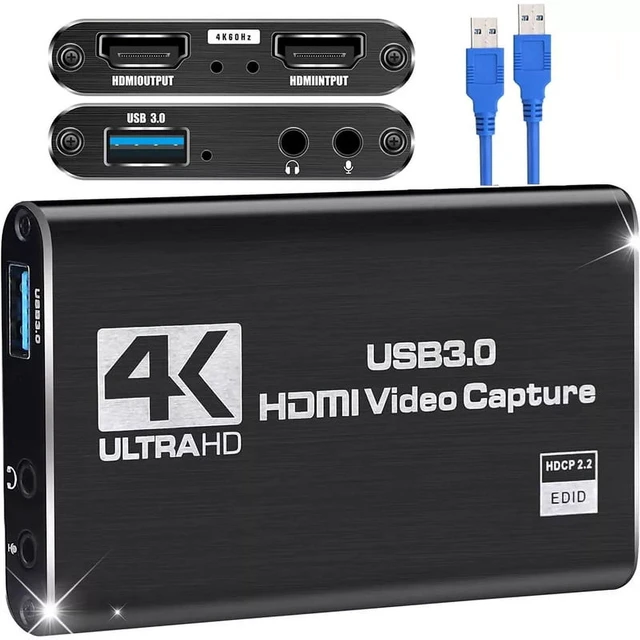
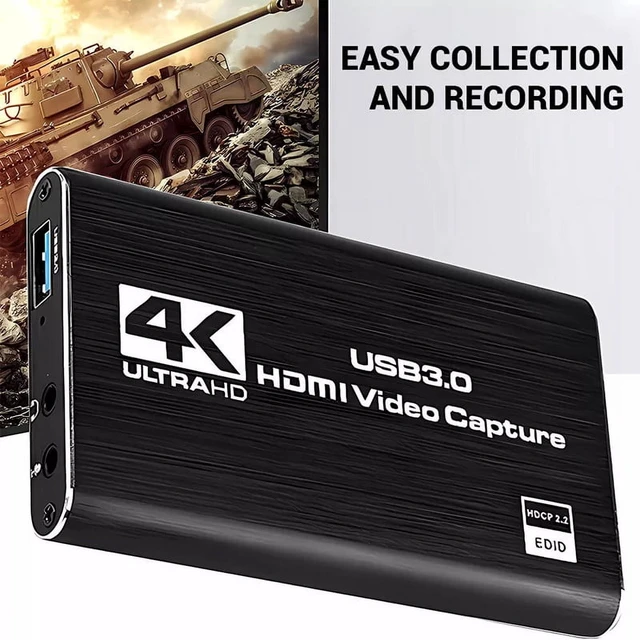
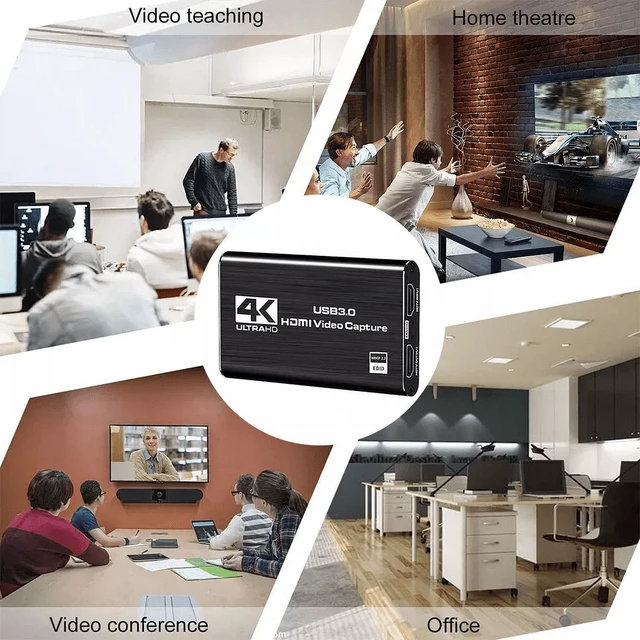
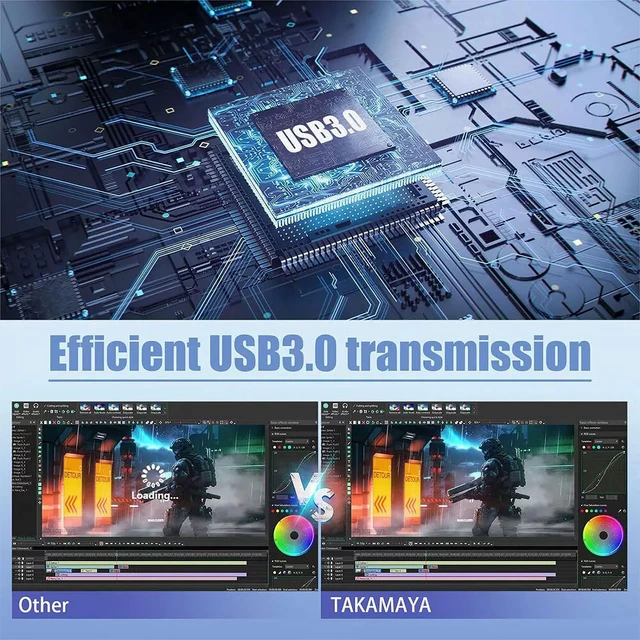
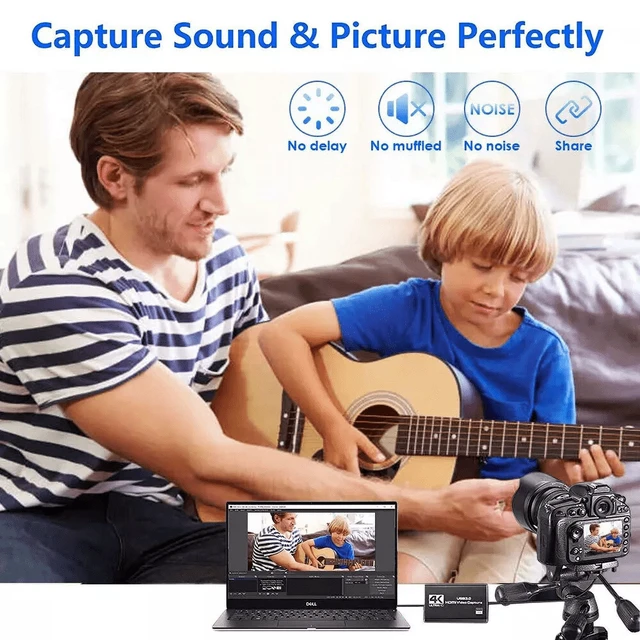



Any questions? Ask CelesteSM will help you find out quickly.
Specification:
Product Name:4K Video Capture Card
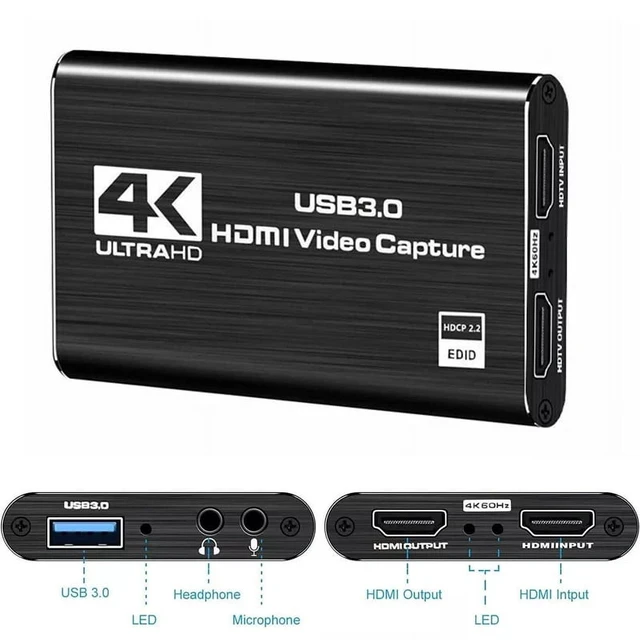
Internal Interfaces: USB 3.0
Compatible Port: USB 3.0
Broadcast Formats Supported: live broadcasts
External Interfaces: HDMI Standard Output
Number of Ports: 5 Ports
Video Capture: Digital & Analog
Resolution: 3840 * 2160 and 1920 * 1080P standard resolution
Suitable for: Windows 7, 8, 10, Mac OS X 10.9 or above, Linux
Transmission: USB3.0 high speed transmission port
Voltage: 5v USB Cable Length: 50cm/19.7inch
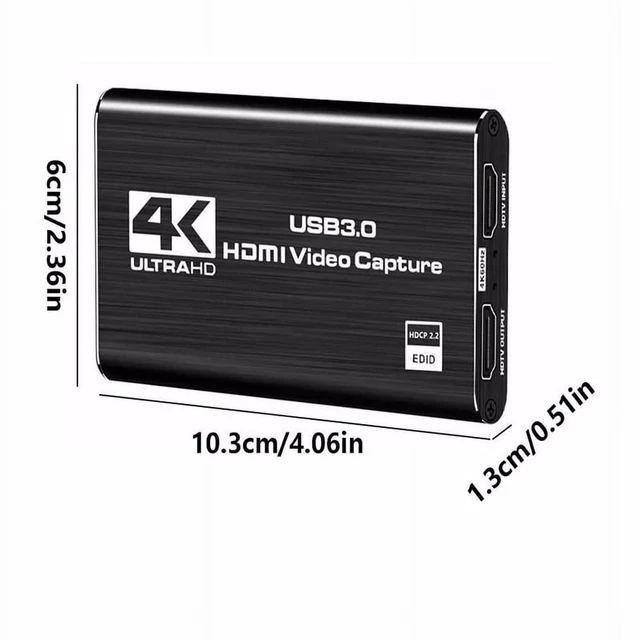
Product Dimensions: 4.1x2.5x0.5inch
Note and tips: 1. Do not use HUB or USB extension cable. 2. HDMI capture card must be connected to the computer's USB 3.0 interface to use. 3. A low computer configuration will cause the recording screen to blinking randomly or black. 4. An adapter is required when HDMI is connected to a phone. 5. Capture operation steps (OBS): open it add new source select 'video capture device' set screen size select 'studio mode' (dual window) click 'start recording'
6. Precautions related to OBS: *Please note that you need to restart the OBS Studio software after completing the audio settings, otherwise no sound will be output.
*Please correctly connect the capture card to the signal source, video loop-out, audio input, audio output and computer.
*Please install OBS live broadcast software on your computer. If the OBS version is too low, the capture card may not work normally.