

  • $249.99
  • Free 30-day Returns
  • Ships from China.
    Sold by Nexlly

    Shipped by Nexlly

    Price alert
    Shop it at NeweggBusiness.

    Meet Your Seller

    EZCAP283S Standalone HDMI Video Capture Recorder, 1080P Full HD, 720P/1080P Recording, Scheduled Recording, HDMI Input/Output, Component YPbPr and Composite AV Input, Microphone Input, Remote Control

    • The collection box 283S features date and time scheduling, as well as appointment recording functions. Compared with the previous two generations, it has added many new functions. The third-generation product allows for selection of video sources and recording quality through buttons, the microphone input gain can also be adjusted, it is equipped with a remote controller that can control recording and select video sources, etc., and it can also control screenshot capture. All input and output terminals are independent terminals, which are more stable. 108OP true high-definition recording, done in one click, without the need for a computer, you can record anytime and anywhere! It has an independent video input interface, which is more convenient and reliable.
    • It has a microphone input port, which can conveniently combine voice and video for recording, and it also has a microphone input gain adjustment function. It has an independent video input source selection and recording quality calculation button, and it is also equipped with a remote controller, which can achieve the functions of recording, video source selection, recording quality selection and screenshot capture.
    +
    +
    Overview
    Specs
    Reviews

    Any questions? Ask CelesteSM will help you find out quickly.

    1. 1080P recording with one click, no PC required. Easy to use, no any set-up.

    2. You just click RECORD button to record your gameplay.

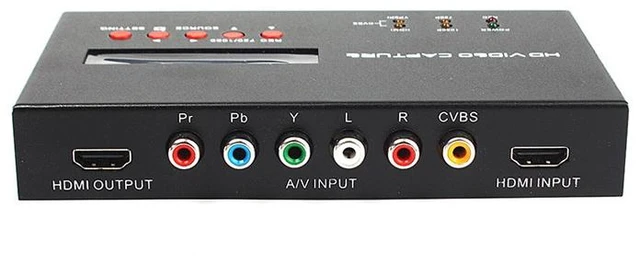
    3. More video input choice: HDMI, Component Video, Composite Video.

    4. With 1080P HDMI Pass-through, you can playing HD gameplay when you're recording it.

    5. With Micro Phone in, can record your voice with video together.

    6. Also with adjusting Mic volume.

    7. With video source button and 720P/1080P recording quality selection button.

    8. Get Record/Stop, Video source selection, 720P/1080P selection and Snap shot functions with Remote Control.

    9. Connections
    10. Interface USB 2.0 Host
    11. Video Input Digital: HDMI
    12. Analog: Component Video, Composite Video
    13. Audio Input Digital: HDMI
    14. Analog: RCA L/R, 3.5mm MicroPhone In
    15. Note:Microphone without pass through fo HDMI input
    16. Video Output Digital: HDMI (Pass-through from HDMI or Component or Composite Input)
    17. Audio Output Digital: HDMI (Pass-through from HDMI or RCA L/R Input)
    18. Analog: 3.5mm Stereo (Pass-through from HDMI or RCA L/R Input)
    19. Applicable Connections
    20. HDMI Industry HD camera, HD Medical endoscope, TV, gameplay, etc
    21. Component TV, gameplay, etc
    22. Composite Industry camera, Medical endoscope, TV, gameplay, etc
    23. Note: HDCP contents cannot be recorded.
    24. Hardware Extra
    25. Codec Hardware H.264 encoder
    26. User Interface Record button, 720p/1080p switch button, source change button. Ezcap283s with 5 more buttons for setting time and schedule
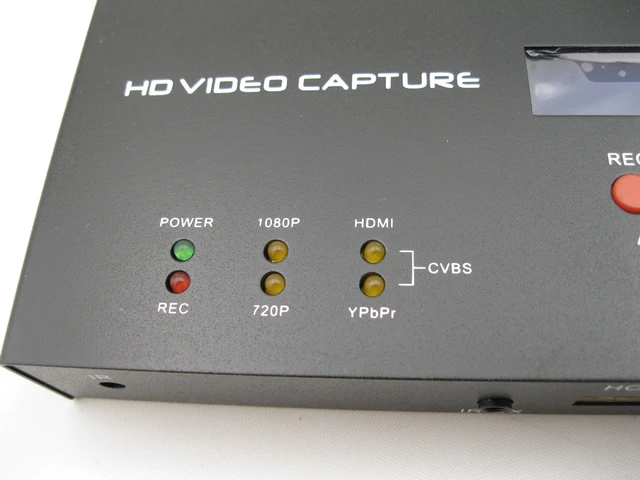
    27. LED indicator for working status. Ezcap283s with LCD screen for show time and schedule status
    28. Dimensions 155(L) × 92(W) × 27(H) mm ezcap283s: 155(L) × 92(W) × 30(H) mm
    29. Weight 365g
    30. Package Contents
    31. Device ezcap283/283S HD Video Capture
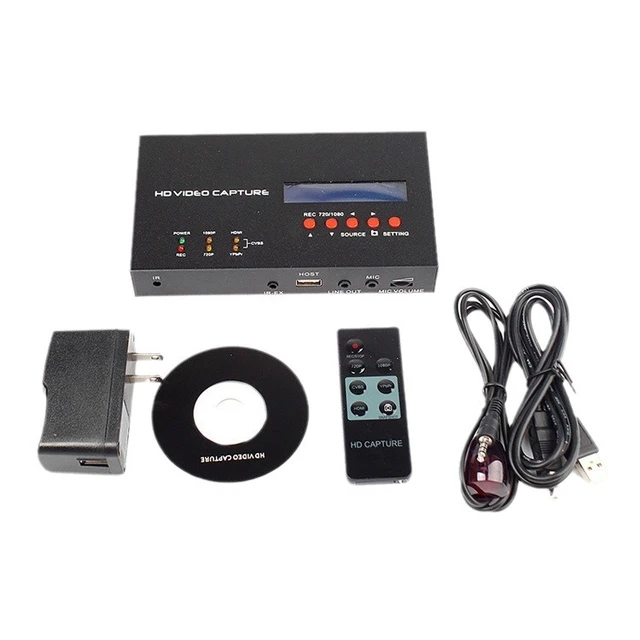
    32. Others DC adaptor, USB cable, remote controller, remote expand cable, Software CD, Manual
    33. Standards
    34. Storage Media USB Flash Disk, Portable Hard Disk
    35. Max Capacity: USB / 2T
    36. Note:The exFAT format is not supported.
    37. Resolution Input / Pass-through: 720 x 480 (60p), 720 x 576 (50p), 1280 x 720p (50p), 1280 x 720p(60p), 1920 x 1080 (50i), 1920 x 1080 (60i), 1920 x 1080 (24p), 1920 x 1080 (25p), 1920 x 1080 (30p), 1920 x 1080 (50p), 1920 x 1080 (60p)
    38. Capture: 720 x 480 (60p), 720 x 576 (50p), 1280 x 720p (50p), 1280 x 720p(60p), 1920 x 1080 (50i), 1920 x 1080 (60i), 1920 x 1080 (24p), 1920 x 1080 (25p), 1920 x 1080 (30p), 1920 x 1080 (25p), 1920 x 1080 (30p)
    39. Note:Upscaling is not supported.
    40. Record Format Video: MP4, Audio: AAC Stereo
    41. Record Quality Max: 18Mbps@1080P 30fps
    42. Record File Max: 2GB / Per File, With RTC (Real Time Clock)
    43. Record Place Max: 140MB / Minute, 8.4GB / Hour
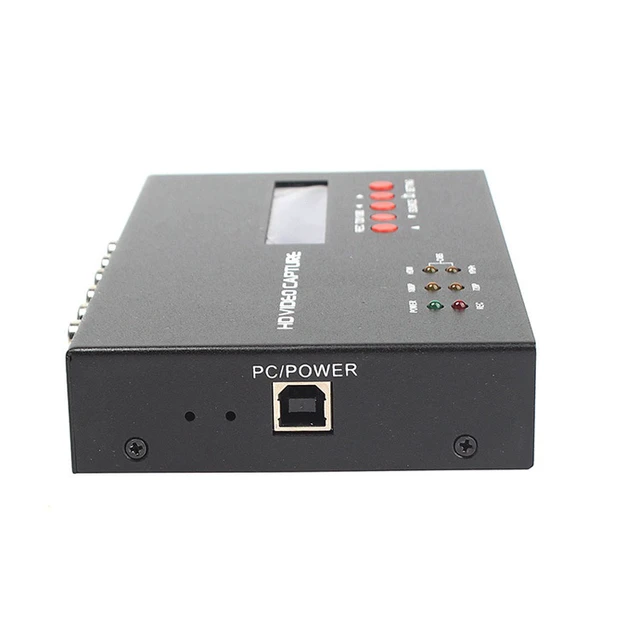
    44. Power Supply USB B, DC 5V / 2A
    45. Applications
    46. Software Arcsoft Showbiz
    47. Video Editing Timeline / Storyboard edit, Split / Divide Scenes, Multi Trim Scenes
    48. Video Export Upload to YouTube
    49. Portable Device: iPod, iPhone, iPod Touch, Apple TV, PSP, PS3, Xbox
    50. File: MPEG 1 / 2 / 4, WMV HD, Quicktime (MOV)
    51. Operating System Windows 8 (32 / 64 bit), Windows 7 (32 / 64 bit), Windows Vista (32 / 64 bit)
    52. CPU Intel Core 2 Duo 2.8GHz, AMD Athlon 64X2 Dual Core 3.0GHz
    53. Memory 4 GB RAM
    54. Graphics Card VGA card with support for DirectX 10.0c or above


    Product connection:

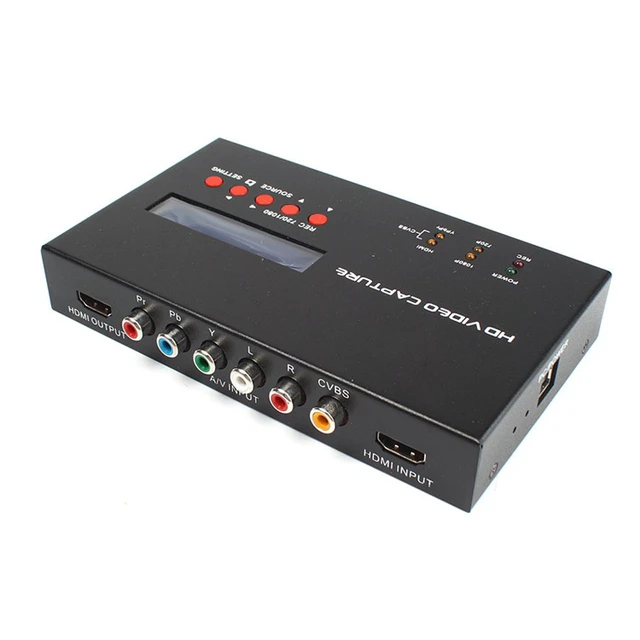
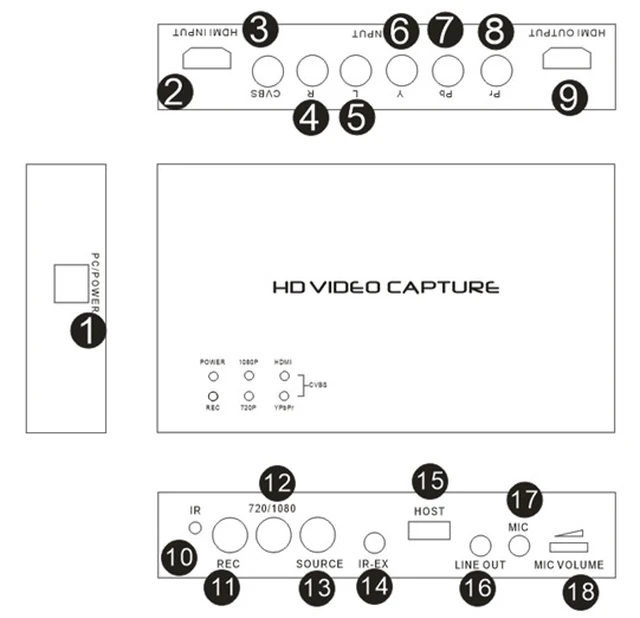
    The high-definition capture box 283 has three input methods: HDMI, component color difference, and CVBS. The device will automatically identify the video source. If you connect more than two video sources at the same time, you can select the desired video source input by pressing the "SOURCE" button or using the remote control.


    1. Connect the device to a power adapter.

    2. Insert a USB drive/mobile hard drive.

    3. Use an HDMI cable (please prepare it yourself, as the packaging does not contain any HDMI cables) to connect the HDMI output of the video source to the HDMI IN interface of the capture box.

    4. Use an HDMI cable to connect the HDMI OUT interface of the capture box to the HDMI input interface of the TV or display.

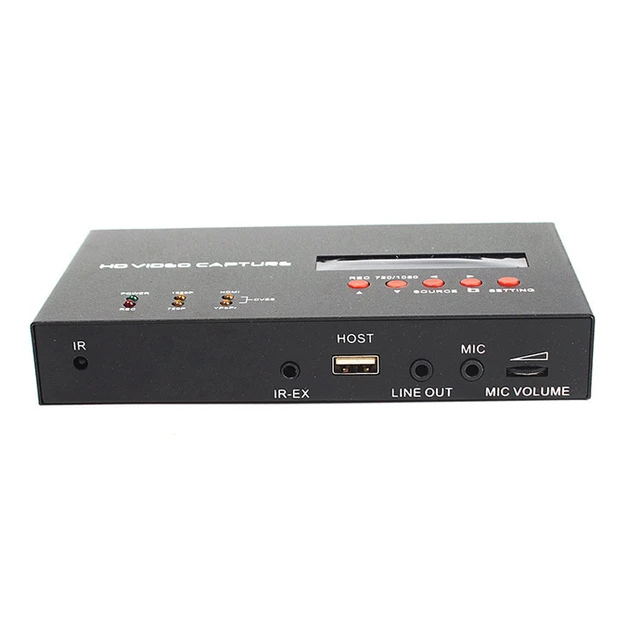
    5. The "LINE OUT" audio output port is used to connect headphones or speakers. If you don't need it, there's no need to connect it as the HDMI output already includes audio output.

    6. The "MIC" microphone input port. When playing games, you can connect your microphone to simultaneously record your voice and game video. If not needed, there's no need to connect it.

    Connect to a component color difference video source (such as a DVD player, PS3, etc.):

    Except for the third point which is different from connecting via HDMI, the rest are exactly the same.

    The third point is changed to the following: Use the included video multi-purpose cable and component color difference cable (need to purchase separately, including red and white audio cables) to connect to the component color difference output port of the video source.

    Note: Component color difference is red, green, and blue, and the left and right channel audio is red and white. Please do not confuse these two red wires. The audio red and white of the multi-purpose cable are connected together. Please pay attention when using.

    Attention


    Record:

    After connection is completed, you will definitely be able to view images and hear sounds on the TV or monitor. At the same time, the blue indicator light will remain constantly on. Now the acquisition box is ready to start recording.

    If the input source is 1080P, then the 720P/1080P indicator light will default to showing 1080P, indicating that the recorded file is a 1080P file. You

    You can press the "720/1080" button to set the recorded file to 720P, and then the 720P indicator light will turn on. If the video input source is lower than 1080P, the 720P indicator light will turn on, and the "720/1080" switch button will have no effect. It indicates that the recorded file can only be 720P or of a lower quality, depending on the quality of the input video source.

    The above functions can also be controlled through the remote control. The video source indicator light (HDMI/YPbPr/CVBS) will light up according to the actual video source input (simultaneous lighting indicates CVBS). If there is no...

    If the video source input or the video source is faulty, all the LED indicators will flash. If there are more than two video source inputs at the same time, you can select the desired video source by pressing the "SOURCE" button or using the remote control.

    Recording is very simple. Just press the recording button gently (or through the remote control), and you will see the recording indicator light up, which means recording has begun.

    You can capture images by pressing the SNAPSHOT button on the remote control, but it will not work during the recording.

    Connect the microphone to the MIC input port, and you can superimpose the microphone's audio and video and record them. You can also adjust the input audio level through the microphone volume control knob.

    If the indicator light does not change when you press the recording button, there may be the following reasons. Please confirm:

    1. The video source input is not properly connected.

    2. The USB drive or mobile hard drive is full.

    3. The format of the USB drive or mobile hard drive is not suitable, such as exFAT format. The acquisition box supports FAT, FAT32 and NTFS formats.

    4. The USB drive or mobile hard drive is not properly inserted.

    5. The USB drive, mobile hard drive or SD card is not ready. Generally, it takes 4 to 8 seconds after insertion.

    If you want to stop the recording, simply press the recording button again. You will see the LED indicator light flash a few times and then go out. This means the recording has stopped. You can then unplug the storage device.

    Note: When the LED indicator light is flashing, do not unplug the USB drive or SD card. Otherwise, some recorded files may be lost. If U

    The disk is full. The collection box will automatically stop recording and will not damage or lose the previously recorded files.

    Warranty & Returns

    Warranty, Returns, And Additional Information

    Warranty

    • Please contact the Seller directly for warranty information. Warranty information may also be found on the Manufacturer's website.
    • CONTACT

    Return Policies

    • Return for refund within: 30 days
    • Return for replacement within: 30 days
    • This item is covered by Nexlly Return Policy

    Manufacturer Contact Info

    LOADING...