Your Browsing History
- Free 30-day Returns
$600.99
Meet Your Seller
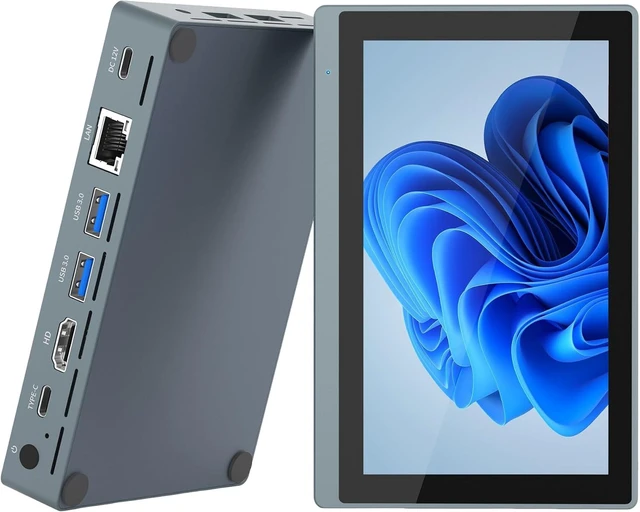
5.5" TouchScreen Mini PC, N5100, Windows 11, 8GB RAM 128G ROM
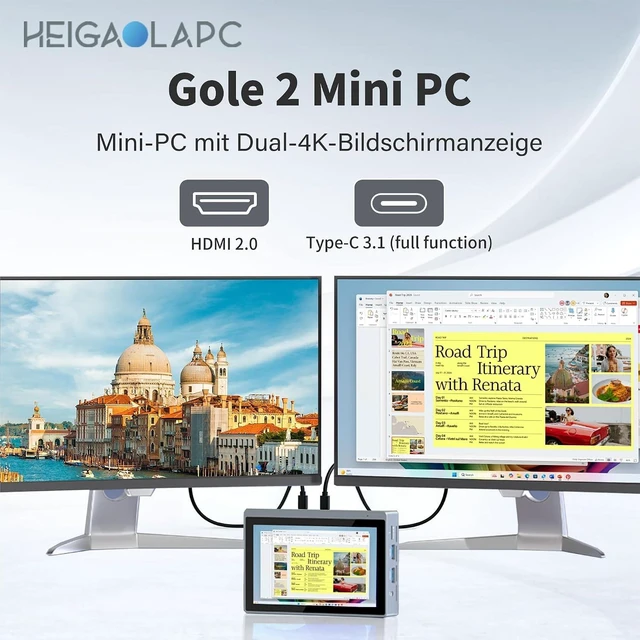
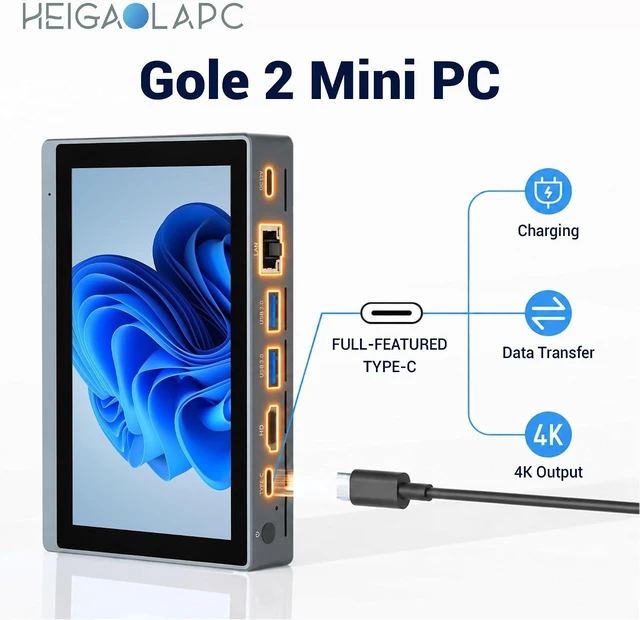
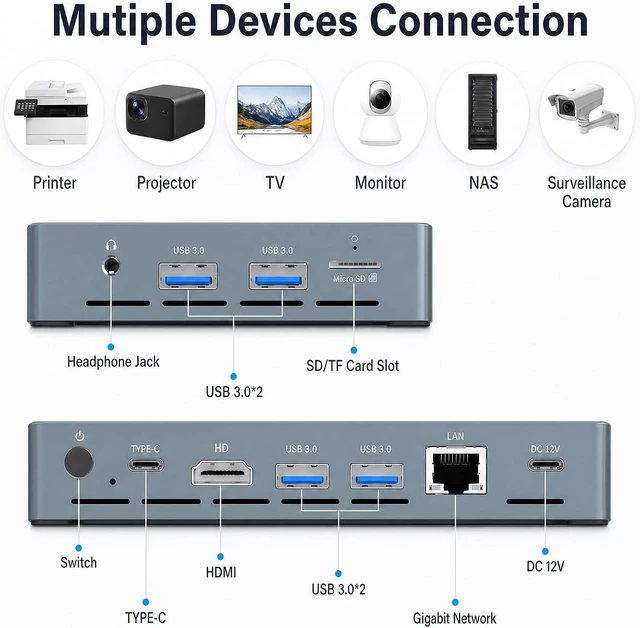
- Dual 4K HDMI,USB-C, Gigabit LAN, WiFi & Bluetooth, ultra-quiet fan industrial monitoring, digital signage, office & kiosk
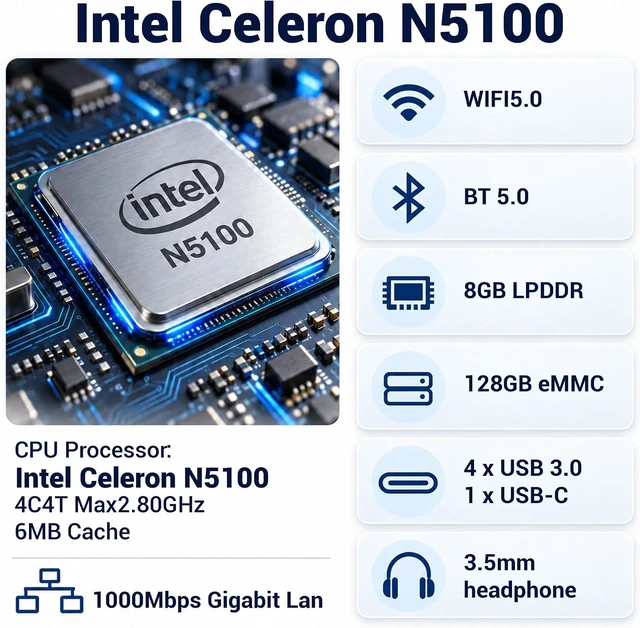
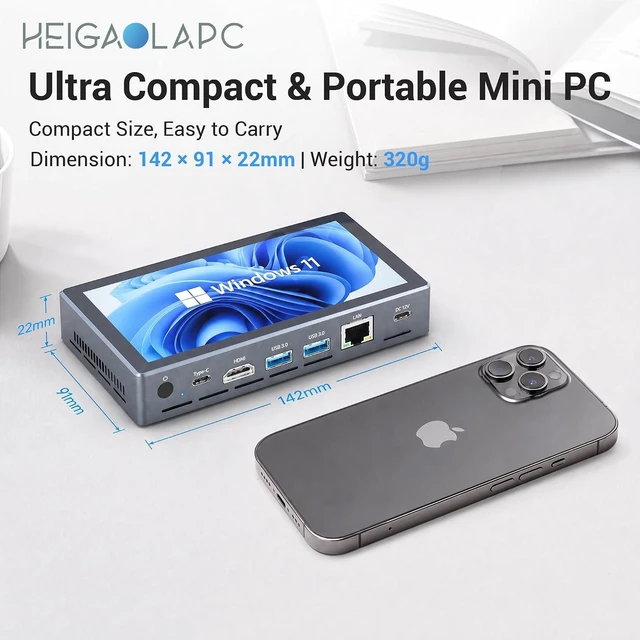
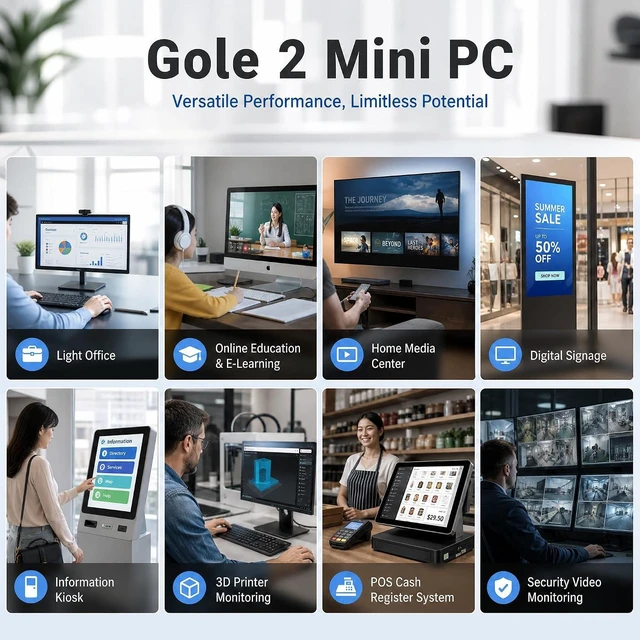
- , Skip the hassle of buying a separate display. This compact 5.5inch IPS touchscreen mini PC (720×1280) comes fullyequipped with Intel Celeron N5100 (4Core 4Thread, Base 1.1GHz, Burst 2.8GHz, 4MB Cache), 8GB RAM + 128GB Storage and preinstalled Windows 11. Perfect for daily homeoffice tasks including web browsing, document editing and media playback; Also works great for digital signage, kiosks and lightduty industrial control panels.
- Break free from power cords. Equipped with an internal cooling fan for effective heat dissipation during longhour operation. The integrated 2500mAh 7.6V battery delivers up to 4.5hours of runtime. At only 0.32 kg lightweight, you can move it easily around your home, kitchen or study, or carry it out for field debugging, site
+
+
Overview
Reviews
Any questions? Ask CelesteSM will help you find out quickly.
Try me now
1Dual-4K Output 2Full Function Type-C Device keeps blue-screening. What should I do?
Record the error code. Boot into Safe Mode (press F8 during startup). If no blue screen in Safe Mode, uninstall recent drivers/software and run Windows Update. If still fails, reset or reinstall Windows.
Still blue-screens in Safe Mode. What next?
Run chkdsk /f /r in Command Prompt (Admin) to check hard drive, and run Windows Memory Diagnostic to test RAM. If errors found, for repair.
How to prevent blue screens in daily use?
1) Disable auto-updates. 2) Avoid unknown drivers/software. 3) Don't force shutdown. 4) Keep system clean. 5) Safely eject USB devices before removal.
Device not charging, no red light, won't turn on. What to do?
Check if adapter works a dead adapter causes no red light. Try a PD adapter via Type-C port. If still no light, open back cover, unplug battery cable and reconnect, then try power on. If all fails, request a replacement.
Blue light on, fan running, but screen stays black. How to fix?
First test with another monitor and HDMI cable. If still no signal, open the device and re-seat the RAM. Also try removing all USB devices and boot again. If none works, hardware failure likely please repair/replacement.
Device keeps blue-screening. What should I do?
Still blue-screens in Safe Mode. What next?
How to prevent blue screens in daily use?
Device not charging, no red light, won't turn on. What to do?
Blue light on, fan running, but screen stays black. How to fix?

Record the error code. Boot into Safe Mode (press F8 during startup). If no blue screen in Safe Mode, uninstall recent drivers/software and run Windows Update. If still fails, reset or reinstall Windows.
Still blue-screens in Safe Mode. What next?
Run chkdsk /f /r in Command Prompt (Admin) to check hard drive, and run Windows Memory Diagnostic to test RAM. If errors found, for repair.
How to prevent blue screens in daily use?
1) Disable auto-updates. 2) Avoid unknown drivers/software. 3) Don't force shutdown. 4) Keep system clean. 5) Safely eject USB devices before removal.
Device not charging, no red light, won't turn on. What to do?
Check if adapter works a dead adapter causes no red light. Try a PD adapter via Type-C port. If still no light, open back cover, unplug battery cable and reconnect, then try power on. If all fails, request a replacement.
Blue light on, fan running, but screen stays black. How to fix?
First test with another monitor and HDMI cable. If still no signal, open the device and re-seat the RAM. Also try removing all USB devices and boot again. If none works, hardware failure likely please repair/replacement.
Device keeps blue-screening. What should I do?
Still blue-screens in Safe Mode. What next?
How to prevent blue screens in daily use?
Device not charging, no red light, won't turn on. What to do?
Blue light on, fan running, but screen stays black. How to fix?
Warranty & Returns
Warranty, Returns, And Additional Information
Warranty
- Please contact the Seller directly for warranty information. Warranty information may also be found on the Manufacturer's website.
- CONTACT
Return Policies
- Return for refund within: 30 days
- Return for replacement within: 30 days
- This item is covered by XinjintongLimited Return Policy
Manufacturer Contact Info
- For a directory of all our manufacturers, please click below.
- Manufacturers Directory
LOADING...