

Your Browsing History

Meet Your Seller

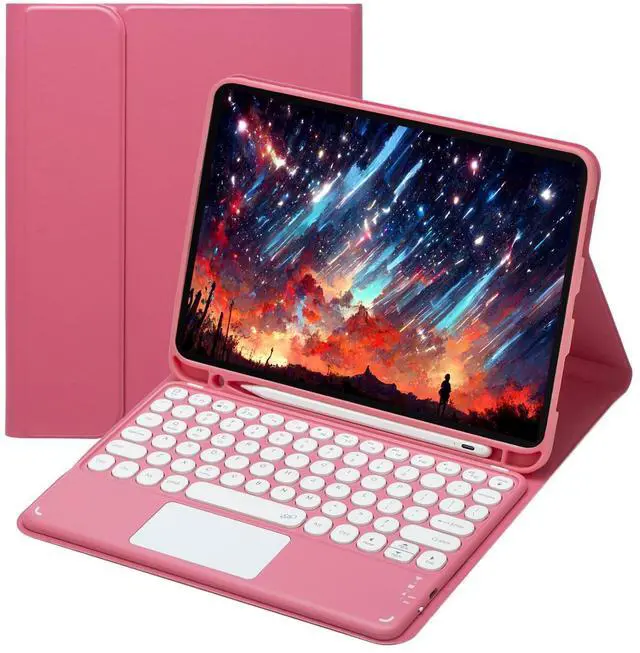
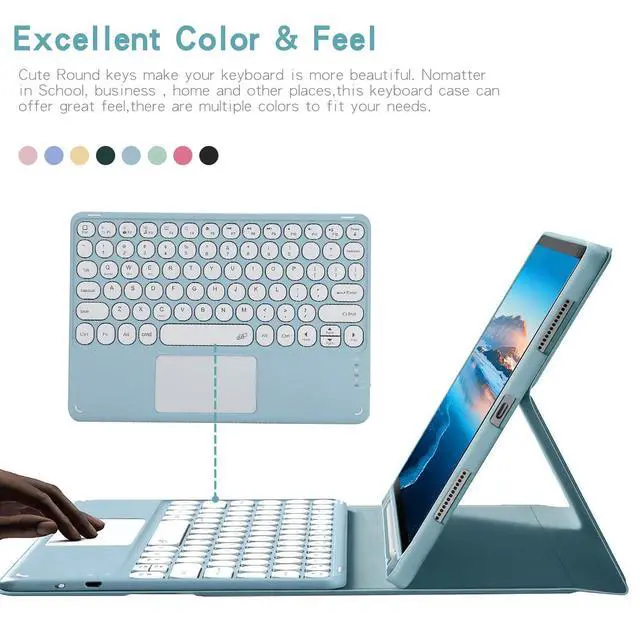


Magnetically Detachable Touch Bluetooth Keyboard Case with Pencil Holder for iPad 9.7" 2018/2017, iPad Air 2 / iPad Air,Red
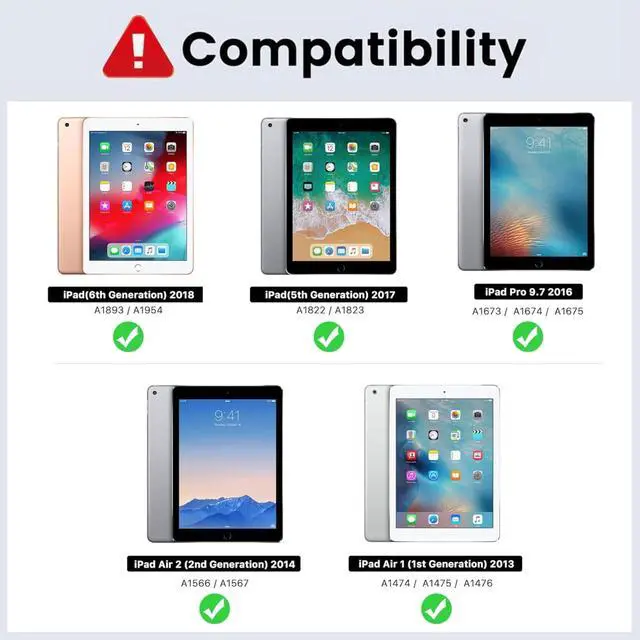
- **Compatibility**: Fits 9.7" iPad 6th Gen 2018 (A1893/A1954), 5th Gen 2017 (A1822/A1823), iPad Air 2 (A1566/A1567) and iPad Air (A1474/A1475/A1476). Not for other models.
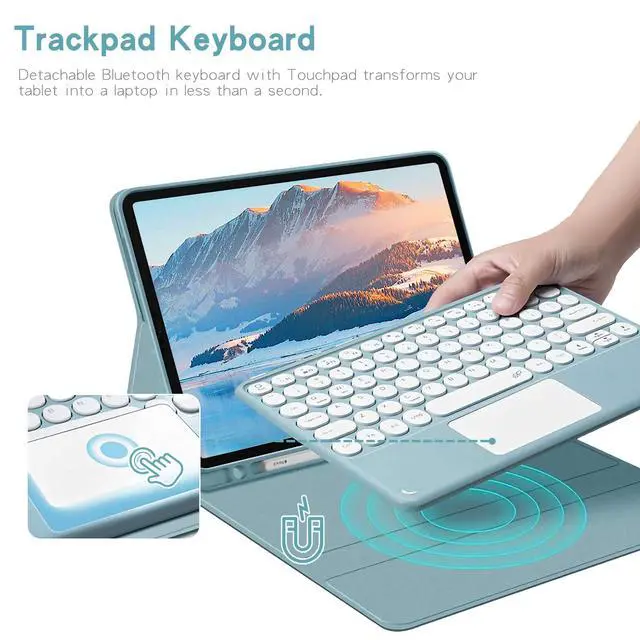
- **Trackpad Keyboard**: Detachable Bluetooth keyboard with touchpad. Requires iOS 13.0+; enable AssistiveTouch in Accessibility to use the touchpad.
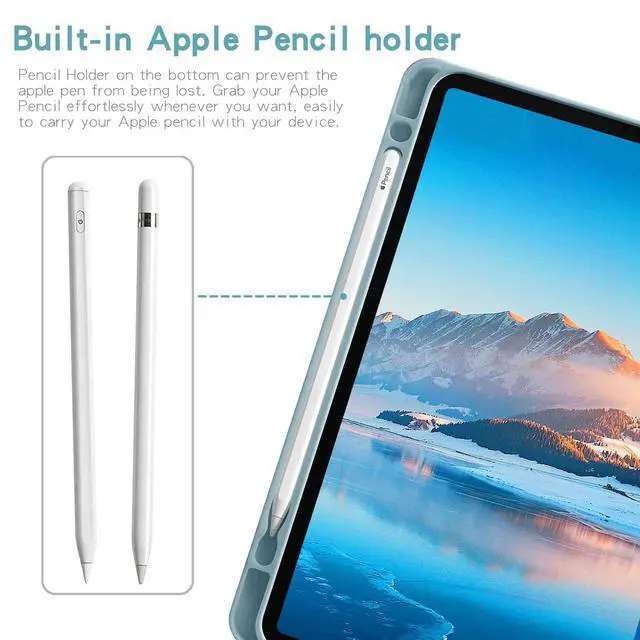
- **Pencil Holder**: Built-in slot keeps Apple Pencil secure and portable. *Apple Pencil not included*.
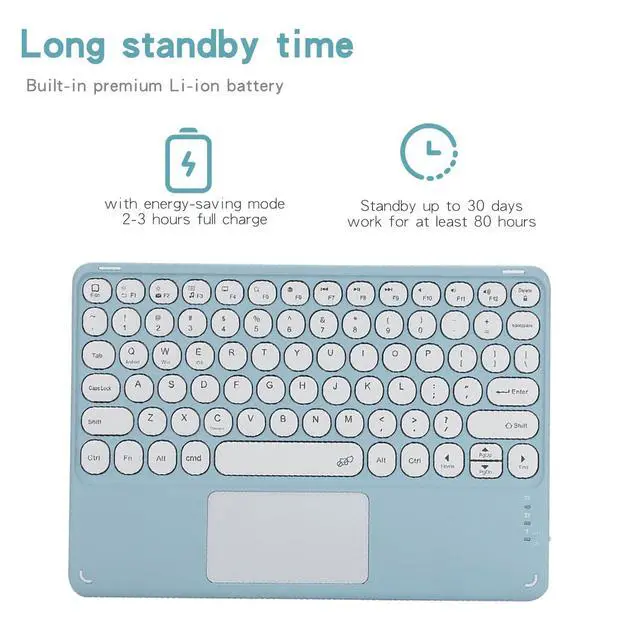
- **Long Battery Life**: Fully charged in 2-3 hours. 30-day standby and 80-hour working time.
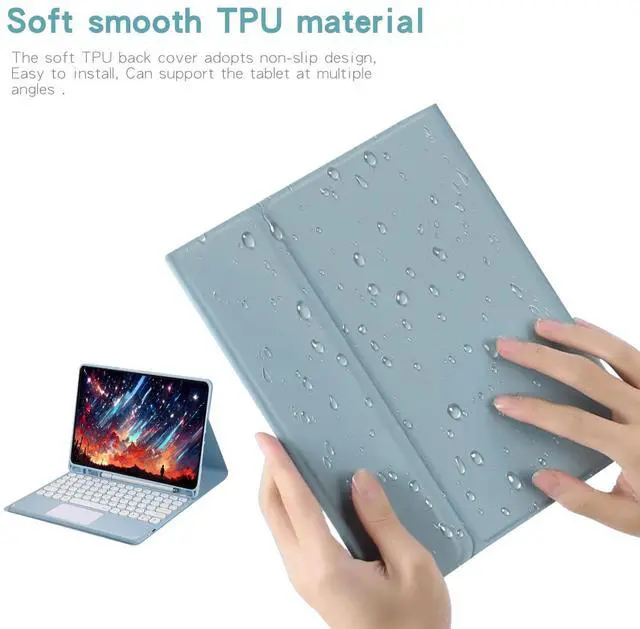
- **Premium TPU Material**: Non-slip soft TPU shell, easy to install and supports multi-angle viewing.
- If you encounter any issues with your order, please avoid filing complaints or initiating returns directly. Instead, feel free to contact our customer service teamthey will wholeheartedly assist you in resolving the problem and provide a solution that meets your satisfaction. We value your experience and are committed to addressing any concerns you may have promptly and properly.Note: Tablets are not included in the product.
+
+
Overview
Specs
Reviews

Any questions? Our AI mode will help you find out quickly.
Try me now
Keyboard Pairing Instructions for iPad Turn on the power button on the keyboards right side. The indicator flashes then turns off automatically for power saving (normal behavior, not defective). Press and hold FN + C simultaneously to activate Bluetooth pairing mode. The Bluetooth indicator will start flashing. On your iPad, go to Settings > Bluetooth and turn it on. Select the keyboard device to pair. If a PIN code appears, enter it via the keyboard and press Enter to confirm. The indicator will turn off once the connection is successful. This is a 3-system keyboard. Press and hold FN + E to switch to iPad dedicated mode. Adjust Scroll Direction iPad uses reverse scrolling by default (different from Windows). To fix it: Go to iPad Settings > General > Trackpad & Mouse, then turn off Natural Scrolling.
Product information
| Brand | Timoom |
| Compatible Devices | iPad 9.7-Inch (2018/2017 Model, 6th/5th Generation) |
| Connectivity Technology | Bluetooth |
| Keyboard Description | Multi Functional |
| Recommended Uses For Product | Personal |
| Special Feature | Backlit |
| Color | Red |
| Keyboard backlighting color support | RGB |
| Material | Acrylonitrile Butadiene Styrene |
| Included Components | Bluetooth keyboard*1, Tablet Case*1, USB Cable |
| Additional Features | Backlit |
| Number of Keys | 78 |
| Enclosure Material | Acrylonitrile Butadiene Styrene |
| Antenna Location | Personal |
| Built-In Media | Bluetooth keyboard*1, Tablet Case*1, USB Cable |
| Manufacturer | Timoom |
| Warranty Description | 1Year |
Warranty & Returns
Warranty, Returns, And Additional Information
Warranty
- Please contact the Seller directly for warranty information. Warranty information may also be found on the Manufacturer's website.
- CONTACT
Return Policies
- Return for refund within: 30 days
- Return for replacement within: non-replaceable
- This item is covered by Top tech Store Return Policy
Manufacturer Contact Info
- For a directory of all our manufacturers, please click below.
- Manufacturers Directory
LOADING...