


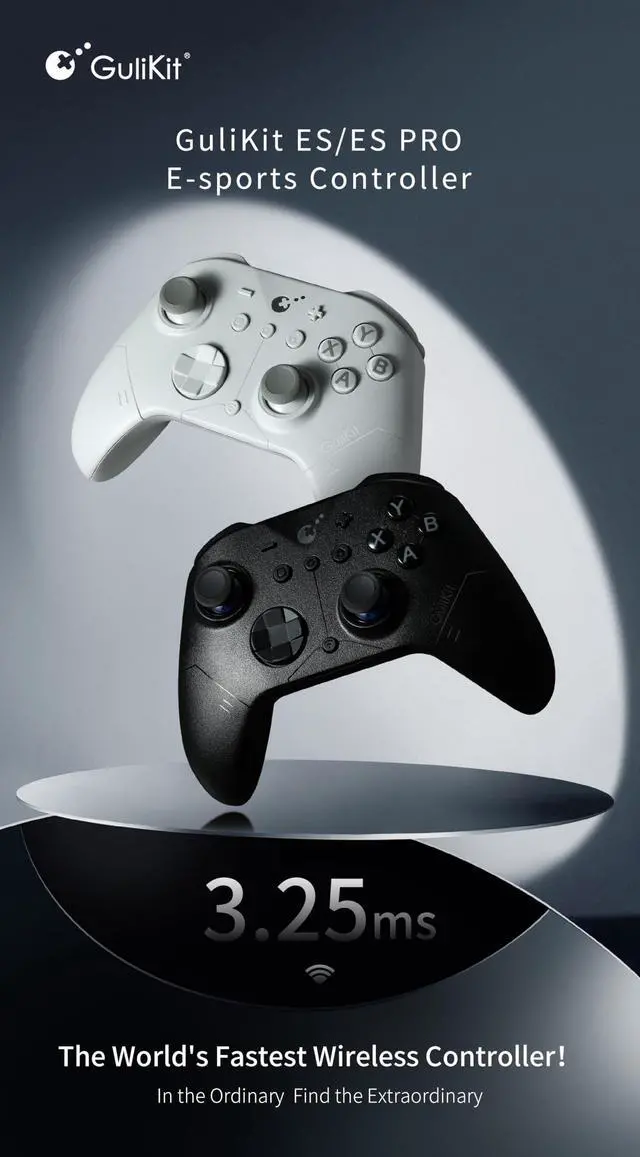
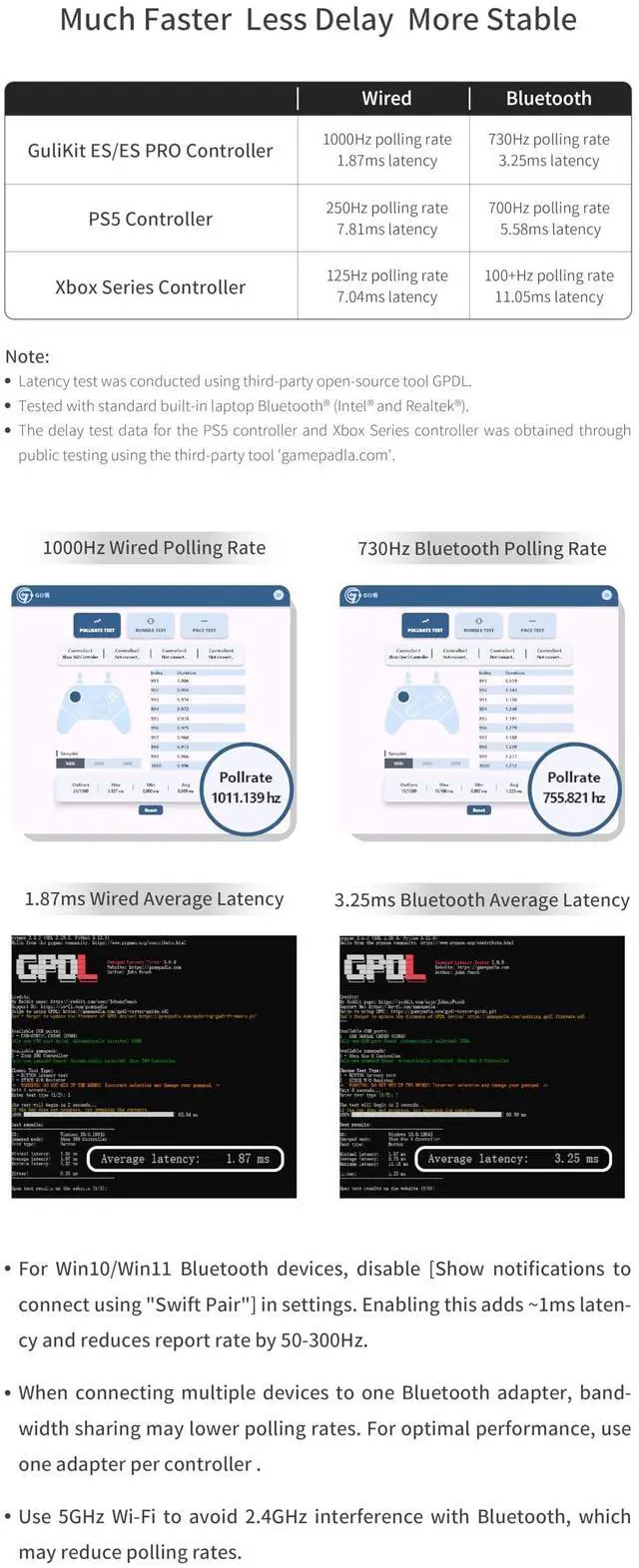


The fastest wireless controller by bluetooth


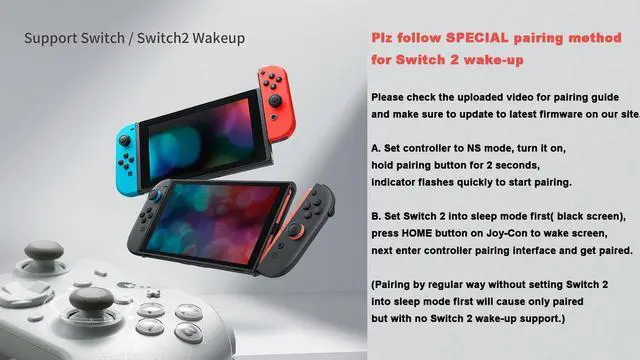
Support Switch 2 wake-up--the first third party can make it!

NOTE: Please follow SPECIAL pairing method for Switch 2 wake-up
Please check the uploaded video for pairing guide and make sure to update to latest firmware on our site.
A. Set controller to NS mode, turn it on, hold pairing button for 2 seconds, indicator flashes quickly to start pairing.
B. Set Switch 2 into sleep mode first( black screen), press HOME button on Joy-Con to wake screen, next enter controller pairing interface and get paired. (Pairing by regular way without setting Switch 2 into sleep mode first will cause only paired but with no Switch 2 wake-up support.)


Offer 256-level hall effect triggers
These triggers offer 256 pressure levels, providing precise control that adapts to your every move. They are ideal for games that demand fine-tuned inputs

Provides 30 hours of battery life
Elves 2 controller offers up to 30 hours of battery life, ideal for long - use without frequent recharges. Perfect for travel, work, or all - day adventures.

Support Multiple Platforms
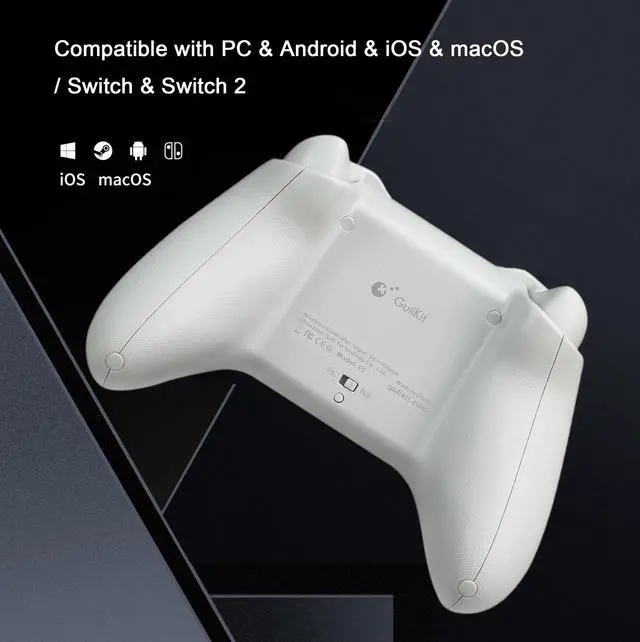
Support Windows,Switch 2,Switch,Switch Lite,Switch OLED,Android,iOS,macOS,Steam Deck,ROG Ally/X, providing seamless compatibility and versatile gaming experiences across different devices.

Q&A
1.Q: Why some Windows computer can't retains its pairing relationship with the ES/ES PRO controller?
A:a. This is most likely due to a problem with the computer's Bluetooth settings.
First, update the Bluetooth driver and reset the Bluetooth settings to factory settings. If that doesn't work, check to see if your computer is using a third-party Bluetooth filter driver that's preventing it from remembering the previous controller connection.
b.Our ES Pro controller will only remember the last device used in the same mode(PC or Switch). If you first connected the controller to Windows and then used the controller to connect to an Android phone. The connection between the controller and the computer will be disconnected.After using the phone to play games, they need to re-pair the controller if they want to use it with the Windows computer again.
2.Q: How to improve the accuracy of shooting games?
A: The ES Pro controller's joystick supports three levels of sensitivity adjustment, allowing you to adjust it to your desired setting based on your gaming needs. It also supports PC motion aiming, helping you aim. Please note that you must update your firmware to the latest version to fully utilize this feature.
3.Q: How many levels of vibration intensity can be adjusted?
A: There are three levels: strong, standard, and weak.
4.Q: What is the ABXY layout of our ES PRO controller?
A: Our original ES PRO controller uses a PC layout. We will be releasing a new Switch layout replacement in October of this year.
 GuliKit ES Wireless Gaming Controller for Switch/Switch 2,Windows,iOS & Andro... |  GuliKit ES PRO Wireless Gaming Controller for Switch/Switch 2,Windows,iOS & A... | |
|---|---|---|
| Customer Reviews | — | — |
| Price | — | — |
| Compatibility | Windows,Switch,Switch 2,Android,iOS Platforms, Wired & Wireless Connection. | Windows,Switch,Switch 2,Android,iOS Platforms, Wired & Wireless Connection. |
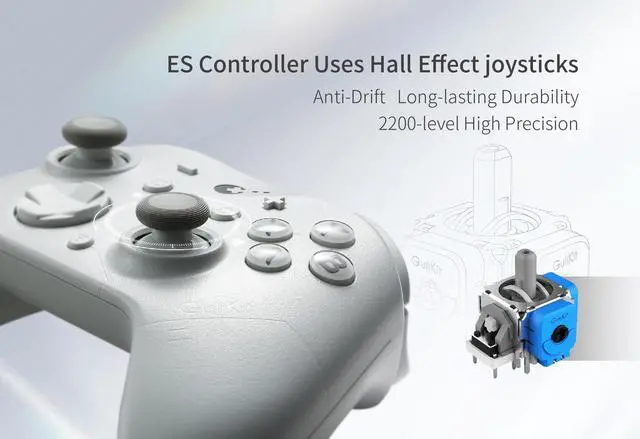
| Joysticks | Anti-drift Hall effect joysticks | Anti-drift TMR joysticks |
| Polling rate | 1000Hz wired/730Hz Bluetooth | 1000Hz wired/730Hz Bluetooth |
| Switch 1/2 wakeup | YES | YES |
| Motion control on Switch /Switch 2 | YES | YES |
| PC motion aim control | NO | YES |
| Joystick sensitivity adjustment | NO | YES |
| D-pad 8-direciton/4-direction swap | NO | YES |
| Non-physical button function swap between PC-layout and Switch-layout | NO | YES |
| Comes with a USB-C cable | NO | YES |
The fastest wireless controller by bluetooth
Support Switch 2 wake-up--the first third party can make it!
NOTE: Please follow SPECIAL pairing method for Switch 2 wake-up
Please check the uploaded video for pairing guide and make sure to update to latest firmware on our site.
A. Set controller to NS mode, turn it on, hold pairing button for 2 seconds, indicator flashes quickly to start pairing.
B. Set Switch 2 into sleep mode first( black screen), press HOME button on Joy-Con to wake screen, next enter controller pairing interface and get paired. (Pairing by regular way without setting Switch 2 into sleep mode first will cause only paired but with no Switch 2 wake-up support.)
Offer 256-level hall effect triggers
These triggers offer 256 pressure levels, providing precise control that adapts to your every move. They are ideal for games that demand fine-tuned inputs
Provides 30 hours of battery life
Elves 2 controller offers up to 30 hours of battery life, ideal for long - use without frequent recharges. Perfect for travel, work, or all - day adventures.
Support Multiple Platforms
Support Windows,Switch 2,Switch,Switch Lite,Switch OLED,Android,iOS,macOS,Steam Deck,ROG Ally/X, providing seamless compatibility and versatile gaming experiences across different devices.
Q&A
1.Q: Why some Windows computer can't retains its pairing relationship with the ES/ES PRO controller?
A:a. This is most likely due to a problem with the computer's Bluetooth settings.
First, update the Bluetooth driver and reset the Bluetooth settings to factory settings. If that doesn't work, check to see if your computer is using a third-party Bluetooth filter driver that's preventing it from remembering the previous controller connection.
b.Our ES Pro controller will only remember the last device used in the same mode(PC or Switch). If you first connected the controller to Windows and then used the controller to connect to an Android phone. The connection between the controller and the computer will be disconnected.After using the phone to play games, they need to re-pair the controller if they want to use it with the Windows computer again.
2.Q: How to improve the accuracy of shooting games?
A: The ES Pro controller's joystick supports three levels of sensitivity adjustment, allowing you to adjust it to your desired setting based on your gaming needs. It also supports PC motion aiming, helping you aim. Please note that you must update your firmware to the latest version to fully utilize this feature.
3.Q: How many levels of vibration intensity can be adjusted?
A: There are three levels: strong, standard, and weak.
4.Q: What is the ABXY layout of our ES PRO controller?
A: Our original ES PRO controller uses a PC layout. We will be releasing a new Switch layout replacement in October of this year.
GuliKit ES Wireless Gaming Controller for Switch/Switch 2,Windows,iOS & Andro... | GuliKit ES PRO Wireless Gaming Controller for Switch/Switch 2,Windows,iOS & A... | |
|---|---|---|
| Customer Reviews | — | — |
| Price | — | — |
| Compatibility | Windows,Switch,Switch 2,Android,iOS Platforms, Wired & Wireless Connection. | Windows,Switch,Switch 2,Android,iOS Platforms, Wired & Wireless Connection. |
| Joysticks | Anti-drift Hall effect joysticks | Anti-drift TMR joysticks |
| Polling rate | 1000Hz wired/730Hz Bluetooth | 1000Hz wired/730Hz Bluetooth |
| Switch 1/2 wakeup | YES | YES |
| Motion control on Switch /Switch 2 | YES | YES |
| PC motion aim control | NO | YES |
| Joystick sensitivity adjustment | NO | YES |
| D-pad 8-direciton/4-direction swap | NO | YES |
| Non-physical button function swap between PC-layout and Switch-layout | NO | YES |
| Comes with a USB-C cable | NO | YES |