



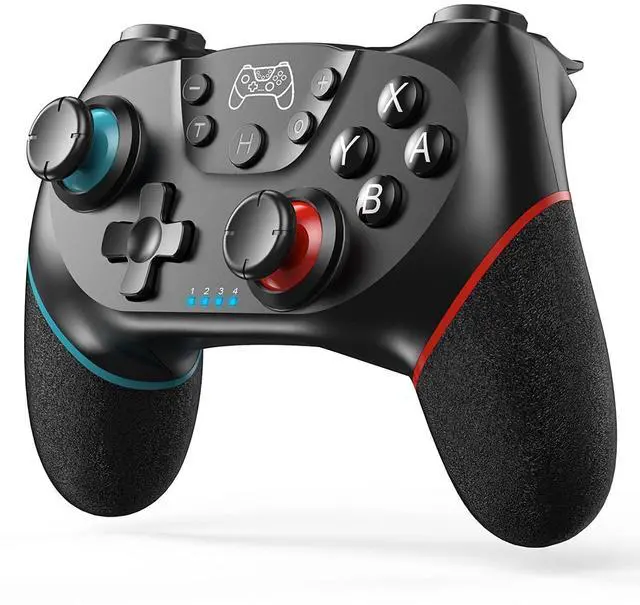
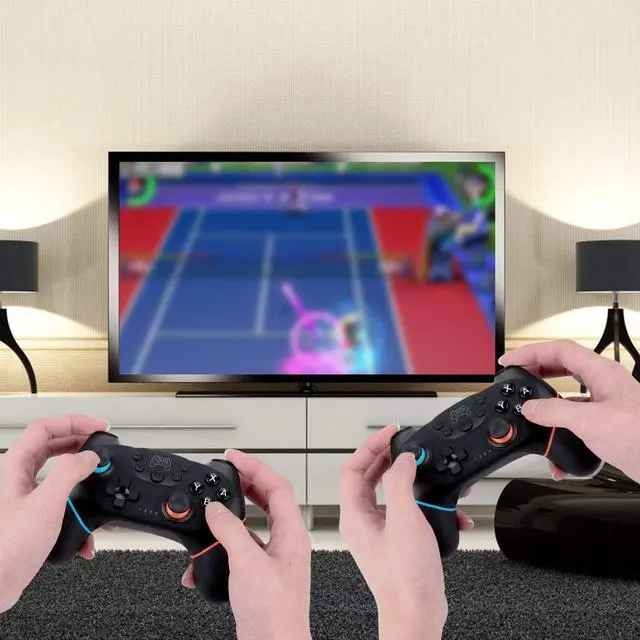


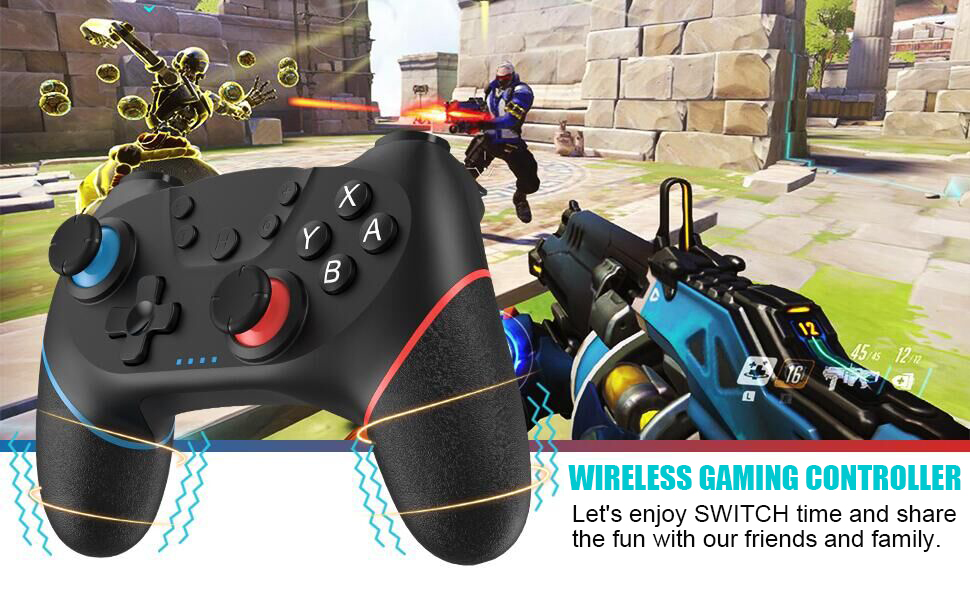
How to pair the controller?
Switch mode Bluetooth connection
- Step 1:Turn on the Switch host, click the "System settings"menu button at the main page interface, click the “Airplane Mode” option after entering the next level menu option , then click Controller Connection (Bluetooth)option make its Bluetooth function in open state.
- Step 2: Enter the Switch host handle Bluetooth pairing mode, click the “Controllers” menu button at the main page interface of host, click the “Change Grip/Order” option after entering the next level menu option, the host will automatically searching and pairing the handle.
- Step 3:Press the HOME button for 3-5 seconds enter the Bluetooth searching and pairing mode, LED1-LED4 keep flickering quickly, the handle will vibrate for a moment and the corresponding channel indicator light will always on after connect successfully with host and being assigned automatically.
Switch mode wired connection:
Put SWITCH in the SWITCH base after open the PRO handle’s wired connection option on Switch host, then connect the handle with the data cable, handle will connect the SWITCH automatically, after pull the data cable out, handle will backconnect to the SWITCH host by Bluetooth automatically
Connect the controller to PC WITH THE INCLUDED USB CABLE.
PLEASE NOTE:
ONLY SUPPORT INCLUDED USB CABLE CONNECTION WITH PC, DOES NOT SUPPORT WIRELESS BLUETOOTH CONNECTION TO PC.
Handle on shutdown, connect the PC through USB cable, PC-side will install driver automatically, the light of LED2 on handle always on means that the connection is successful, NOTE: the name displayed: Xbox 360 controller for windows (wired connection)
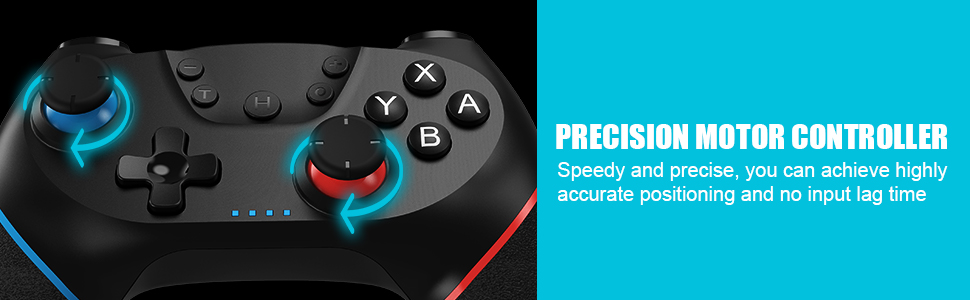
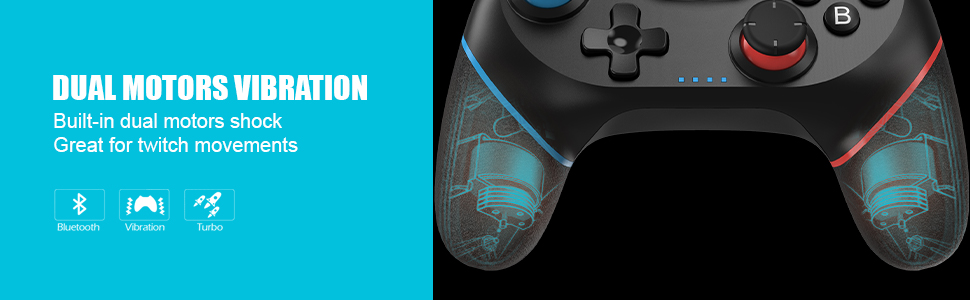
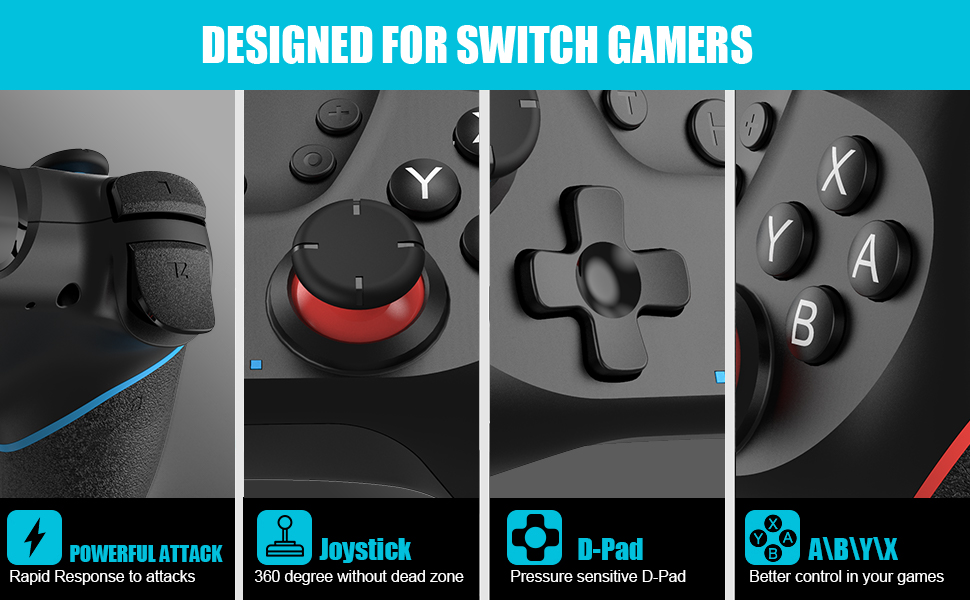
Note of Wireless Controller for Switch
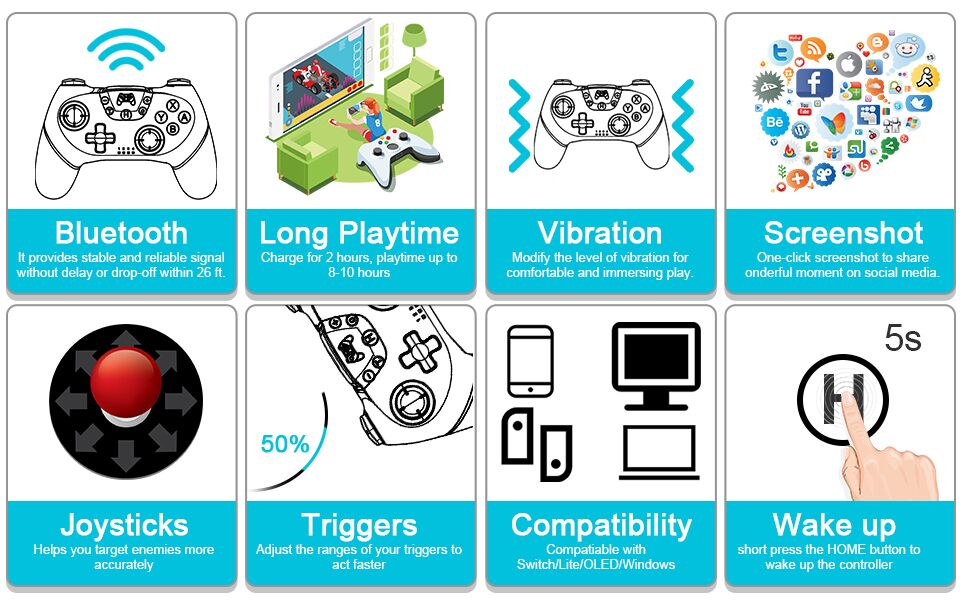
WARM AND USEFUL TIPS:
- (1) What should I do if the controller cannot be charged?
- If the controller cannot be charged, please reset the controller.
- How to reset the controller: Use a paper clip to press the reset hole on the back of the controller twice.
- (2)What should I do if the controller cannot connect to the switch host via Bluetooth?
- step1: please clear the switch console's bluetooth memory
- step2: Restart the switch host
- step3: reset the controller: Use a paper clip to press the reset hole on the back of the controller twice.
- step4:plug out the power adapter of the controller ( please Do not charge while pairing.)
If you have any questions during the use of the product, please feel free to contact the seller through the order page and we will give you a satisfactory reply within 12 hours.
 Wireless Controller Compatible with Switch - Wake-up Programmable | 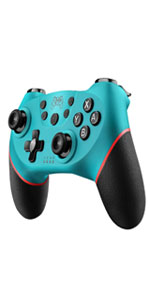 Wireless Controller Compatible with Switch - Blue | 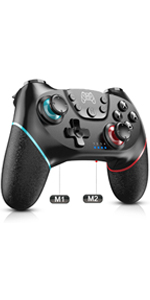 Wireless Controller Compatible with Switch - Wake-up Programmable | 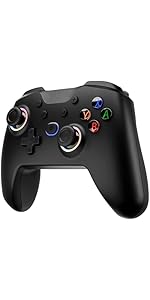 Diswoe Wireless Switch Controller for Switch/Lite/OLED Controller, Switch Con... | |
|---|---|---|---|---|
| Customer Reviews | — | — | — | — |
| Price | — | — | — | — |
| Features | Support Dual Vibration, 6-Axis gyro sensor, Screenshot, Screen Recording, Fast Charging, Wake-up | Support Dual Vibration, 6-Axis gyro sensor, Screenshot, Screen Recording, Fast Charging, Wake-up | Support Dual Vibration, 6-Axis gyro sensor, Screenshot, Screen Recording, Fast Charging, Wake-up, Programmable | Support Dual Vibration, 6-Axis gyro sensor, Screenshot, Screen Recording, Fast Charging, Wake-up |
| Connector Type | Type-C | Type-C | Type-C | Type-C |
| Connectivity Technology | Wireless/Wired | Wireless/Wired | Wireless/Wired | Wireless/Wired |
| Charging Time | Within 3 Hours | Within 3 Hours | Within 3 Hours | Within 3 Hours |
| Playing Time | UP To 20 Hours | UP To 20 Hours | UP To 20 Hours | UP To 20 Hours |


As a global leader in video game controllers, we take our responsibility to provide well-designed and affordable products very seriously in order to provide buyers with a great user experience and continuous improvement.
Our mission is to provide gamers with an unforgettable experience that enhances the fun and excitement of gaming, and we work hard to ensure that customers are completely satisfied, and we want you to be truly satisfied.
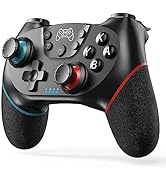
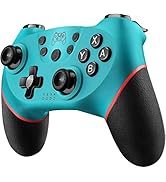
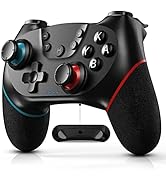
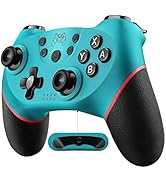
Controller for Switch
As a global leader in video game controllers, we take our responsibility to provide well-designed and affordable products very seriously in order to provide buyers with a great user experience and continuous improvement.
Our mission is to provide gamers with an unforgettable experience that enhances the fun and excitement of gaming, and we work hard to ensure that customers are completely satisfied, and we want you to be truly satisfied.
Controller for Switch
How to pair the controller?
Switch mode Bluetooth connection
- Step 1:Turn on the Switch host, click the "System settings"menu button at the main page interface, click the “Airplane Mode” option after entering the next level menu option , then click Controller Connection (Bluetooth)option make its Bluetooth function in open state.
- Step 2: Enter the Switch host handle Bluetooth pairing mode, click the “Controllers” menu button at the main page interface of host, click the “Change Grip/Order” option after entering the next level menu option, the host will automatically searching and pairing the handle.
- Step 3:Press the HOME button for 3-5 seconds enter the Bluetooth searching and pairing mode, LED1-LED4 keep flickering quickly, the handle will vibrate for a moment and the corresponding channel indicator light will always on after connect successfully with host and being assigned automatically.
Switch mode wired connection:
Put SWITCH in the SWITCH base after open the PRO handle’s wired connection option on Switch host, then connect the handle with the data cable, handle will connect the SWITCH automatically, after pull the data cable out, handle will backconnect to the SWITCH host by Bluetooth automatically
Connect the controller to PC WITH THE INCLUDED USB CABLE.
PLEASE NOTE:
ONLY SUPPORT INCLUDED USB CABLE CONNECTION WITH PC, DOES NOT SUPPORT WIRELESS BLUETOOTH CONNECTION TO PC.
Handle on shutdown, connect the PC through USB cable, PC-side will install driver automatically, the light of LED2 on handle always on means that the connection is successful, NOTE: the name displayed: Xbox 360 controller for windows (wired connection)
Note of Wireless Controller for Switch
| First time connection steps: | When the product is off, press and hold the "H" button for about 5 seconds, the 1234 indicator light on the handle flashes at the same time, and the connection with the host will be successful in about 5 seconds. |
| Automatic connection steps: | The host and the controller can reconnect again after sleeping, just press and hold “H” for two seconds, and the 1234 indicator light flashes slowly for 5 seconds to automatically reconnect to the host. |
| PC Connection steps: | When the handle is turned off, directly insert the TYPE-C data cable, the indicator lights on the handle 2 and 4 will always be on, and the controller on the pc side will display XBOX 360 controller. At this time, press and hold "H" for about 3 seconds. The indicator light 2 is always on and automatically enters the PC normal mode. |
| Vibration adjustment steps: | The default vibration intensity is 100%, after connecting the host, press and hold the screenshot button and then press the minus sign. The vibration intensity is 70%. There are four vibration levels, 0, 40, 70, and 100. Pressing the plus sign increases vibration. |
WARM AND USEFUL TIPS:
- (1) What should I do if the controller cannot be charged?
- If the controller cannot be charged, please reset the controller.
- How to reset the controller: Use a paper clip to press the reset hole on the back of the controller twice.
- (2)What should I do if the controller cannot connect to the switch host via Bluetooth?
- step1: please clear the switch console's bluetooth memory
- step2: Restart the switch host
- step3: reset the controller: Use a paper clip to press the reset hole on the back of the controller twice.
- step4:plug out the power adapter of the controller ( please Do not charge while pairing.)
If you have any questions during the use of the product, please feel free to contact the seller through the order page and we will give you a satisfactory reply within 12 hours.
Wireless Controller Compatible with Switch - Wake-up Programmable | Wireless Controller Compatible with Switch - Blue | Wireless Controller Compatible with Switch - Wake-up Programmable | Diswoe Wireless Switch Controller for Switch/Lite/OLED Controller, Switch Con... | |
|---|---|---|---|---|
| Customer Reviews | — | — | — | — |
| Price | — | — | — | — |
| Features | Support Dual Vibration, 6-Axis gyro sensor, Screenshot, Screen Recording, Fast Charging, Wake-up | Support Dual Vibration, 6-Axis gyro sensor, Screenshot, Screen Recording, Fast Charging, Wake-up | Support Dual Vibration, 6-Axis gyro sensor, Screenshot, Screen Recording, Fast Charging, Wake-up, Programmable | Support Dual Vibration, 6-Axis gyro sensor, Screenshot, Screen Recording, Fast Charging, Wake-up |
| Connector Type | Type-C | Type-C | Type-C | Type-C |
| Connectivity Technology | Wireless/Wired | Wireless/Wired | Wireless/Wired | Wireless/Wired |
| Charging Time | Within 3 Hours | Within 3 Hours | Within 3 Hours | Within 3 Hours |
| Playing Time | UP To 20 Hours | UP To 20 Hours | UP To 20 Hours | UP To 20 Hours |