







Does this calendar need to stay plugged in?
Yes. The calendar is designed to stay plugged in during use and supports 110-240V power input.
What should I do if my calendar is not connecting to Wi-Fi?
First, connect it to a different Wi-Fi network or a mobile hotspot to complete the initial setup. After setup is successful, you can switch back to the Wi-Fi network you want to use. This often helps solve the problem.
How do I reset the device or remove my information?
On the device, go to Settings > General, scroll down, and select Exit this calendar. This will remove the current calendar from the device and clear all calendar information stored on it.
How do I change the time zone, weather, or language?
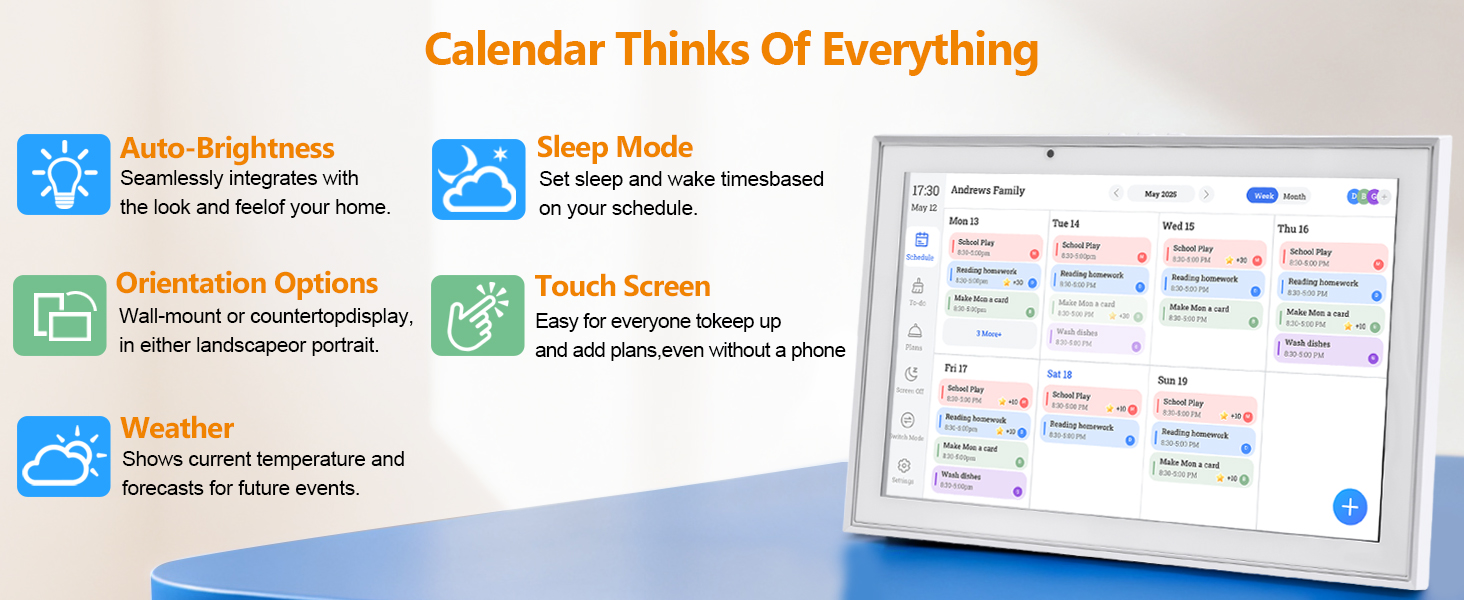
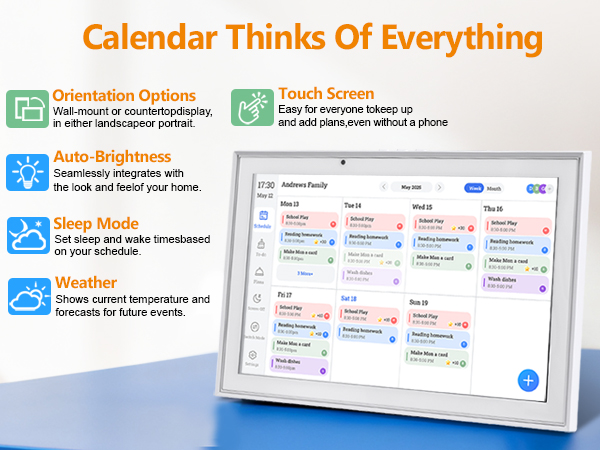
You can update these settings on the device by going to Settings > General>Time & Language.

Does this calendar need to stay plugged in?
Yes. The calendar is designed to stay plugged in during use and supports 110-240V power input.
What should I do if my calendar is not connecting to Wi-Fi?
First, connect it to a different Wi-Fi network or a mobile hotspot to complete the initial setup. After setup is successful, you can switch back to the Wi-Fi network you want to use. This often helps solve the problem.
How do I reset the device or remove my information?
On the device, go to Settings > General, scroll down, and select Exit this calendar. This will remove the current calendar from the device and clear all calendar information stored on it.
How do I change the time zone, weather, or language?
You can update these settings on the device by going to Settings > General>Time & Language.
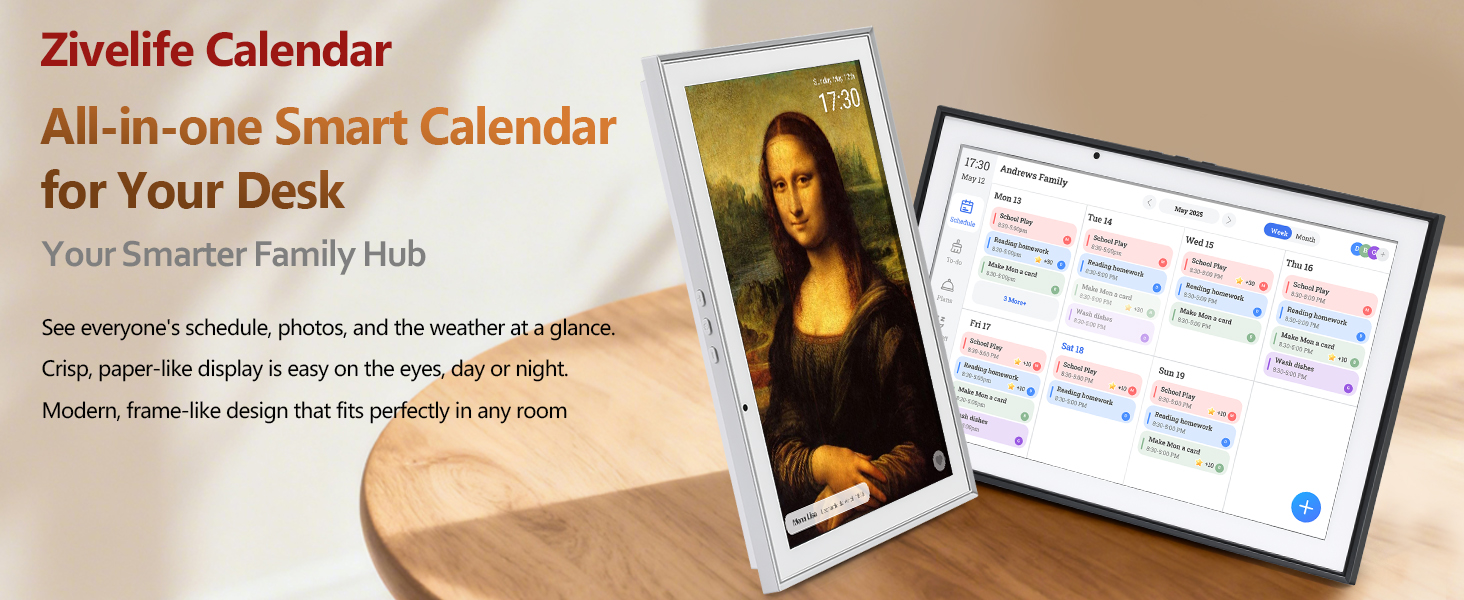
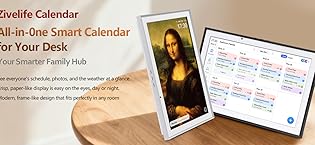
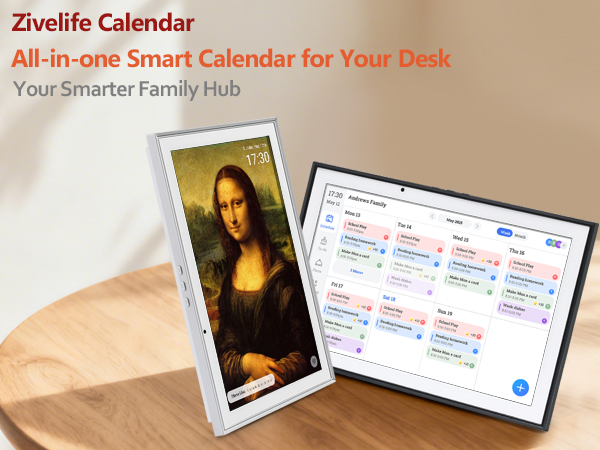
Your smarter family hub
