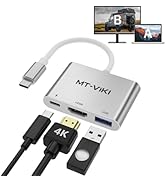
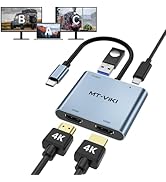
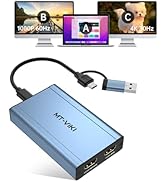
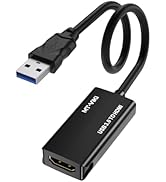
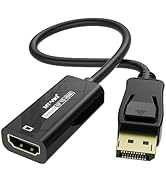
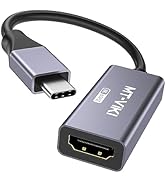
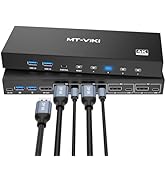
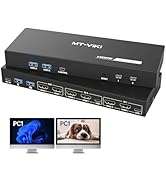
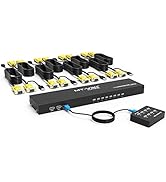
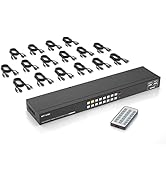
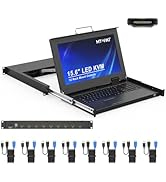
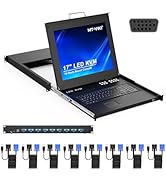
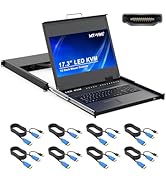
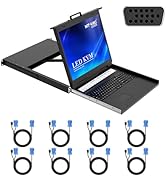
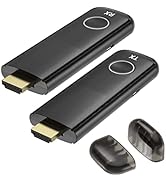
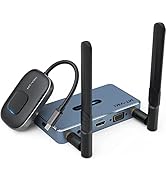
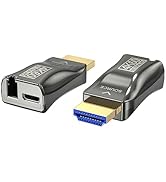
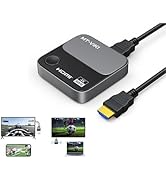
here!
here!
I’m your shopping assistant for PC builds, upgrades, and everything tech.
Got questions? Ask away!
Start a conversation
here!
I’m your shopping assistant for PC builds, upgrades, and everything tech.
Got questions? Ask away!
Start a conversation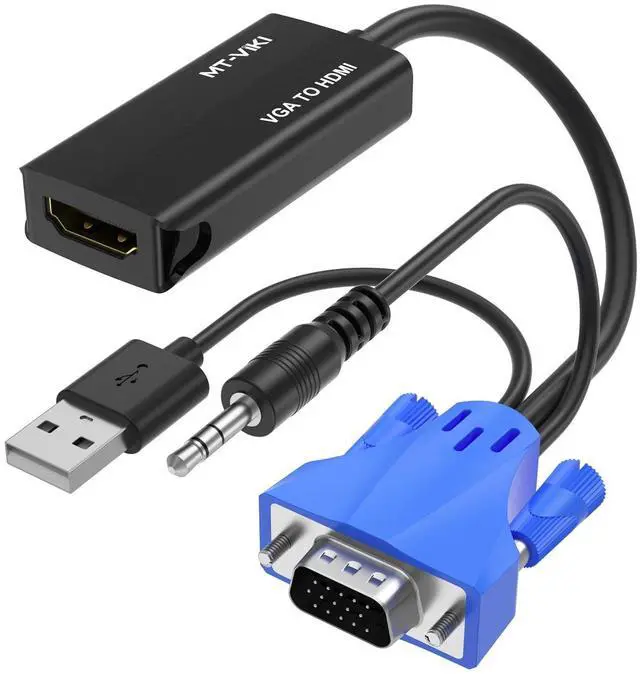



Any questions? Ask CelesteSM will help you find out quickly.
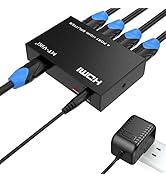
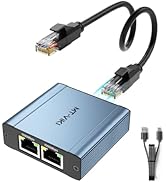
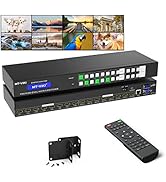
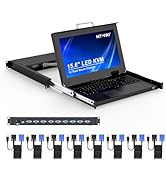
 VGA to HDMI Adapter |  Rack Mount KVM VGA |  USB 3.0 to HDMI Adapter |  Rack Mount KVM HDMI |  1 PORT LCD KVM Switch |  KVM Console | |
|---|---|---|---|---|---|---|
| Customer Reviews | — | — | — | — | — | — |
| Price | — | — | — | — | — | — |
| Source connection | VGA | no data | USB3.0 | no data | no data | no data |
| Monitor connection | HDMI | no data | HDMI | no data | no data | no data |
| Input | VGA Male | VGA | USB3.0 Male | HDMI | HDMI/DP/VGA/DVI | HDMI |
| Output | HDMI Female | no data | HDMI Female | no data | no data | no data |
| Audio | ? | no data | ? | no data | no data | no data |
| Bi-directional | X | no data | X | no data | no data | no data |
| Plug & Play | ? | no data | Need to download USB drive first time | no data | no data | no data |
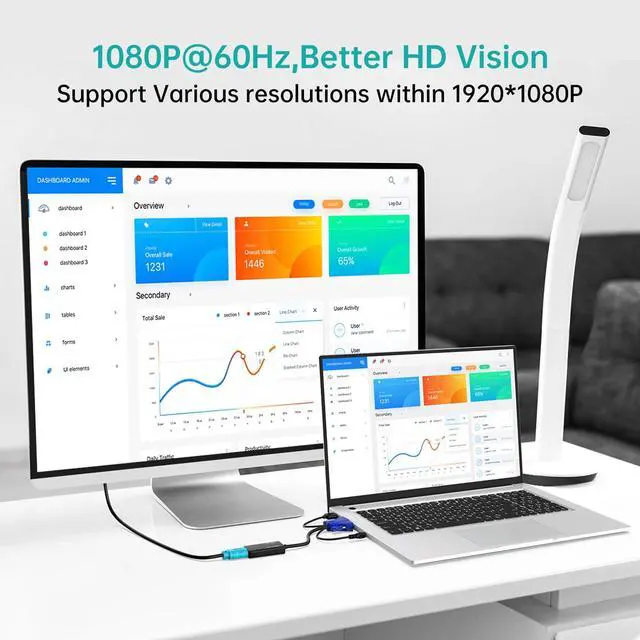
| Resolution | Up to 1080P@60Hz | 1080P@60Hz | Up to 1080P@60Hz | 1080P | 4K60Hz | 1080P |

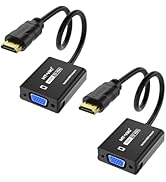
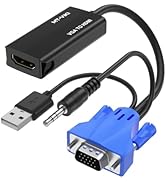
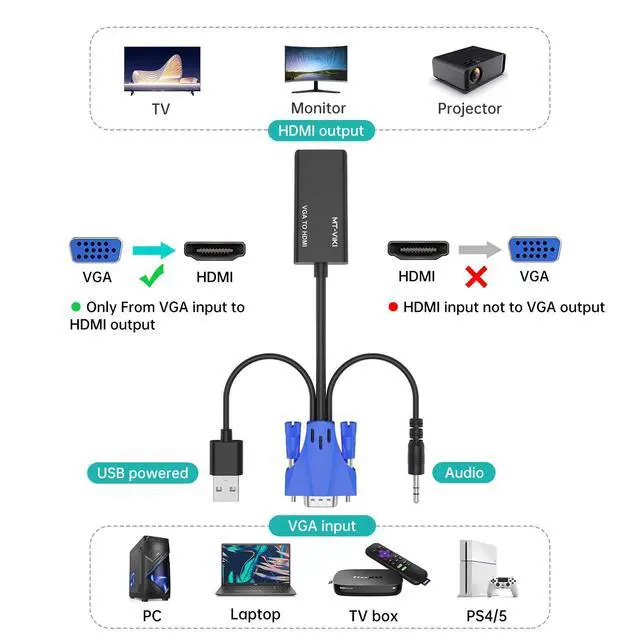
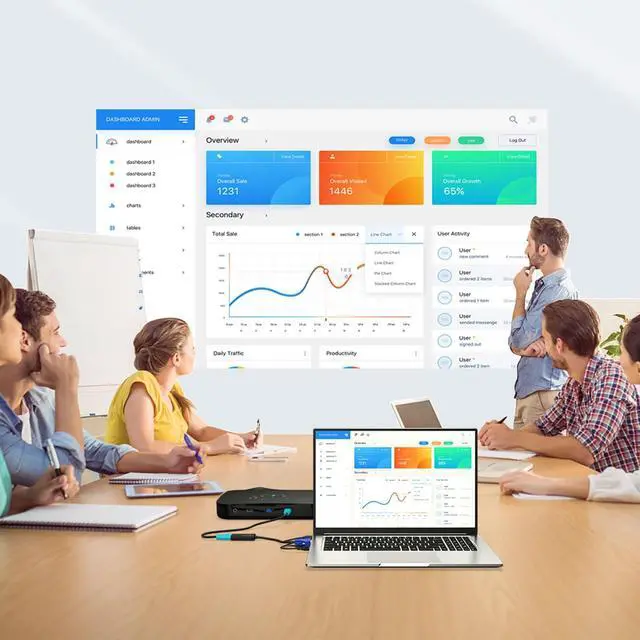
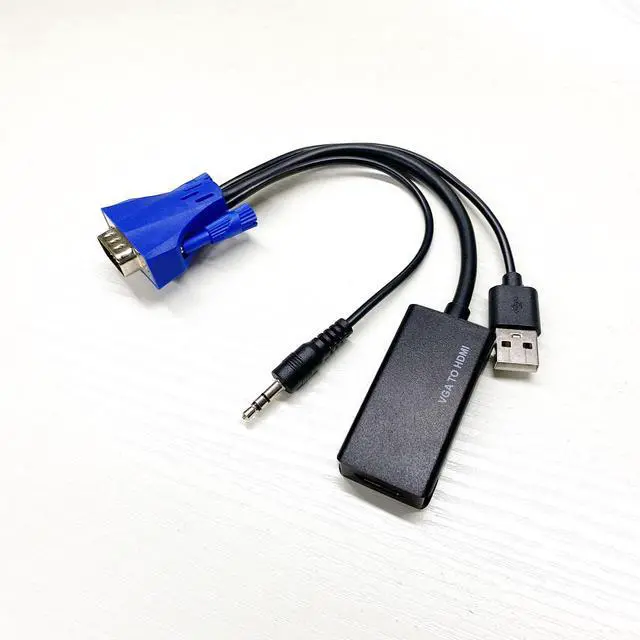
Simply connect to your VGA source device and HDMI screen, then you'll be able to view your VGA signal on the HDMI screen.
Specifications:
Input:
Output:
IMPORTANT NOTE!!!

Easy to use:
How to USE?
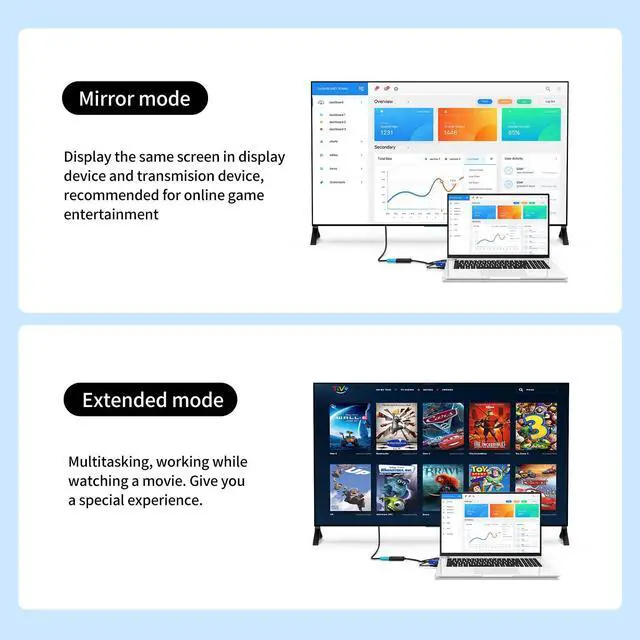
Dual screen display function:

Integrated advanced chip provides a stable and reliable signal transmission

Wide Compatibility with various devices such as PCs, laptops, projectors and HDTVs

Built-in cores for multiple protection of the adapter


ABS cable is durable and reliable


Question 1. No picture/black screen
Answer: Check that the VGA and HDMI ports are fully inserted and that the screws are tightened./ Confirm that the display device has been switched to the corresponding HDMI input channel./ Check if the USB power supply is working properly; try changing the computer's USB port or the charger./ Restart the signal source device and display device
Question 2. Blurry/flickering/color cast in the image
Answer: Reduce the output resolution of the signal source (it is recommended to set it to 1024×768 for testing first)./ Check if the VGA interface has a poor connection./ Ensure a stable power supply and avoid using extension cords or splitters.
Question 3. No audio/audio noise
Answer: Confirm that the 3.5mm audio cable is plugged into the audio output port (not the microphone port) of the signal source device./ Check if the volume of the signal source device is turned on and if the mute mode is turned off./ Try replacing the 3.5mm audio cable to rule out cable issues./ Confirm that the display device volume is adjusted and the HDMI audio output is enabled.
VGA to HDMI Adapter | Rack Mount KVM VGA | USB 3.0 to HDMI Adapter | Rack Mount KVM HDMI | 1 PORT LCD KVM Switch | KVM Console | |
|---|---|---|---|---|---|---|
| Customer Reviews | — | — | — | — | — | — |
| Price | — | — | — | — | — | — |
| Source connection | VGA | no data | USB3.0 | no data | no data | no data |
| Monitor connection | HDMI | no data | HDMI | no data | no data | no data |
| Input | VGA Male | VGA | USB3.0 Male | HDMI | HDMI/DP/VGA/DVI | HDMI |
| Output | HDMI Female | no data | HDMI Female | no data | no data | no data |
| Audio | ? | no data | ? | no data | no data | no data |
| Bi-directional | X | no data | X | no data | no data | no data |
| Plug & Play | ? | no data | Need to download USB drive first time | no data | no data | no data |
| Resolution | Up to 1080P@60Hz | 1080P@60Hz | Up to 1080P@60Hz | 1080P | 4K60Hz | 1080P |
Simply connect to your VGA source device and HDMI screen, then you'll be able to view your VGA signal on the HDMI screen.
Specifications:
Input:
Output:
IMPORTANT NOTE!!!
Easy to use:
How to USE?
Dual screen display function:
Integrated advanced chip provides a stable and reliable signal transmission
Wide Compatibility with various devices such as PCs, laptops, projectors and HDTVs
Built-in cores for multiple protection of the adapter
ABS cable is durable and reliable
Question 1. No picture/black screen
Answer: Check that the VGA and HDMI ports are fully inserted and that the screws are tightened./ Confirm that the display device has been switched to the corresponding HDMI input channel./ Check if the USB power supply is working properly; try changing the computer's USB port or the charger./ Restart the signal source device and display device
Question 2. Blurry/flickering/color cast in the image
Answer: Reduce the output resolution of the signal source (it is recommended to set it to 1024×768 for testing first)./ Check if the VGA interface has a poor connection./ Ensure a stable power supply and avoid using extension cords or splitters.
Question 3. No audio/audio noise
Answer: Confirm that the 3.5mm audio cable is plugged into the audio output port (not the microphone port) of the signal source device./ Check if the volume of the signal source device is turned on and if the mute mode is turned off./ Try replacing the 3.5mm audio cable to rule out cable issues./ Confirm that the display device volume is adjusted and the HDMI audio output is enabled.
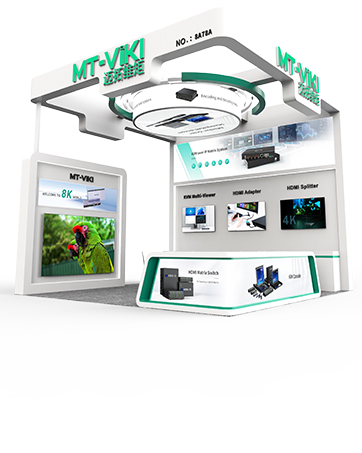
MT-VIKI Exhibiting in all around the world