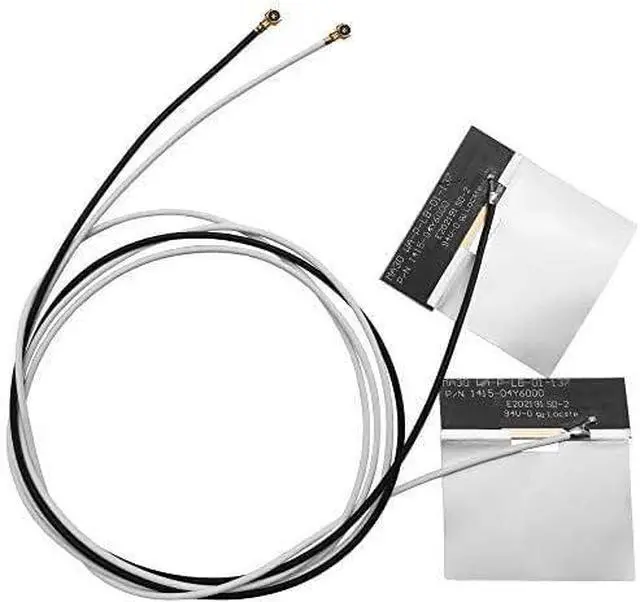
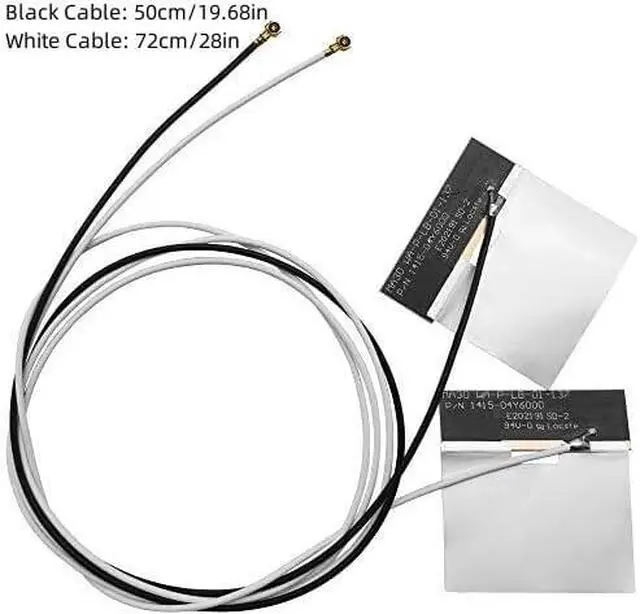
Product descriptionIs your laptop or desktop PC suffering from weak WiFi signals, dropped connections, or slow speeds? The internal antennas in your device may be damaged, poorly placed, or simply outdated for modern WiFi standards. This 1Pair MHF4 Internal Dual Band Antenna Kit is the perfect solution.
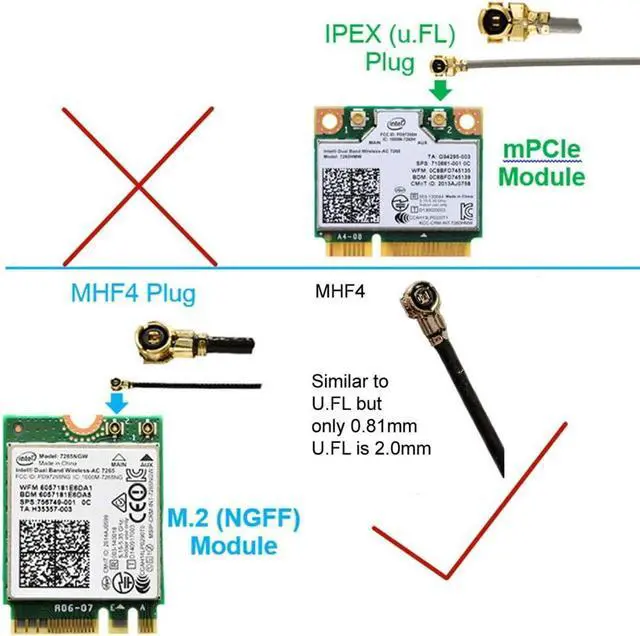
Designed specifically for M.2 (NGFF) interface WiFi cards including popular models like the Intel 7265, 8265, 9260, 9560, AX200, and AX201 these 3dBi antennas deliver reliable 2.4GHz and 5GHz performance.
Compact with:
- for 3G N5321 4G Sierra Wireless AirPrime EM7355 EM7455 EM7340 EM7345 GOBI5000
- for HUAWEI ME906E ME906V ME906J ME906C ME936 MU736 NGFF M2M WWAN Card
- for Intel 7260 7265 3160 3165 8260 8265 17265 18265 9260 9560 ax200 ax201 NGFF M2 Wifi Card Act( Don't work on 7265D2W 8260D2W )
- for Broadcom BCM943228ZH BCM94352Z NGFF Card Act
- for Broadcom BCM94360CSAX, BCM94360CS2, BCM94360CS2AX, BCM94360HMB WIFI WLAN CARD
- for 3G LTE (4G) GPRS GSM CDMA built-in PCB antenna
- Also for X8R X6R Receiver etc
Note
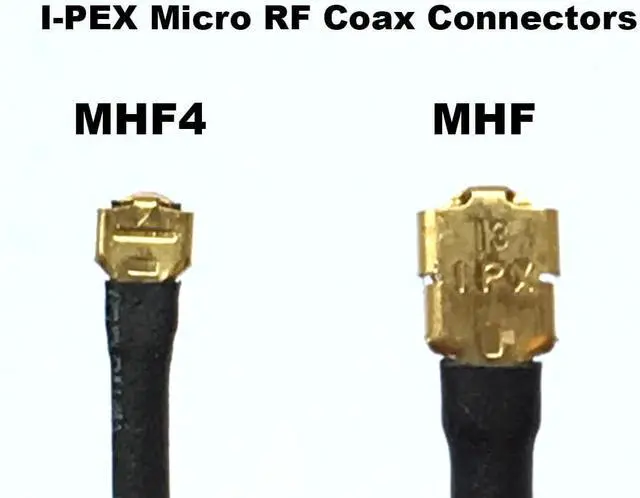
- MHF4 connector is a tough nut to crack, especially for first-time users
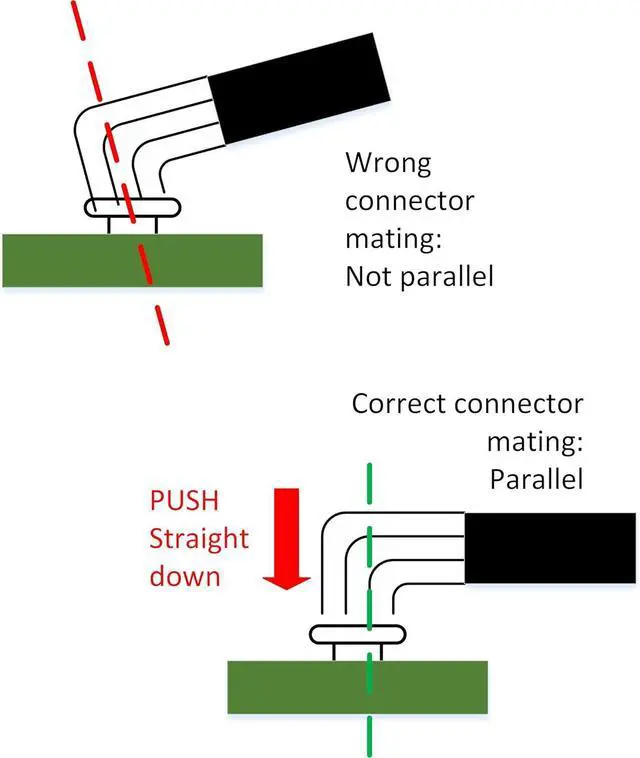
- It has to be dead-center and 90 degrees straight down to be pushed in with a tiny bit of force, Easy does it
- Yes, it's a bit scary (just like first time riding a bicycle)
- Do not ever think to try using a slightly tilted angle to wiggle it in, That will probably hurt the connector alignment itself
WARNING: Don't pull the MHF4 connector out once installed, That part is even harder (90 degrees is the golden rule) and can potentially damage the socket on the motherboard
NOT Compatible With:
- Mini PCIe interface cards (different connector type)
- Intel 7265D2W / 8260D2W (check your cards connector)
Important Read Before Installing
The MHF4 connector is small and requires careful handling. Do not force or wiggle the connector at an angle.
Step 1 Access Your WiFi Card
- For laptops: Remove the bottom cover to access the M.2 WiFi card
- For desktops: Locate the M.2 WiFi card on your motherboard or PCIe adapter
Step 2 Remove Old Antennas (if present)
- Gently disconnect the old antenna cables by lifting straight up with tweezers
Step 3 Connect New Antennas
- Align the MHF4 connector perfectly straight (90°) over the terminal on your WiFi card
- Press straight down with light, even pressure until you feel a slight click
- Connect the White cable to MAIN (or 1) terminal
- Connect the Black cable to AUX (or 2) terminal
Step 4 Route the Cables
- Route the 50cm (black) and 72cm (white) cables inside your device
- Use the adhesive backing or electrical tape to secure the antennas to the chassis interior
- Avoid placing antennas near metal components that may block signals
Step 5 Test Your Connection
- Power on your device and check WiFi signal strength
- Run a speed test to verify improvement
- Connector Handling: The MHF4 connector must be pressed dead-center and 90 degrees straight down. Do NOT try to wiggle it in at an angle this can damage the connector or your WiFi card.
- Removal: To disconnect, use tweezers to gently lift the connector housing straight up do not pull by the wire.
- M.2 vs Mini PCIe: This antenna is for M.2 (NGFF) interface cards ONLY. It will NOT fit Mini PCIe cards.
- Antenna Placement: For best performance, position the antenna PCBs away from metal shielding and large metal components.





 here!
here!