
Your Browsing History




Any questions? Our AI beta will help you find out quickly.
PCI-Express host interface specification v3.0 x8 and higher
Supports the PCI Bus Power Management specification and section 5 of the PCI Express Base Specification
PCI-Express lanes: x8
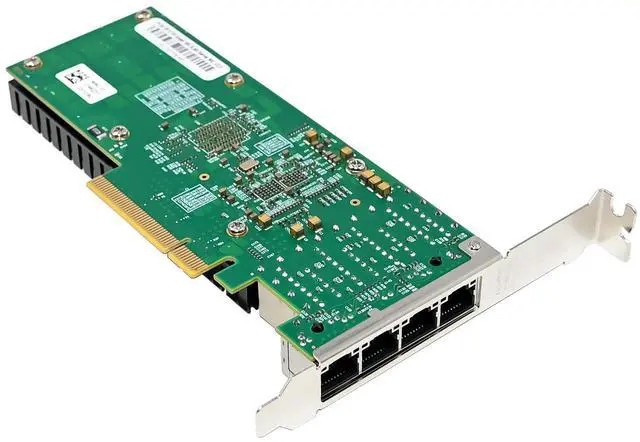
Support quad 10Gbase-T/1000Mbase-T/100Mbase-T networks
Network Virtualization offloads including VXLAN, NVGRE, Geneve and Network Service Headers.
Intel Ethernet Flow director for hardware-based application traffic steering.
Intelligent offloads to enable high performance with Intel Xeon processor-based servers
Packet checksum offloads: Calculates IP, UDP, TCP, and Stream transmission Protocol checksums for insertion into transmitted packets and for integrity checking on received packets, Includes support for UDP and TCP checksums in both IPv4 and IPv6 data grams.
I/O virtualization innovations for maximum performance in a virtualized server
Support for optional End-to-End CRC generation and checking
Supports up to 1024 LAN queue sets(768 typically available)
Supports up to 384 VSIs with average of two TCs allocated per VSI
Supports up to 16VEB/VEPA switching components
IEEE802.3x flow control support
IEEE802.3Q VLAN support with VLAN tag insertion, with stripping and packet filtering for up to 4096 VLAN tags.
Jumbo Frame support 9728 bytes
Chipset: Intel XL710-BM1&X557
Feature tab
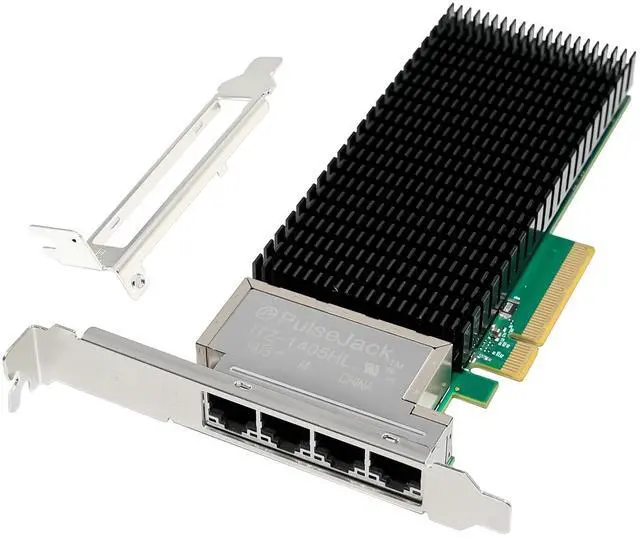
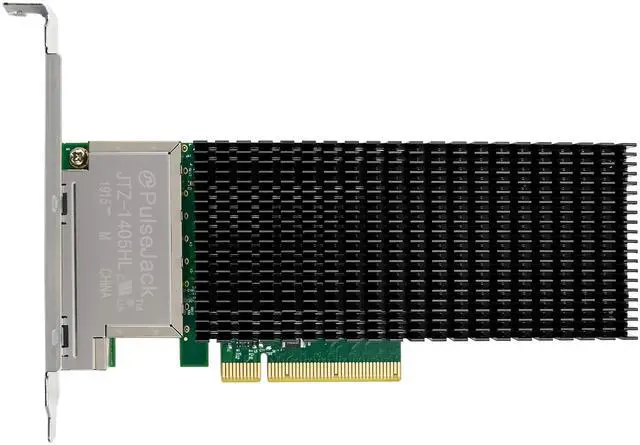
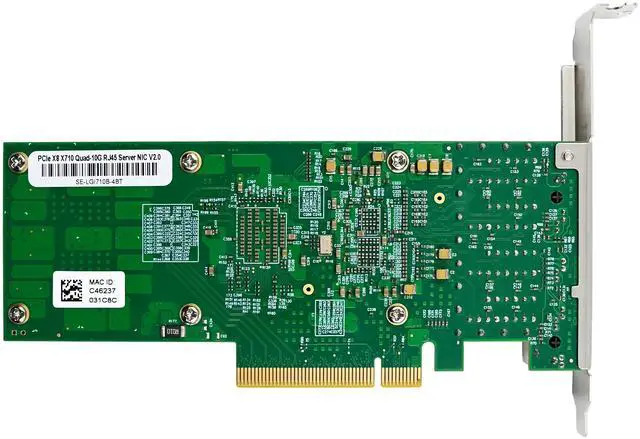
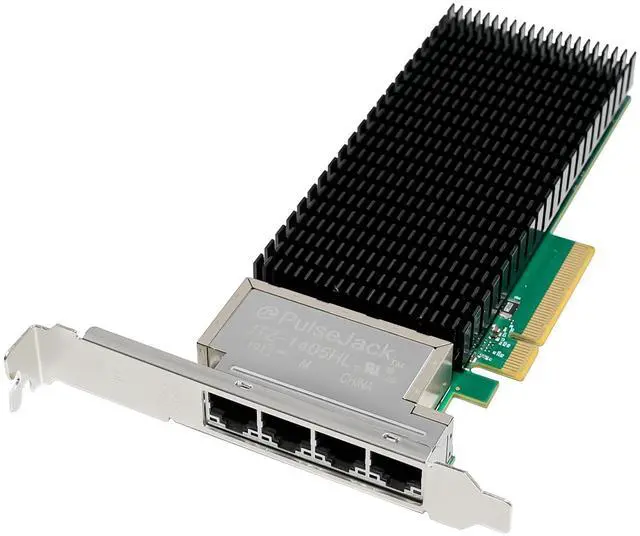
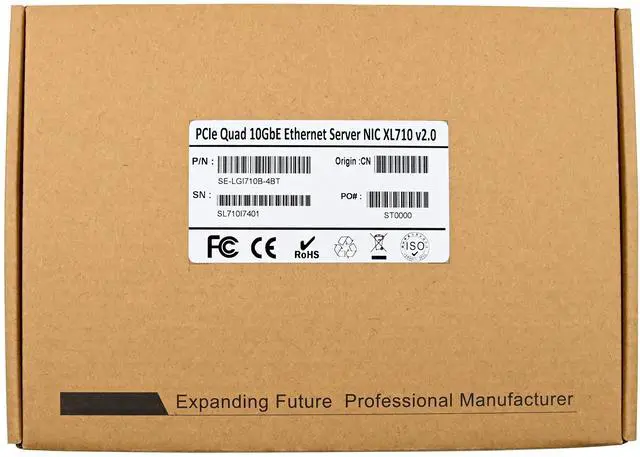
Product Name PCIe x8 Intel X710 Quad-Port 10G Converged Network adapter
Bus type PCIe 3.0 x8 (8GT/S)
Controller Intel Ethernet Controller XL710&X557
Transmission media Copper
10G: Category 6 Category 6e Category 7 and above
1G/100M: Category 5e, Category 5,
Standard IEEE802.3an, IEEE802.3ab, IEEE802.3u, IEEE802.1Q, IEEE802.3x, IEEE1588, IEEE802.1as
Operating Temperature 0 °C to 55 °C (32 °F to 131 °F)
Airflow 10-30 m: 35 °C to 55 °C,
200-425+ recommended LFM
100 m: 35 °C to 40 °C
350-400 recommended LFM
Storage Temperature -40 °C to 70 °C (-40 °F to 158 °F)
LED Indicators LINK (solid) and ACTIVITY (blinking)
LINK SPEED (green = 10Gbps; yellow = 1Gbps;
Off=100 Mbps)
Data rate supported Per Port 10G/1GbE and 100Mb
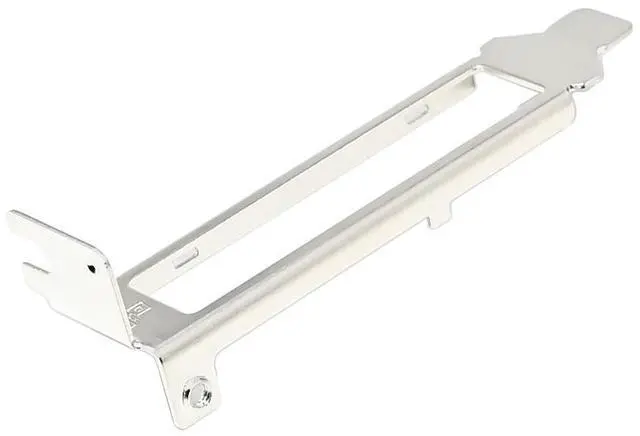
Bracket Full-height bracket installed; Low-Profile bracket included in package
Power Consumption MAX 28.9W
Dimension 167mm x69mm
Supports Operating Systems Windows Client:10/11
Windows sever:2012/2012 R2/2016/2019/2022
Linux:RHEL7.9/8.4/8.5,SLES 12 SP5/SLES 15 SP3 Ubuntu18.04/20.04, FreeBSD12.2/13
Virtualization Features Next-generation VMDq, PCI-SIG, SR-IOV, Virtual Machine load balancing (VLMB), Advanced Packet Filtering, VLAN, VxLAN, NVGRE, GENEVE, VXLAN-GPE+NSH, MPLS
Manageability Features PXE, UEFI, SNMP, RMON
Package content
1 x PCIe x8 Intel X710 Quad-Port 10G Converged adapter
1 x Users Manual
1 x CD Driver
1 x Low profile bracket
Accessories
System Requirements
FreeBSD, Linux , VMWare ESXi, Win-server2012 R2/ Win-server2008 R2/
One available PCI Express x8/x16 slot
Cabling Requirements:
Intel 10Gigabit
For 10GBASE-T on Category6, Category6a, or Category 7 wiring, twisted 4-pair copper:
Category 6 wiring supports 55 meters max.
Category 6a wiring supports 100 meters max.
Category 7 wiring supports up to 100 meters
Intel 1 Gigabit or 100M
For 1000BASE-T or 100BASE-TX.use Category 5 or Category5e wiring, twisted 4-pair copper:
Make sure you use Category 5 cabling that complies with the TIA-568 wiring specification for more information on this specification.
Length is 100 meters max.
M Hardware installation
1.Turn off the computer and unplug the power cord
2.Remove the computer cover and the adapter slot cover from the slot that matches your adapter
3.Insert the adapter edge connector into the slot and secure the bracket to the chassis
4.Replace the computer cover, then plug in the power cord
5.Power on the computer
Install Drivers and software
Windows Operating Systems
You must have administrative rights to the operating system to install the drivers.
1.insert the CD driver bound with Intel network driver into your CD-ROM drive(also you can download the latest drivers from support website):
2.if the Found New Hardware Wizard screen is displayed, click Cancel
3.start the autorun located in the software package, the autorun may automatically start after you have extracted files.
4.Click install Drivers and Software
5.Follow the instructions in the install wizard to finish it.
Installing Linux Drivers from Source Code
1.Download and expand the base driver tar file.
2.Compile the driver module.
3.Install the module using the modprobe command.
4.Assign an IP address using the ifconfig command.
Support
More information and settings, please refer to the Intel Adapter User Guides or you can contact us.