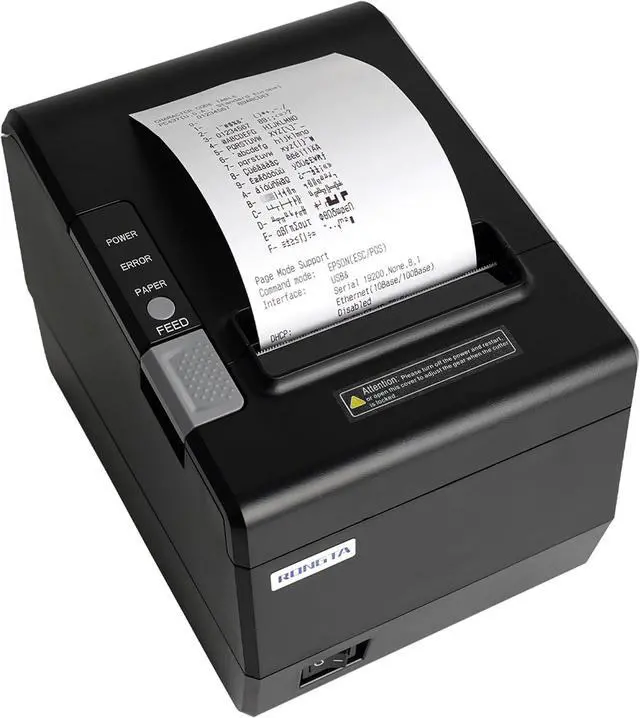
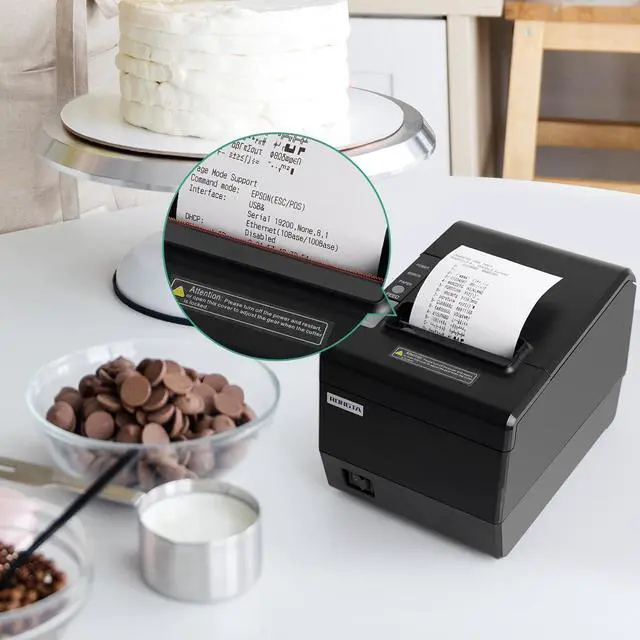
The method for printing a self checking page on a screenless printer: First turn off the printer, then press and hold the "FEED" button on the printer without releasing it, then turn on the printer power, wait for the printer to run for 3s, and then release the "FEED" button.
Q. What should i do when my app can not recognize the printer?
A: 1.Enter the setting port of the printing software printer on Android and select the port (USB port/serial port/parallel port). The IP link of the printer will be added to the network port;
2.Windows needs to be identified through the device manager. If it is not identified, check whether the cable connection is abnormal, the hardware is faulty, or the port is not properly inserted.
Q. How to install the printer driver?
A: 1.Android does not need a driver.
2.To install the Windows driver, select the 80mm driver and install the port step by step as prompted.
Q. How to connect the printer to the PC through an ethernet cable?
A: First, use the printer tool to change the printer IP address to the same network segment as the computer device, and then add the printer IP port connection in the Windows computer driver.
Q. How do I connect the printer to the cash drawer?
A: Go to Printer driver right click printer preferences select "Paper/Quality" inside there is a "media (M)" for cash drawer Settings.
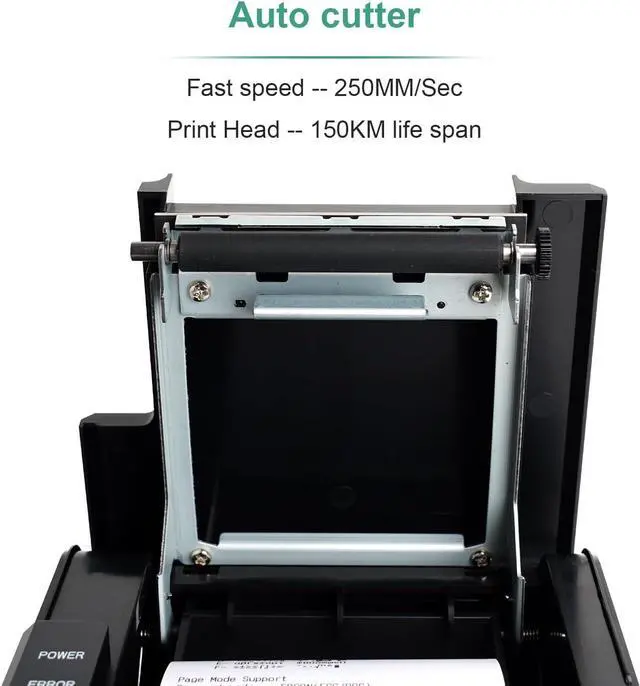
With auto cutter, save time and take easy
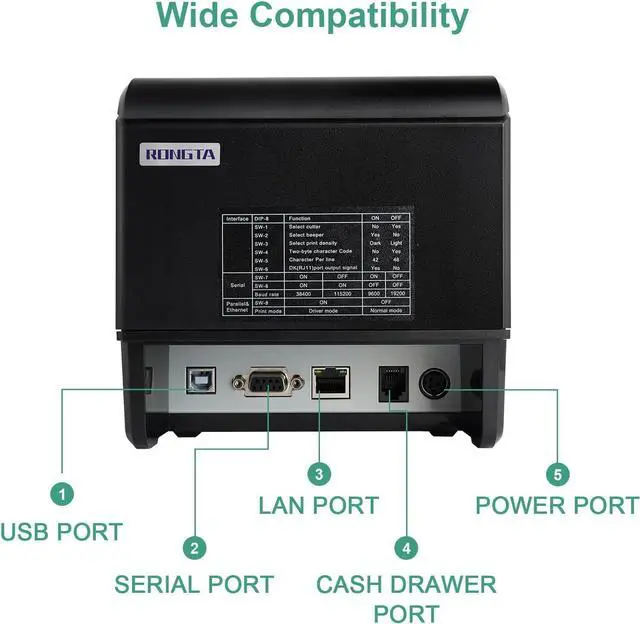
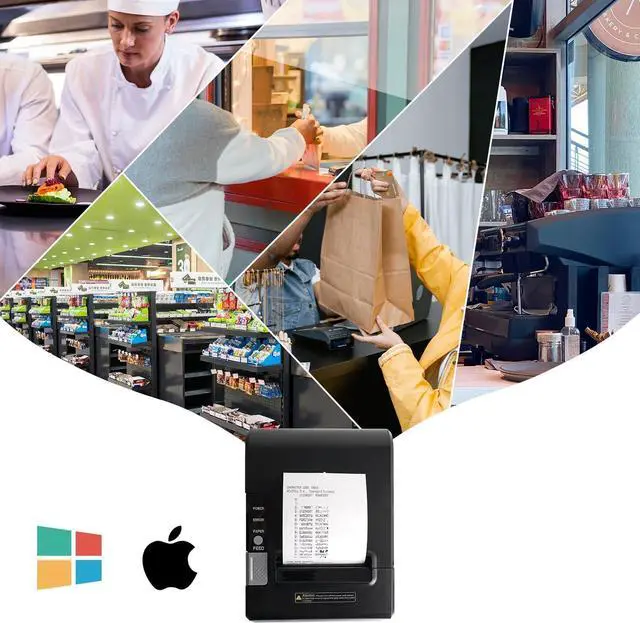
With three interface, compatible with almost POS system
Support print 80mm or 58mm receipts
Method Direct Thermal Printing Width 72mm or 48mm (Compatible 58mm receipt) Resolution 203 dpi Printing Speed 300mm/s Paper Width 80mm Printer Head 150km Auto Cutter 2 million cuts Interface USB+Serial+Ethernet Emulation ESC/POS Driver WIN2003/WINXP/WIN7/WIN8/WIN10/LINUX/MAC Dimension(L*W*H) 200*145*142mm Weight 1.37kg Auto cutter Interface: USB+Serial+Ethernet Applicable width: 80mm/58mm