





Where is the product used?
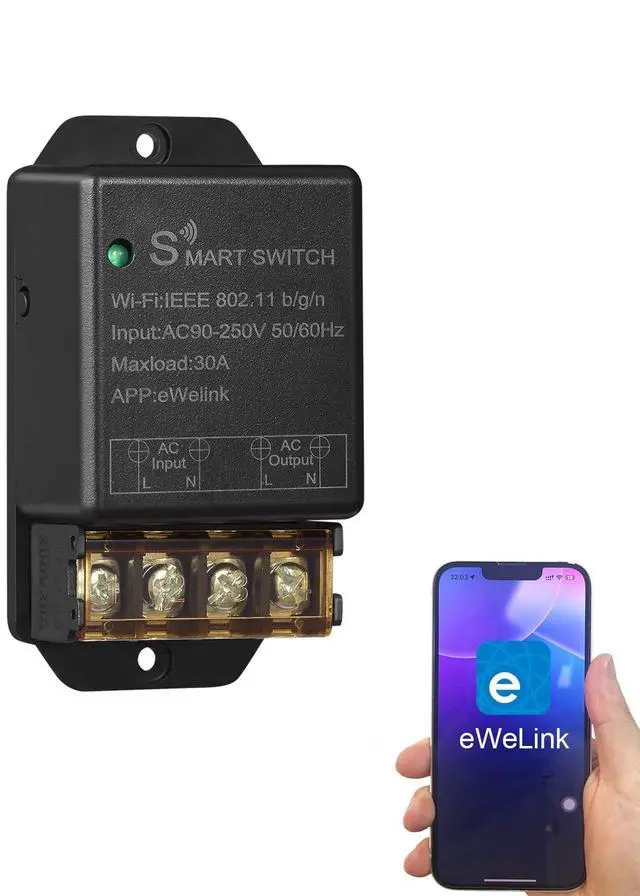
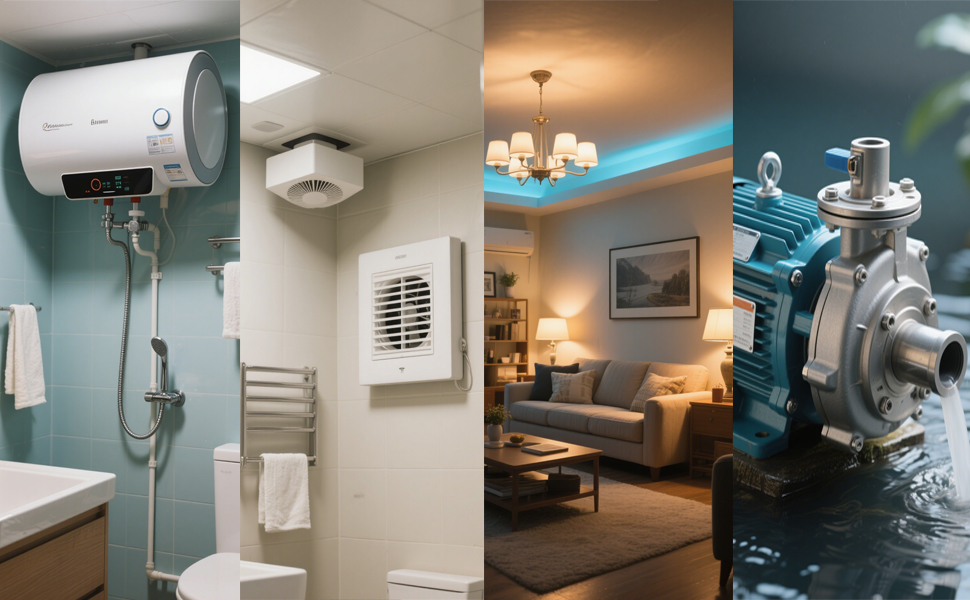
Our 30A smart switch can make traditional electrical appliances intelligent, enabling users to save electricity and enjoy a smart life. Commonly used household appliances include hot water heater, bathroom extractor fans, water pump motor, light, etc.
Technical Details
How to pair it with the eWeLink APP?
1.Search for "eWeLink" in the APP Store or Google Play, then download and install it.
2.Register an account.
3.Turn on the Bluetooth of your mobile phone and select the 2.4G WiFi frequency.
4.Power on the device. The device will automatically enter the network configuration mode (The indicator light flashes twice and stays on steadily once.). If not, please press and hold the pairing button for 5-7 seconds).
Method 1: Quickly pairing mode:
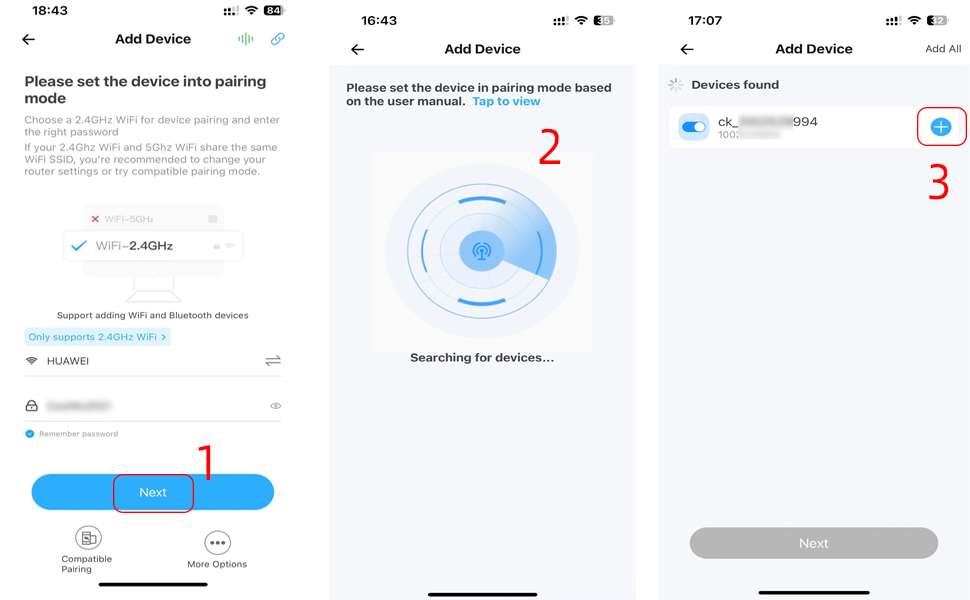
Click "+" to add a device. Click the "Next",The app will automatically search for devices,Then click "+", click "Next", click "Next",Click "Done".
How to pair it with the eWeLink APP?
Method 2: Compatible Pairing mode
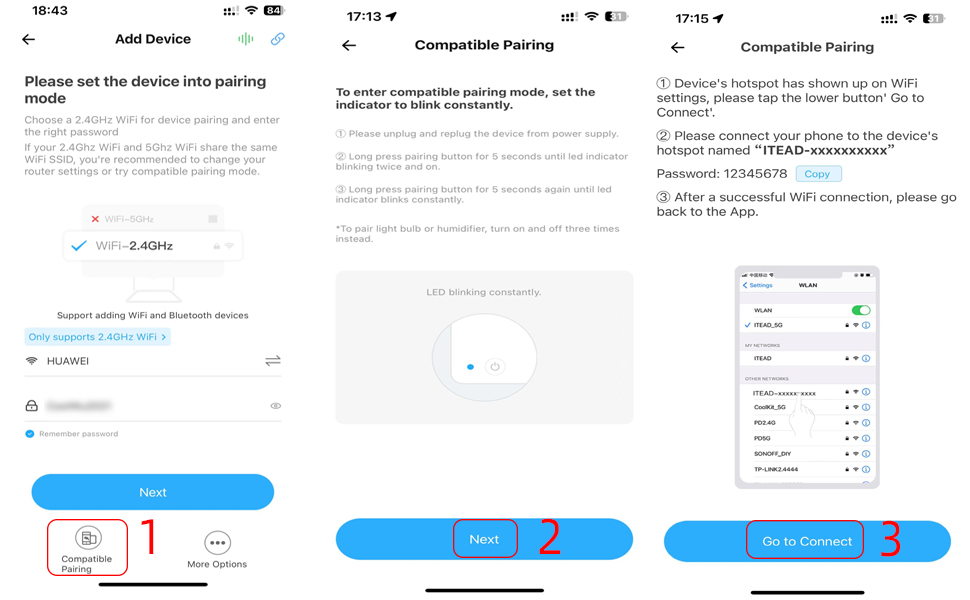
Click "+" to add a device,Click the compatibility Compatible button at the bottom. press the pairing button until led flash blink constanly(press and hold around 7-15s)
, then click "Next",enter wifi name,go to connect "ITEAD-xxxxxxxx",password:12345678, After connecting, click "Allow" to connect to the previous Wi-Fi network, and the pairing is completed.
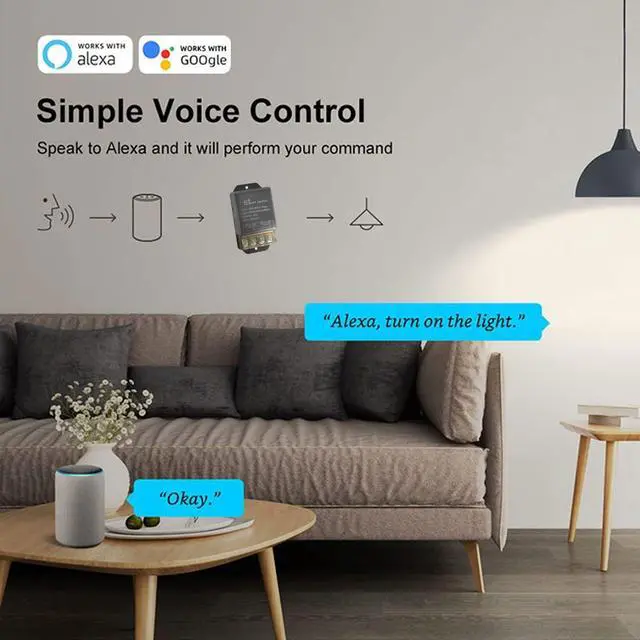
Works with Alexa & Google Home Assistant
How to connect to third-party application such as alexa and google assistant?
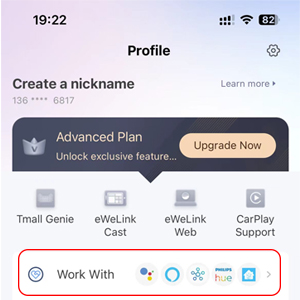
Click the Profile in the ewelink APP, click the work with button, and display the binding methods for various Smart speakers. For specific methods, please refer to the ewelink APP.
How to set up an independent 2.4G WiFi?
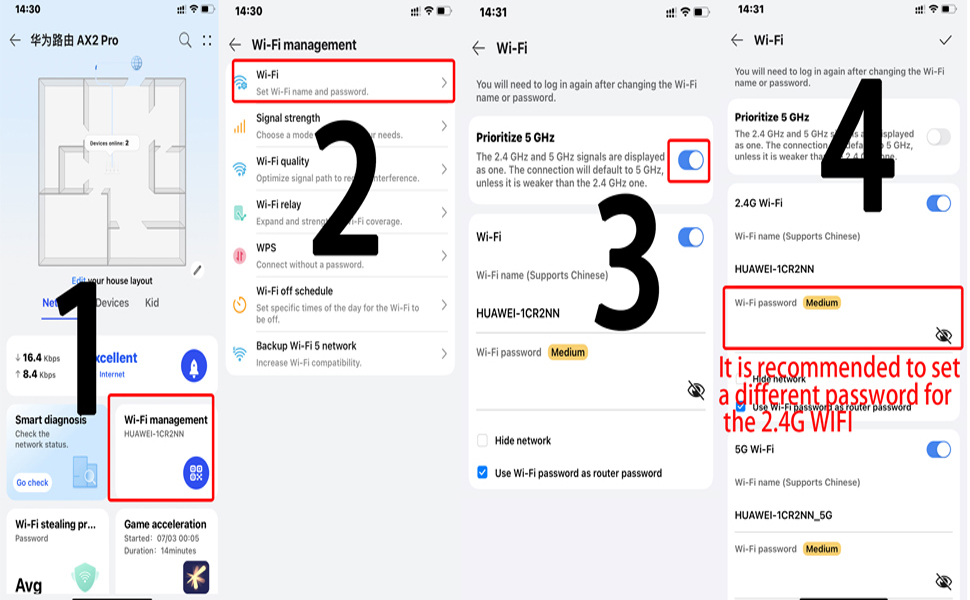
Q: How do I set up a dual-band router to broadcast only a separate 2.4GHz Wi-Fi network?
A: The specific steps may vary depending on the router brand, but the general process is to log in to the router's management interface, locate the option to disable band steering (or Smart Connect), and then configure the 2.4GHz network settings separately.
Where is the product used?
Our 30A smart switch can make traditional electrical appliances intelligent, enabling users to save electricity and enjoy a smart life. Commonly used household appliances include hot water heater, bathroom extractor fans, water pump motor, light, etc.
Technical Details
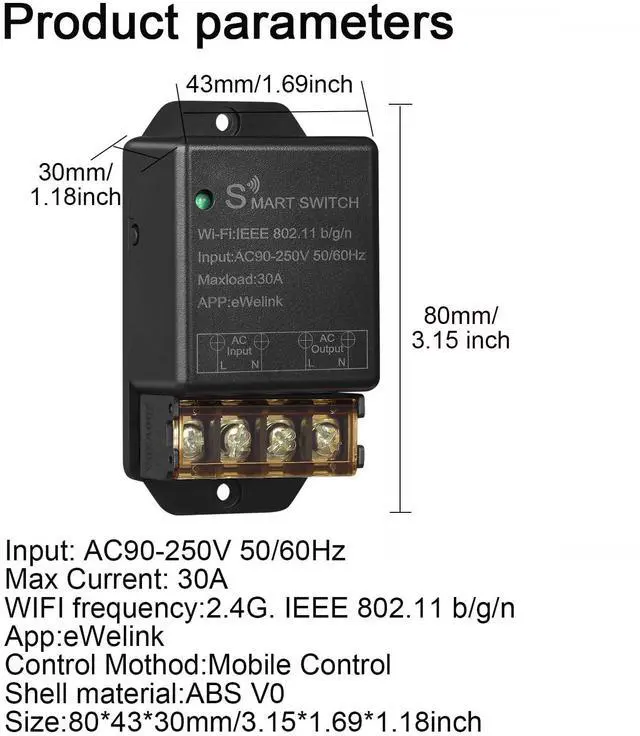
| Name | eWeLink 30A Wifi Smart Switch |
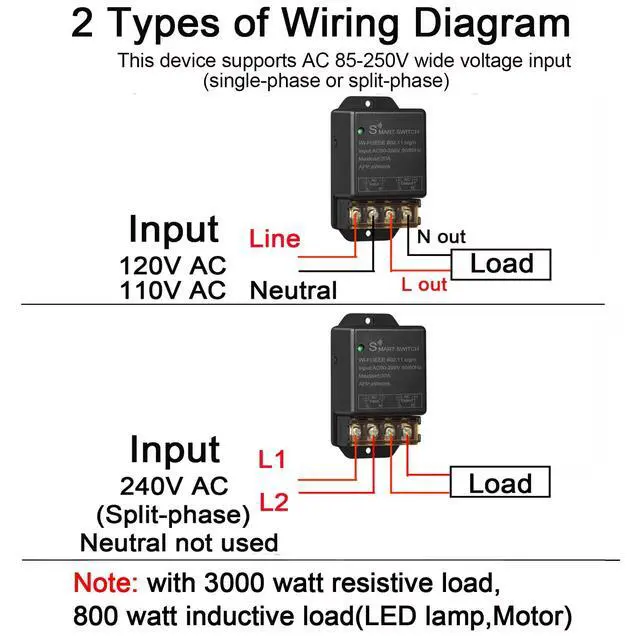
| Voltage | 120V AC / 240V AC |
| WIFI Standard | WIFI (802.11 b/g/n 2.4GHZ) |
| APP | eWeLink |
| Wattage | with 6000 watt resistive load, 800 watt inductive load. |
| Function 1 | Remote turn on or turn off |
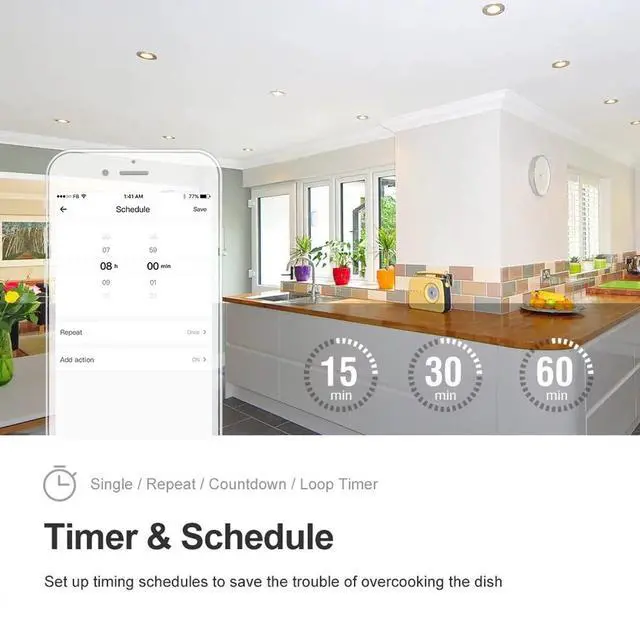
| Function 2 | Timing Schedules |
| Function 3 | Device Sharing |
| Function 4 | Create automated scenario |
| Function 5 | Works with Alexa and Google home |
How to pair it with the eWeLink APP?
1.Search for "eWeLink" in the APP Store or Google Play, then download and install it.
2.Register an account.
3.Turn on the Bluetooth of your mobile phone and select the 2.4G WiFi frequency.
4.Power on the device. The device will automatically enter the network configuration mode (The indicator light flashes twice and stays on steadily once.). If not, please press and hold the pairing button for 5-7 seconds).
Method 1: Quickly pairing mode:
Click "+" to add a device. Click the "Next",The app will automatically search for devices,Then click "+", click "Next", click "Next",Click "Done".
How to pair it with the eWeLink APP?
Method 2: Compatible Pairing mode
Click "+" to add a device,Click the compatibility Compatible button at the bottom. press the pairing button until led flash blink constanly(press and hold around 7-15s)
, then click "Next",enter wifi name,go to connect "ITEAD-xxxxxxxx",password:12345678, After connecting, click "Allow" to connect to the previous Wi-Fi network, and the pairing is completed.
Works with Alexa & Google Home Assistant
How to connect to third-party application such as alexa and google assistant?
Click the Profile in the ewelink APP, click the work with button, and display the binding methods for various Smart speakers. For specific methods, please refer to the ewelink APP.
How to set up an independent 2.4G WiFi?
Q: How do I set up a dual-band router to broadcast only a separate 2.4GHz Wi-Fi network?
A: The specific steps may vary depending on the router brand, but the general process is to log in to the router's management interface, locate the option to disable band steering (or Smart Connect), and then configure the 2.4GHz network settings separately.