




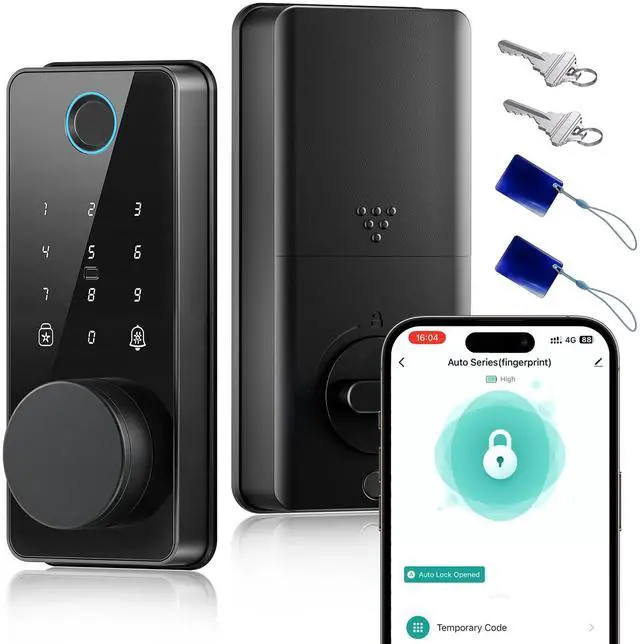
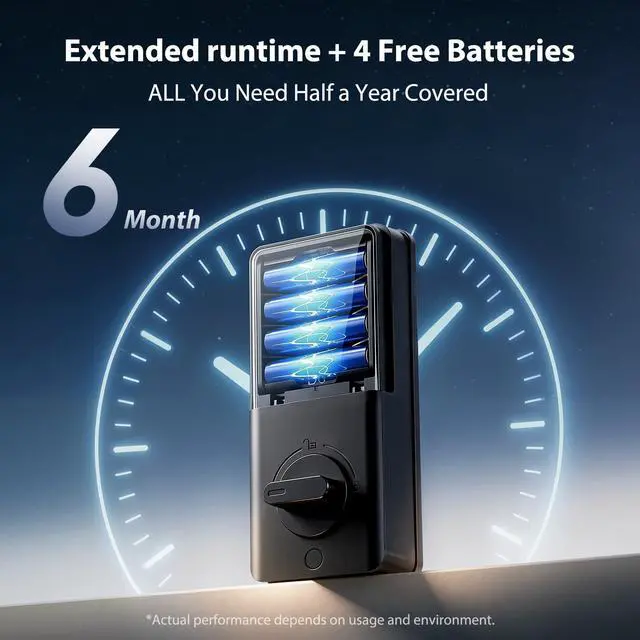
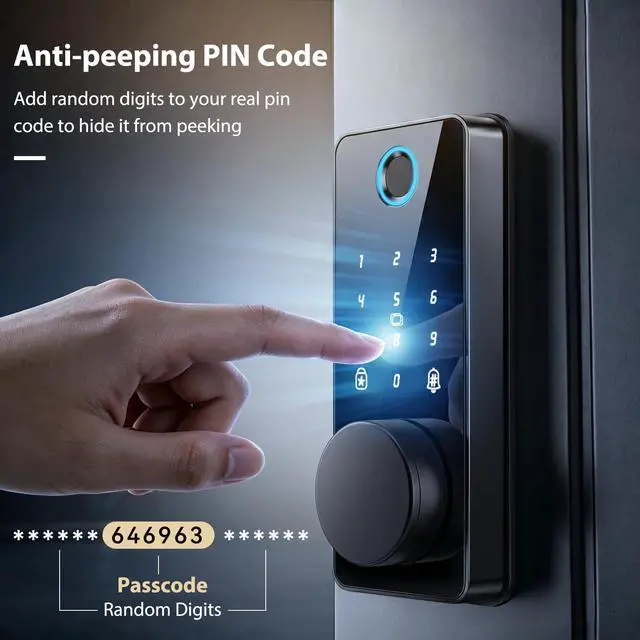
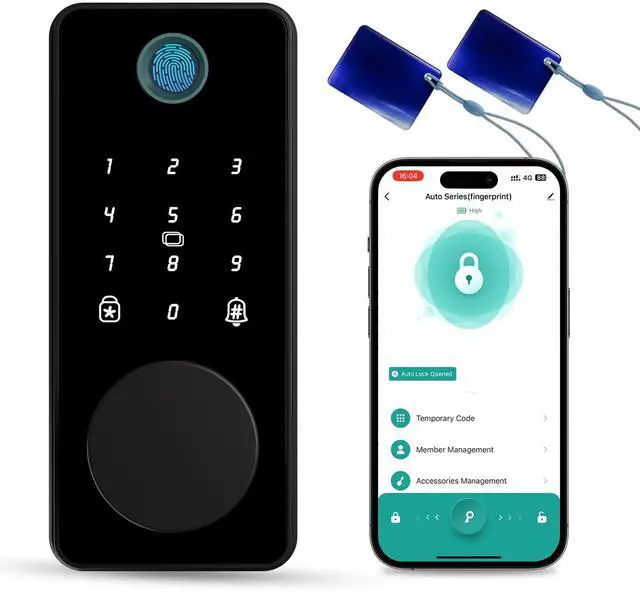


Biquole Smart Door Lock
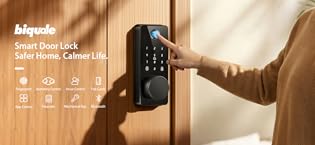
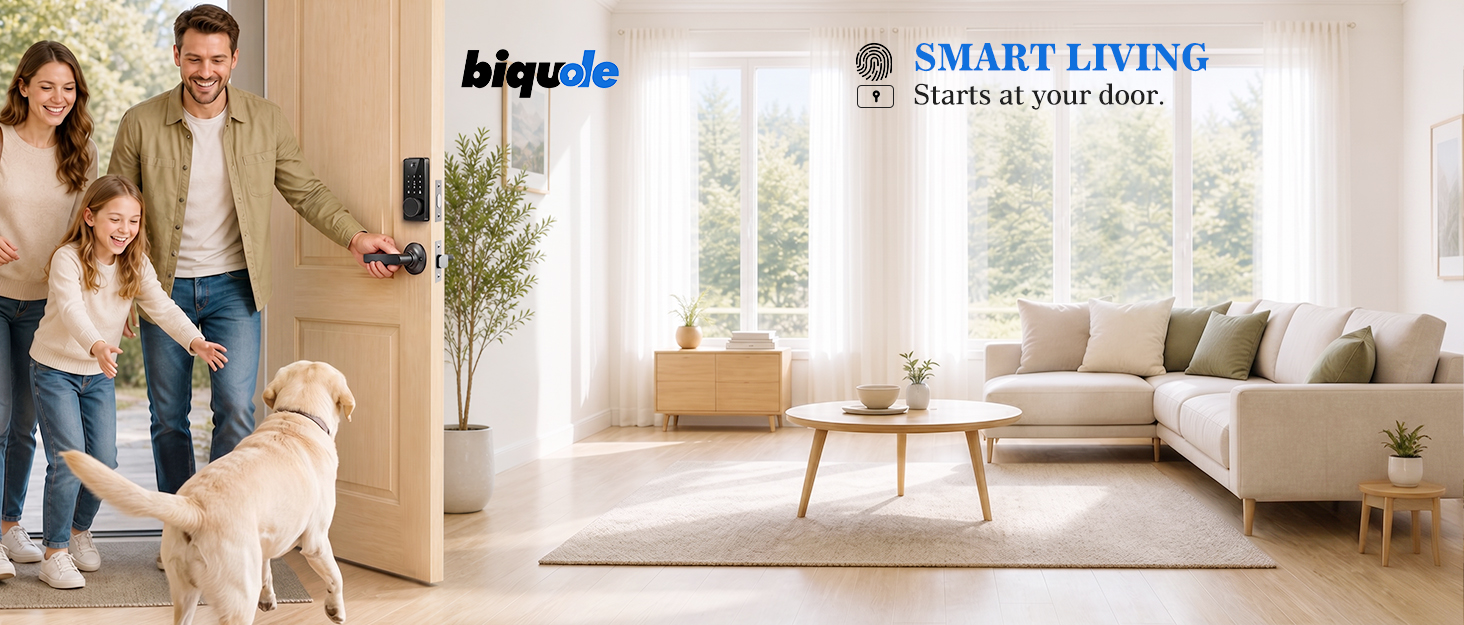
Trusted Smart Deadbolt Brand
- Biquole has been a trusted smart deadbolt expert for years, with proven R&D, production and global sales experience.
- We stand by "Safety First, Convenience Foremost"—every deadbolt undergoes strict quality inspections, backed by our professional R&D team.
- We’re here for you 24/7, with 30-day hassle-free return, so you can choose with confidence.
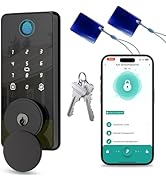
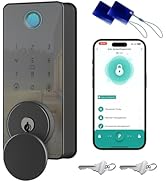
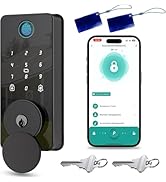
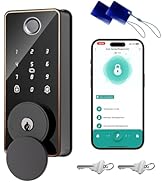
Biquole Smart Door Lock
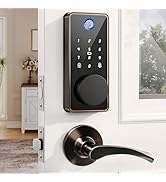
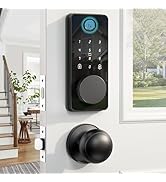
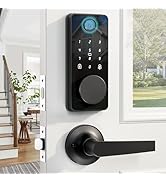
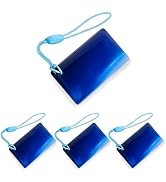
Biquole Smart Door Lock set
What we offer?
We focus on home security and offer a full range of deadbolt locks, electronic locks, fingerprint locks and smart door locks, providing easy keyless access for all families.
What is our service?
Enjoy seamless after-sales support: 7/12 online customer assistance, detailed installation guides, a 1-year coverage, and 48-hour problem resolution.
Why choose us?
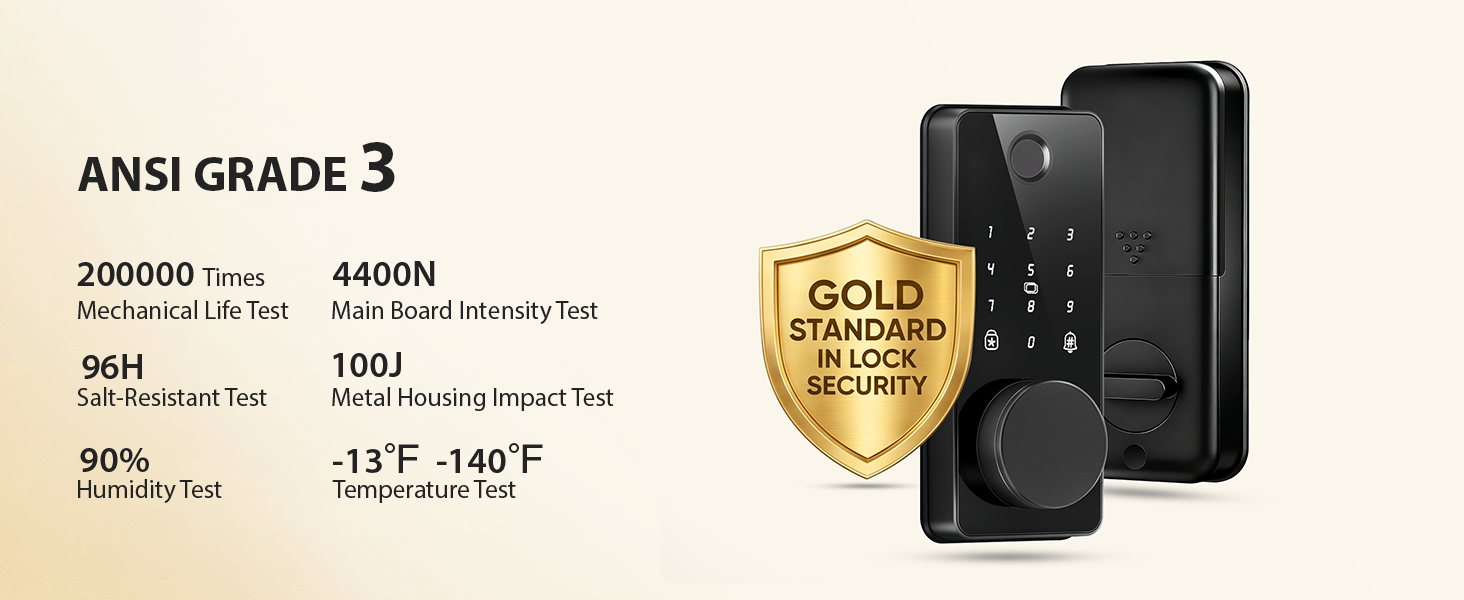
Premium certified security locks tested for 100,000+ uses, upgraded with customer feedback, backed by global timely assistance, timely delivery, and upcoming new features for your trusted smart lock safety.
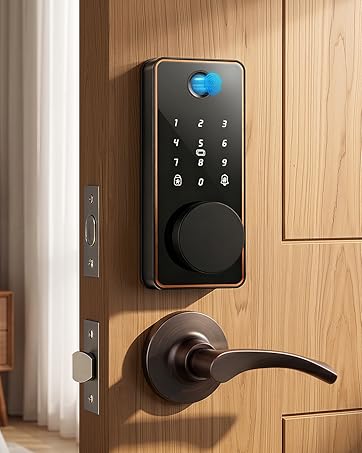
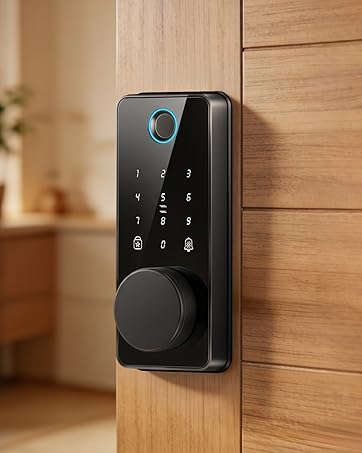
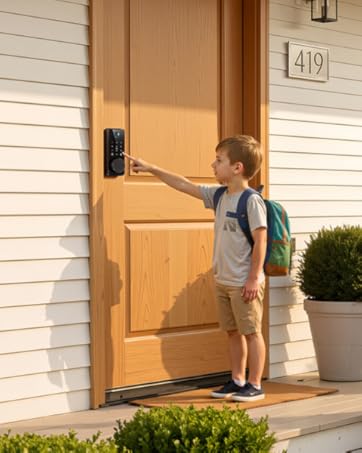
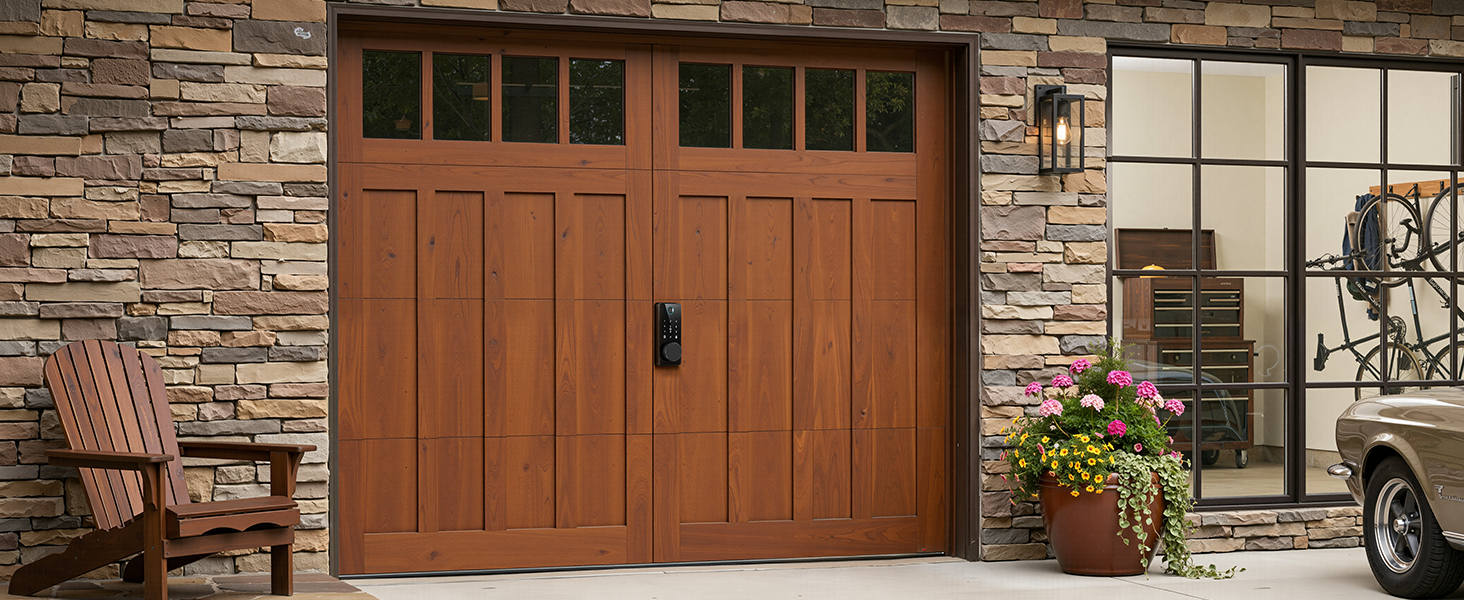
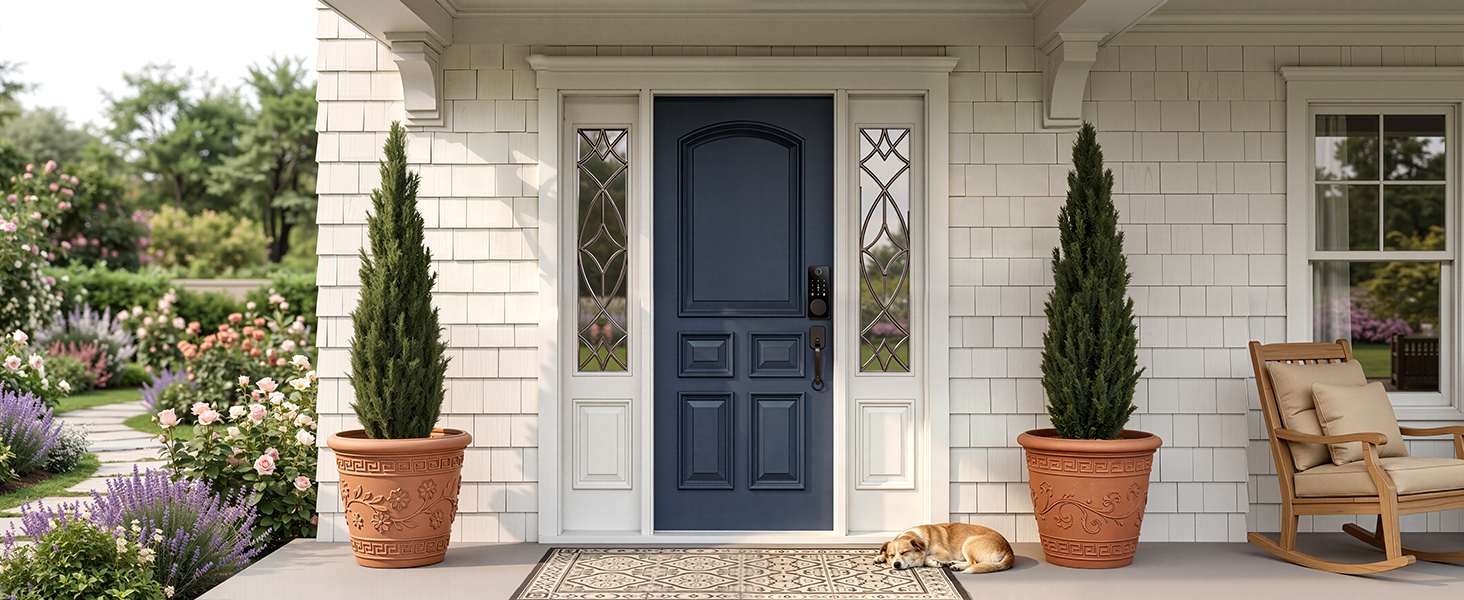
Door locks for front door
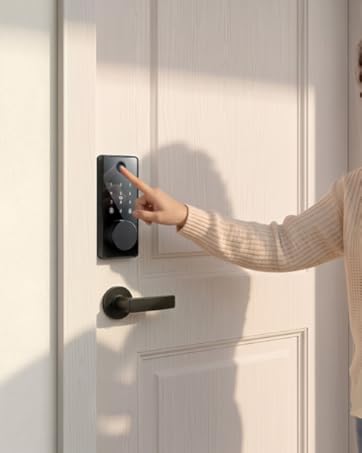
Door locks for bedrooms
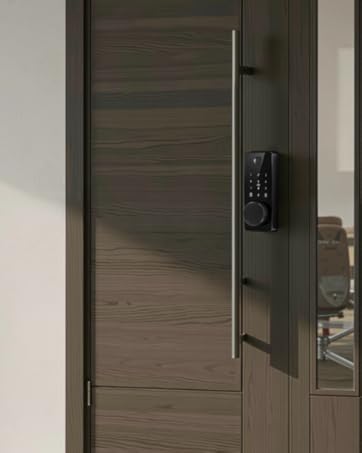
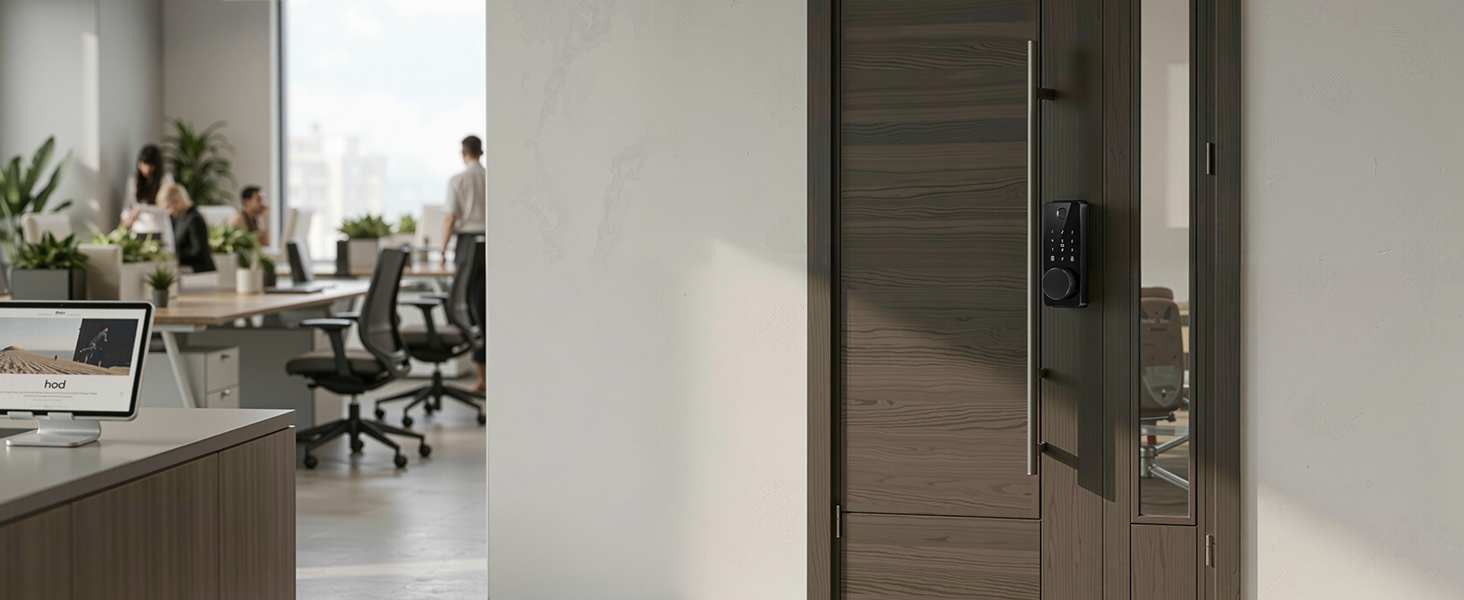
Office keyless entry door lock
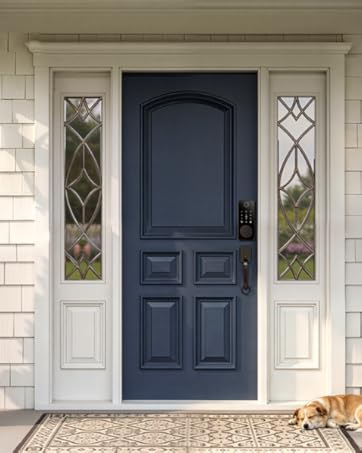
Smart locks for Aribnb door
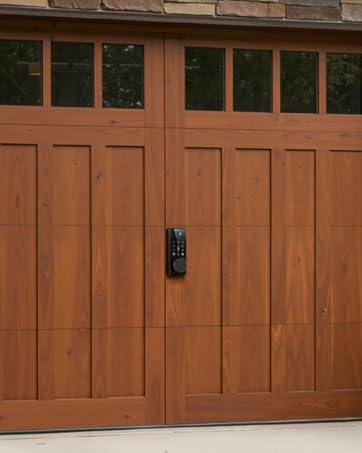
Smart lock for back door
Smarter Lock. Safer Home.
Upgraded Biquole S03 Keyless Entry Door Lock
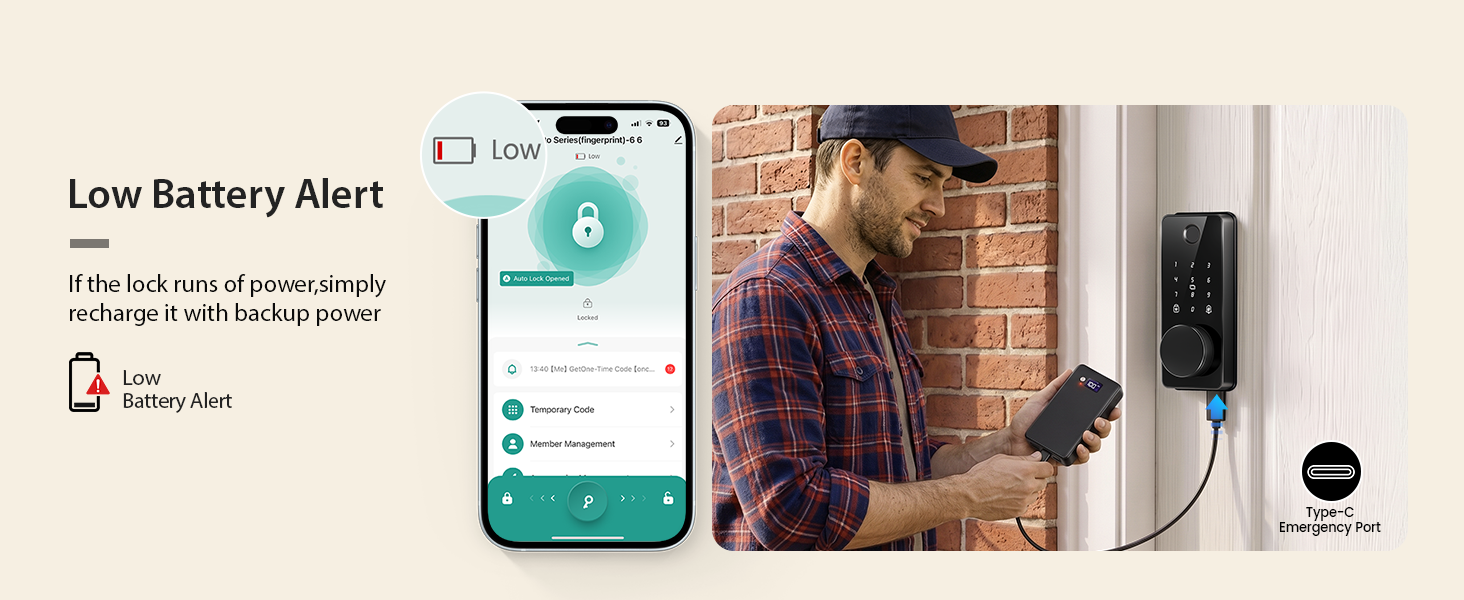
Merchant VideoMore than a lock, it’s your home security command center. Simplify daily life with smart technology, bringing you effortless peace of mind every time you come home.
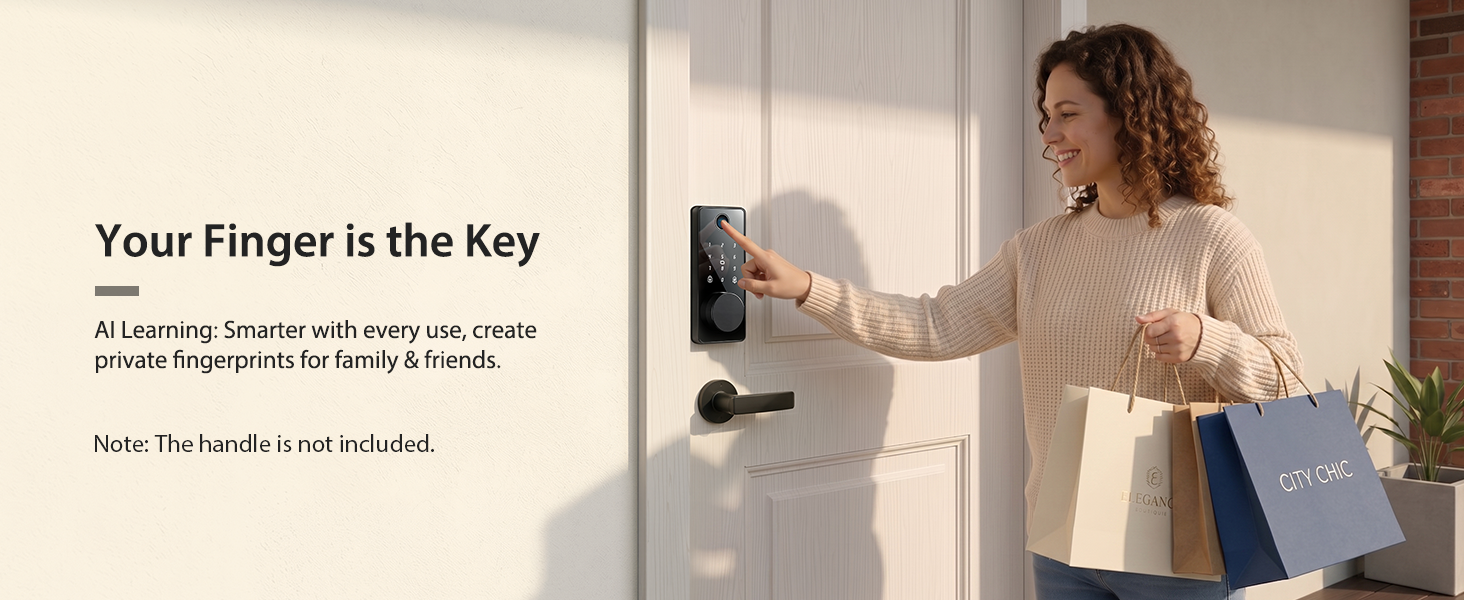
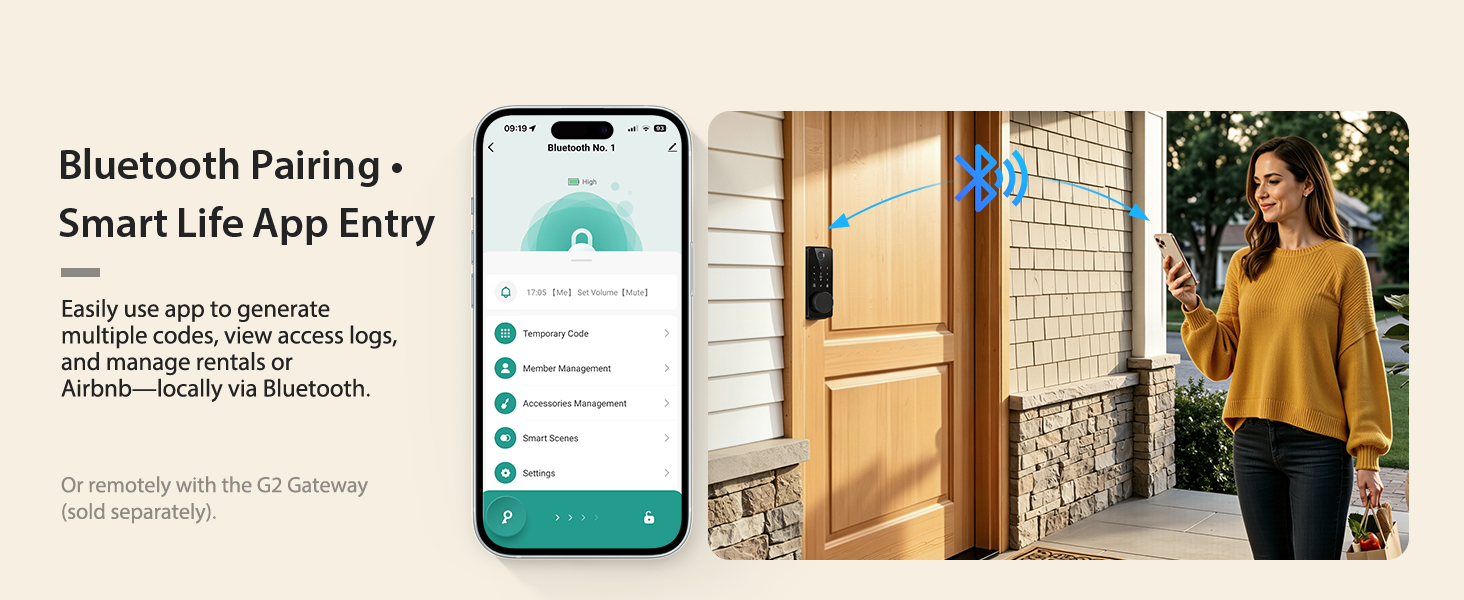
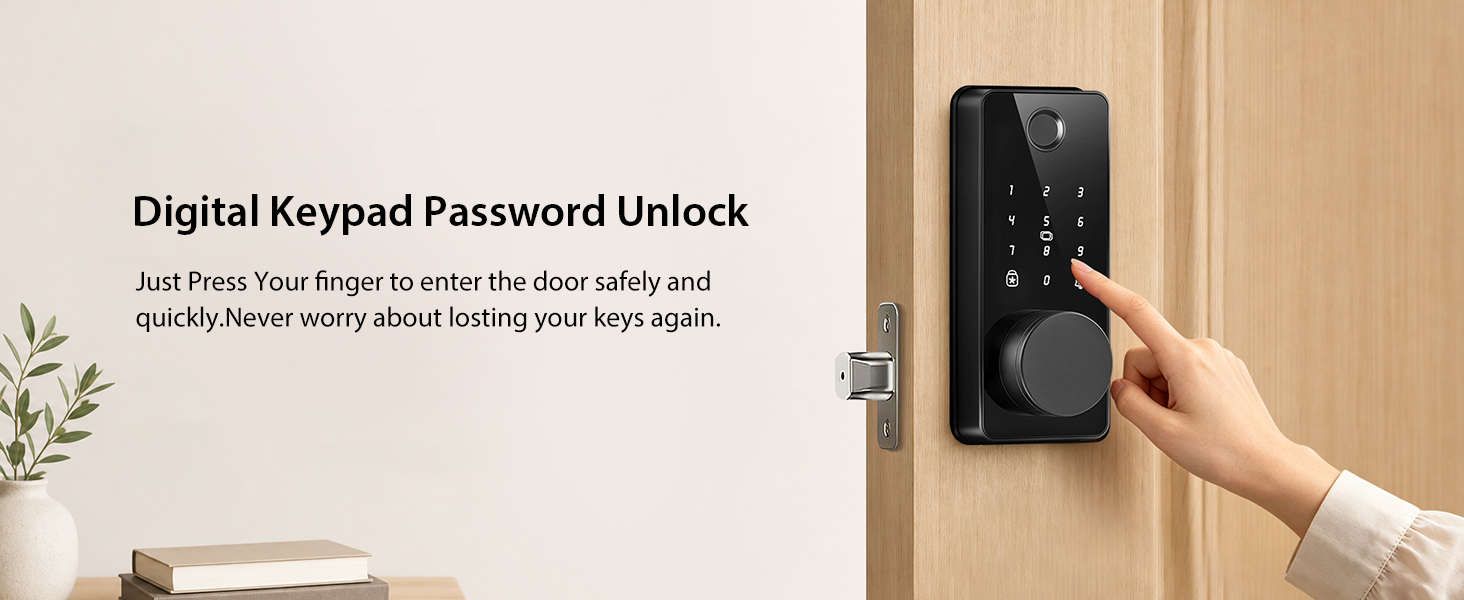
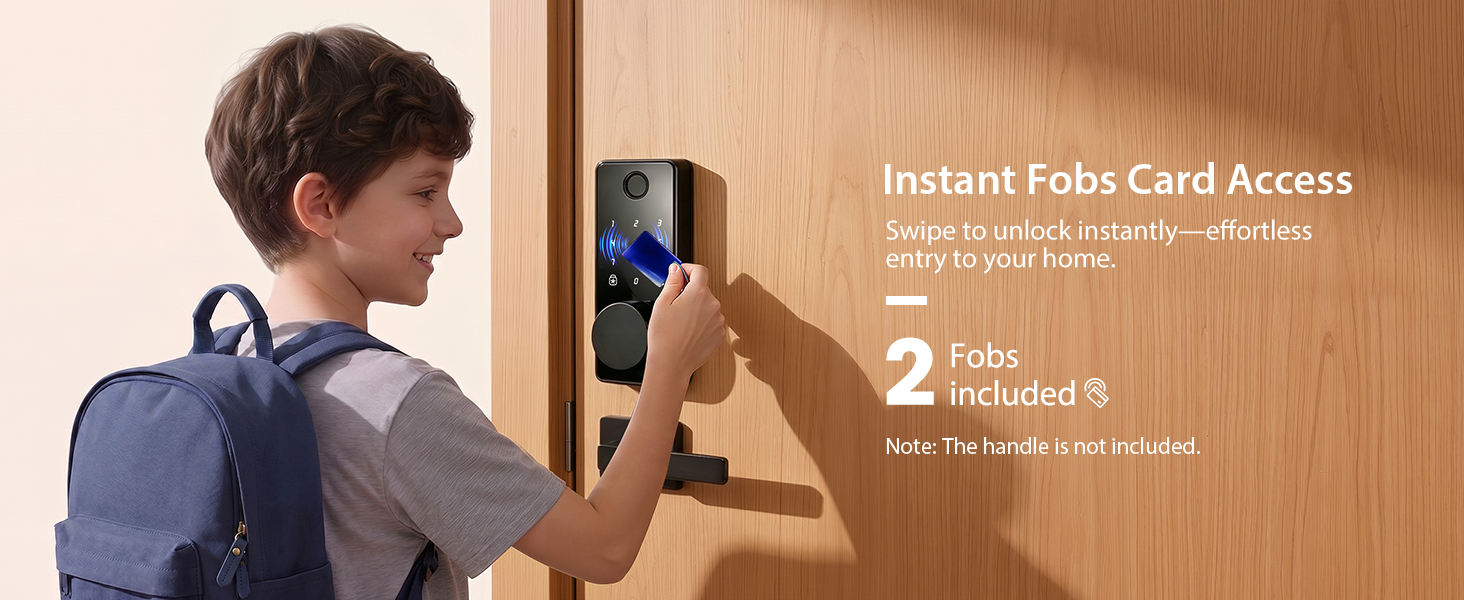
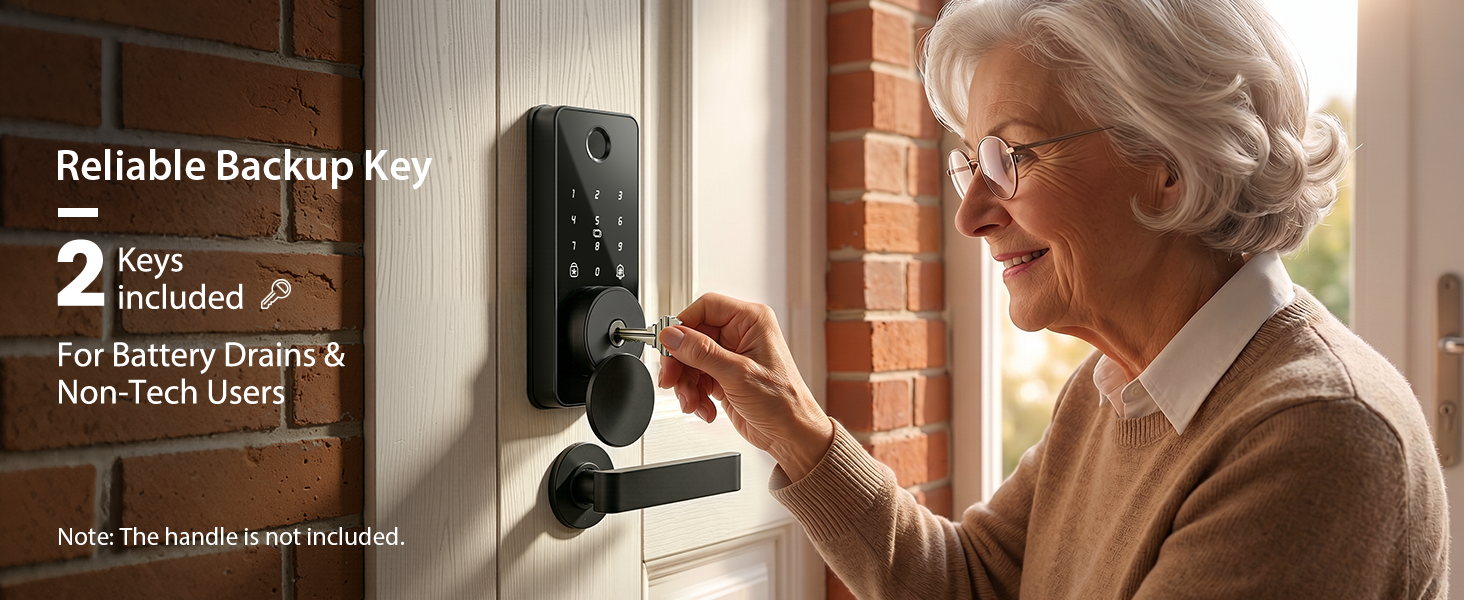
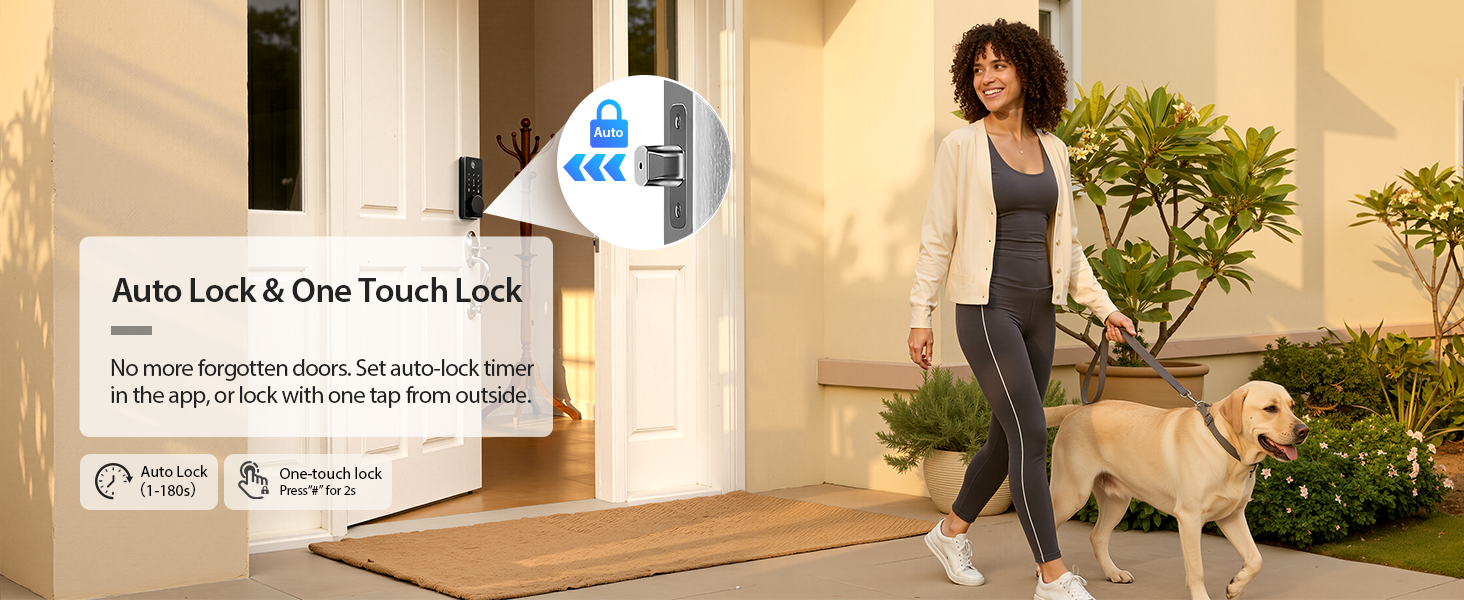
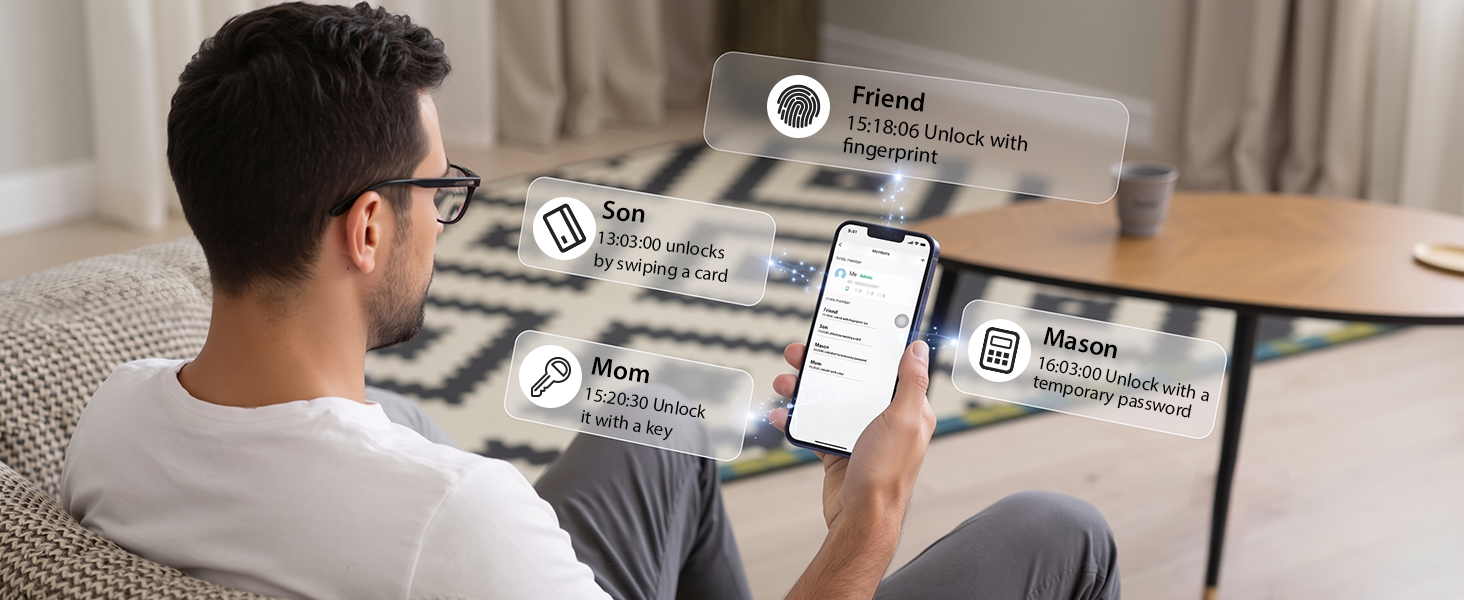
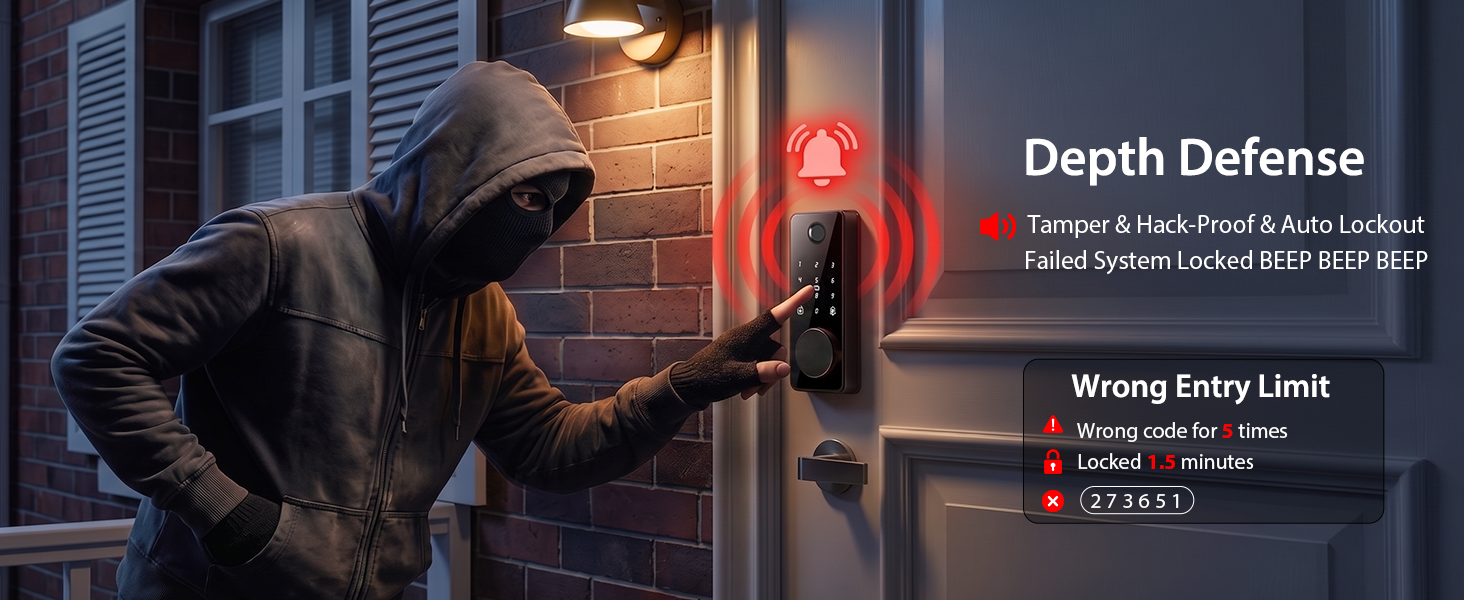
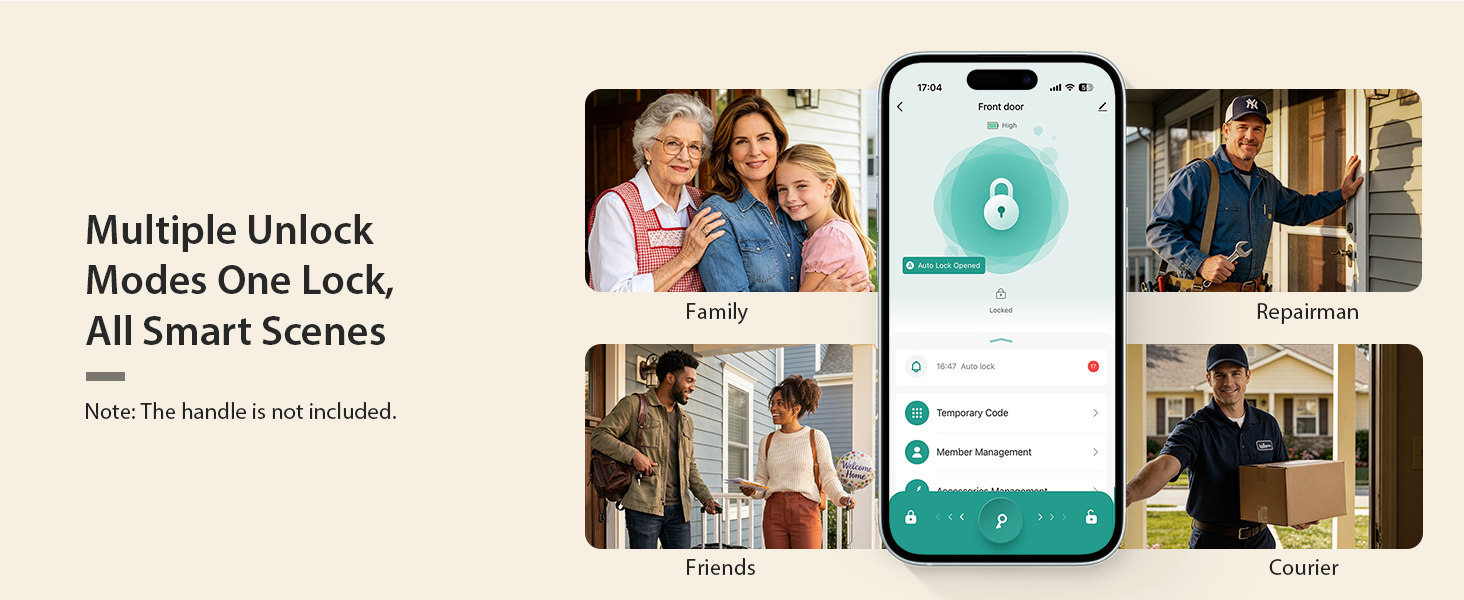
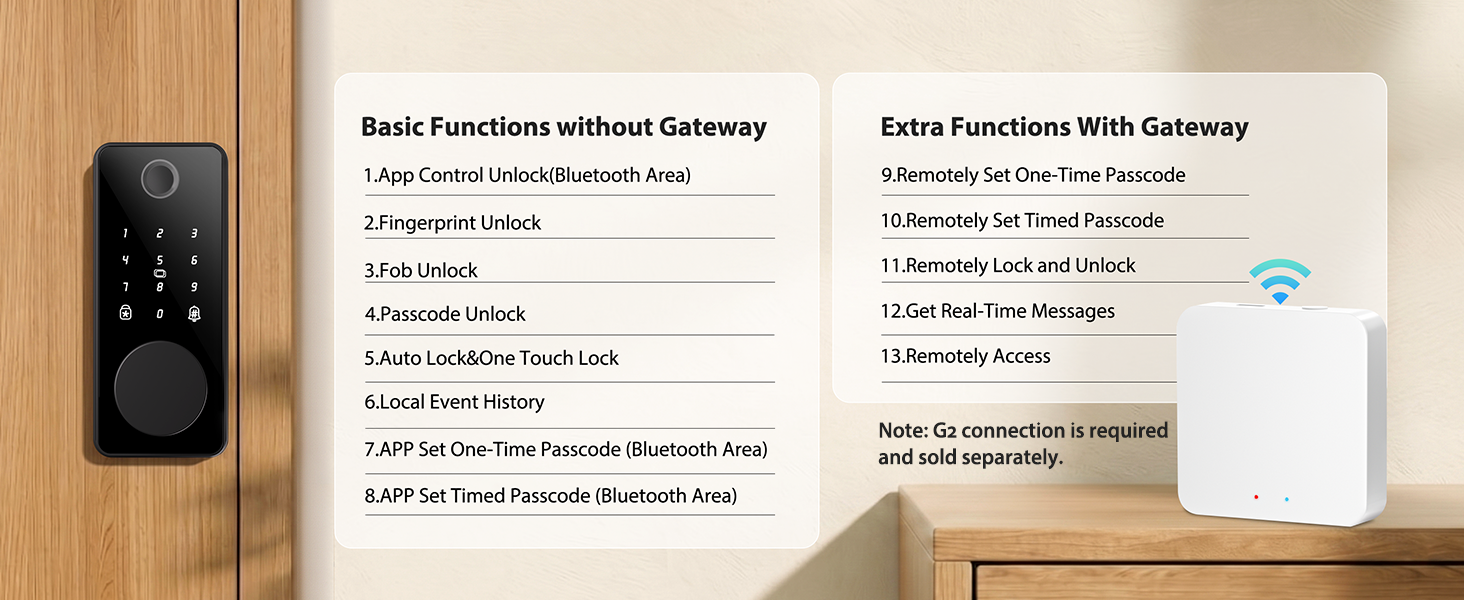
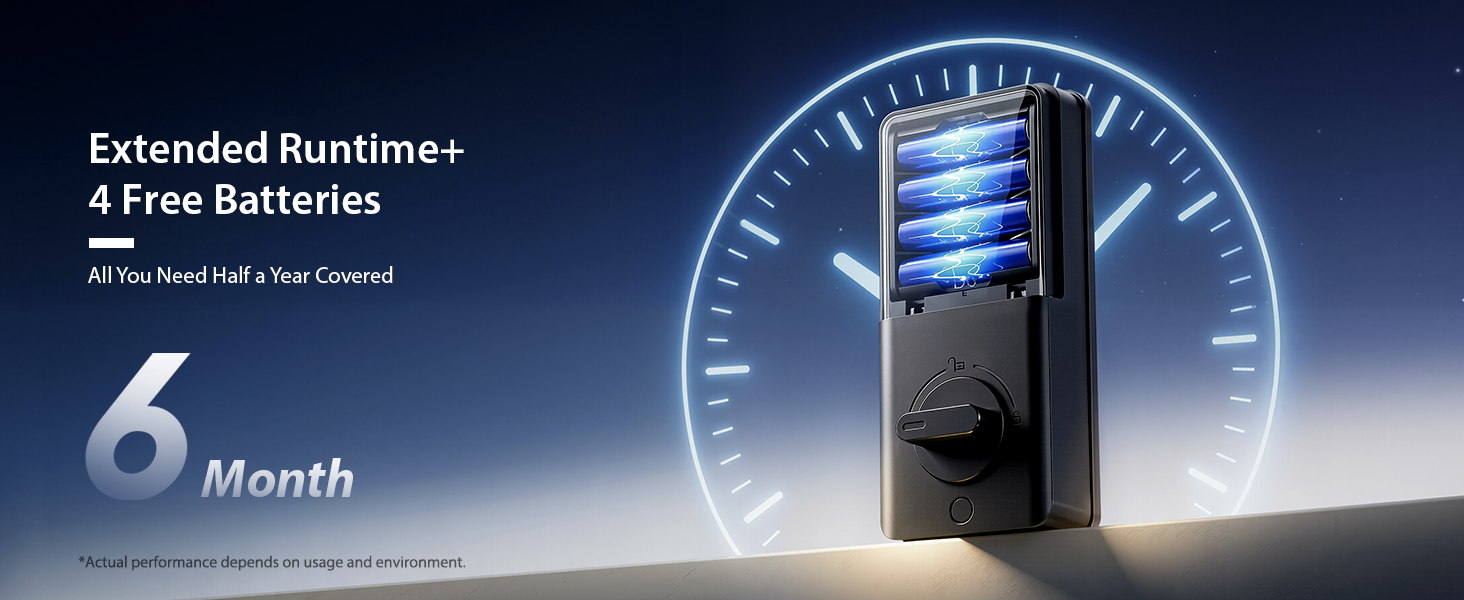
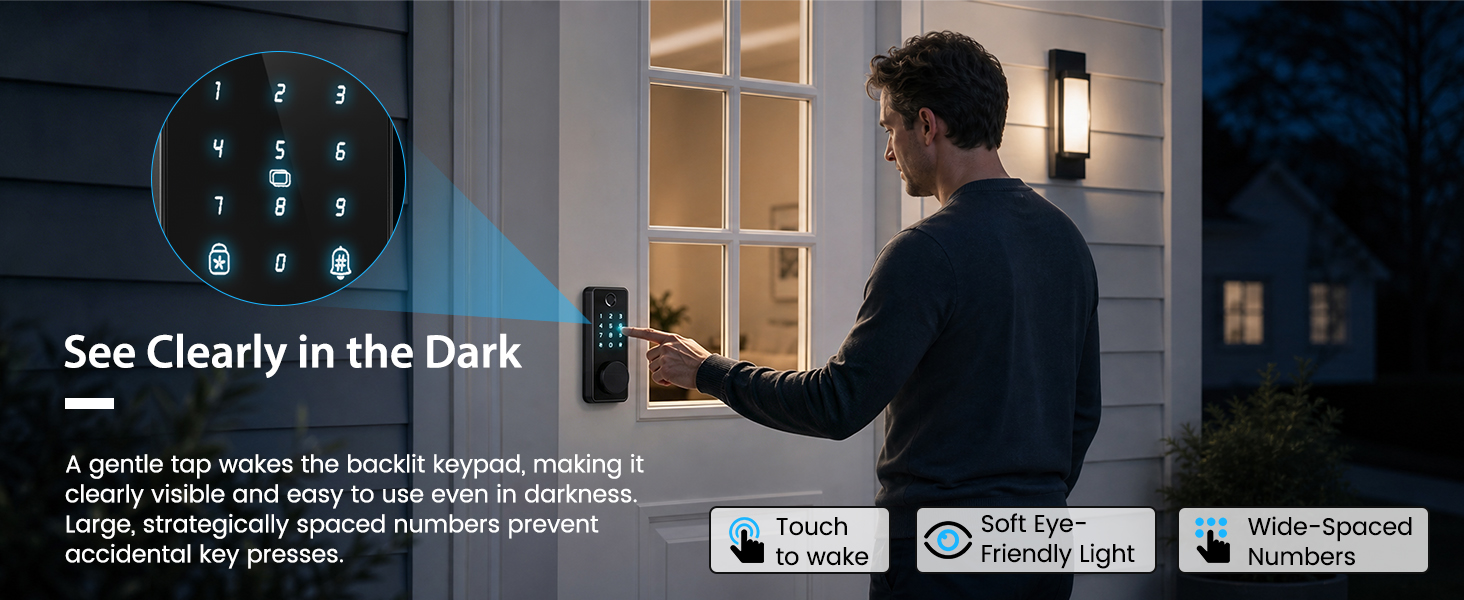
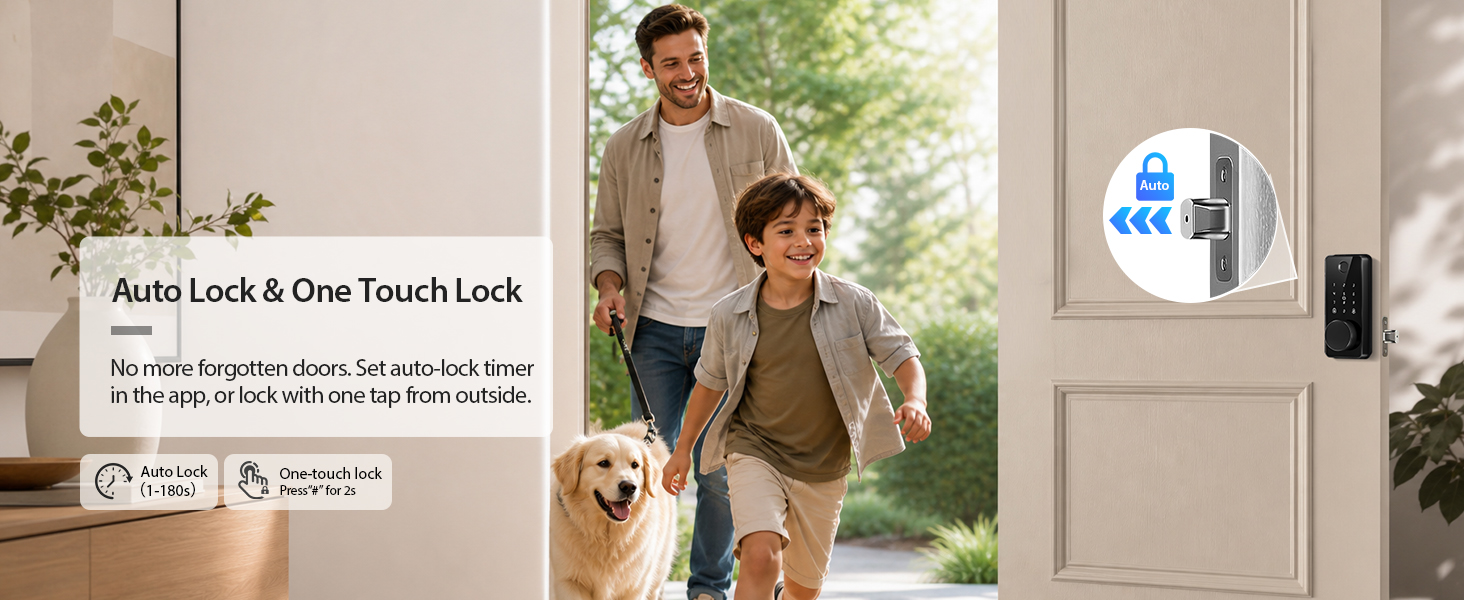
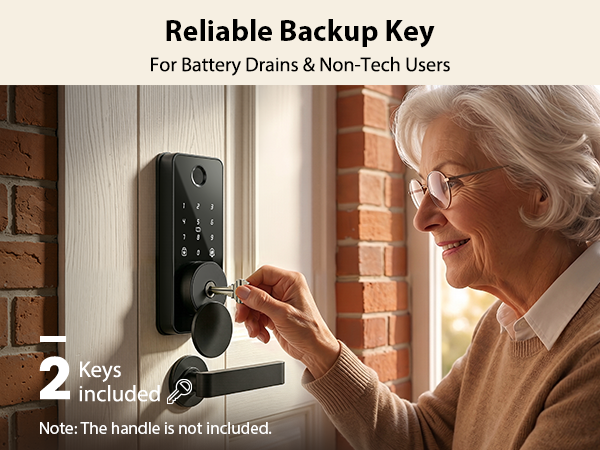
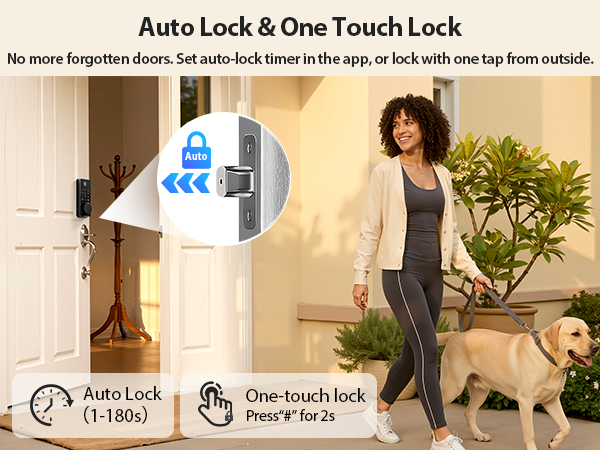
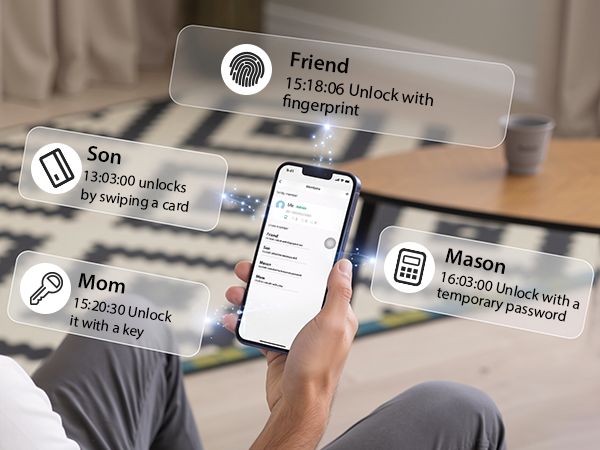
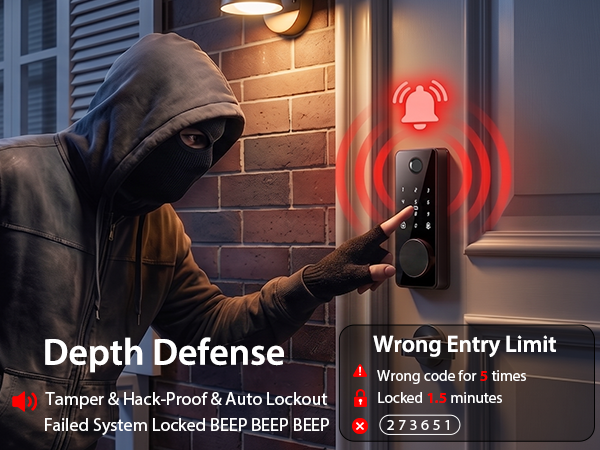
Unlock Your Door with 6-In-1 Versatility
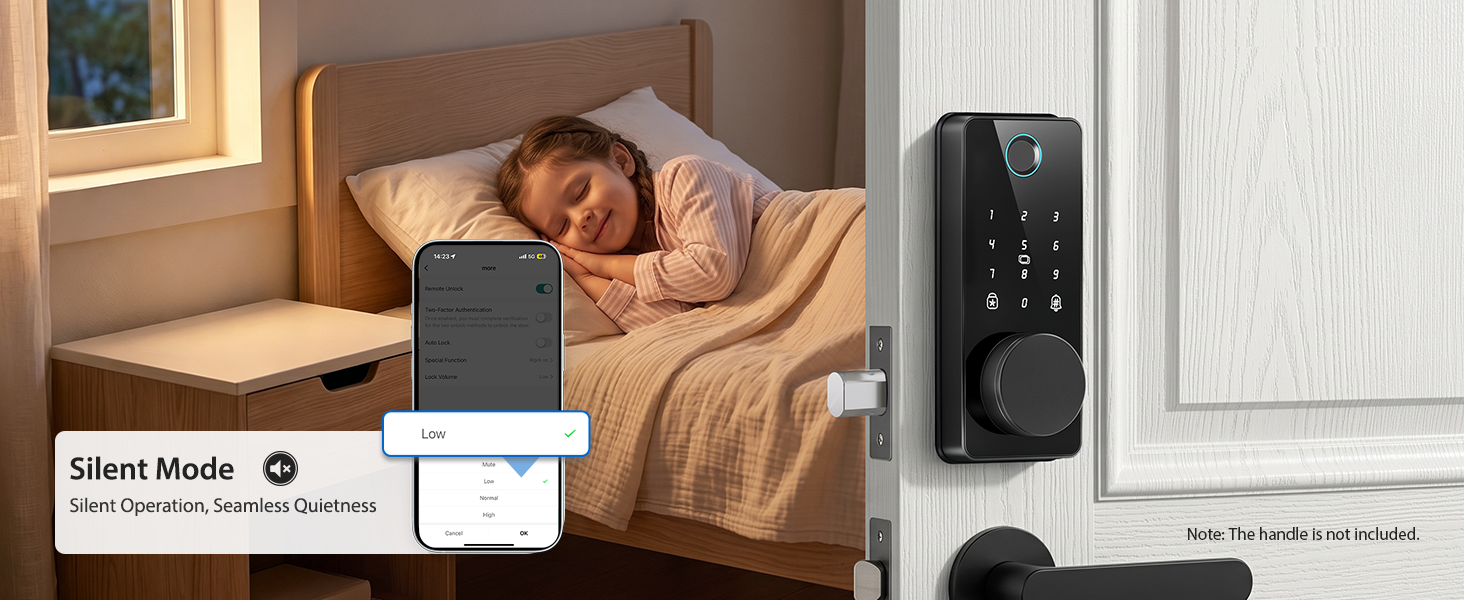
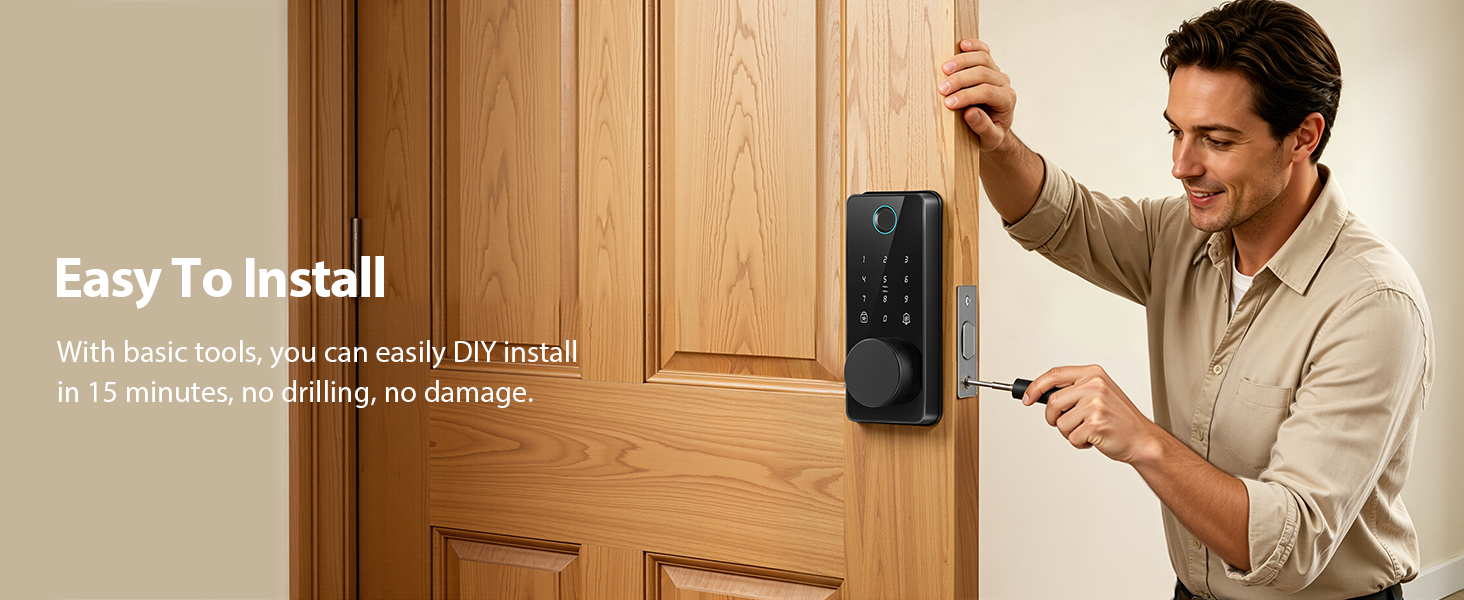
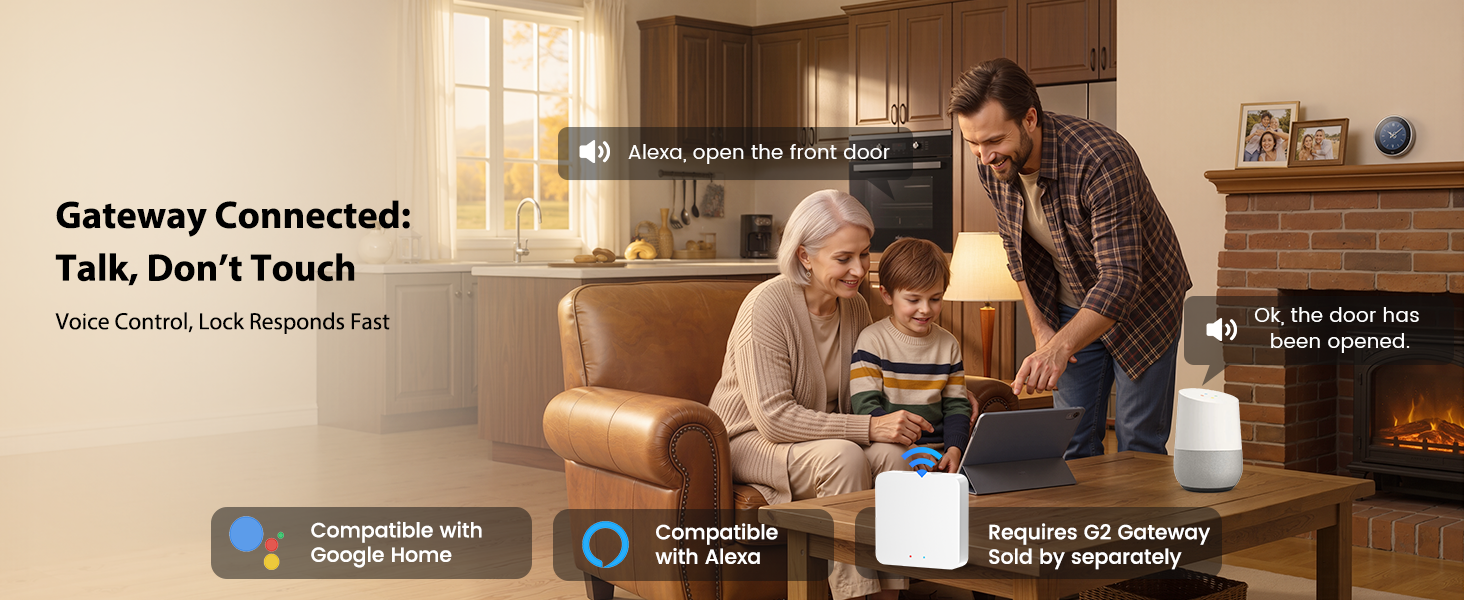
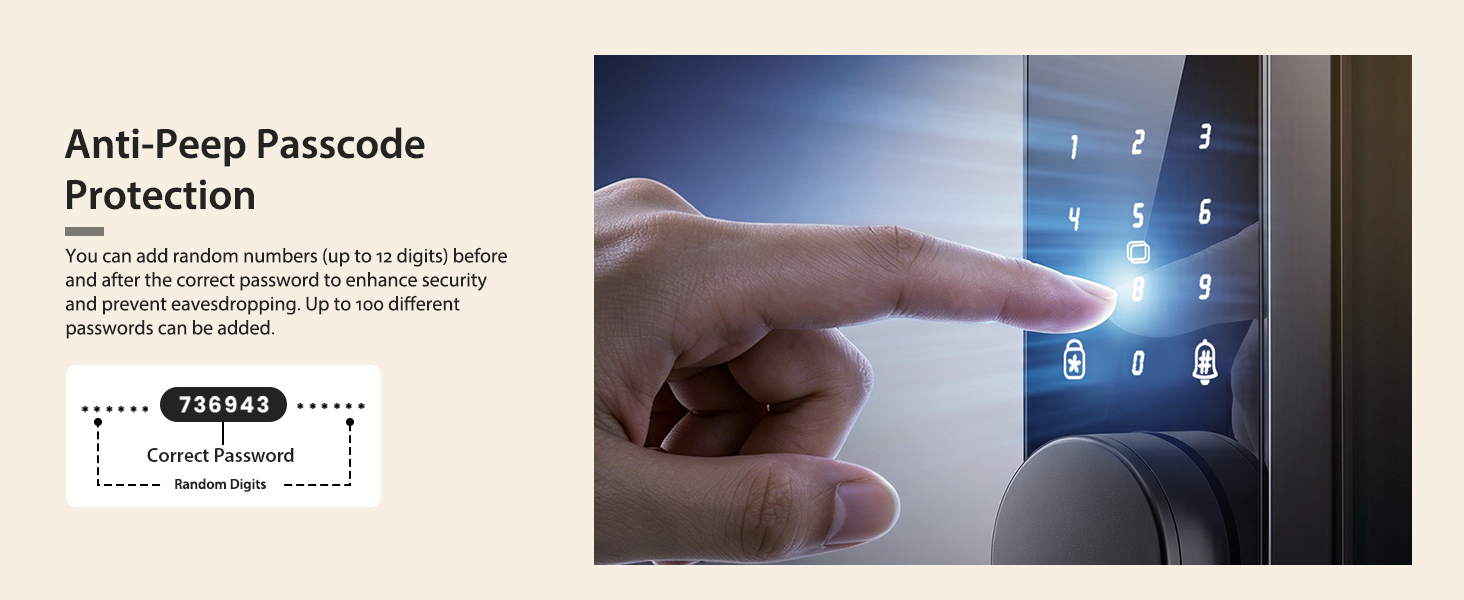

Q: How many digits is the password for the S03 lock?
A: The S03 fingerprint door lock is designed with a 6-digit password as standard. Simply enter your 6-digit passcode and press the # key to unlock the door quickly.
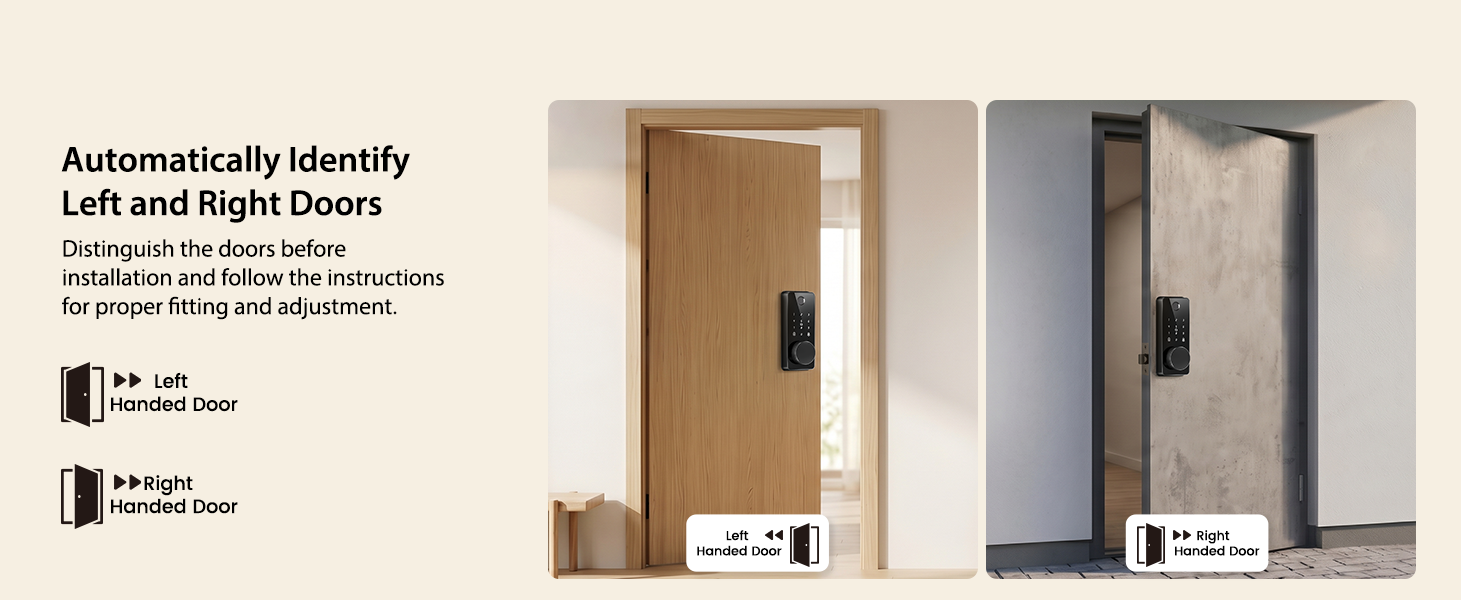
Q: I'm trying to install the lock. How do I figure out if my door is left-handed or right-handed?
A: To identify your door handing, stand outside facing the door directly.Hinges on the left = LH door;
Hinges on the right = RH door.
For diagrams and steps, see pages 11–12 and 19-20 in the manual.
Q: Which app works with this smart lock? Is there any charge for using it?
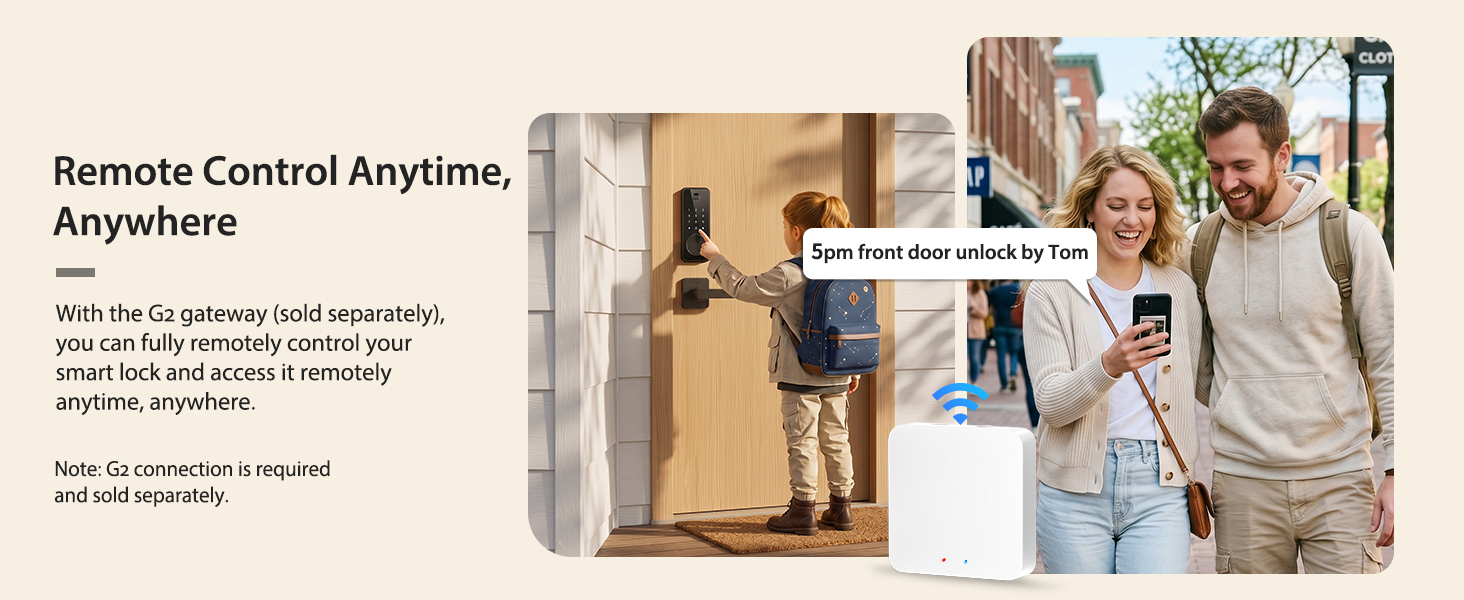
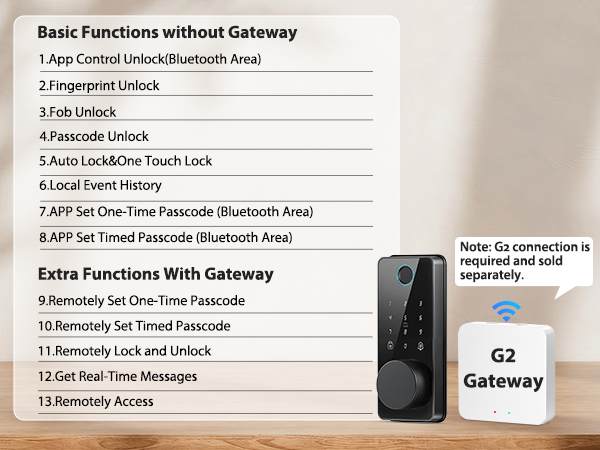
A: This lock pairs with the Smart Life App (Tuya App), which is free to download and use. All core functions including remote control and unlimited temporary user codes come with no hidden fees or subscription charges.
What's the fastest or easiest way to install this? I want to make sure I'm not missing any simple steps.
A: We recommend following the included installation video guides for a quick and hassle-free setup. These step-by-step videos cover full installation procedures and common troubleshooting tips to help you finish the process effortlessly.
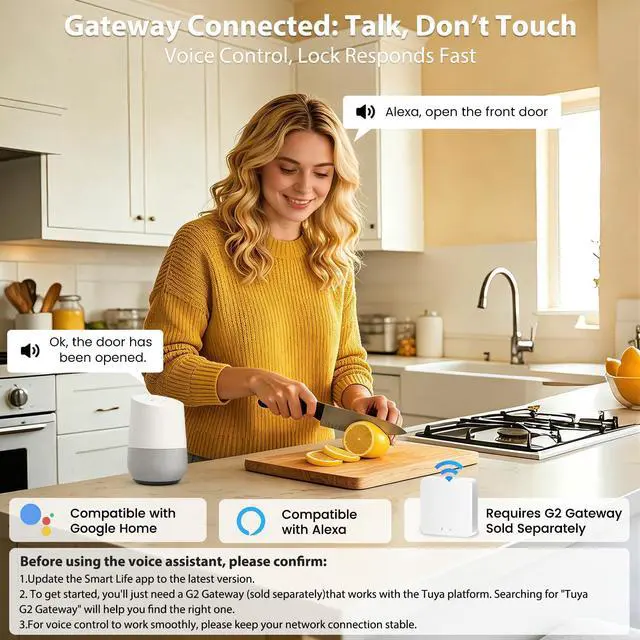
Q: Why do the voice prompts show the opposite lock status (locked/unlocked)?
1.Confirm the lock is installed on the correct side with the handing matching your door's swing.(Q2)
2.Adjust the door swing direction in the Smart Life app. After receiving the "Succeed" prompt, wait about 3 seconds for the settings to take effect.
Biquole Smart Door Lock
Trusted Smart Deadbolt Brand
- Biquole has been a trusted smart deadbolt expert for years, with proven R&D, production and global sales experience.
- We stand by "Safety First, Convenience Foremost"—every deadbolt undergoes strict quality inspections, backed by our professional R&D team.
- We’re here for you 24/7, with 30-day hassle-free return, so you can choose with confidence.
Biquole Smart Door Lock
Biquole Smart Door Lock set
What we offer?
We focus on home security and offer a full range of deadbolt locks, electronic locks, fingerprint locks and smart door locks, providing easy keyless access for all families.
What is our service?
Enjoy seamless after-sales support: 7/12 online customer assistance, detailed installation guides, a 1-year coverage, and 48-hour problem resolution.
Why choose us?
Premium certified security locks tested for 100,000+ uses, upgraded with customer feedback, backed by global timely assistance, timely delivery, and upcoming new features for your trusted smart lock safety.
Door locks for front door
Door locks for bedrooms
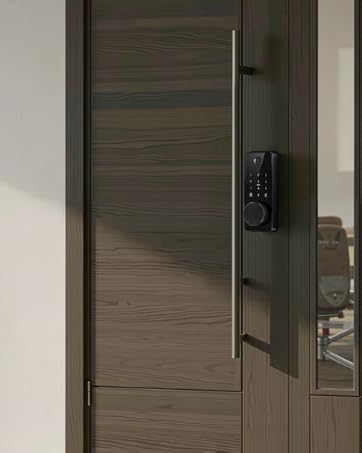
Office keyless entry door lock
Smart locks for Aribnb door
Smart lock for back door
Smarter Lock. Safer Home.
Upgraded Biquole S03 Keyless Entry Door Lock
Merchant VideoMore than a lock, it’s your home security command center. Simplify daily life with smart technology, bringing you effortless peace of mind every time you come home.
Unlock Your Door with 6-In-1 Versatility
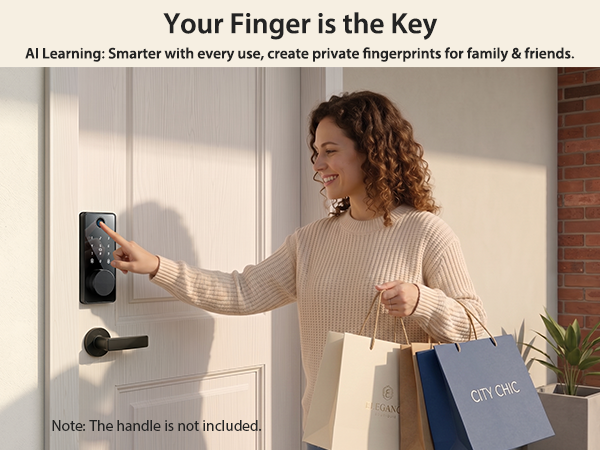
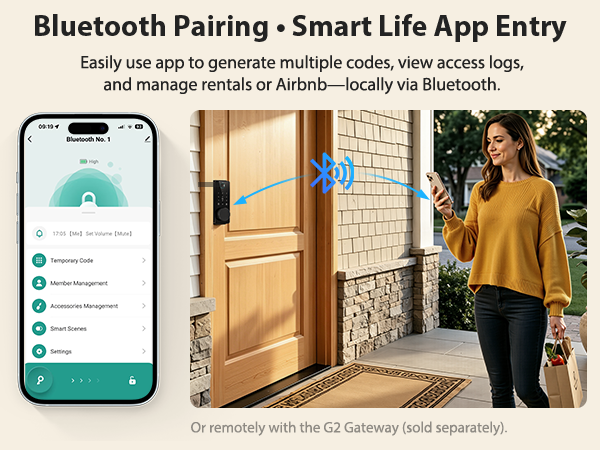
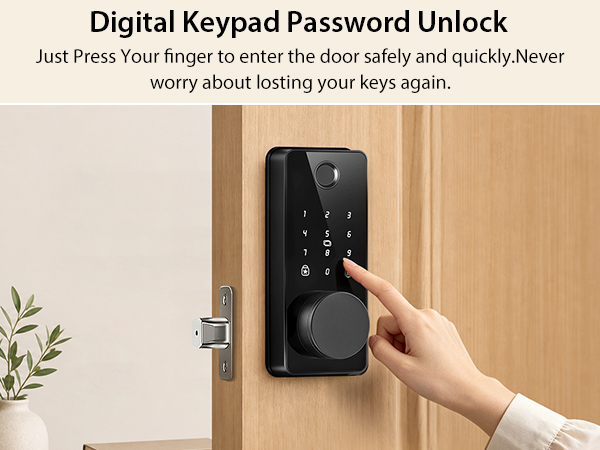
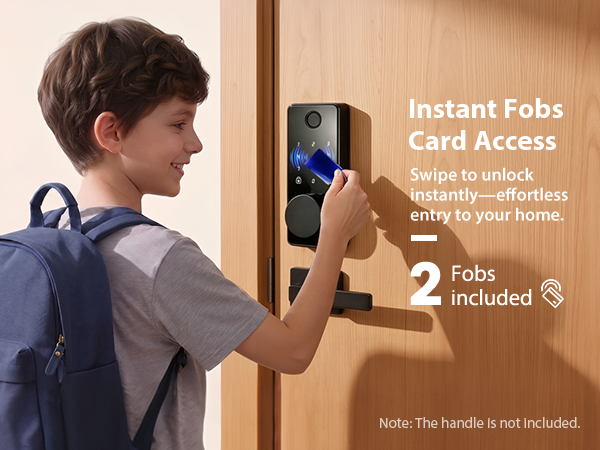
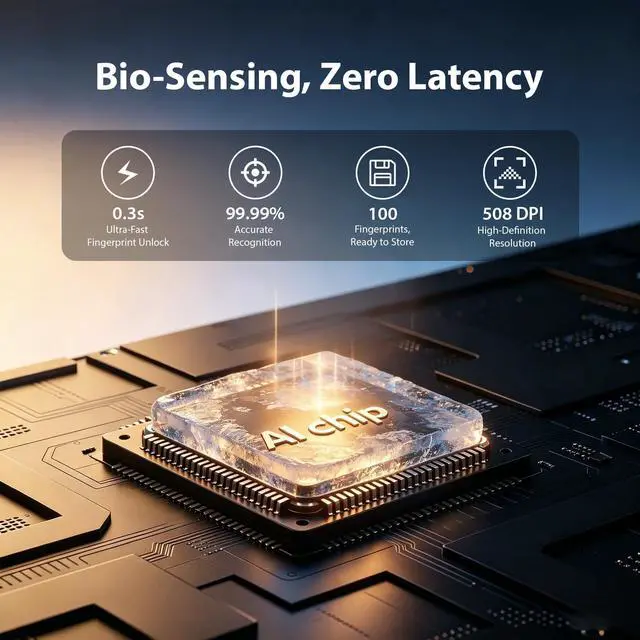
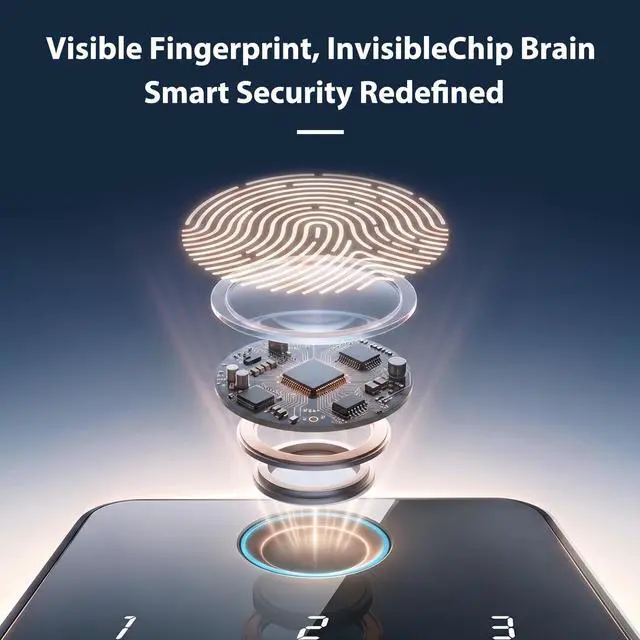
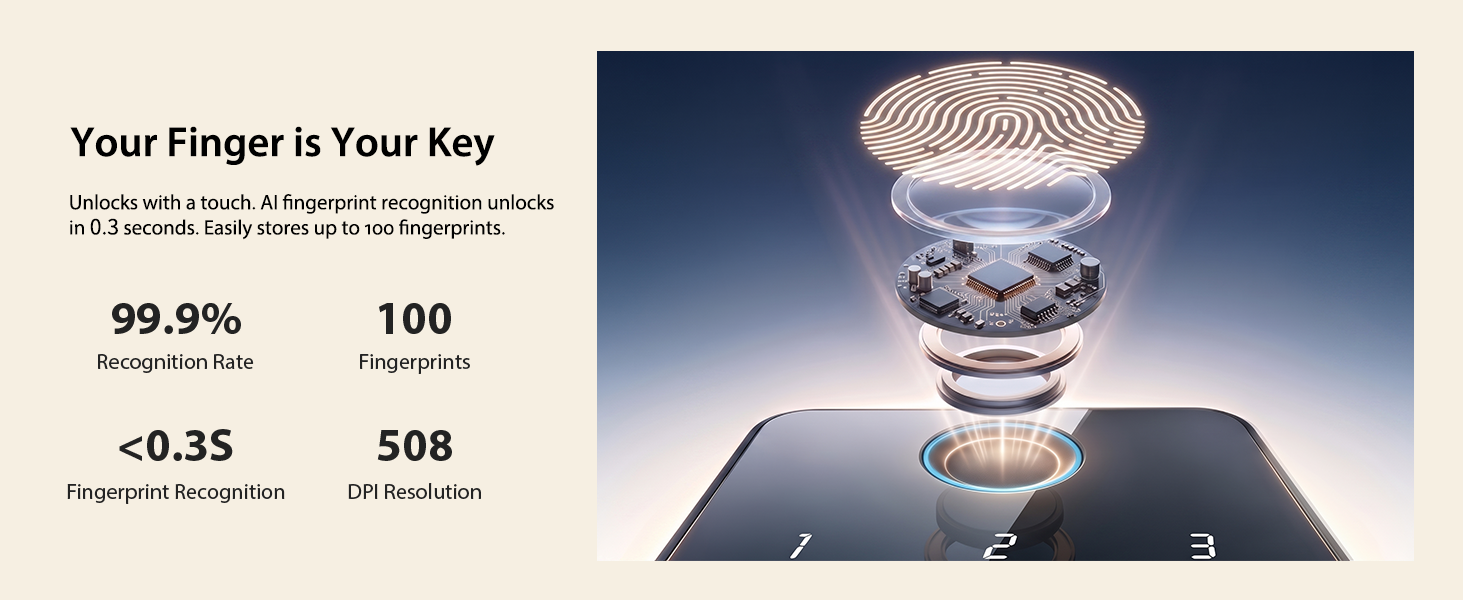
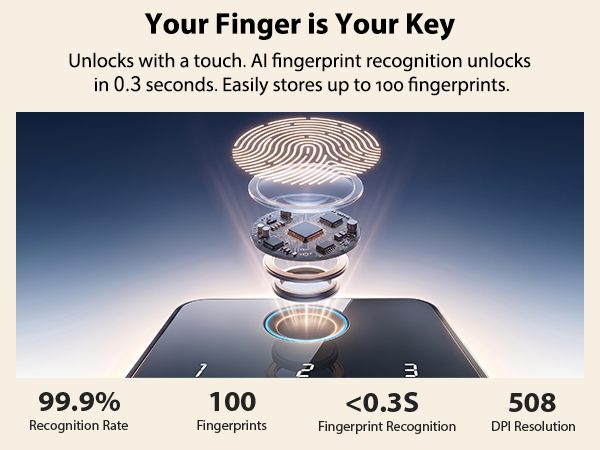
Self-learning AI Fingerprint Recognition
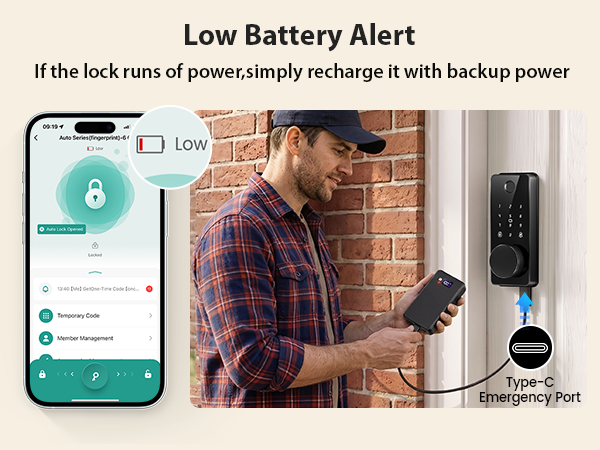
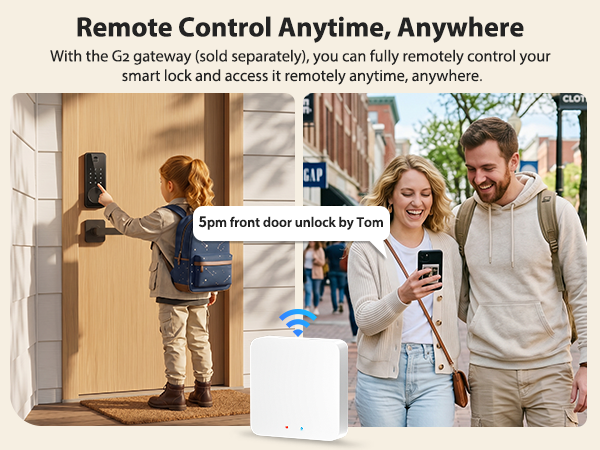
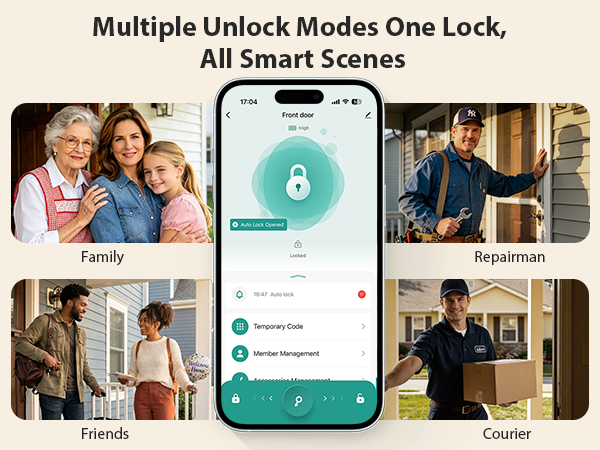
What Makes Biquole Keyless Entry Door Lock So Outstanding?
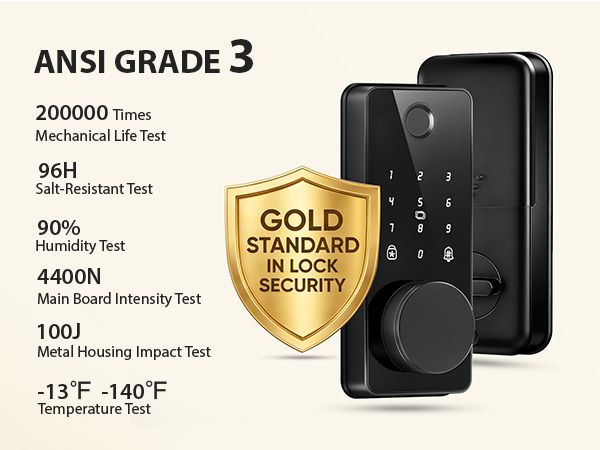
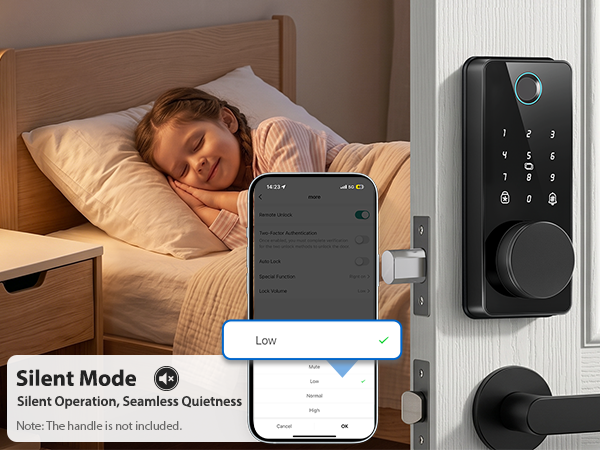
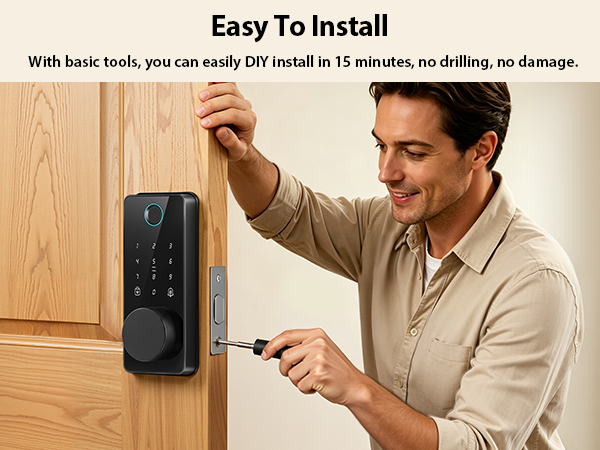
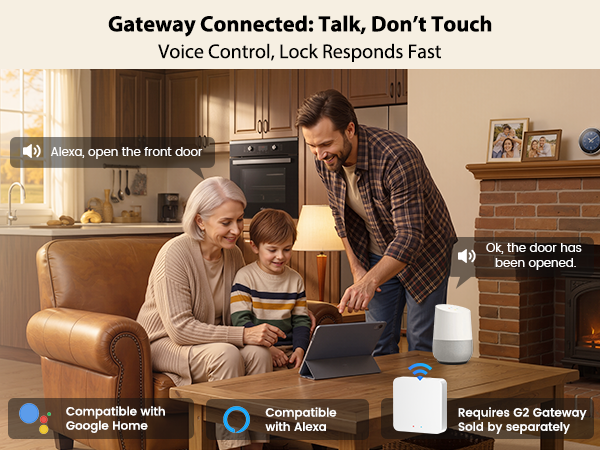
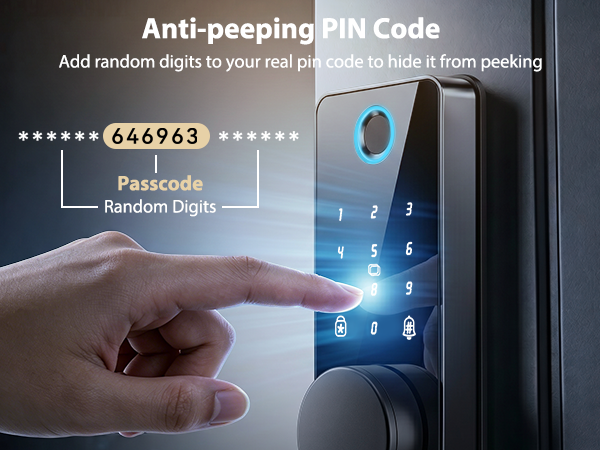
Beyond a Lock – Smart Home Security Redefined
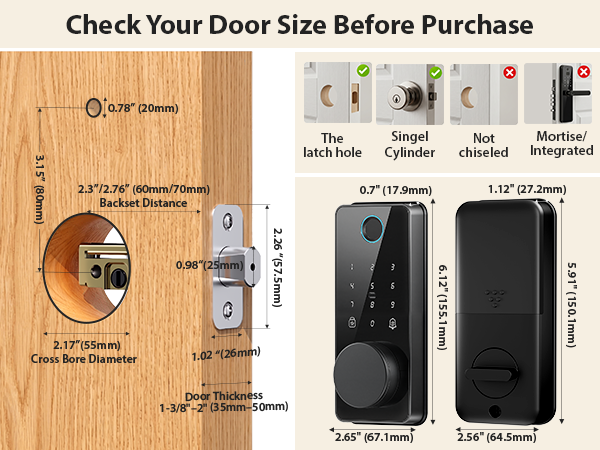
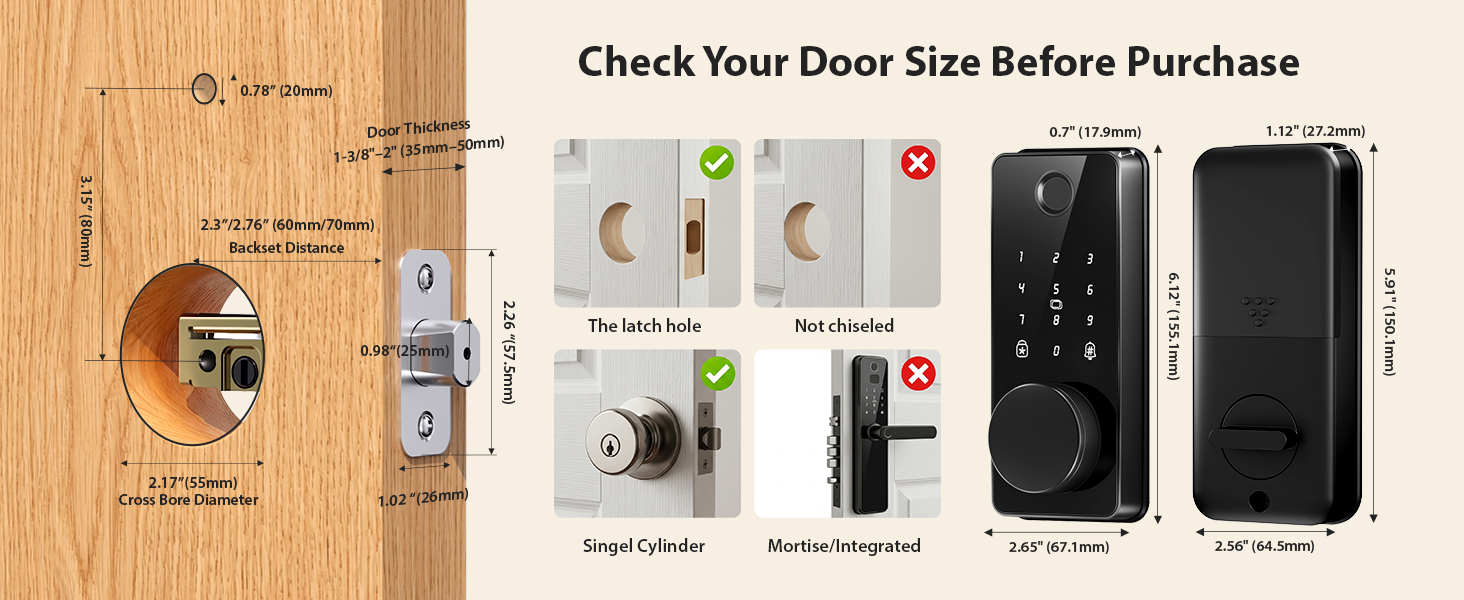
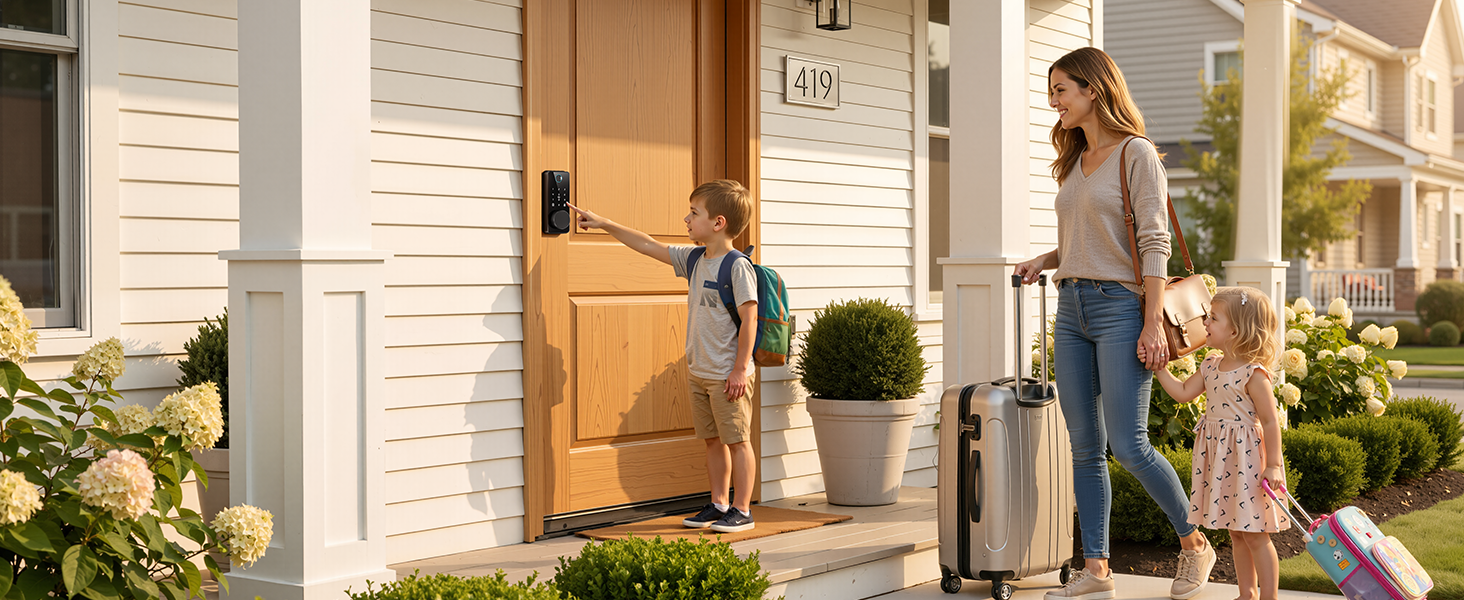
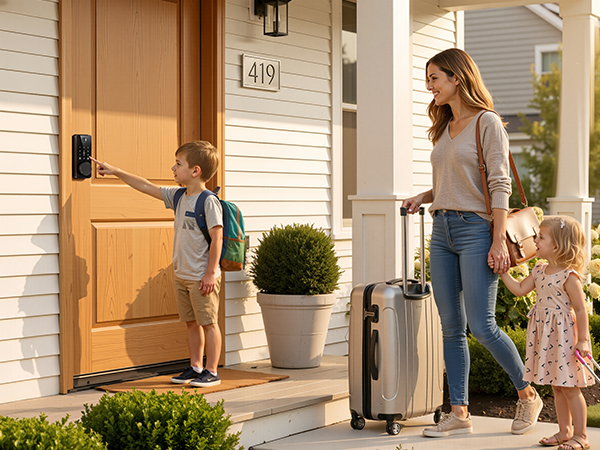
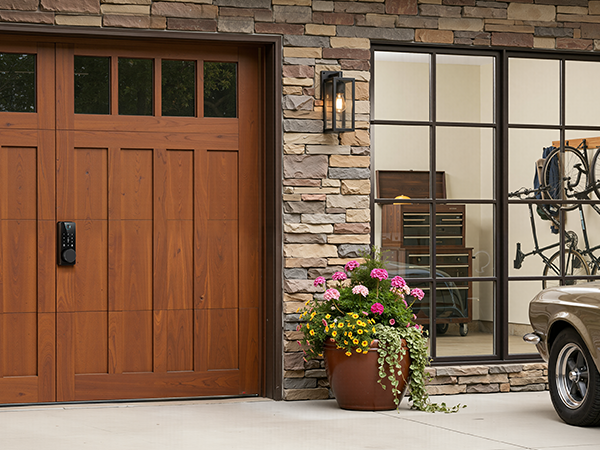
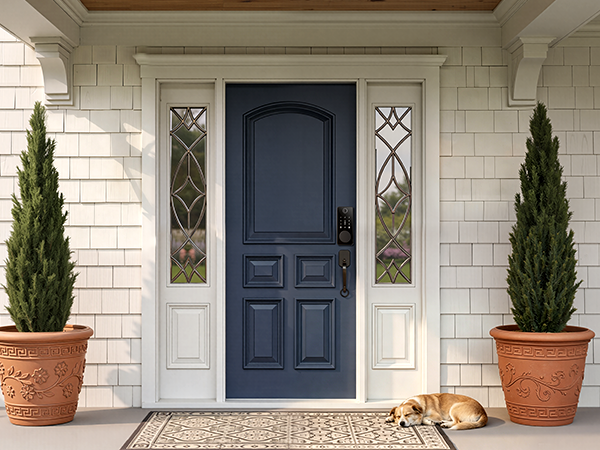
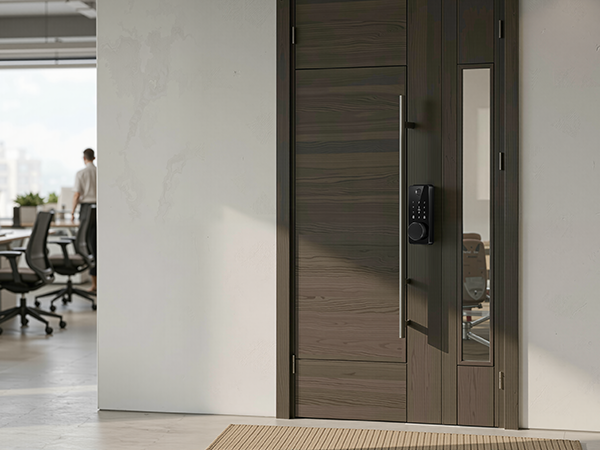
Our smart lock fits most front doors, apartments, bedrooms, and interior doors. Versatile, easy to install, and designed for all your home security needs.

Q: How many digits is the password for the S03 lock?
A: The S03 fingerprint door lock is designed with a 6-digit password as standard. Simply enter your 6-digit passcode and press the # key to unlock the door quickly.
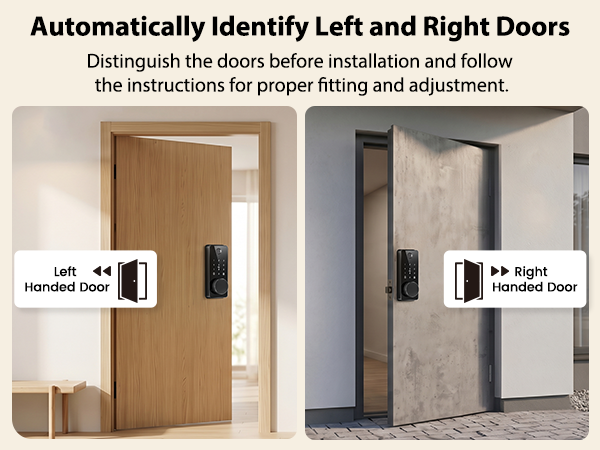
Q: I'm trying to install the lock. How do I figure out if my door is left-handed or right-handed?
A: To identify your door handing, stand outside facing the door directly.Hinges on the left = LH door;
Hinges on the right = RH door.
For diagrams and steps, see pages 11–12 and 19-20 in the manual.
Q: Which app works with this smart lock? Is there any charge for using it?
A: This lock pairs with the Smart Life App (Tuya App), which is free to download and use. All core functions including remote control and unlimited temporary user codes come with no hidden fees or subscription charges.
What's the fastest or easiest way to install this? I want to make sure I'm not missing any simple steps.
A: We recommend following the included installation video guides for a quick and hassle-free setup. These step-by-step videos cover full installation procedures and common troubleshooting tips to help you finish the process effortlessly.
Q: Why do the voice prompts show the opposite lock status (locked/unlocked)?
1.Confirm the lock is installed on the correct side with the handing matching your door's swing.(Q2)
2.Adjust the door swing direction in the Smart Life app. After receiving the "Succeed" prompt, wait about 3 seconds for the settings to take effect.