





Operating Instructions
How to Pair Android Devices
How to Pair Android Devices
- Press and hold the power button until the blue light flashes rapidly, indicating Bluetooth mode. (If not, press and hold the left and right buttons to switch modes.)
- Enable Bluetooth on your device and search for "D13/D13 Pro" to connect and pair.
How to Pair IOS Devices
How to Pair IOS Devices
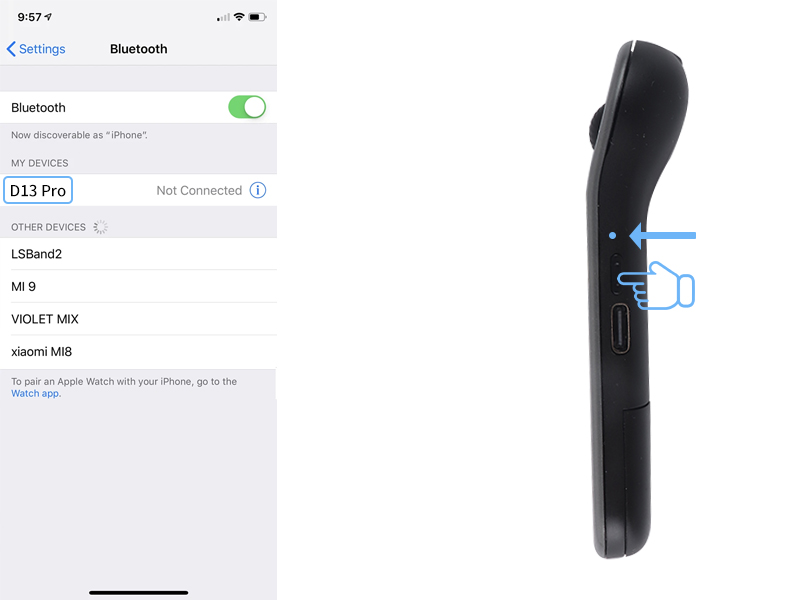
- To pair your device, make sure you are on iOS 14.8 or later, and that "Assistive Touch" is activated. Follow these steps:
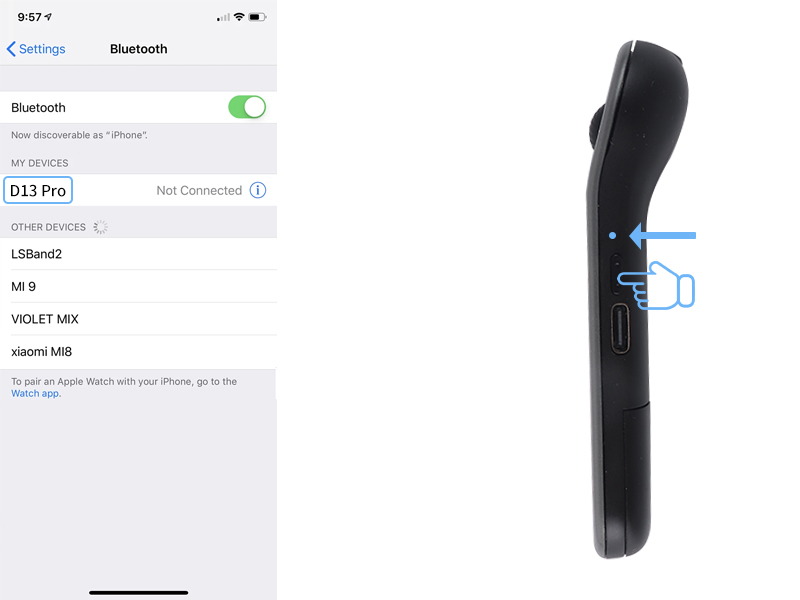
- 1. Press and hold the power button until the blue light flashes rapidly, indicating Bluetooth mode is active.
- 2. Open your device's Bluetooth settings and find "D13/D13 Pro" to connect and pair.
How to use on a computer
How to use on a computer
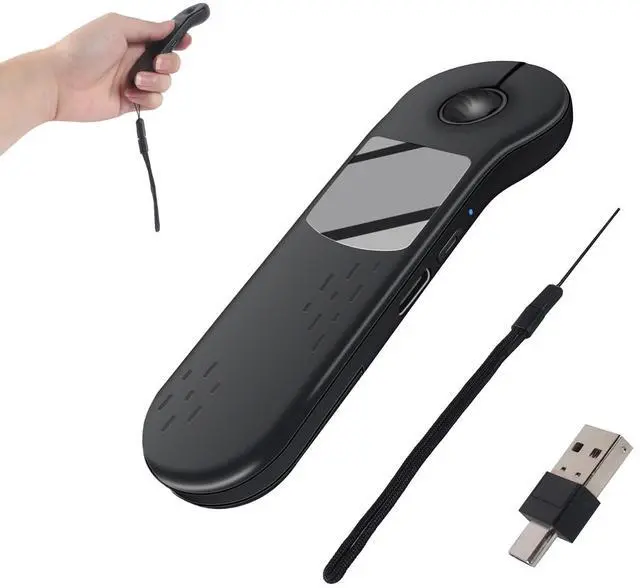
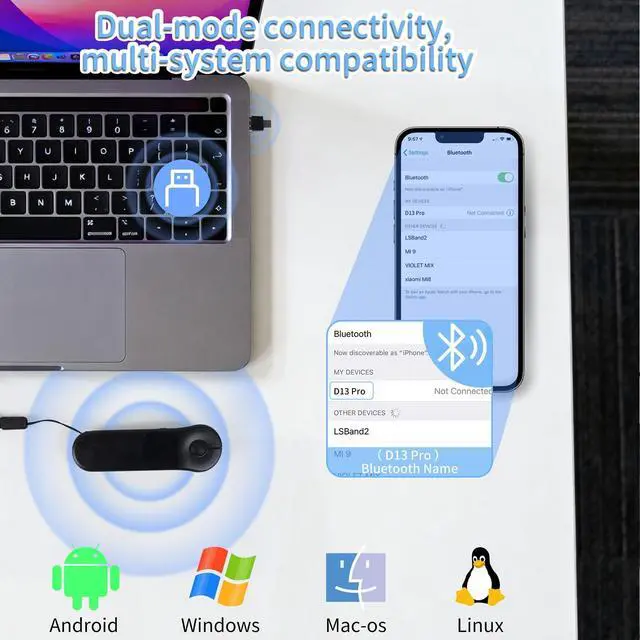
- 2.4G Mode: Press and hold the power button until the red and blue lights flash alternately. Remove the mouse receiver and insert it into the device's port for connection.
- Bluetooth Mode: Press and hold the power button until the blue light blinks rapidly. If it doesn’t, press and hold both left and right buttons to switch modes. Access your device’s Bluetooth settings and look for “D13/D13 Pro” to connect and pair (compatible with MAC, WIN10, and newer versions).
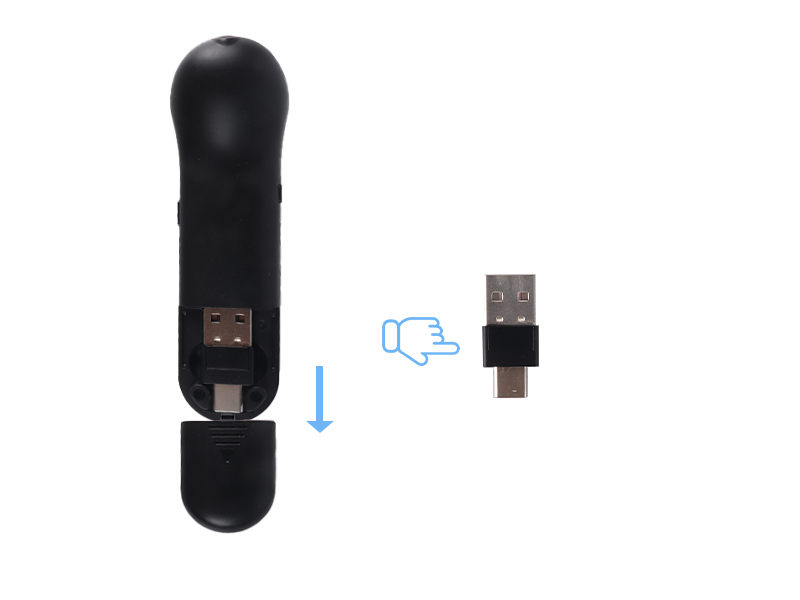
How to switch the mode
How to switch the mode
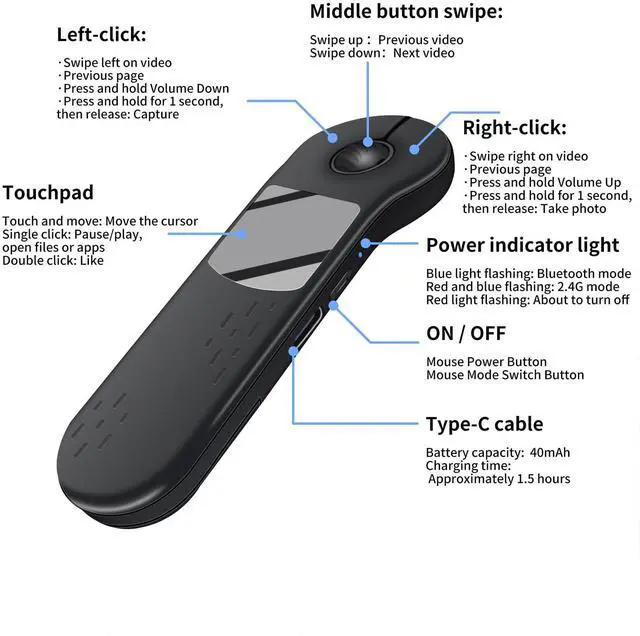
To turn on the mouse, press and hold the power button. You can switch modes by pressing both the left and right buttons together: a rapidly flashing blue light means Bluetooth mode, while alternating blue and red lights signify 2.4G mode.
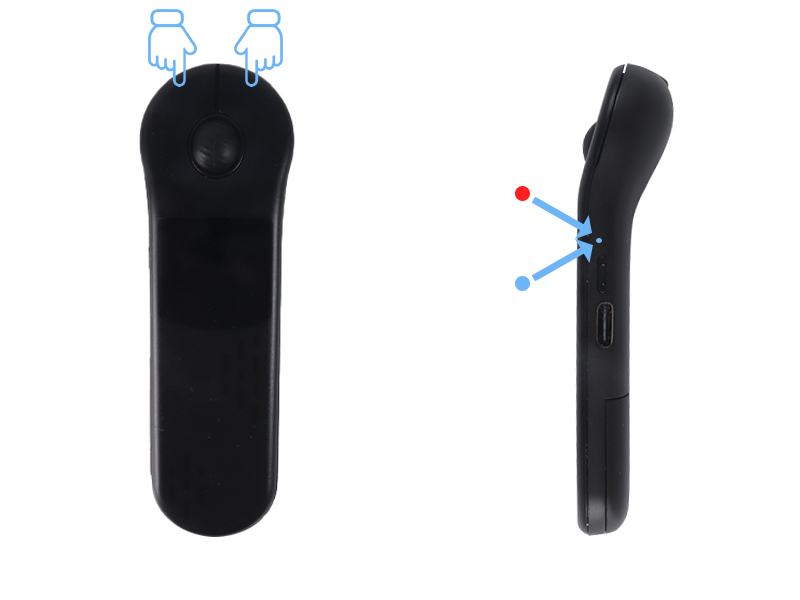
key functions on the phone
key functions on the phone
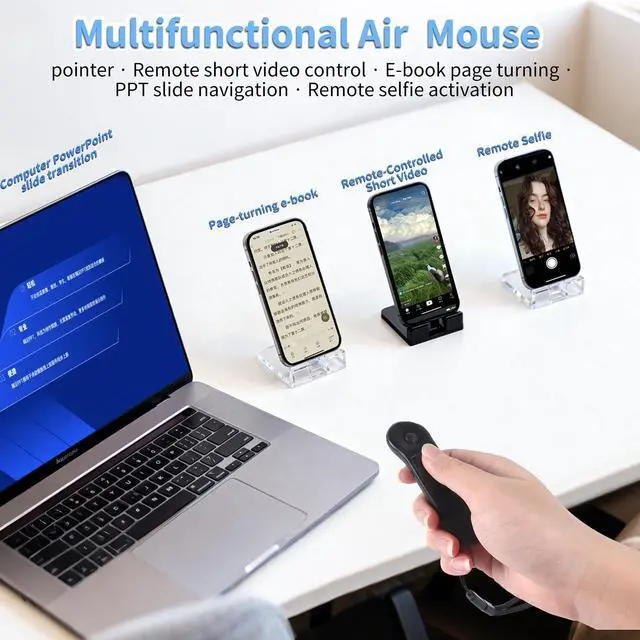
- Click scroll wheel: Go back (Android); Return home (iOS)
- Left click: Swipe left on video page / Browse previous page
- Right click: Swipe right on video page / Browse next page
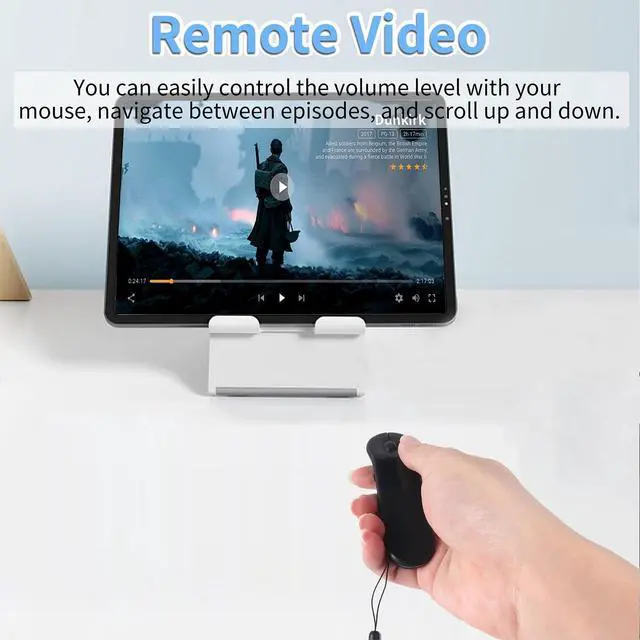
- Press and hold left click: Decrease volume; Press and hold right click: Increase volume Release after holding left/right click: Capture photo/video -Touch screen: Single tap - Pause/Play; Double tap - Like
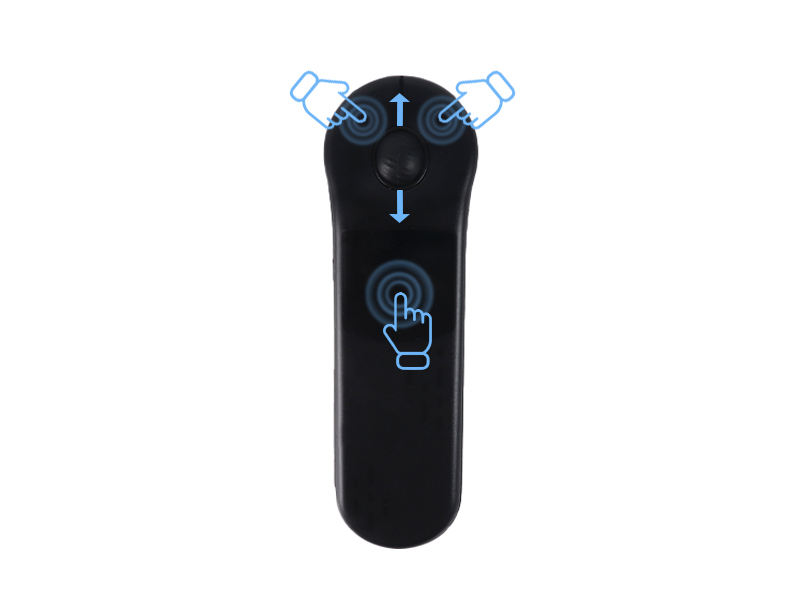
key functions on the computer
key functions on the computer
(Note: The scroll wheel does not function for turning pages in PowerPoint on Mac.)
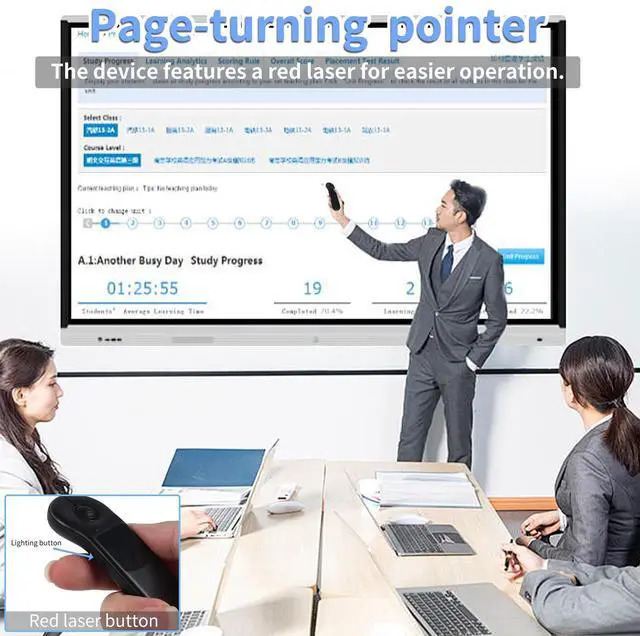
- Left-click: pause/play or move to the next PowerPoint slide
- Right-click: access PowerPoint menu or return to the previous slide
- Touchscreen: tap to pause/play or go to the next PowerPoint slide; double-tap to open the document/app/like.
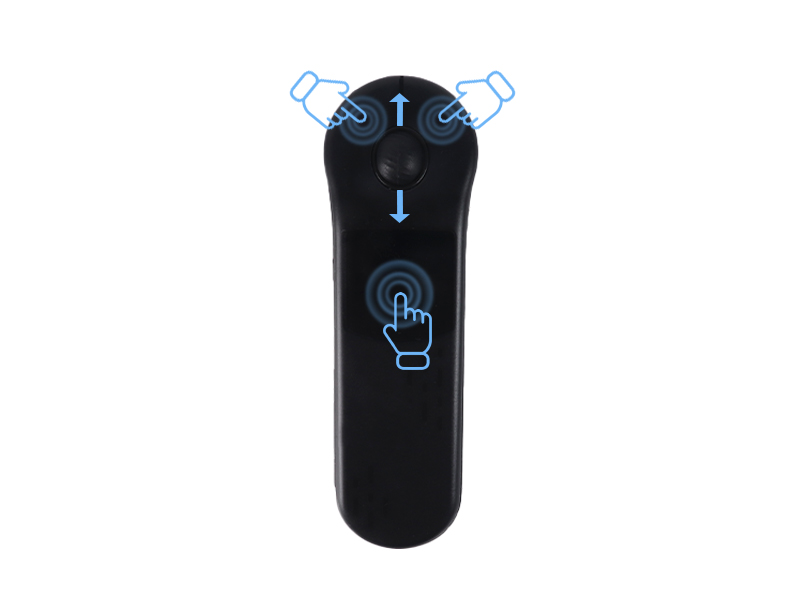
But while this connects with Bluetooth, but nothing I can do would make it connect with the included dongle.
To use the included dongle, please switch the mouse to 2.4G mode (not Bluetooth) before connecting.
How to switch between Bluetooth/2.4G modes?
To turn on the mouse, press and hold the power button. To switch modes, press and hold both the left and right buttons at the same time: a rapidly flashing blue light means Bluetooth mode, while alternating blue and red lights indicate 2.4G mode.
How to Pair Android Devices?
Press and hold the power button until the blue light blinks quickly, indicating Bluetooth mode.
Activate Bluetooth on your device and search for "D13/D13 Pro" to connect and pair.
How to Pair IOS Devices?
Ensure you have iOS 14.8 or later and "Assistive Touch" enabled.
Follow these steps: 1. Press the power button until the blue light blinks quickly for Bluetooth mode. 2. Access your device's Bluetooth settings and select "D13/D13 Pro" to connect.


Operating Instructions


How to Pair Android Devices
How to Pair Android Devices
- Press and hold the power button until the blue light flashes rapidly, indicating Bluetooth mode. (If not, press and hold the left and right buttons to switch modes.)
- Enable Bluetooth on your device and search for "D13/D13 Pro" to connect and pair.
How to Pair IOS Devices
How to Pair IOS Devices
- To pair your device, make sure you are on iOS 14.8 or later, and that "Assistive Touch" is activated. Follow these steps:
- 1. Press and hold the power button until the blue light flashes rapidly, indicating Bluetooth mode is active.
- 2. Open your device's Bluetooth settings and find "D13/D13 Pro" to connect and pair.
How to use on a computer
How to use on a computer
- 2.4G Mode: Press and hold the power button until the red and blue lights flash alternately. Remove the mouse receiver and insert it into the device's port for connection.
- Bluetooth Mode: Press and hold the power button until the blue light blinks rapidly. If it doesn’t, press and hold both left and right buttons to switch modes. Access your device’s Bluetooth settings and look for “D13/D13 Pro” to connect and pair (compatible with MAC, WIN10, and newer versions).
How to switch the mode
How to switch the mode
To turn on the mouse, press and hold the power button. You can switch modes by pressing both the left and right buttons together: a rapidly flashing blue light means Bluetooth mode, while alternating blue and red lights signify 2.4G mode.
key functions on the phone
key functions on the phone
- Click scroll wheel: Go back (Android); Return home (iOS)
- Left click: Swipe left on video page / Browse previous page
- Right click: Swipe right on video page / Browse next page
- Press and hold left click: Decrease volume; Press and hold right click: Increase volume Release after holding left/right click: Capture photo/video -Touch screen: Single tap - Pause/Play; Double tap - Like
key functions on the computer
key functions on the computer
(Note: The scroll wheel does not function for turning pages in PowerPoint on Mac.)
- Left-click: pause/play or move to the next PowerPoint slide
- Right-click: access PowerPoint menu or return to the previous slide
- Touchscreen: tap to pause/play or go to the next PowerPoint slide; double-tap to open the document/app/like.
But while this connects with Bluetooth, but nothing I can do would make it connect with the included dongle.
To use the included dongle, please switch the mouse to 2.4G mode (not Bluetooth) before connecting.
How to switch between Bluetooth/2.4G modes?
To turn on the mouse, press and hold the power button. To switch modes, press and hold both the left and right buttons at the same time: a rapidly flashing blue light means Bluetooth mode, while alternating blue and red lights indicate 2.4G mode.
How to Pair Android Devices?
Press and hold the power button until the blue light blinks quickly, indicating Bluetooth mode.
Activate Bluetooth on your device and search for "D13/D13 Pro" to connect and pair.
How to Pair IOS Devices?
Ensure you have iOS 14.8 or later and "Assistive Touch" enabled.
Follow these steps: 1. Press the power button until the blue light blinks quickly for Bluetooth mode. 2. Access your device's Bluetooth settings and select "D13/D13 Pro" to connect.