



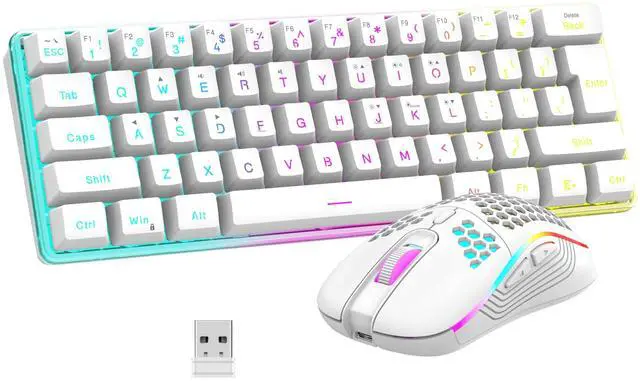
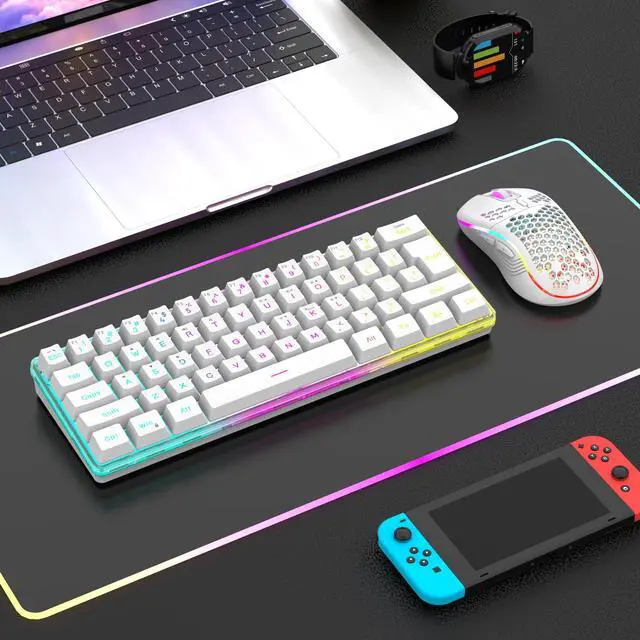
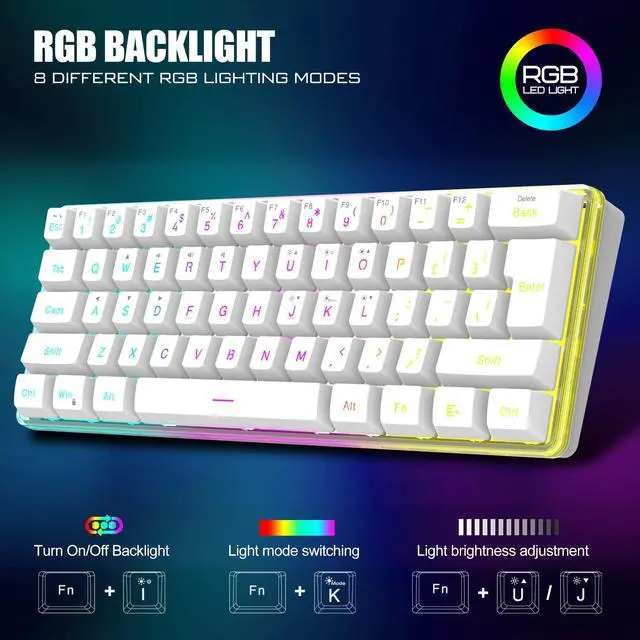
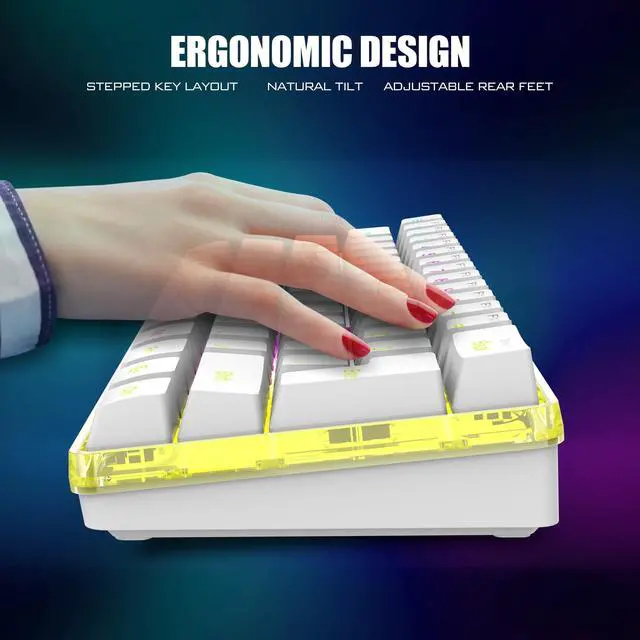


Unique translucent built-in panel.
The wireless keyboard has been designed with a unique built-in transparency board, which will enhance the overall gaming lighting atmosphere.

Mechanical Feel Keyboard
The closest mechanical feel to the crater structure and has a high quality conductive film that has been tested on 1,000,000 printing presses. Its 2ms response time is the fastest of any non-mechanical keyboard.

Upgrade Type-C Charging Port
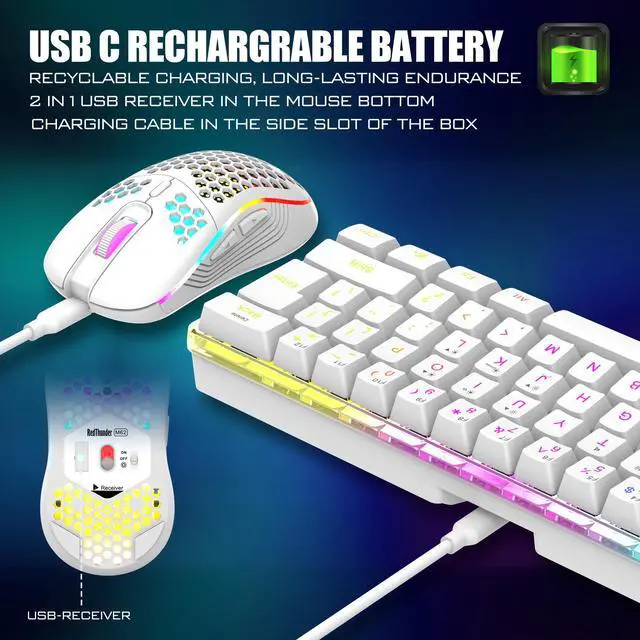
The upgraded detachable Type-C interface is made of premium metal for enhanced texture. It has the characteristics of being more durable to use, plugging and unplugging at any time, and more convenient to carry.

Type-C Rechargeable Wireless Mouse
The wireless RGB mouse and the keypad are charged with the same Type-C data cable, and the mouse wheel will be illuminated by the indicator light when charging. The charging port is not easy to damage, more durable to use, simple to plug and unplug, and easy to carry.

High-performance
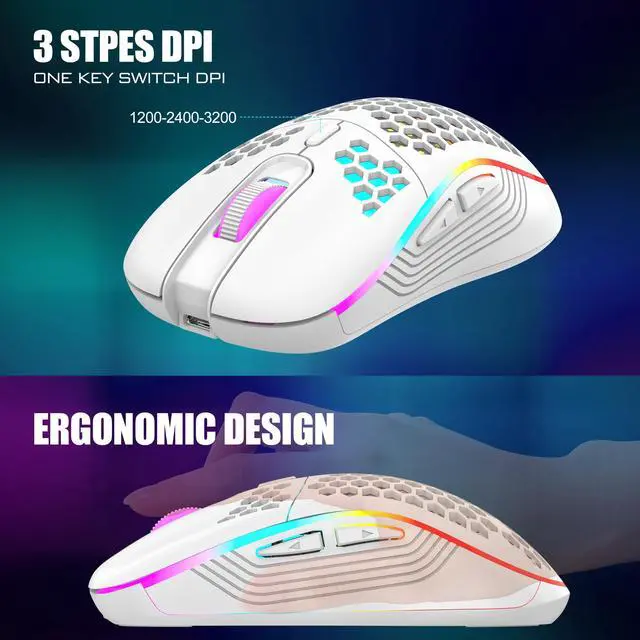
The side of the mouse adopts a non-slip curve design, with two buttons, the fingers fit the mouse more, and the use is more flexible. Professional gaming mouse adopts optical sensor, 3600DPI, 12000 FPS scanning speed, 40G acceleration, and tracking speed up to 400 IPS.

Excellent Honeycomb Shell Design
Taking creative design for lightweight honeycomb shell, owning the durable strength and excellecnt ventilation, meanwhile it keeps your palms cool and fresh, moving it more quickly and freely during your games, assures your long-session gaming without fatigue.

How to use the Fn function and RGB lighting?
1. FN+ "BACK" = DELETE ; 2. FN+ "`~" = ESC; 3. FN+ "1" = F1; FN+ "2" = F2; FN+ "3" = F3; FN+ "4" = F4; FN+ "5" = F5; FN+ "6" = F6; FN+ "7" = F7; FN+ "8" = F8; FN+ "9" = F9; FN+ "0" = F10; FN+ "-_" = F11; FN+ "=+" = F12; 4. FN+ "I" = Backlight ON/OFF; 5. FN+ "K" = Switch Mode;
6. FN+"O"/"L" = Adjust Brightnes; 7. FN + "U"/"J" = Adjust Speed; 8. FN + "W" = Switch Between WASD and ????;
9. FN + "R" = Volume- ; 10. FN+"T" = Volume+ ; 11. FN+"Y" = Mut; 12. FN+"WIN" = Lock WIN and MENU.
Note
1. The keyboard and mouse share only one USB receiver to reduce the number of USB ports, which is located at the bottom of the mouse. (Only when the USB dongle is plugged in, the lights of the keyboard and mouse will light up).
2. Please fully charge it before the first use, otherwise it will not last as long as expected when it is not fully charged. (Because we didn't fully charge the keyboard/mouse before shipment to ensure transportation safety).
3. No software installation is required before the first use, just plug the USB receiver into the USB port, turn the switch at the bottom of the keyboard to the ON position, and turn the switch on the bottom of the mouse to the ON (no light) or LED (with light) position.
4. There will be a little delay or the lights will not turn on when the keyboard/mouse battery is too low, please charge the keyboard/mouse in time, the charging indicator will go off after full charge.
5. To protect battery life, please use a lower than DC:5V adapter to charge, preferably using the computer's USB port to charge directly. Due to the different currents of different computer USB charging ports, some users may need longer charging time to fully charge.
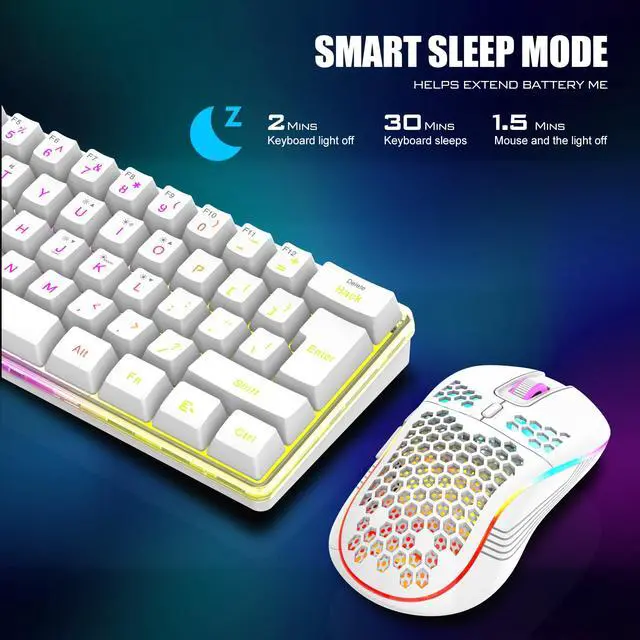
6. Turning off the keyboard light can extend the battery life of the keyboard moderately.
7. If you can't press "WASD" or "????", don't worry, please check if the FN function key is enabled. FN+ "W" key can be used to switch between letter "WASD" keys and arrow "????" keys at will.
8.If the keyboard/mouse is not working, they may lose connection with the USB receiver. Please try pairing with the USB receiver again. Pairing steps as following: Make sure the keyboard/mouse fully charged and re-pair with the USB receiver.
Mouse pairing steps: Step 1: Turn the switch at the bottom of the mouse to the switch position with the sun logo; Step 2: Press and hold the mouse wheel and right button, the mouse RGB lights start to flash; Step 3: Insert the USB receiver into the computer and the pairing is complete. Keyboard pairing steps: Step 1: Turn on the keyboard switch; Step 2: Press and hold the ESC key and the K key at the same time, the indicator light starts to flash; Step 3: Insert the USB receiver into the computer, and pairing is complete.
9. If you have any problem, please tell us at the first time, we will try our best to solve it.
 K62 Wireless Keyboard and Mouse Combo |  K84 Wireless Keyboard and Mouse Combo |  K65 Wireless Mechanical Keyboard, |  K95 Wireless Mechanical Keyboard, |  K10 Wireless Gaming Keyboard and Mouse Combo |  K10 Wired Keyboard and Mouse Combo | |
|---|---|---|---|---|---|---|
| Customer Reviews | — | — | — | — | — | — |
| Price | — | — | — | — | — | — |
| Color Option | White/Black | White/Black/Black-White/White-Black | Gradient gray | Snowy-White/Black-Gold/Gradient Gray/Gradient Gold | White Pudding/Black Pudding/Black/White/Pink/White-Gray | Black/White |
| Connection | Wireless | Wireless | Trip-Mode | Trip-Mode | Wireless | Wired |
| Keyboard Keys | 61 | 84 | 95 | 95 | 104 | 104 |
| Backlight Mode | ? | ? | ? | ? | ? | ? |
| Anti-Ghosting | ? | ? | ? | ? | ? | ? |
| Mouse DPI | 3200 | 3200 | no data | no data | 3200 | 7200 |
| Keyboard Battery capacity | 2000mAh | 1850mAh | 4000mAh | 8000mAh | 3000mAh | no data |
| Mouse Battery capacity | 500mAh | 500mAh | no data | no data | 800mAh | no data |


About RedThunder
RedThunder is a manufacturer specializing in high-performance professional game peripherals. We are committed to providing high-quality and personalized products for global gamers.
We have relentlessly pursuing perfect craftsmanship, first-class feel, high-performance professional gaming equipment and high-standard service. Your satisfaction is our driving force.
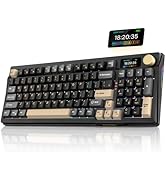
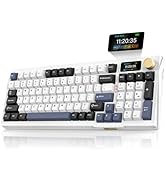
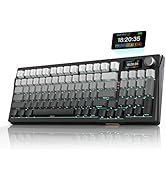
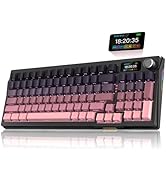
New Collection
Compact Layout for Gaming
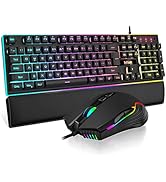
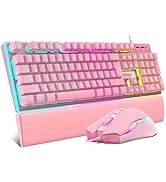
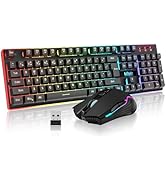

Hot Sale
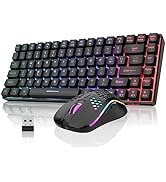
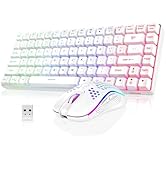
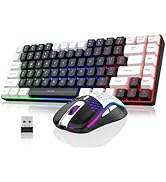
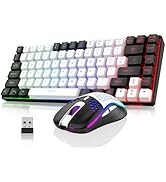
K84 Keyboard Mouse Combo
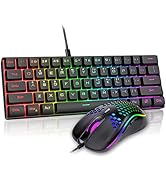
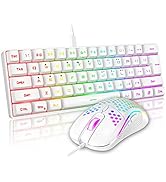
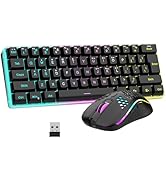
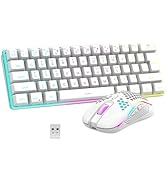
K62 Keyboard Mouse Combo
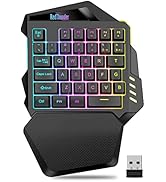
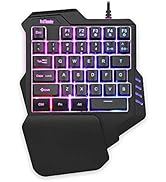

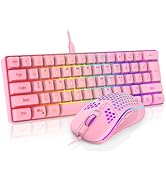
One-handed Keyboard Series


Unique translucent built-in panel.
The wireless keyboard has been designed with a unique built-in transparency board, which will enhance the overall gaming lighting atmosphere.
Mechanical Feel Keyboard
The closest mechanical feel to the crater structure and has a high quality conductive film that has been tested on 1,000,000 printing presses. Its 2ms response time is the fastest of any non-mechanical keyboard.
Upgrade Type-C Charging Port
The upgraded detachable Type-C interface is made of premium metal for enhanced texture. It has the characteristics of being more durable to use, plugging and unplugging at any time, and more convenient to carry.
Type-C Rechargeable Wireless Mouse
The wireless RGB mouse and the keypad are charged with the same Type-C data cable, and the mouse wheel will be illuminated by the indicator light when charging. The charging port is not easy to damage, more durable to use, simple to plug and unplug, and easy to carry.
High-performance
The side of the mouse adopts a non-slip curve design, with two buttons, the fingers fit the mouse more, and the use is more flexible. Professional gaming mouse adopts optical sensor, 3600DPI, 12000 FPS scanning speed, 40G acceleration, and tracking speed up to 400 IPS.
Excellent Honeycomb Shell Design
Taking creative design for lightweight honeycomb shell, owning the durable strength and excellecnt ventilation, meanwhile it keeps your palms cool and fresh, moving it more quickly and freely during your games, assures your long-session gaming without fatigue.
How to use the Fn function and RGB lighting?
1. FN+ "BACK" = DELETE ; 2. FN+ "`~" = ESC; 3. FN+ "1" = F1; FN+ "2" = F2; FN+ "3" = F3; FN+ "4" = F4; FN+ "5" = F5; FN+ "6" = F6; FN+ "7" = F7; FN+ "8" = F8; FN+ "9" = F9; FN+ "0" = F10; FN+ "-_" = F11; FN+ "=+" = F12; 4. FN+ "I" = Backlight ON/OFF; 5. FN+ "K" = Switch Mode;
6. FN+"O"/"L" = Adjust Brightnes; 7. FN + "U"/"J" = Adjust Speed; 8. FN + "W" = Switch Between WASD and ????;
9. FN + "R" = Volume- ; 10. FN+"T" = Volume+ ; 11. FN+"Y" = Mut; 12. FN+"WIN" = Lock WIN and MENU.
Note
1. The keyboard and mouse share only one USB receiver to reduce the number of USB ports, which is located at the bottom of the mouse. (Only when the USB dongle is plugged in, the lights of the keyboard and mouse will light up).
2. Please fully charge it before the first use, otherwise it will not last as long as expected when it is not fully charged. (Because we didn't fully charge the keyboard/mouse before shipment to ensure transportation safety).
3. No software installation is required before the first use, just plug the USB receiver into the USB port, turn the switch at the bottom of the keyboard to the ON position, and turn the switch on the bottom of the mouse to the ON (no light) or LED (with light) position.
4. There will be a little delay or the lights will not turn on when the keyboard/mouse battery is too low, please charge the keyboard/mouse in time, the charging indicator will go off after full charge.
5. To protect battery life, please use a lower than DC:5V adapter to charge, preferably using the computer's USB port to charge directly. Due to the different currents of different computer USB charging ports, some users may need longer charging time to fully charge.
6. Turning off the keyboard light can extend the battery life of the keyboard moderately.
7. If you can't press "WASD" or "????", don't worry, please check if the FN function key is enabled. FN+ "W" key can be used to switch between letter "WASD" keys and arrow "????" keys at will.
8.If the keyboard/mouse is not working, they may lose connection with the USB receiver. Please try pairing with the USB receiver again. Pairing steps as following: Make sure the keyboard/mouse fully charged and re-pair with the USB receiver.
Mouse pairing steps: Step 1: Turn the switch at the bottom of the mouse to the switch position with the sun logo; Step 2: Press and hold the mouse wheel and right button, the mouse RGB lights start to flash; Step 3: Insert the USB receiver into the computer and the pairing is complete. Keyboard pairing steps: Step 1: Turn on the keyboard switch; Step 2: Press and hold the ESC key and the K key at the same time, the indicator light starts to flash; Step 3: Insert the USB receiver into the computer, and pairing is complete.
9. If you have any problem, please tell us at the first time, we will try our best to solve it.
K62 Wireless Keyboard and Mouse Combo | K84 Wireless Keyboard and Mouse Combo | K65 Wireless Mechanical Keyboard, | K95 Wireless Mechanical Keyboard, | K10 Wireless Gaming Keyboard and Mouse Combo | K10 Wired Keyboard and Mouse Combo | |
|---|---|---|---|---|---|---|
| Customer Reviews | — | — | — | — | — | — |
| Price | — | — | — | — | — | — |
| Color Option | White/Black | White/Black/Black-White/White-Black | Gradient gray | Snowy-White/Black-Gold/Gradient Gray/Gradient Gold | White Pudding/Black Pudding/Black/White/Pink/White-Gray | Black/White |
| Connection | Wireless | Wireless | Trip-Mode | Trip-Mode | Wireless | Wired |
| Keyboard Keys | 61 | 84 | 95 | 95 | 104 | 104 |
| Backlight Mode | ? | ? | ? | ? | ? | ? |
| Anti-Ghosting | ? | ? | ? | ? | ? | ? |
| Mouse DPI | 3200 | 3200 | no data | no data | 3200 | 7200 |
| Keyboard Battery capacity | 2000mAh | 1850mAh | 4000mAh | 8000mAh | 3000mAh | no data |
| Mouse Battery capacity | 500mAh | 500mAh | no data | no data | 800mAh | no data |
About RedThunder
RedThunder is a manufacturer specializing in high-performance professional game peripherals. We are committed to providing high-quality and personalized products for global gamers.
We have relentlessly pursuing perfect craftsmanship, first-class feel, high-performance professional gaming equipment and high-standard service. Your satisfaction is our driving force.
New Collection
Compact Layout for Gaming
Hot Sale
K84 Keyboard Mouse Combo
K62 Keyboard Mouse Combo
One-handed Keyboard Series