



NOTICE:
If you want to use it on MAC, you need to set up win7 and above before you can use it on Mac OS, and use win as command and alt as option

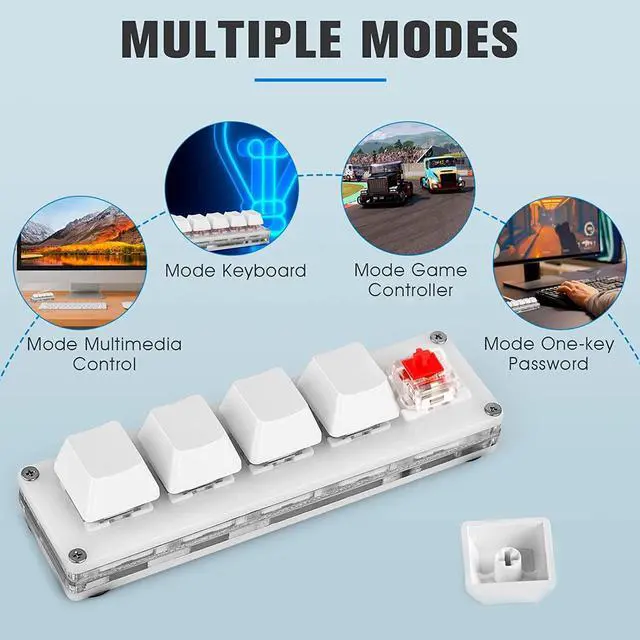
Mode Default
- In this mode, you can set the key combination/general key/shortcut key on the keyboard
- Combination keys: Ctrl, Shift, Alt, Win keys, etc.
- General keys: all keys except the combination keys, such as the letter A
- Shortcut keys: 1 or more combination keys + 1 general key

In this mode, manipulate cursor movement, mouse click, etc.
- Mouse buttons: Operate the mouse buttons, left button, right button and middle button
- X axis: the horizontal axis of the cursor, negative numbers move to the left. Value range: -128~127
- Y axis: the longitudinal axis of the cursor, negative numbers move down. Value range: -128~127
- Scroll wheel: Negative numbers go down. Value range: -128~127

Mode Multimedia Control
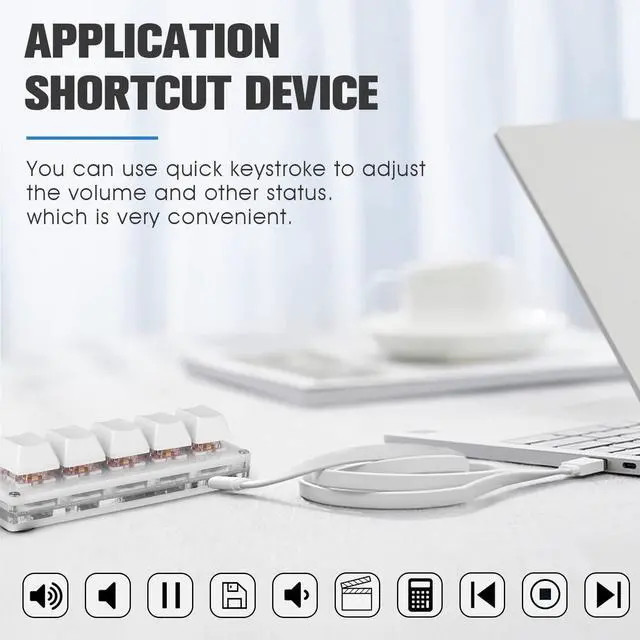
- In this mode, you can control playback, pause, cut song, adjust volume, etc.
- You can also open my computer, player, calculator, browser, email, etc. with one key. You can also take a screenshot with one key and record the screen with one key under win10.

Mode Keyboard & LED Control
- Add keyboard LED status control to the default keyboard mode.
- This mode can be used to specify the on and off of the keyboard LED.
- This mode is generally used to switch the specified input method mode, such as "switch Chinese" to switch English uppercase" "switch English lowercase", you need to set the shortcut key of the specified input method in the system

Mode One-key Password
- You can press a button to automatically enter the preset password
- The password supports ASCII characters such as letters, numbers, matches and spaces.
- Enter automatically after optional input.
- Please set the preset password in the "One-key Password" tab, then select the mode in the key mode and bind the password

Mode Game Controller
- Can be set as game controller buttons
- Generally used as shortcut keys for games with complex operations
- Need the game to support "game controller", such as: "European Truck Simulator" "OUS" ect


- Download the program from the link.
- Unzip all the files in the folder
- Double-click to execute "Sayo_CLL_Windows"
- Operate in the open browser page
- Choose language(Lower left)
- Connect device (Upper left)
- Select items to operate.(such as "button")
- Chage modes and options.
Click"Permanent Save"and Exit.


NOTICE:
If you want to use it on MAC, you need to set up win7 and above before you can use it on Mac OS, and use win as command and alt as option
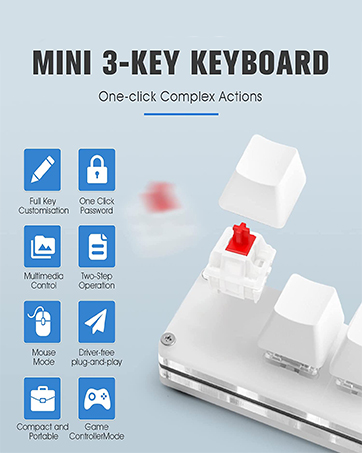
Mode Default
- In this mode, you can set the key combination/general key/shortcut key on the keyboard
- Combination keys: Ctrl, Shift, Alt, Win keys, etc.
- General keys: all keys except the combination keys, such as the letter A
- Shortcut keys: 1 or more combination keys + 1 general key
In this mode, manipulate cursor movement, mouse click, etc.
- Mouse buttons: Operate the mouse buttons, left button, right button and middle button
- X axis: the horizontal axis of the cursor, negative numbers move to the left. Value range: -128~127
- Y axis: the longitudinal axis of the cursor, negative numbers move down. Value range: -128~127
- Scroll wheel: Negative numbers go down. Value range: -128~127
Mode Multimedia Control
- In this mode, you can control playback, pause, cut song, adjust volume, etc.
- You can also open my computer, player, calculator, browser, email, etc. with one key. You can also take a screenshot with one key and record the screen with one key under win10.
Mode Keyboard & LED Control
- Add keyboard LED status control to the default keyboard mode.
- This mode can be used to specify the on and off of the keyboard LED.
- This mode is generally used to switch the specified input method mode, such as "switch Chinese" to switch English uppercase" "switch English lowercase", you need to set the shortcut key of the specified input method in the system
Mode One-key Password
- You can press a button to automatically enter the preset password
- The password supports ASCII characters such as letters, numbers, matches and spaces.
- Enter automatically after optional input.
- Please set the preset password in the "One-key Password" tab, then select the mode in the key mode and bind the password
Mode Game Controller
- Can be set as game controller buttons
- Generally used as shortcut keys for games with complex operations
- Need the game to support "game controller", such as: "European Truck Simulator" "OUS" ect
- Download the program from the link.
- Unzip all the files in the folder
- Double-click to execute "Sayo_CLL_Windows"
- Operate in the open browser page
- Choose language(Lower left)
- Connect device (Upper left)
- Select items to operate.(such as "button")
- Chage modes and options.
Click"Permanent Save"and Exit.
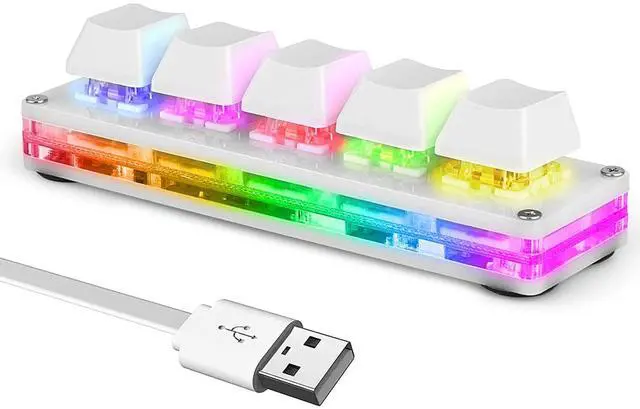
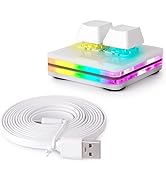
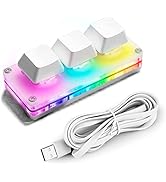
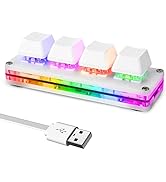
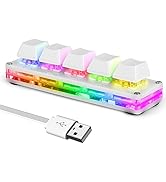
White Mini Keyboard
Biack Mini Keyboard