
Your Browsing History




Any questions? Our AI beta will help you find out quickly.
Widespread compatibility
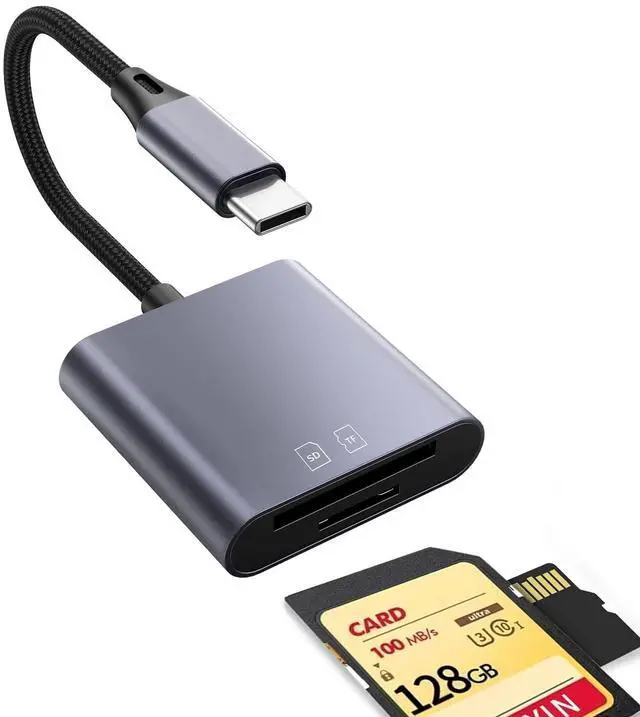
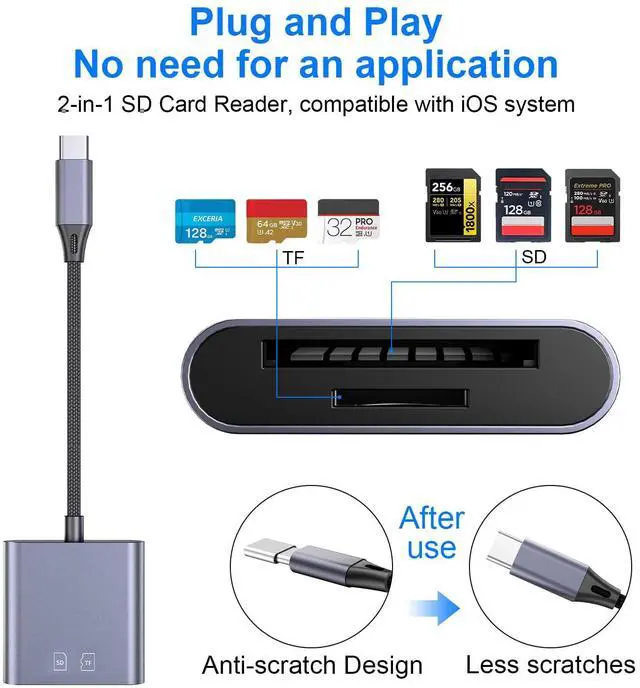
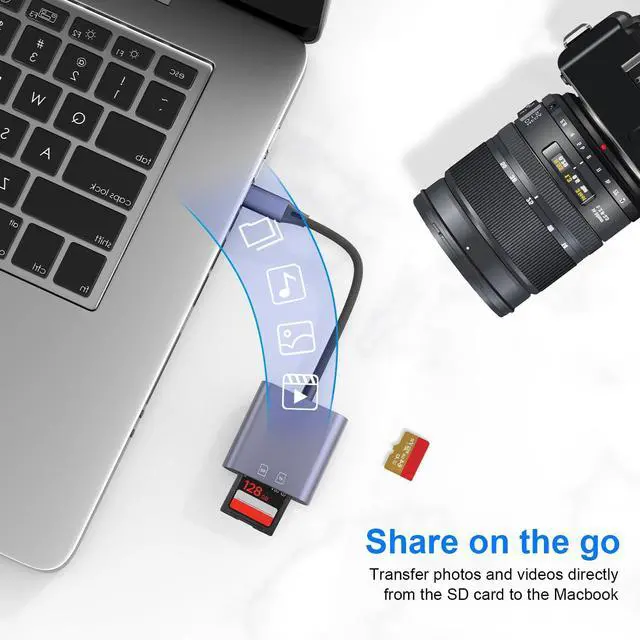
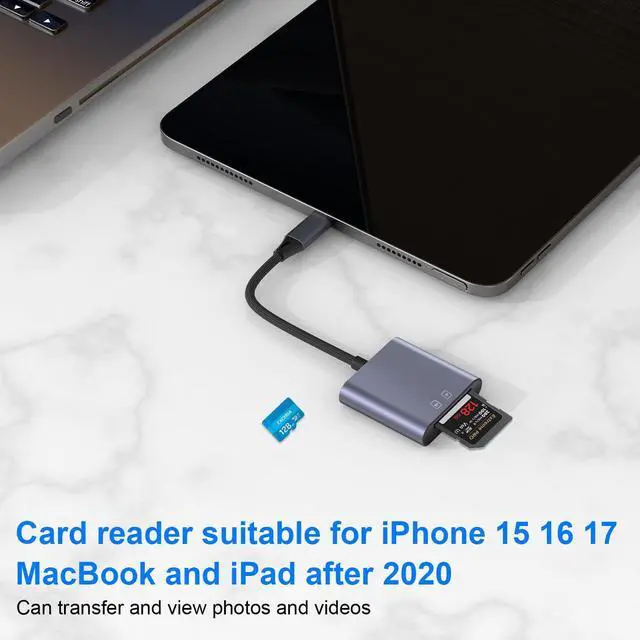
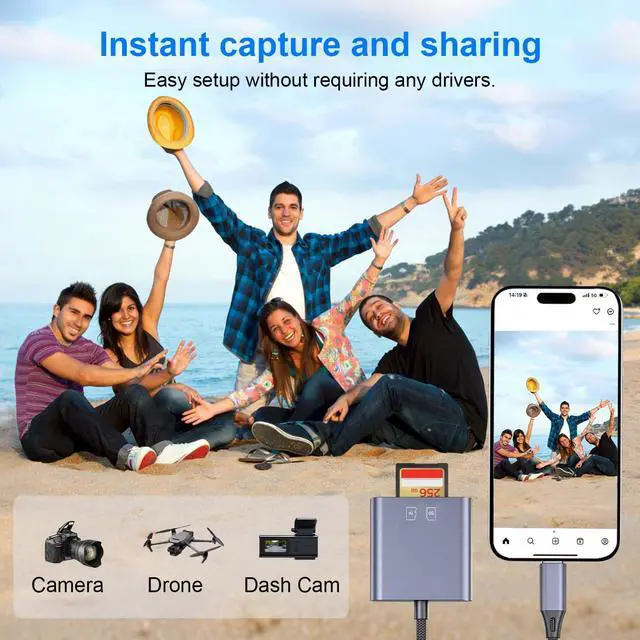
USB-C SD card reader is compatible with Type C iPhone 15, 16, 17 series, iPad (with USB-C port), MacBook Pro/Air, iMac, Mac. (Note: It only reads and transmits data from SD and TF cards. It does not directly connect to cameras and is not compatible with "Lightning" port devices.)
Incompatible devices
1. Do not support USB-C ports that only provide charging function.
2. Do not support devices with "Lightning" and "USB-A" interfaces.
3. Do not support some SD/TF cards with encryption or special formats (such as camera-specific formats).
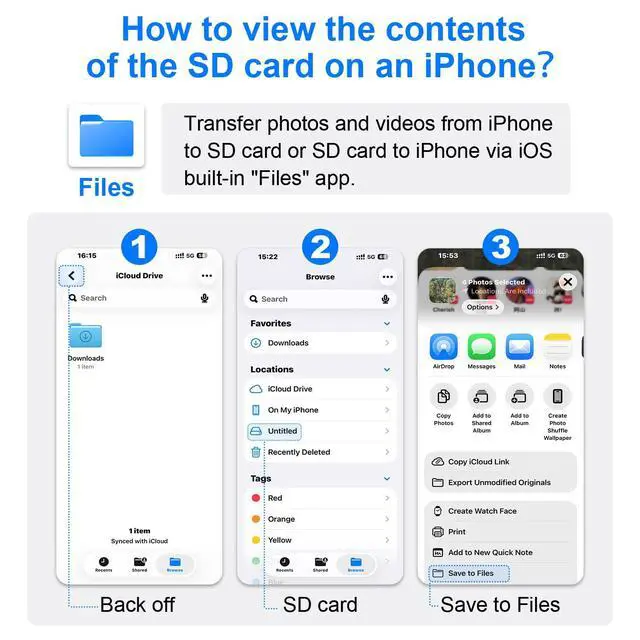
How to find files on an SD card on an iPhone?
1. Insert the SD card into the card reader.
2. Insert the device's card reader into the iPhone (TYPE-C).
3. Click on the "Files" app.
4. Click on "Browse" in iCloud Drive.
5. Click on the name of the SD card.
6. Now you can view the files on your SD card under "Your SD card name".
Note: When inserting some devices into the card reader for reading, a USB drive will pop out. Before disconnecting the SD card, you need to find the USB drive in the notification center at the bottom. Long press to pop out the "Eject" button, then click "Eject", so as to disconnect the SD card connection. (If you don't click "Eject", the photos being transferred will be damaged.)