





Memory Card Compatibility:
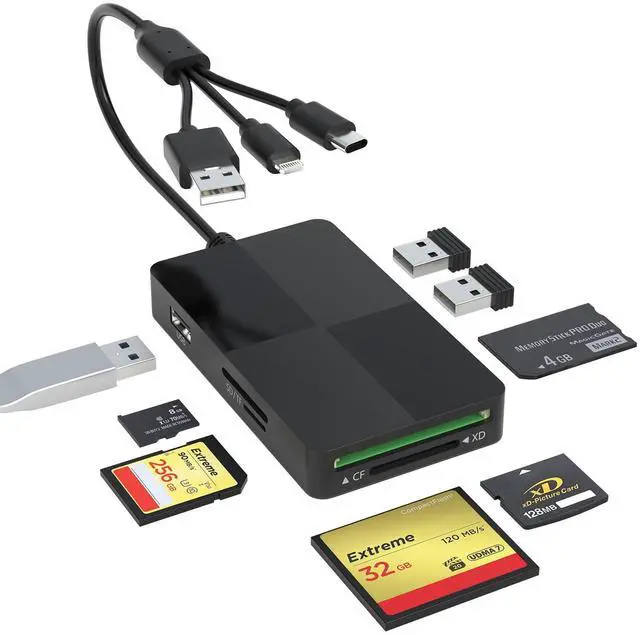
- SD card: SDXC / SDHC / SD / MMC (mini SD / Mini SDHC / RS-MMC
- CF Slot: Compact Flash / CF I 3.0 4.0 / CF SA / XS XS-CF / CF Elite Pro / CF PRO / CF PRO II
- Micro SD (T-flash) Slot: Micro SDXC / SDHC micro / Micro SD
- MS: MS Pro / Memory Stick Duo / Memory Stick Pro Duo / Sandisk Memory Stick Pro Duo/ Sony Memory Stick Pro Duo
- XD / Olympus XD Picture
Additional 3 USB 2.0 ports
Allowing the connection of multiple USB devices such as mouse, keyboard, USB flash drive, printer, etc.; supporting efficient multitasking, providing wide compatibility and flexibility
*Warm Prompt*
- This xd card reader is equipped with SD/TF/MS/CF/XD card slots. However,due to the limitation of system, only one card can be read at a time. Do not read more than two cards at the same time.
- Please ensure that the memory card has been correctly inserted into the memory card reader.If photos or videos are not transmitted,unplug the reader and memory card and reconnect.(Android phones need to copnfirm that the OTG function or the USB debugging mode of the phone is turned on)
- When some devices are plugged in for the first time, a message may pop up indicating that the format does not match and the USB flash drive needs to be formatted. After formatting, it can be used normally and there is no need to perform this operation again later.

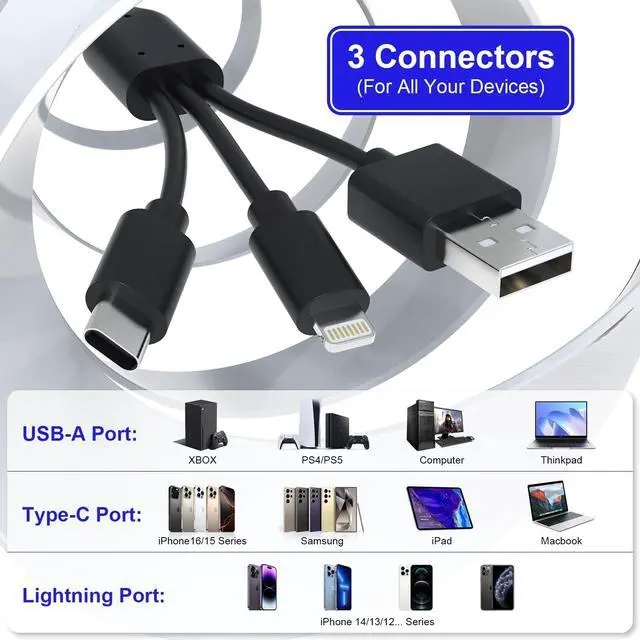
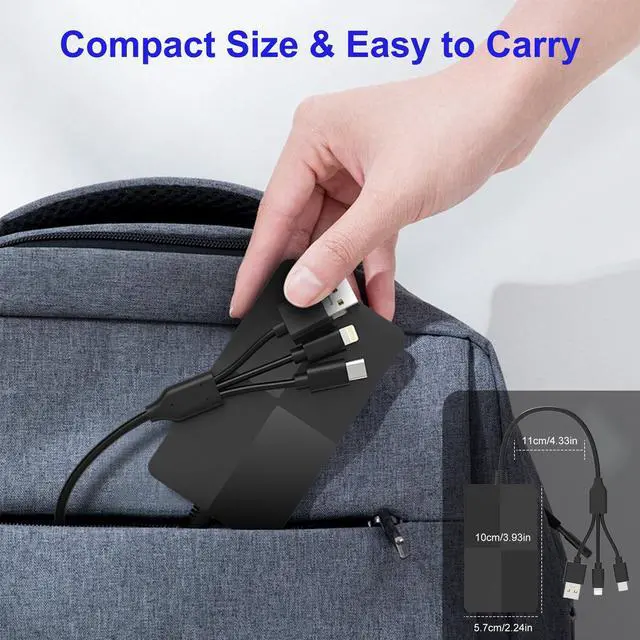
Lightning+USB C+USB A Ports 3 in 1 Port Design
- USB C port supports iPhone 16, iPhone 15, Samsung Galaxy, Huawei, tablet, laptop, Macbook and so on.
- Lightning port supports iPhone 14/14 Plus/13/13 Pro/13 Pro Max/13mini/12/12 Mini/11 Pro/11 Pro Max/ XS Max/ XS and so on.
- USB A port supports computer and so on.

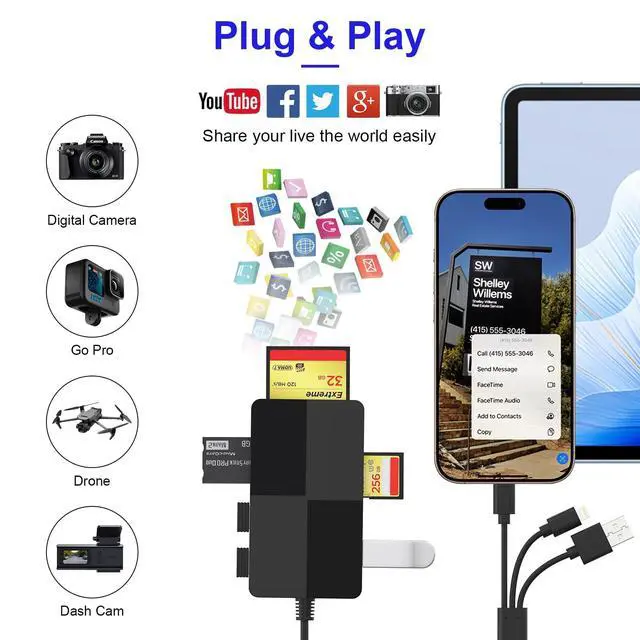
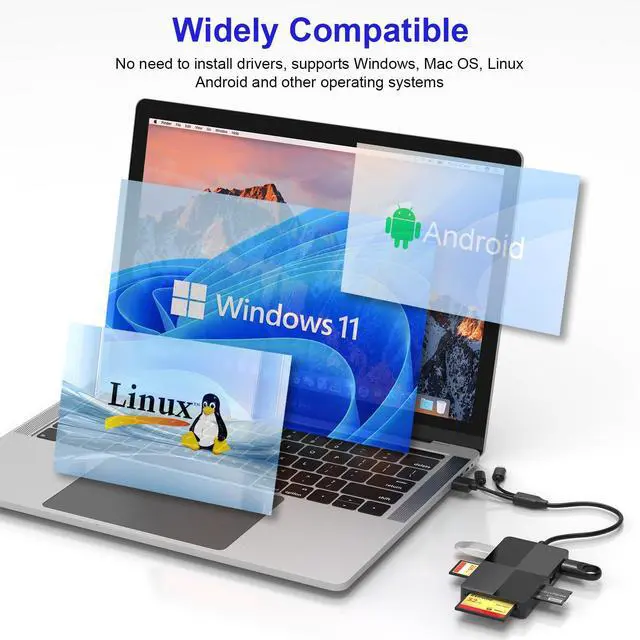
Plug and Play:
Eliminates the need for additional drivers, providing a seamless user experience. Simply connect it and start transferring data effortlessly. Say goodbye to complicated setup processes and enjoy hassle-free file access, easily transfer photo video and file information.

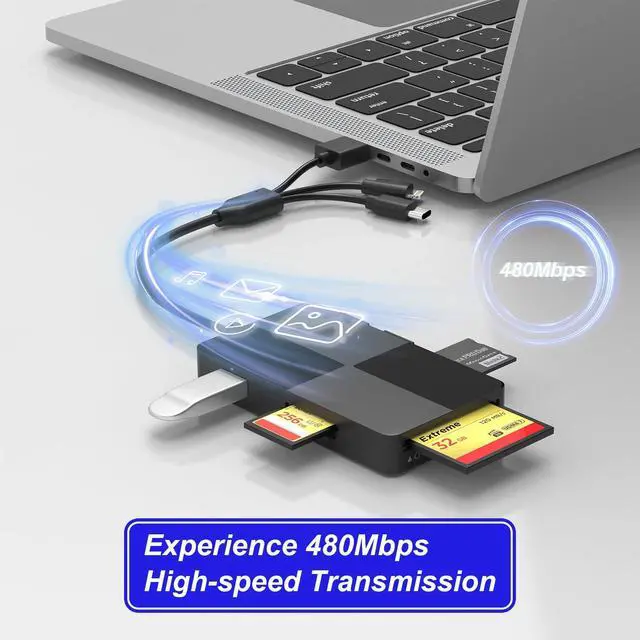
480Mbps Fast Transmission:
Boasting a lightning-fast 480Mbps transfer speed, it swiftly moves your data, saving you time and improving productivity. Perfect for photographers, studios, and one dealing with large files.

OS How to store from phone to memory card?
- 1.Insert the memory card into the card reader
- 2.Then insert the caard reader into the iPhone find the "photos" app
- 3.Select the picture or video you want to save to the memory card
- 4.Click on "save to files"
- 5.Find the card reader file and select Save File to complete the operation.(generally data of memory card is on “Untiled” or "NONAME", which is the name of your memory card)
OS How to store from memory card to phone?
- 1.Insert the memory card into the card reader
- 2.Then insert tthe card reader into the iPhone
- 3.Find the "files" app, Click"Untitled"
- 4.Selsct the photo or video you want to import into your iPhhone
- 5.Select "Save Items" to complete the ooperation
Memory Card Compatibility:
- SD card: SDXC / SDHC / SD / MMC (mini SD / Mini SDHC / RS-MMC
- CF Slot: Compact Flash / CF I 3.0 4.0 / CF SA / XS XS-CF / CF Elite Pro / CF PRO / CF PRO II
- Micro SD (T-flash) Slot: Micro SDXC / SDHC micro / Micro SD
- MS: MS Pro / Memory Stick Duo / Memory Stick Pro Duo / Sandisk Memory Stick Pro Duo/ Sony Memory Stick Pro Duo
- XD / Olympus XD Picture
Additional 3 USB 2.0 ports
Allowing the connection of multiple USB devices such as mouse, keyboard, USB flash drive, printer, etc.; supporting efficient multitasking, providing wide compatibility and flexibility
*Warm Prompt*
- This xd card reader is equipped with SD/TF/MS/CF/XD card slots. However,due to the limitation of system, only one card can be read at a time. Do not read more than two cards at the same time.
- Please ensure that the memory card has been correctly inserted into the memory card reader.If photos or videos are not transmitted,unplug the reader and memory card and reconnect.(Android phones need to copnfirm that the OTG function or the USB debugging mode of the phone is turned on)
- When some devices are plugged in for the first time, a message may pop up indicating that the format does not match and the USB flash drive needs to be formatted. After formatting, it can be used normally and there is no need to perform this operation again later.
Lightning+USB C+USB A Ports 3 in 1 Port Design
- USB C port supports iPhone 16, iPhone 15, Samsung Galaxy, Huawei, tablet, laptop, Macbook and so on.
- Lightning port supports iPhone 14/14 Plus/13/13 Pro/13 Pro Max/13mini/12/12 Mini/11 Pro/11 Pro Max/ XS Max/ XS and so on.
- USB A port supports computer and so on.
Plug and Play:
Eliminates the need for additional drivers, providing a seamless user experience. Simply connect it and start transferring data effortlessly. Say goodbye to complicated setup processes and enjoy hassle-free file access, easily transfer photo video and file information.
480Mbps Fast Transmission:
Boasting a lightning-fast 480Mbps transfer speed, it swiftly moves your data, saving you time and improving productivity. Perfect for photographers, studios, and one dealing with large files.
OS How to store from phone to memory card?
- 1.Insert the memory card into the card reader
- 2.Then insert the caard reader into the iPhone find the "photos" app
- 3.Select the picture or video you want to save to the memory card
- 4.Click on "save to files"
- 5.Find the card reader file and select Save File to complete the operation.(generally data of memory card is on “Untiled” or "NONAME", which is the name of your memory card)
OS How to store from memory card to phone?
- 1.Insert the memory card into the card reader
- 2.Then insert tthe card reader into the iPhone
- 3.Find the "files" app, Click"Untitled"
- 4.Selsct the photo or video you want to import into your iPhhone
- 5.Select "Save Items" to complete the ooperation