




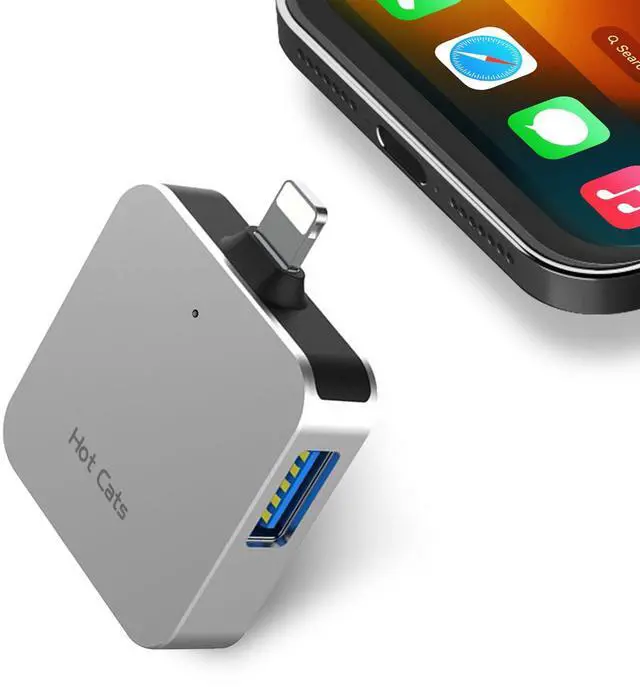
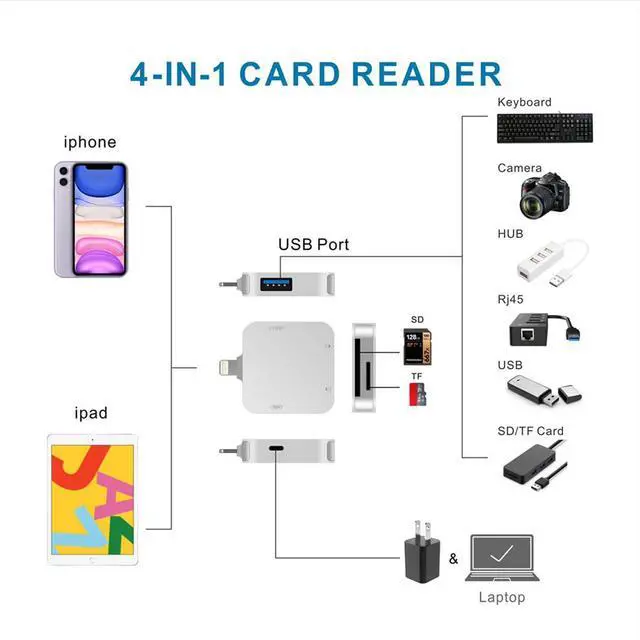
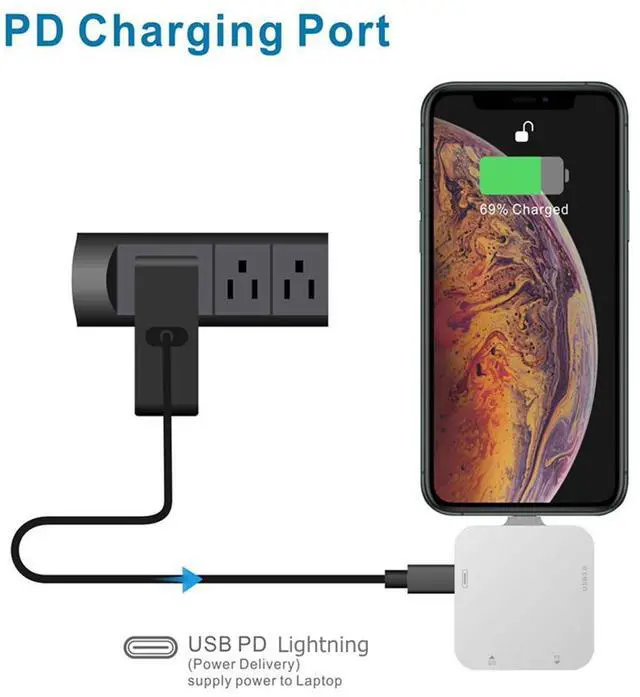
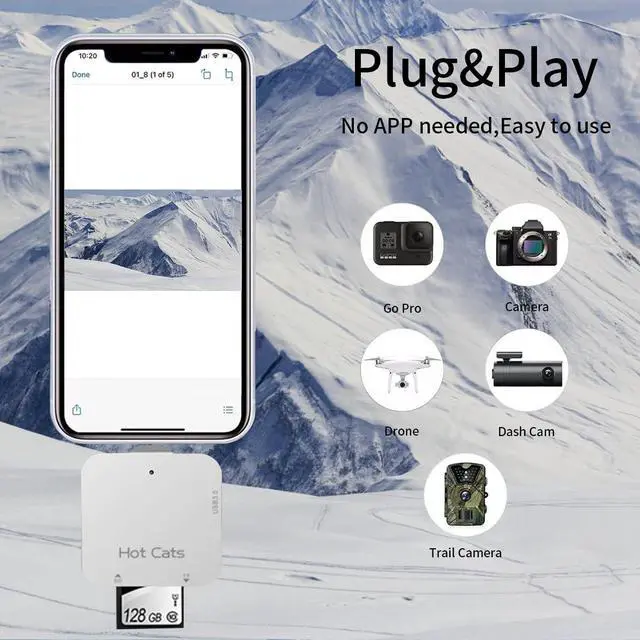


4-IN-1 card reader support SD CRAD TF CARD USB memory stick camera

Plug and play, bidirectional data transmission
1.It is not recommended to use this mobile card reader with system version below 13.0 because the operation is unstable. It requires mobile phone system version 13.0 or above
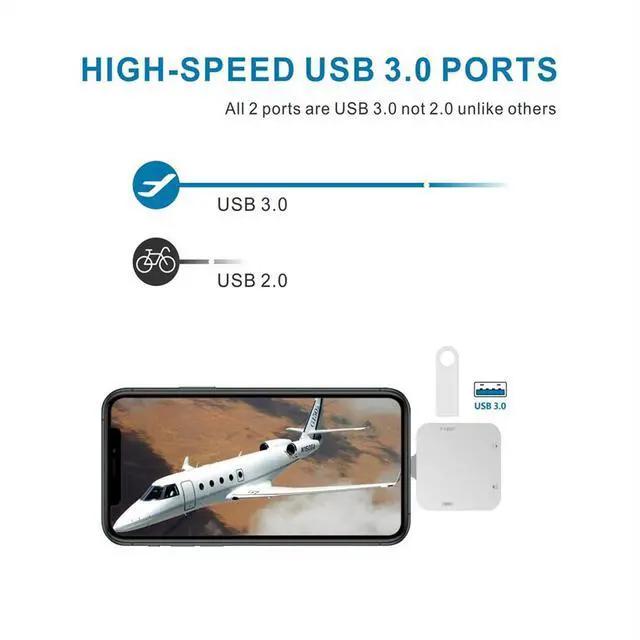
2.The card reader supports SD card, TF card, USB flash drive and other USB devices
3.The material is aluminum alloy, CNC precision manufacturing, metal oxidation process, feels very good
4.The most common operation is to insert the card into the card reader first, then insert the phone, and open the phone file. On the homepage of the phone file, you will find an additional file drive symbol. The light of the card reader is flashing and reading.
5.Reminder: Do not bump the card reader during file transfer, as insufficient power supply may cause malfunctions. This may cause transmission interruption. If the card loses power suddenly during use, data abnormality may occur.
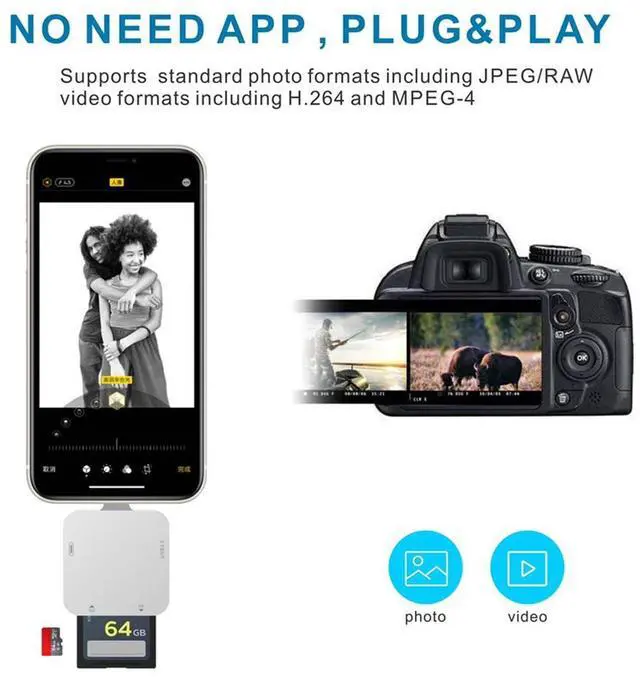
Download photos and videos from camera to your iPhone anytime

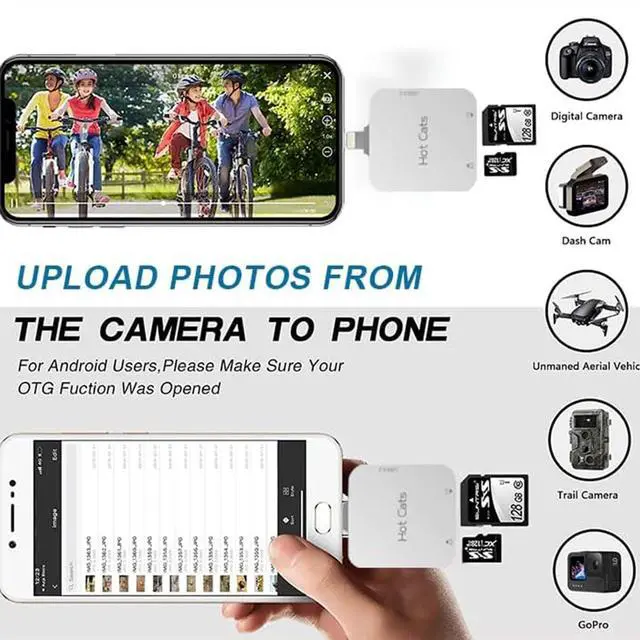
Read files from digital camera, Dash Cam or Trail Camera
Having fun with your friends or family in the field and needs to share photos or videos quickly and easily
Using this card reader, you can read SD card or Micro SD card taken by digital camera, Dash Cam or Trail Camera and read the photos or videos soon.
You can share download it and share it with your friends or family.
USB Adapter connets your iPhone with USB flash drive, keyboard, camera cable, etc

Connect your iPhone with lots of the products with the help of this adapter
How to connect your iPhone with your keyboard, USB flash drive, another iPhone/ iPad, digital camera?
USB flash drive
With this adapter, you can read the USB flash drive directly with your iPhone and don't have to read it through a computer. Open "Files" app and you can read and manage the files in your USB flash drive.
Keyboard or mouse
You can also connect your keyboard or mouse with this adapter and type easily with your keyboard.
Connect with another iPhone/iPad
Besides, if you want to share the photos with another iPhone or iPad, you can use this adapter and connect it with another iPhone/iPad through a iPhone cable.
Digital Camera
You can also connect it with your digital camera through a cable go with the camera and read the photos in your camera directly.
How to operate: How to save the card information to the mobile phone

Transfer for iOS user with iOS 13.0 or later
Files App ( iOS 13 or later)
Files app is an important app which can transfer files between your memory card to your iPhone & iPad.
Data from your iPhone is “on my iPhone” and data of memory card is on “Untiled” (or "NONAME", which is the name of your memory card)
You can view data and transfer the data between memory card and iPhone.
Files app not only manager can videos and photos, but also manage music, PDF, word, or Excel, etc.
1. Insert a memory card into the reader. Turn on iPhone & iPad and attach the reader to the Lightning port.
2. On iPhone & iPad, open “Files” app. You can view the files in your memory card. You can view most files like jpg, MP3, word, excel, ppt and so on. If you can view the files but can’t open it, you may need to download a third-party app to read this file.
3. You can delete files or copy and paste files from memory card to your iPhone or iPad. Or coy files from iPhone or iPad to memory card.
4. If you can see the data, but not able to open it, you need to download a third-party App to open it.
How to save mobile phone data to card

Plug and play bidirectional data transmission
The first step is to open the album,Then long press the photo, select the picture you want to save, click the upward sharing arrow as shown above, and save it to the folder named on your memory card.
What can I do if I see nothing on my iPhone?
1. If you don’t see anything, don’t worry. App won’t pop up automatically, please access “Files” App. Then you will see “On My iPhone” which is the data on your iPhone. If you connect a USB flash drives, or a SD card or a TF card to your iPhone through this adapter, “Untitled” or “NONAME” will be shown below “On My iPhone”. “Untitled” or “NONAME” are the default name of most memory card. If your memory card were named “ABC”, you will see “ABC” there. Just tap “ABC” you will see what’s inside your memory card.
2. When you get inside “ABC” folder, you have three choices at the bottom of the screen. “Recents”, “Shared” and “Browse”, make sure you choose “Browse”. Other two choice is not what’s in your memory card.
3. If there is no “Files” App, please download it from App Store. “Files” is an App in your iPhone, usually you don’t have to download it.
4. If you still see nothing, make sure the memory card is correctly inserted into the slot. You can check the video if you have no idea how to insert a memory card. The memory card must be Fat32 or exFat format. If NTFS, iPhone will not be able to recognize it.
5. You can view most files like jpg, MP3, word, excel, PDF, etc. directly and read them without any problem. However, if you can see some data there but can't open it, you need to download a third-party app to read this file. It is the same thing as what’s happening in your computer, if you don’t have a MP3 player, even you have a MP3 file in your computer, you click it and it will not able to be played.
6.Make sure your phone system is 13.0 or above. iPhone 15 and 16 are with another connector and this product cannot connect it.
7.If your system is lower than 13.0, you can only require the card to be a camera SD card DCIM single file format. Therefore, we do not recommend using it on phones with system versions lower than 13.0.
4-IN-1 card reader support SD CRAD TF CARD USB memory stick camera
Plug and play, bidirectional data transmission
1.It is not recommended to use this mobile card reader with system version below 13.0 because the operation is unstable. It requires mobile phone system version 13.0 or above
2.The card reader supports SD card, TF card, USB flash drive and other USB devices
3.The material is aluminum alloy, CNC precision manufacturing, metal oxidation process, feels very good
4.The most common operation is to insert the card into the card reader first, then insert the phone, and open the phone file. On the homepage of the phone file, you will find an additional file drive symbol. The light of the card reader is flashing and reading.
5.Reminder: Do not bump the card reader during file transfer, as insufficient power supply may cause malfunctions. This may cause transmission interruption. If the card loses power suddenly during use, data abnormality may occur.
Download photos and videos from camera to your iPhone anytime
Read files from digital camera, Dash Cam or Trail Camera
Having fun with your friends or family in the field and needs to share photos or videos quickly and easily
Using this card reader, you can read SD card or Micro SD card taken by digital camera, Dash Cam or Trail Camera and read the photos or videos soon.
You can share download it and share it with your friends or family.
USB Adapter connets your iPhone with USB flash drive, keyboard, camera cable, etc
Connect your iPhone with lots of the products with the help of this adapter
How to connect your iPhone with your keyboard, USB flash drive, another iPhone/ iPad, digital camera?
USB flash drive
With this adapter, you can read the USB flash drive directly with your iPhone and don't have to read it through a computer. Open "Files" app and you can read and manage the files in your USB flash drive.
Keyboard or mouse
You can also connect your keyboard or mouse with this adapter and type easily with your keyboard.
Connect with another iPhone/iPad
Besides, if you want to share the photos with another iPhone or iPad, you can use this adapter and connect it with another iPhone/iPad through a iPhone cable.
Digital Camera
You can also connect it with your digital camera through a cable go with the camera and read the photos in your camera directly.
How to operate: How to save the card information to the mobile phone
Transfer for iOS user with iOS 13.0 or later
Files App ( iOS 13 or later)
Files app is an important app which can transfer files between your memory card to your iPhone & iPad.
Data from your iPhone is “on my iPhone” and data of memory card is on “Untiled” (or "NONAME", which is the name of your memory card)
You can view data and transfer the data between memory card and iPhone.
Files app not only manager can videos and photos, but also manage music, PDF, word, or Excel, etc.
1. Insert a memory card into the reader. Turn on iPhone & iPad and attach the reader to the Lightning port.
2. On iPhone & iPad, open “Files” app. You can view the files in your memory card. You can view most files like jpg, MP3, word, excel, ppt and so on. If you can view the files but can’t open it, you may need to download a third-party app to read this file.
3. You can delete files or copy and paste files from memory card to your iPhone or iPad. Or coy files from iPhone or iPad to memory card.
4. If you can see the data, but not able to open it, you need to download a third-party App to open it.
How to save mobile phone data to card
Plug and play bidirectional data transmission
The first step is to open the album,Then long press the photo, select the picture you want to save, click the upward sharing arrow as shown above, and save it to the folder named on your memory card.
What can I do if I see nothing on my iPhone?
1. If you don’t see anything, don’t worry. App won’t pop up automatically, please access “Files” App. Then you will see “On My iPhone” which is the data on your iPhone. If you connect a USB flash drives, or a SD card or a TF card to your iPhone through this adapter, “Untitled” or “NONAME” will be shown below “On My iPhone”. “Untitled” or “NONAME” are the default name of most memory card. If your memory card were named “ABC”, you will see “ABC” there. Just tap “ABC” you will see what’s inside your memory card.
2. When you get inside “ABC” folder, you have three choices at the bottom of the screen. “Recents”, “Shared” and “Browse”, make sure you choose “Browse”. Other two choice is not what’s in your memory card.
3. If there is no “Files” App, please download it from App Store. “Files” is an App in your iPhone, usually you don’t have to download it.
4. If you still see nothing, make sure the memory card is correctly inserted into the slot. You can check the video if you have no idea how to insert a memory card. The memory card must be Fat32 or exFat format. If NTFS, iPhone will not be able to recognize it.
5. You can view most files like jpg, MP3, word, excel, PDF, etc. directly and read them without any problem. However, if you can see some data there but can't open it, you need to download a third-party app to read this file. It is the same thing as what’s happening in your computer, if you don’t have a MP3 player, even you have a MP3 file in your computer, you click it and it will not able to be played.
6.Make sure your phone system is 13.0 or above. iPhone 15 and 16 are with another connector and this product cannot connect it.
7.If your system is lower than 13.0, you can only require the card to be a camera SD card DCIM single file format. Therefore, we do not recommend using it on phones with system versions lower than 13.0.