





Jorkar PCIE to USB C type E Expansion Card
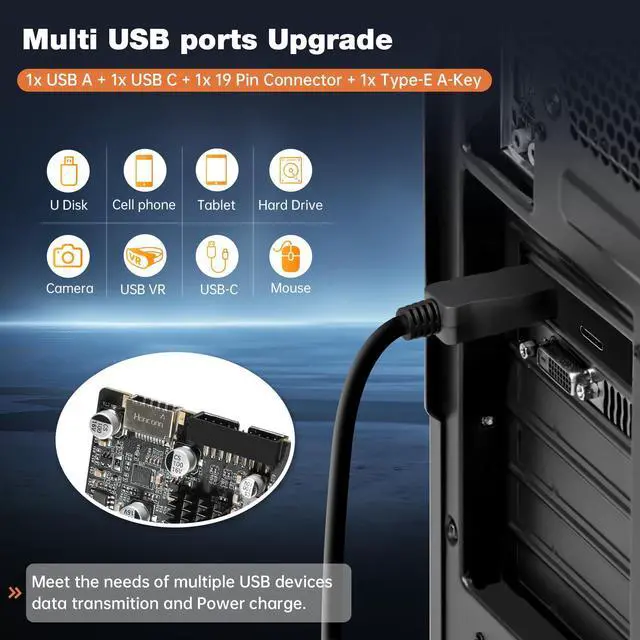
By inserting Jorkar USB PCIe card into the PCI Express X4 slot, you can upgrade your host computer to multiple major USB ports (USB C and USB A),to facilitate the connection of your external USB devices to your computer system, such as keyboard, mouse, external hard drives, CD/DVD drives, webcams, USB printers, scanners, game controllers, USB VR, digital cameras, etc.

Jorkar PCIe to USB C Card, 4x 10Gbps Transmission Rate
Dual Chipset ASM3142+VL822 chipset, ASM3142 supports the new feature of USB3.1 Gen2, named Multiple INs to achieve fully utilization rate of 10Gbps data rate, taking advantage of the available bandwidth of USB3.1 Gen2 bus. VL822 is a versatile USB 3.1 Gen 2 Hub Controller, offering a highly integrated, application-specific design.
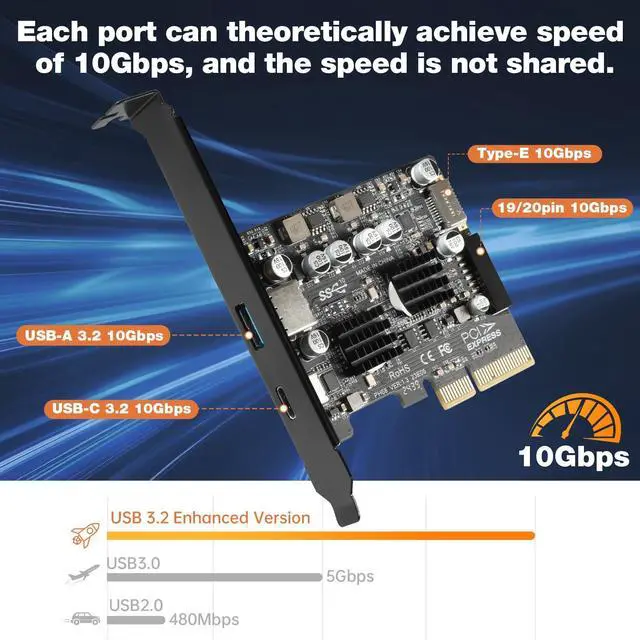
With ultra-fast data transfer speeds of up to 10Gbps, each port can theoretically achieve speed of 10Gbps, and the speed is not shared. You can transfer HD movies or large files fast. Note, only transfer the data and power, can't connect usb-c video/audio/thunderbolt device.
Compliant with USB 3.2/3.1, Output USB3.1 interface and Type-C/Type-E interface. Compliant with USB 3.2/3.1 Super-Speed (10Gbps), USB 3.0 (5Gbps), USB 2.0 (480Mbps), USB 1.1 (1.5Mbps).(Note: Actual transfer speed may be limited by the connected device.)

Jorkar PCIe to Type E Add-on Adapter
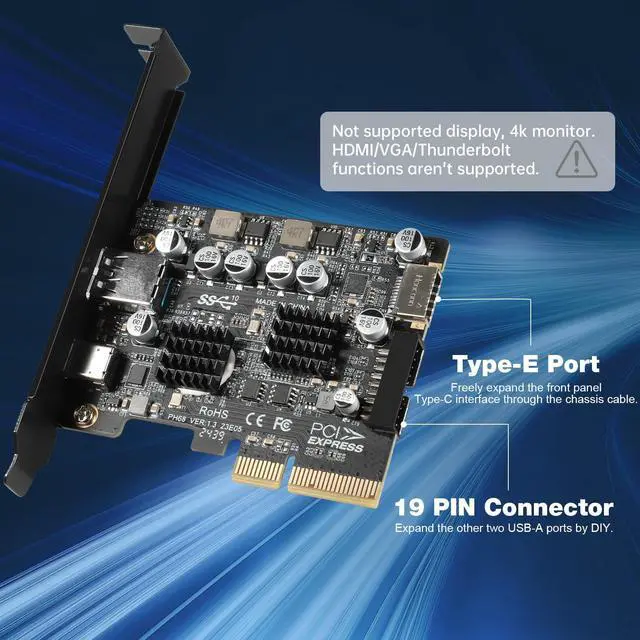
The card's internal 19-pin connector and USB Type-E port can be flexibly extended to the front panel of your computer depending on your needs.
Type-E USB 3.1 Front Panel Socket is a converter to convert the available PCI-E of a motherboard into a USB 3.1 Type-E header. Thus the USB 3.1 port of a housing can also be supplied with USB 3.1 without a suitable mainboard.
USB Type-E front panel port can only be connected to USB C port. In addition,the USB C/Type-E port does not support Thunderbolt protocol.

Jorkar PCIe USB Cards Suitability
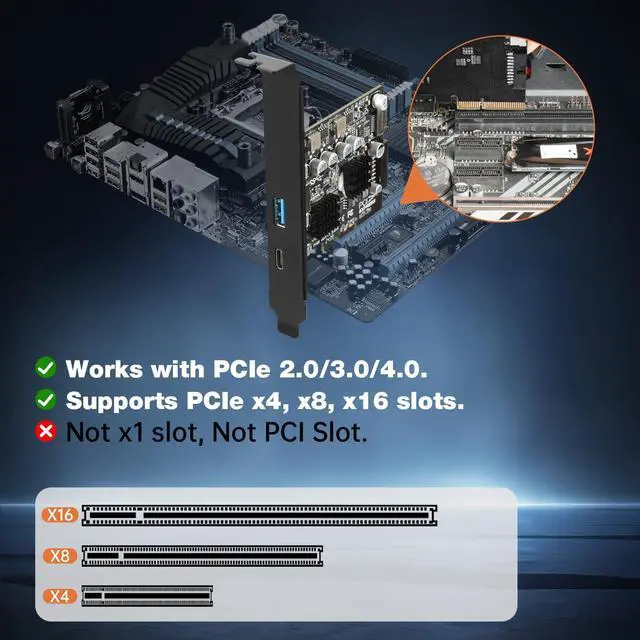
1. Works with PCIe 2.0/3.0/4.0. Supports PCIe x4, x8, x16 slots. Not x1 slot, Not PCI Slot. For USB 3.2 cards to get USB3.2 Super Speed performance, be sure to use PCI-E 3.0 or higher slots for card installation.
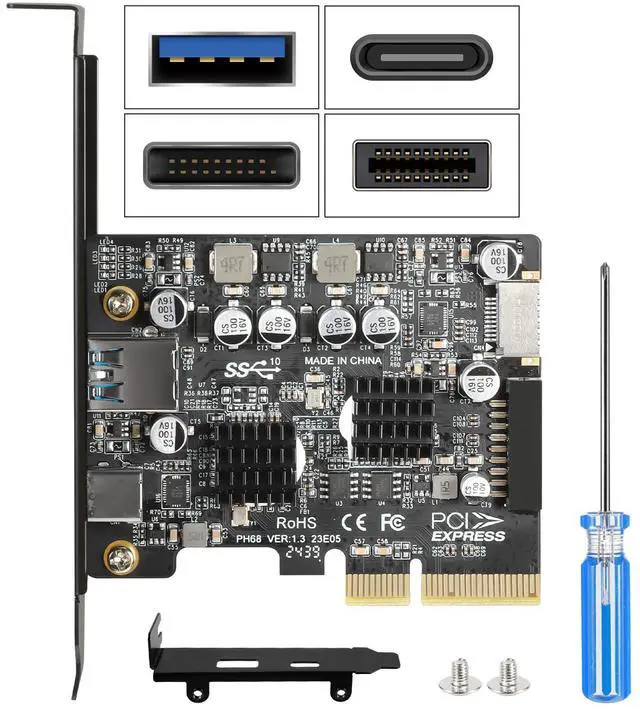
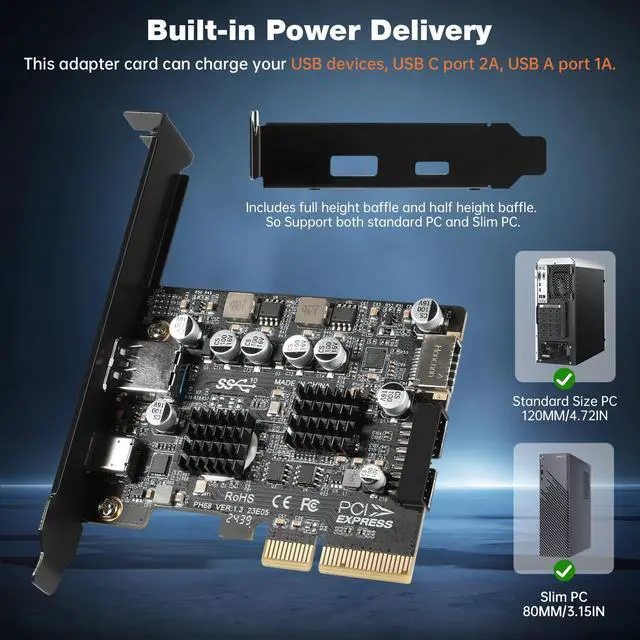
2. Package Includes full height baffle and half height baffle. So Support both standard PC and Slim PC.
3. Jorkar USB C 3.2 PCIe Card is compatible with Windows 7/8/10/11 (32/64 bit) and Mac OS 10.8.2 and above. Note: Windows XP/Vista/7 requires driver installation which in the box, Windows 8/10/11 and Mac OS and Linux don't need drivers. (Doesn't support MSI/Dell PC series Win 11 system.)
4. The USB expansion card only supports data transmission, NOT support video signal transfer (DP, HDMI, VGA display conversion) and NOT support USB-C Thunderbolt protocol.
5.Do not install this PCIE card when the computer is turned on.
6.If the card doesn't work, check whether the PCI-E socket on the motherboard is faulty.

Jorkar USB C PCIe Card Installation
Turn off the PC and unplug the power plug from the socket, remove the PC case, insert the card into the PCI-E slot.
Since the card USB A port is vertical, Insert the U disk/usb cable into the usb slot for positioning.
Tighten the screws, close the PC case cover, turn on the PC and install the driver.
For the narrow rear slot area of the PC host, you need to just cut the crossbar between the two slots with small sheet metal hand pliers.

Warm Note:
1. Please contact the motherboard manufacturer and check the information below.
a. Make sure that the PCIe interface protocol is PCIe 3.0 or above.
b. Make sure that the lanes allocated to the PCIe interface are x4 or more.
c. The number of lanes on the motherboard is fixed. When multiple PCIe interfaces are in use, the actual transmission speed for each interface will be lower than its theoretical value.
2. Check if the device connected to the PCIe card supports a 10Gbps bandwidth, which includes the device and the cable between the device and the card.
3. Check whether other ports on the PCIe card are in use.
The middle USB C port owns 10Gbps bandwidth, and the rest four ports share 10 Gbps bandwidth. When these four ports are in use simultaneously, the PCIe card will allocate bandwidth intelligently according to the external devices.

1.The USB device has a limitation on the throughput / performance of data transfer from the expansion card. In addition, do not plug high power cord / USB to HDMI cord into this USB 3.2 card to avoid unnecessary compatibility issues.
2. Select the interface type that matches the PCIE card, e.g. USB 3.2-A, USB-C Cord specifications require USB version 3.2 Gen 2 to avoid performance impacts due to speed mismatch.
3. USB terminology: USB 3.2 Gen 2x1 was originally called USB 3.1 Gen 2. Since many motherboard factory have not updated their hardware technology in time, most computer programs will display USB 3.1, but it does not affect the speed.
4. The Internal circuitry has power supply modules, and no additional power adapter is required for installation. PCIe card can draw power directly from the PCI-E slot inside the motherboard. Support 5V/3A power charging.USB A-port Power Supply: 5V-0.9A; USB-C port/USB Type-E Power Supply: 5V-3A, only for low-power USB devices.
5. Make sure to use right cord, and correspond to the corresponding interfaces to avoid the wrong cord from being plugged into the wrong port, resulting in insufficient power supply, so that the device can not work properly.
Packing List:
1 x PCIe to USB type E card, 1x half height baffle, 1 x CD drive, 2 x screws, 1 x Cross Screwdriver.
Jorkar PCIE to USB C type E Expansion Card
By inserting Jorkar USB PCIe card into the PCI Express X4 slot, you can upgrade your host computer to multiple major USB ports (USB C and USB A),to facilitate the connection of your external USB devices to your computer system, such as keyboard, mouse, external hard drives, CD/DVD drives, webcams, USB printers, scanners, game controllers, USB VR, digital cameras, etc.
Jorkar PCIe to USB C Card, 4x 10Gbps Transmission Rate
Dual Chipset ASM3142+VL822 chipset, ASM3142 supports the new feature of USB3.1 Gen2, named Multiple INs to achieve fully utilization rate of 10Gbps data rate, taking advantage of the available bandwidth of USB3.1 Gen2 bus. VL822 is a versatile USB 3.1 Gen 2 Hub Controller, offering a highly integrated, application-specific design.
With ultra-fast data transfer speeds of up to 10Gbps, each port can theoretically achieve speed of 10Gbps, and the speed is not shared. You can transfer HD movies or large files fast. Note, only transfer the data and power, can't connect usb-c video/audio/thunderbolt device.
Compliant with USB 3.2/3.1, Output USB3.1 interface and Type-C/Type-E interface. Compliant with USB 3.2/3.1 Super-Speed (10Gbps), USB 3.0 (5Gbps), USB 2.0 (480Mbps), USB 1.1 (1.5Mbps).(Note: Actual transfer speed may be limited by the connected device.)
Jorkar PCIe to Type E Add-on Adapter
The card's internal 19-pin connector and USB Type-E port can be flexibly extended to the front panel of your computer depending on your needs.
Type-E USB 3.1 Front Panel Socket is a converter to convert the available PCI-E of a motherboard into a USB 3.1 Type-E header. Thus the USB 3.1 port of a housing can also be supplied with USB 3.1 without a suitable mainboard.
USB Type-E front panel port can only be connected to USB C port. In addition,the USB C/Type-E port does not support Thunderbolt protocol.
Jorkar PCIe USB Cards Suitability
1. Works with PCIe 2.0/3.0/4.0. Supports PCIe x4, x8, x16 slots. Not x1 slot, Not PCI Slot. For USB 3.2 cards to get USB3.2 Super Speed performance, be sure to use PCI-E 3.0 or higher slots for card installation.
2. Package Includes full height baffle and half height baffle. So Support both standard PC and Slim PC.
3. Jorkar USB C 3.2 PCIe Card is compatible with Windows 7/8/10/11 (32/64 bit) and Mac OS 10.8.2 and above. Note: Windows XP/Vista/7 requires driver installation which in the box, Windows 8/10/11 and Mac OS and Linux don't need drivers. (Doesn't support MSI/Dell PC series Win 11 system.)
4. The USB expansion card only supports data transmission, NOT support video signal transfer (DP, HDMI, VGA display conversion) and NOT support USB-C Thunderbolt protocol.
5.Do not install this PCIE card when the computer is turned on.
6.If the card doesn't work, check whether the PCI-E socket on the motherboard is faulty.
Jorkar USB C PCIe Card Installation
Turn off the PC and unplug the power plug from the socket, remove the PC case, insert the card into the PCI-E slot.
Since the card USB A port is vertical, Insert the U disk/usb cable into the usb slot for positioning.
Tighten the screws, close the PC case cover, turn on the PC and install the driver.
For the narrow rear slot area of the PC host, you need to just cut the crossbar between the two slots with small sheet metal hand pliers.
Warm Note:
1. Please contact the motherboard manufacturer and check the information below.
a. Make sure that the PCIe interface protocol is PCIe 3.0 or above.
b. Make sure that the lanes allocated to the PCIe interface are x4 or more.
c. The number of lanes on the motherboard is fixed. When multiple PCIe interfaces are in use, the actual transmission speed for each interface will be lower than its theoretical value.
2. Check if the device connected to the PCIe card supports a 10Gbps bandwidth, which includes the device and the cable between the device and the card.
3. Check whether other ports on the PCIe card are in use.
The middle USB C port owns 10Gbps bandwidth, and the rest four ports share 10 Gbps bandwidth. When these four ports are in use simultaneously, the PCIe card will allocate bandwidth intelligently according to the external devices.
1.The USB device has a limitation on the throughput / performance of data transfer from the expansion card. In addition, do not plug high power cord / USB to HDMI cord into this USB 3.2 card to avoid unnecessary compatibility issues.
2. Select the interface type that matches the PCIE card, e.g. USB 3.2-A, USB-C Cord specifications require USB version 3.2 Gen 2 to avoid performance impacts due to speed mismatch.
3. USB terminology: USB 3.2 Gen 2x1 was originally called USB 3.1 Gen 2. Since many motherboard factory have not updated their hardware technology in time, most computer programs will display USB 3.1, but it does not affect the speed.
4. The Internal circuitry has power supply modules, and no additional power adapter is required for installation. PCIe card can draw power directly from the PCI-E slot inside the motherboard. Support 5V/3A power charging.USB A-port Power Supply: 5V-0.9A; USB-C port/USB Type-E Power Supply: 5V-3A, only for low-power USB devices.
5. Make sure to use right cord, and correspond to the corresponding interfaces to avoid the wrong cord from being plugged into the wrong port, resulting in insufficient power supply, so that the device can not work properly.
Packing List:
1 x PCIe to USB type E card, 1x half height baffle, 1 x CD drive, 2 x screws, 1 x Cross Screwdriver.