Any questions? Our AI beta will help you find out quickly.
Try me now
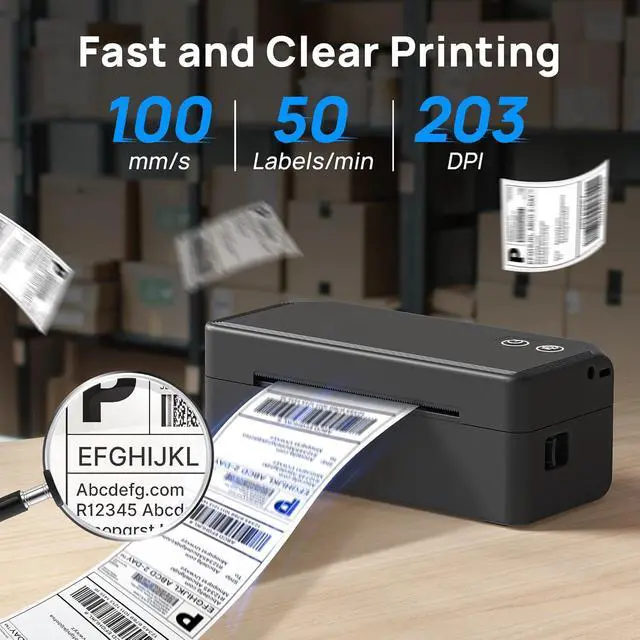
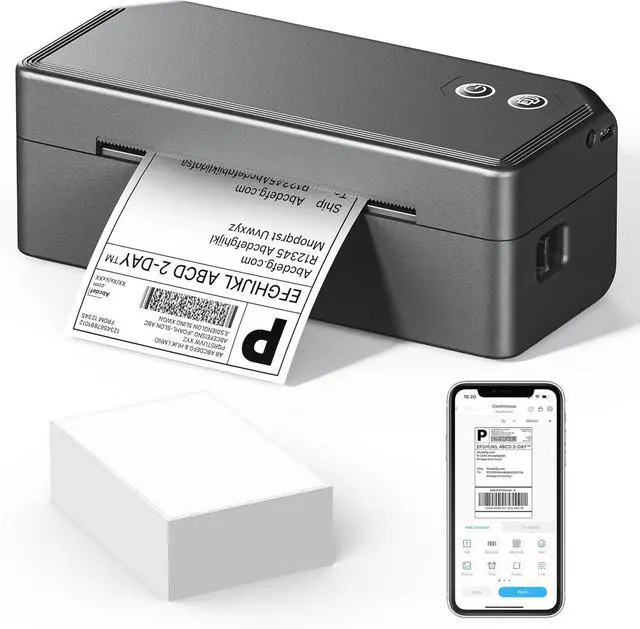
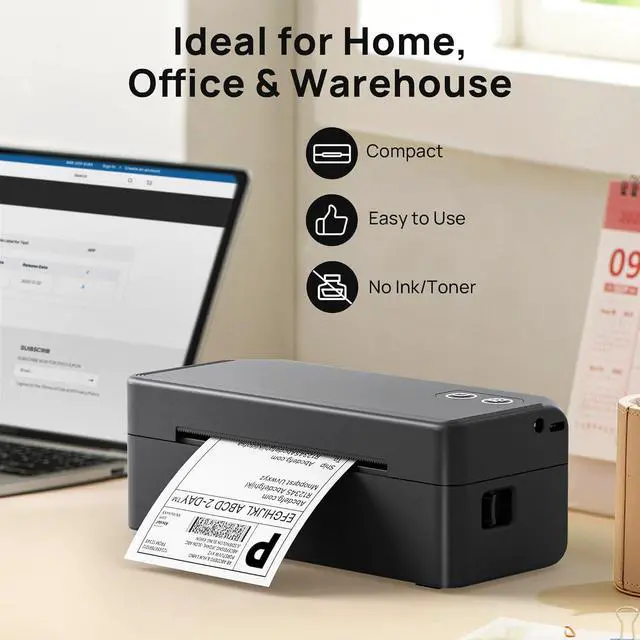
New Upgrade: ETIKEZ Bluetooth Thermal Printer has been upgraded! This lightweight and compact Bluetooth thermal printer boasts a high resolution of 203 dpi, ensuring clear output of shipping labels, QR codes, and barcodes, preventing logistics delays caused by blurry prints. It's perfectly suited for efficient operations in freight and warehousing scenarios. Furthermore, it doesn't require much desktop space, easily fitting into even a cramped small studio or a home storage corner
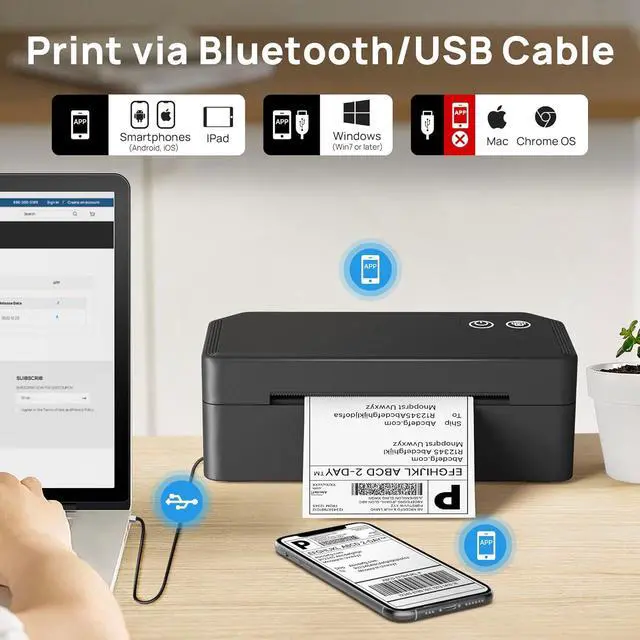
Print via Bluetooth: The ETIKEZ Bluetooth label printer works with the "Labelnize" app. To use the printer on your mobile phone, you need to download the app for Android and iOS 13 and above from Google Play or the Apple App Store. Note: Connection is only possible through the app; direct Bluetooth pairing is not supported. Computers cannot connect via Bluetooth; they can only connect via USB
Print via USB: Windows, Mac, and Chrome OS systems must be connected via USB cable. Before powering on the printer, you first need to connect it to your computer via USB, then download and install the driver, and finally add the printer and start printing. This thermal printer is highly compatible and suitable for various shipping parcels. You can refer to the operation video and manual for easy setup, making it an ideal choice for small businesses to efficiently print labels
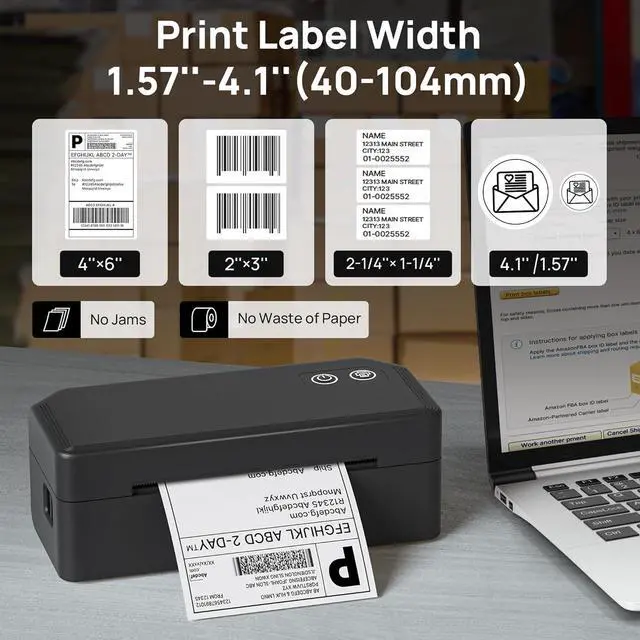
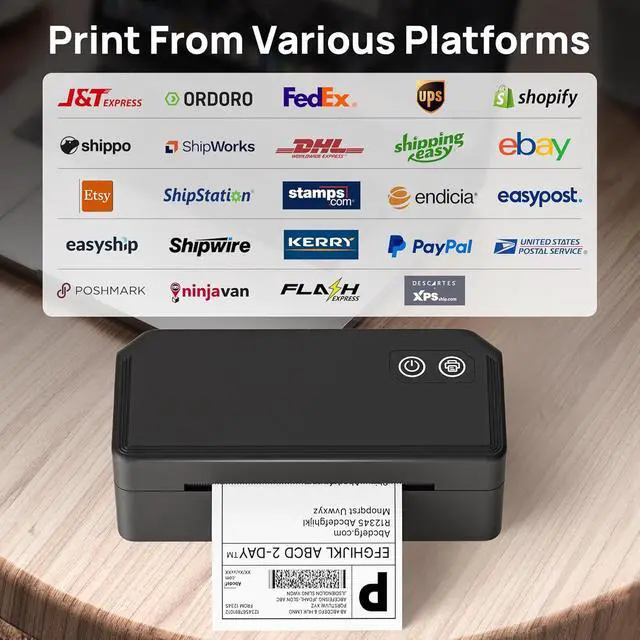
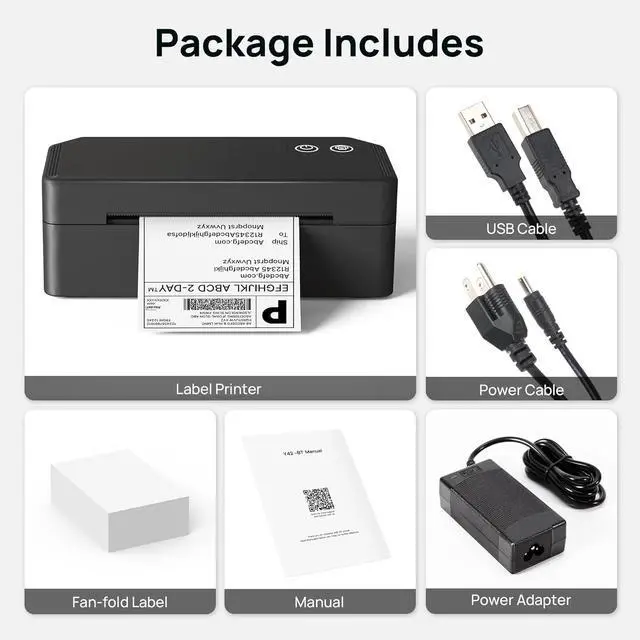
Wide Usage: ETIKEZ thermal label printer is widely compatible with Amazon, eBay, Shopify, UPS, FedEx, USPS. Supports 1.57-4.1 inch label widths, suitable for shipping labels, barcodes, price tags, etc. Package includes: 1x label printer, 15 sheets of 4x6 inch label paper, 1x USB cable, 1x power cable, 1x power adapter, 1x user manual. Smaller and lighter, space-saving, ideal for businesses, individuals, schools and teachers. Note: Black and white printing only
Easy to Use: Step 1: Scan QR-code to install "Labelnize" APP for printing. Step 2: Open the APP, allow "Labelnize" to use wireless data. Step 3: Tap "Connect now" to find Y42 Label Printer. Step 4: Find Y42BT" tap Click to connect". Step 5: Tap "Gap Paper select the paper size. Step 6: Tap "Document printing" and select file,Tap Print". To ensure print quality, please be sure to select the correct size when printing
Learn more about the Detailed Specifications
Additional Information
First Listed on Newegg
May 19, 2026
There are no reviews yet.
Do you own this product?
Warranty & Returns
Warranty, Returns, And Additional Information
Warranty
Please contact the Seller directly for warranty information. Warranty information may also be found on the Manufacturer's website.