




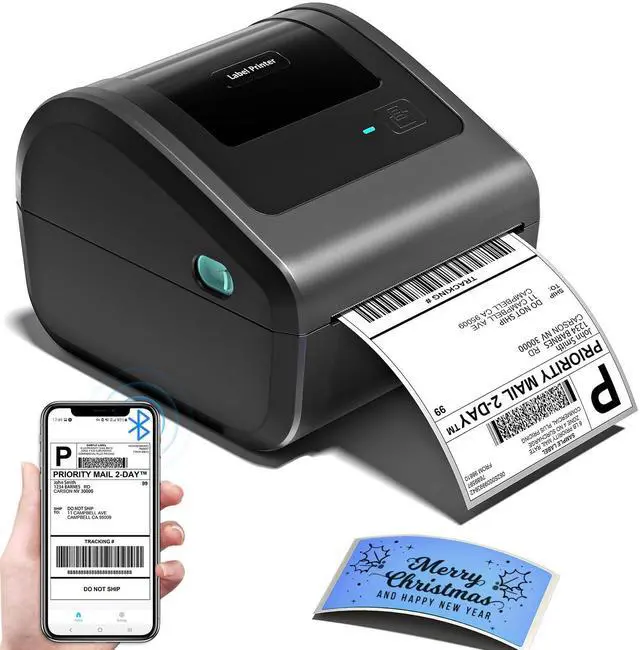
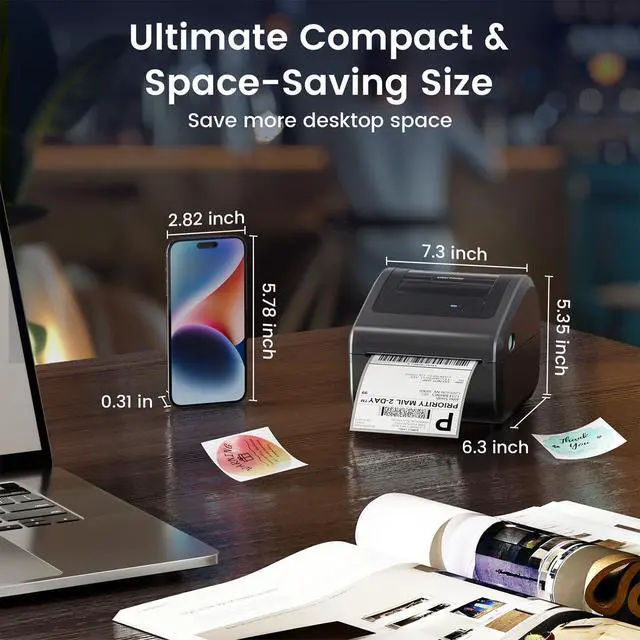
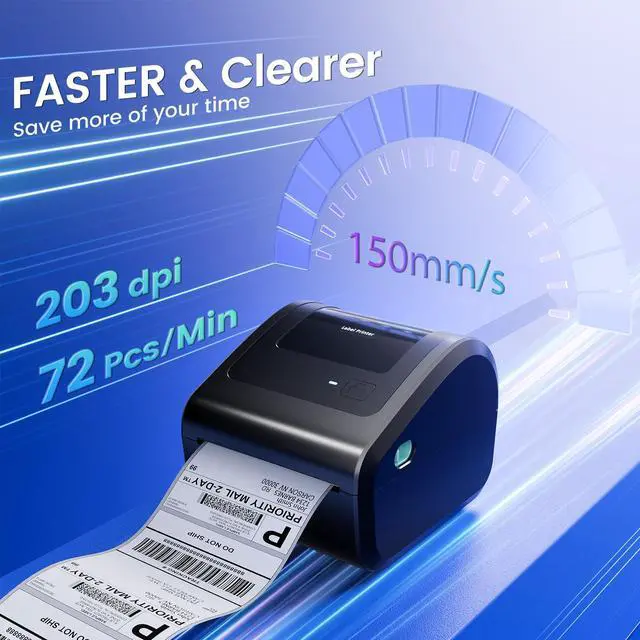
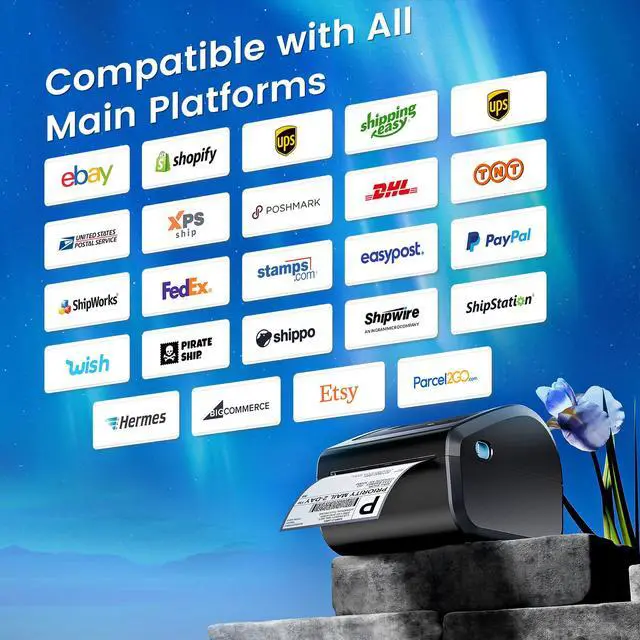


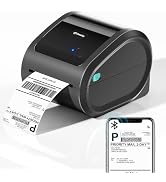
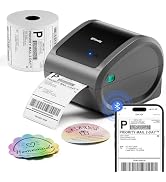
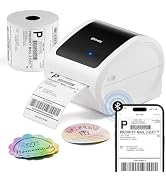
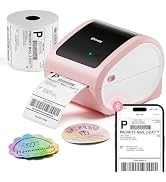
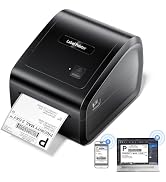
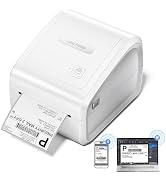
Omezizy D450-BT Label Printer —— Strong Helper for Your Business
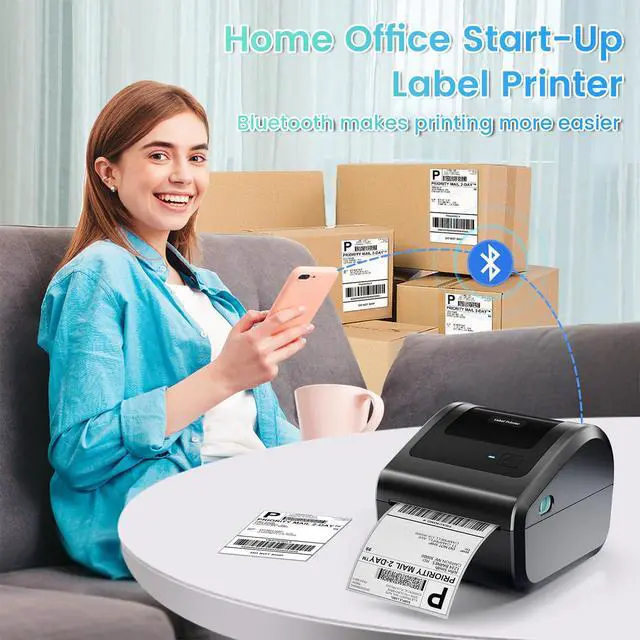
Truely Bluetooth Connection, Make Work more Wireless and Simple
shipping label printer
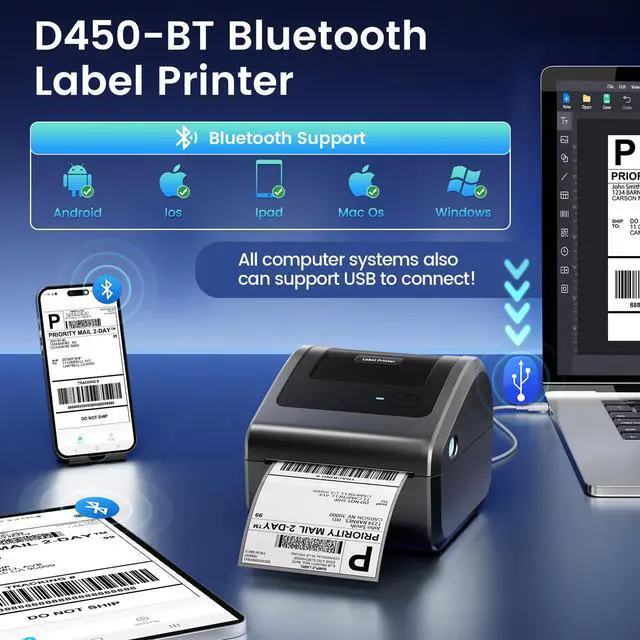
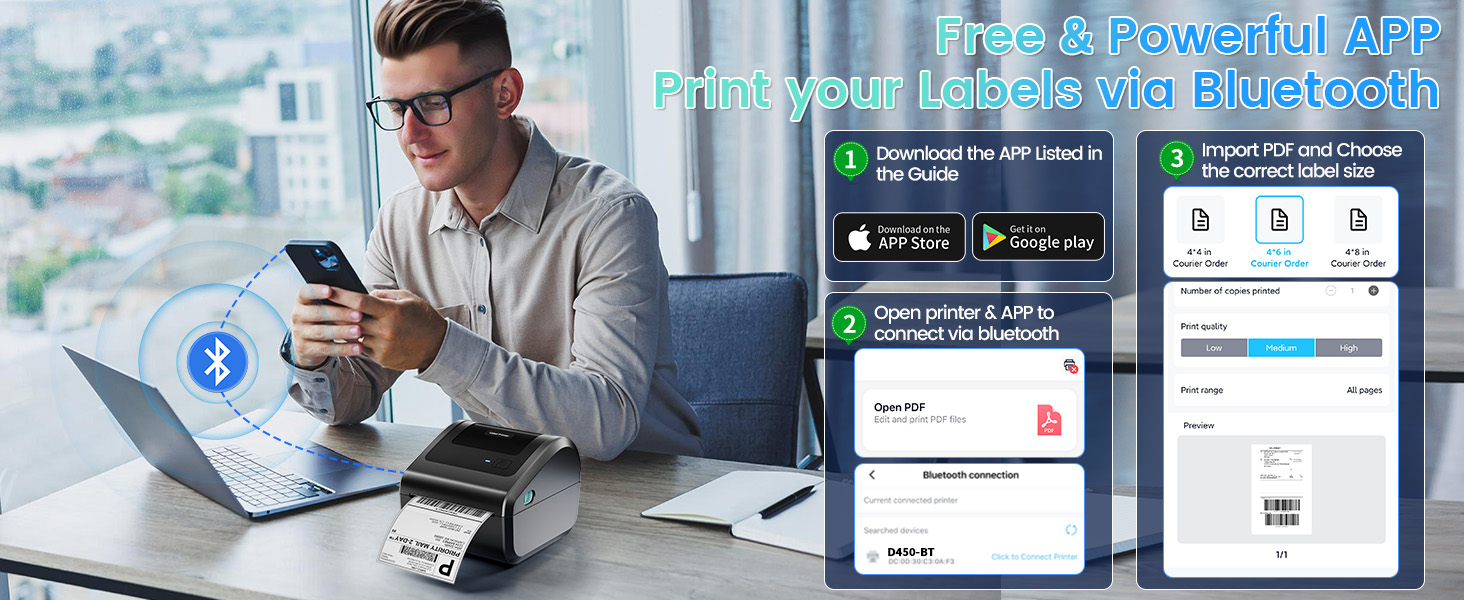
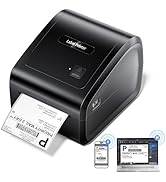
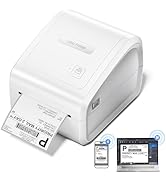
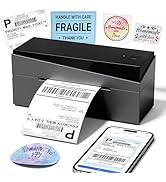
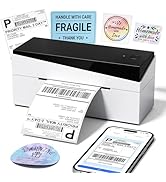
Support both Bluetooth and USB connection, use our APP to print with Bluetooth to make running a business only with a smartphone or tablet possible. Now, Windows & Mac also support printing via Bluetooth
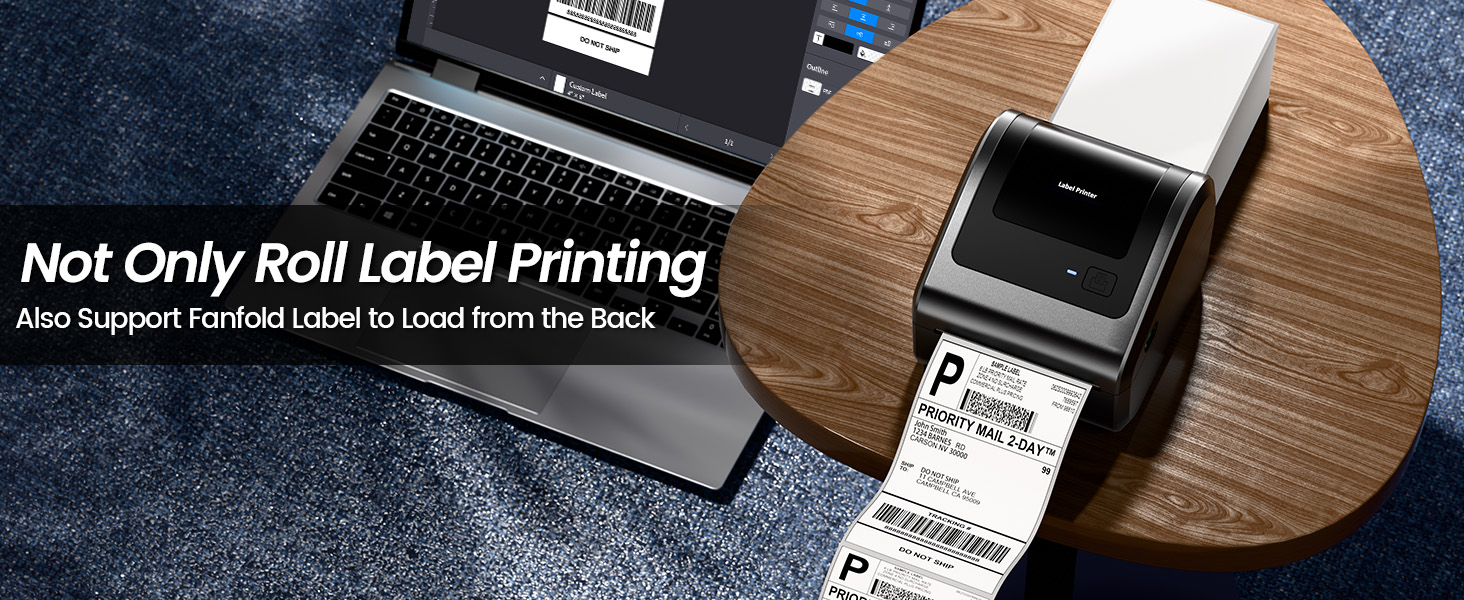
How to Connect the D450-BT Label Printer with Your Phone or Computer?
More Options for D450BT Shipping Label Printer
 D520BT Label Printer |  D520BT & 500pcs Labels |  D550Pro Label Printer | 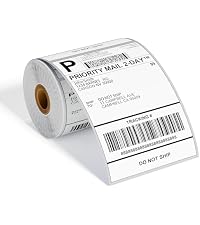 4x6 Roll Thermal Labels | 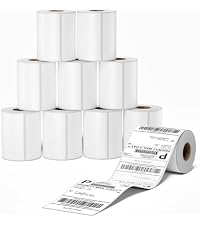 4x6 Thermal Label 2500pcs | 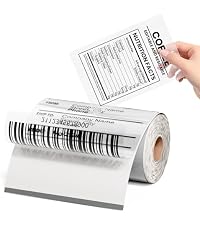 Clear Thermal Labels 4x6 | 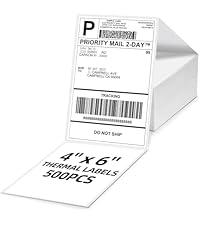 4x6 Fold Thermal Labels | |
|---|---|---|---|---|---|---|---|
Customer Reviews | — | — | — | — | — | — | — |
Price | — | — | — | — | — | — | — |
Color | Grey | Grey | Grey | White | White | Transparent | White |
Support | Bluetooth & USB Connection | Bluetooth & USB Connection | Ethernet & Bluetooth & USB | Thermal Label Printers | Thermal Label Printers | Thermal Label Printers | Thermal Label Printers |
Features | Compact & Built-in Label Bin | Compact & Built-in Label Bin | Compact & Built-in Label Bin | Small Businesses & Home Use | Small Businesses & Home Use | Small Businesses & Home Use | Small Businesses & Home Use |
Pack | 1 Printer | 1 Printer + 500pcs Labels | 1 Printer | 250 Labels | 2500 Labels | 100 Labels | 500 Labels |
High Quality | ? | ? | ? | ? | ? | ? | ? |

Bluetooth Label Printer
A phone will be enough to handle your business
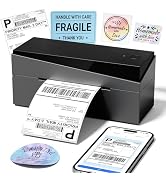
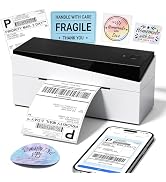
D520 Printer & 500 Pcs Labels
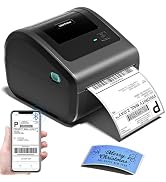
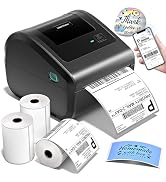
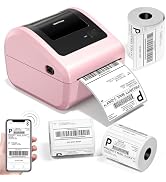
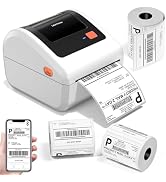
D450BT Printer &750 Pcs Labels
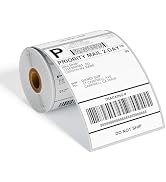
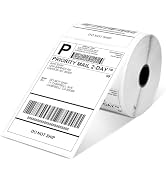
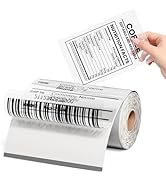
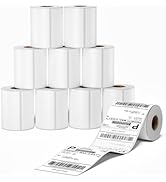
4x6 Labels Click Picture above
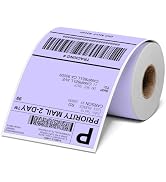
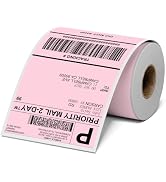
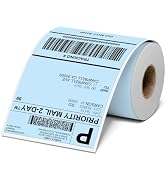
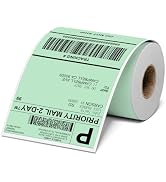
4x6 Labels Click Picture above
Click to Buy Now
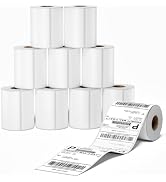
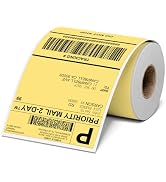
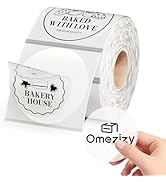
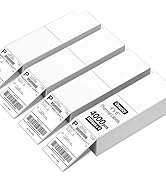
Click to Buy Now
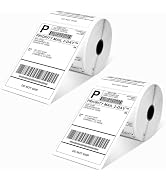
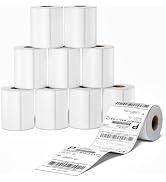
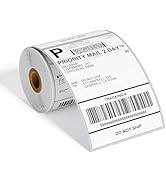
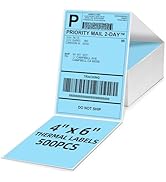
4'' x 6'' Thermal Label
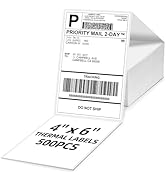
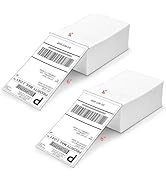
4''x6'' Foldable Thermal Label
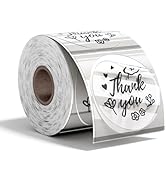
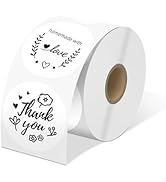
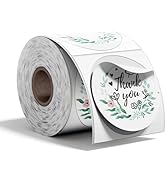
2x2 Labels Click Picture above
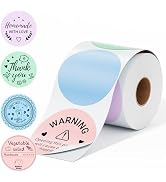
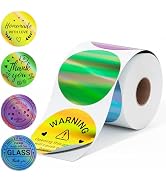
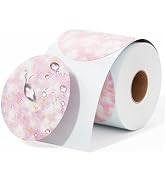

2x2 Labels Click Picture above
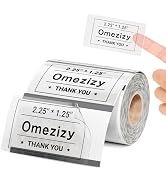
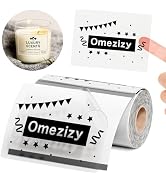
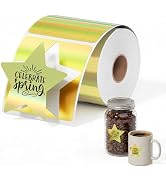
Thermal Labels
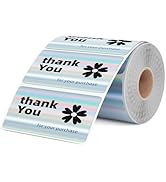
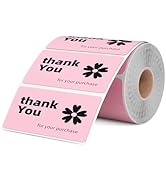
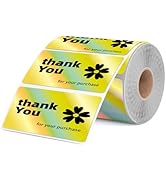
Thermal Lable
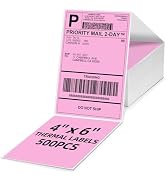
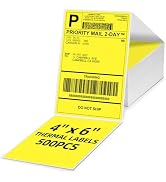
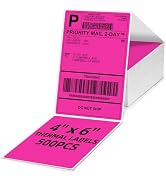
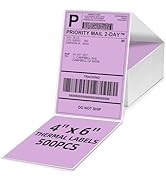
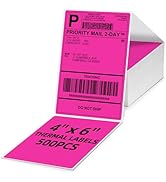
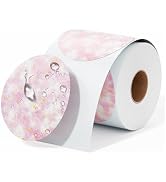
4''X6'' Color Thermal Lable

- What problem are we solving?
We always want to make printing more easier, we spend a lot to do tests and researches to achieve it.
- What makes our products unique?
Our Bluetooth label printer supports USB connection and Bluetooth connection, satisfy your different needs.
Omezizy D450-BT Label Printer —— Strong Helper for Your Business
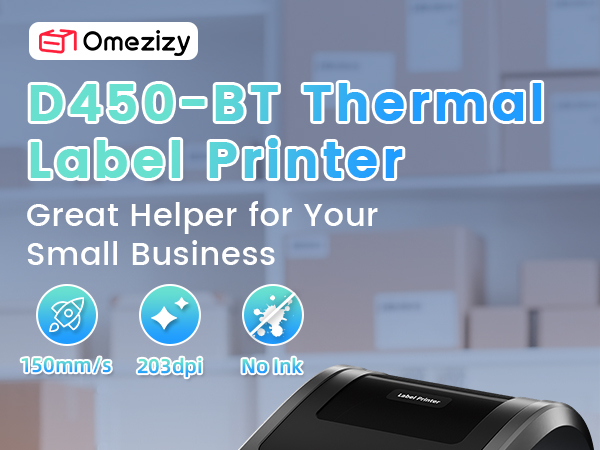
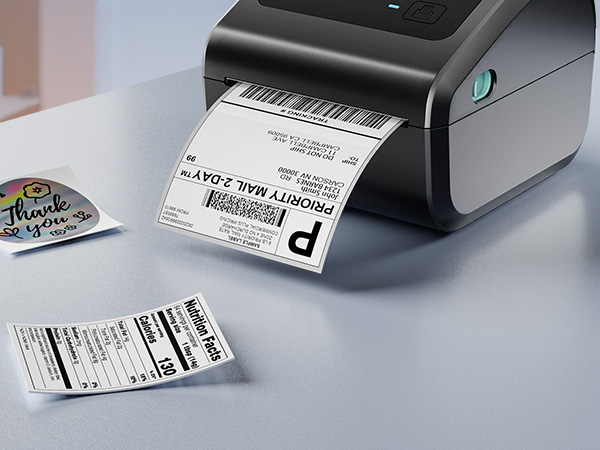
Truely Bluetooth Connection, Make Work more Wireless and Simple
shipping label printer
Support both Bluetooth and USB connection, use our APP to print with Bluetooth to make running a business only with a smartphone or tablet possible. Now, Windows & Mac also support printing via Bluetooth
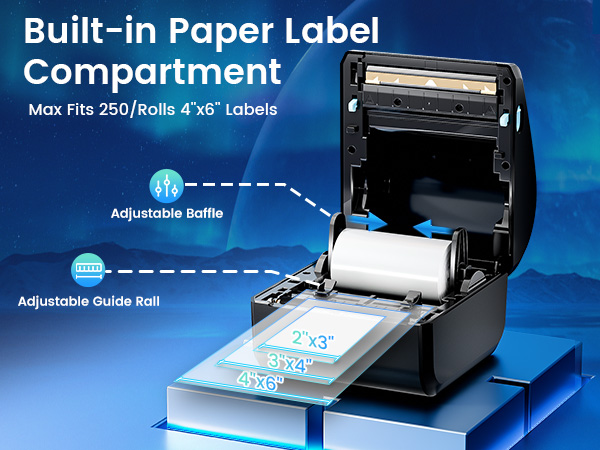
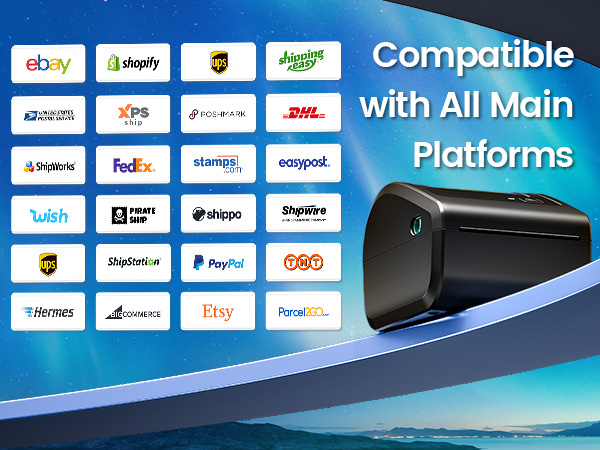
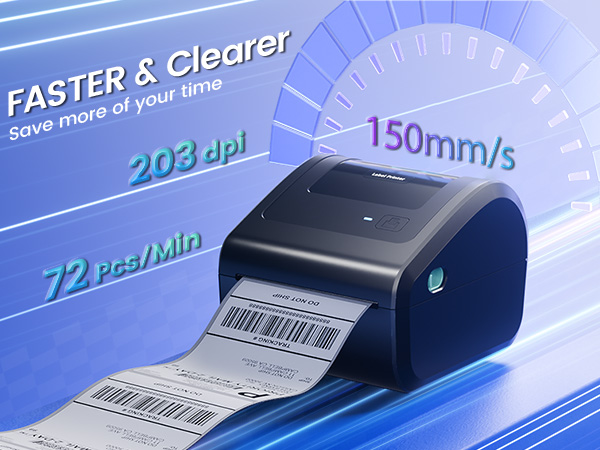
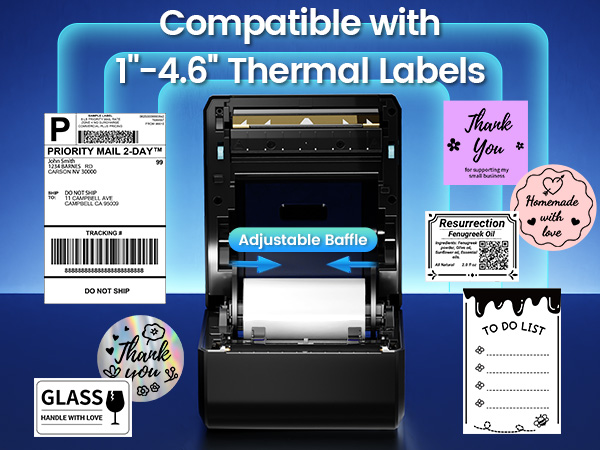
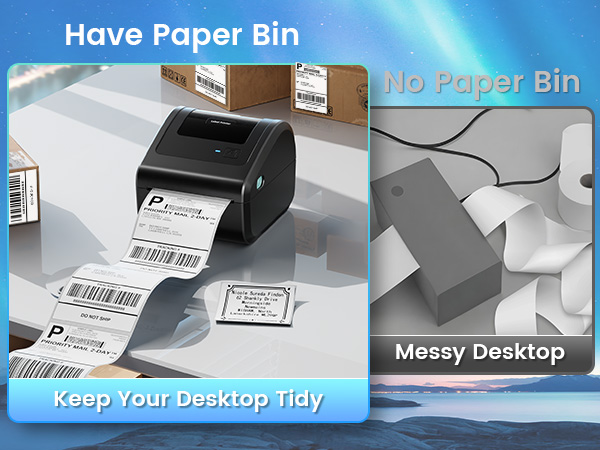
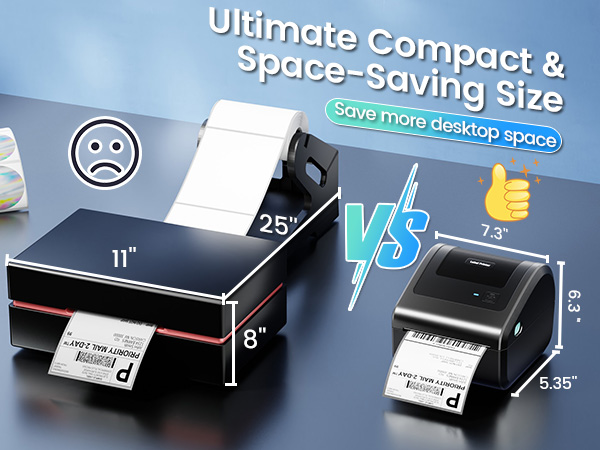
More Powerful Features to Help to Simplifies Your Work
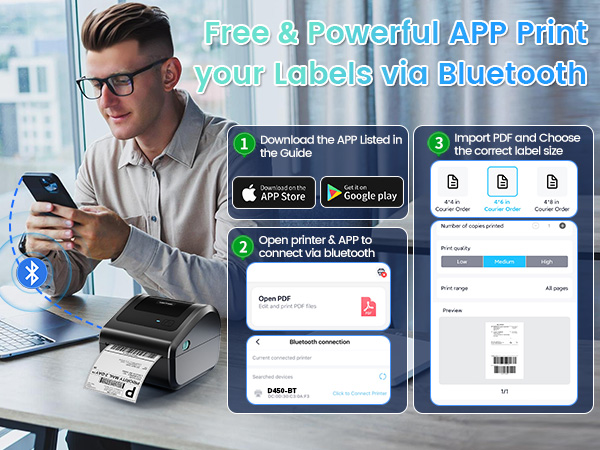
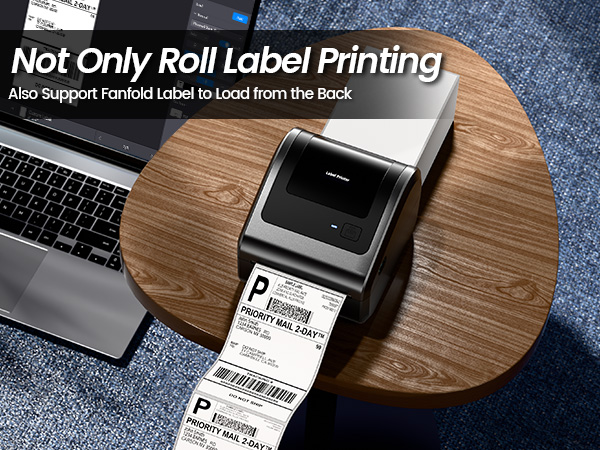
How to Connect the D450-BT Label Printer with Your Phone or Computer?
Connecting Your Phone to the D450-BT via Bluetooth
Step 1: Download the app mentioned in the guide from Google Play or the App Store
Step 2: Turn on your smartphone's Bluetooth and search for the printer in the app
Step 3: Import the printed PDF into the app and start your printing
Please Note: Do not connect via your phone's Bluetooth settings, must connect directly in the app
Print via Bluetooth - Windows Direct System Pairing
Step 1: Download and run the driver, then select the printer model – "D450 Printer"
Step 2: Choose “Bluetooth Connection” to finish the driver installation
Step 3: Open the Bluetooth settings on the computer, add the printer model "D450BT-Z"
Step 4: Edit labels & start printing
Print via Bluetooth - masOS Direct System Pairing
Step 1: Download and run the driver, then select the printer model – "D450 Printer"
Step 2: Choose “Bluetooth Connection” to finish the driver installation
Step 3: Open the Bluetooth settings on the computer, add the printer model "D450BT-Z"
Step 4: Edit labels & start printing
''Labelife'' Bluetooth Connection for Computer
Step 1: Download the software mentioned in the guide from the Official Website
Step 2: Go to "Wireless Connections" in the software, select your printer, and click "Connect"
Step 3: Edit labels in the software & start printing
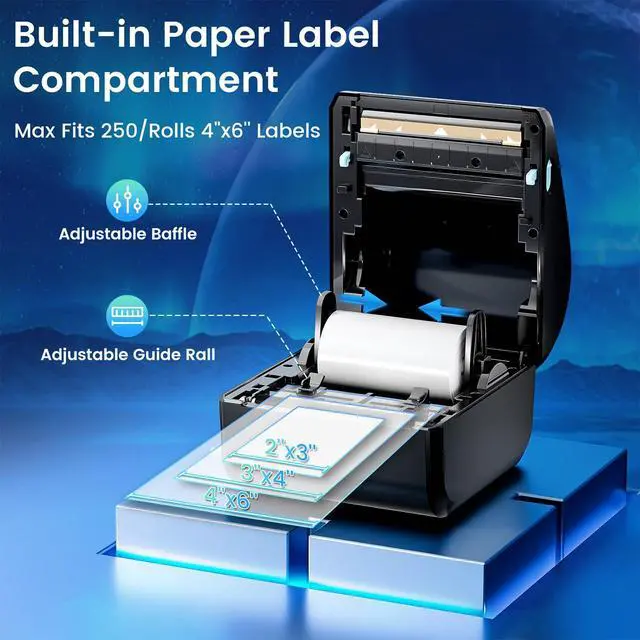
D450-BT Pre-Operation Guide for Paper Loading
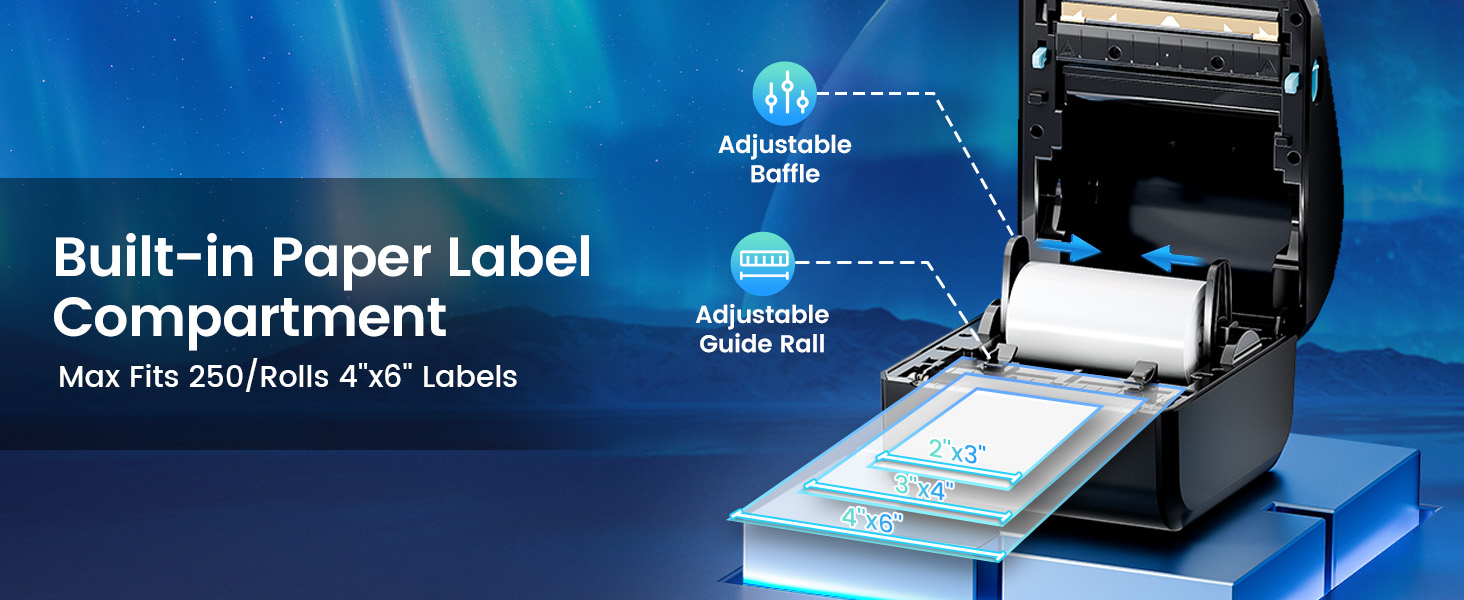
Step1: Adjust paper guide
Step2: Insert label, ensure it is straight and smooth
Step3: The label printer will move the label back and forth to learn the gap size and other properties of your label
D450-BT Pre-Operation Guide for Feed Button
Automatic Label Recognition: D450-BT label printer can automatically detect and identify the type and dimensions of the label as soon as it is inserted into the thermal printer
Restore Factory Setting: Turn off the printer, press and hold the Feed Button, and turn on the printer at the same time. Then the red light flashes 5 times, release the Feed Button
Pause & Resume Printing: When the printer is printing, press the Feed Button once. After stopping, click the button again to resume printing
More Options for D450BT Shipping Label Printer
D520BT Label Printer | 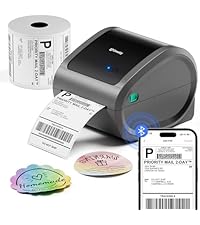 D520BT & 500pcs Labels | D550Pro Label Printer |  4x6 Roll Thermal Labels |  4x6 Thermal Label 2500pcs | 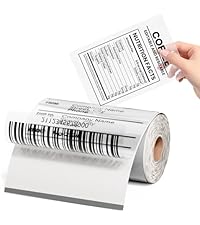 Clear Thermal Labels 4x6 | 4x6 Fold Thermal Labels |
|---|---|---|---|---|---|---|
| Customer Reviews | ||||||
| — | — | — | — | — | — | — |
| Price | ||||||
| — | — | — | — | — | — | — |
| Color | ||||||
| Grey | Grey | Grey | White | White | Transparent | White |
| Support | ||||||
| Bluetooth & USB Connection | Bluetooth & USB Connection | Ethernet & Bluetooth & USB | Thermal Label Printers | Thermal Label Printers | Thermal Label Printers | Thermal Label Printers |
| Features | ||||||
| Compact & Built-in Label Bin | Compact & Built-in Label Bin | Compact & Built-in Label Bin | Small Businesses & Home Use | Small Businesses & Home Use | Small Businesses & Home Use | Small Businesses & Home Use |
| Pack | ||||||
| 1 Printer | 1 Printer + 500pcs Labels | 1 Printer | 250 Labels | 2500 Labels | 100 Labels | 500 Labels |
| High Quality | ||||||
| ? | ? | ? | ? | ? | ? | ? |
Bluetooth Label Printer
A phone will be enough to handle your business
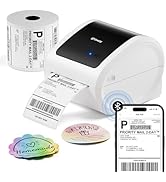
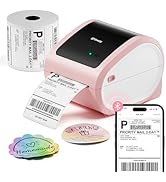
D520 Printer & 500 Pcs Labels
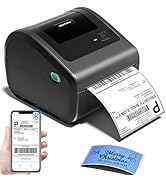
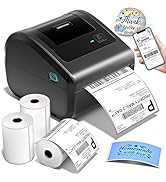
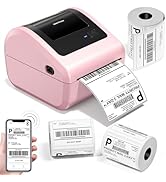
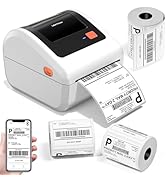
D450BT Printer &750 Pcs Labels
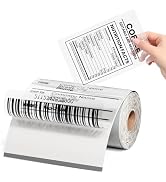
4x6 Labels Click Picture above
4x6 Labels Click Picture above
Click to Buy Now
Click to Buy Now
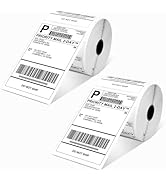
4'' x 6'' Thermal Label
4''x6'' Foldable Thermal Label
2x2 Labels Click Picture above
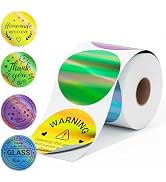
2x2 Labels Click Picture above
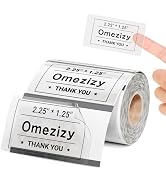
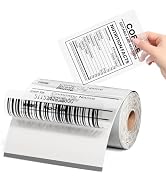
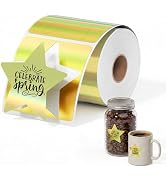
Thermal Labels
Thermal Lable
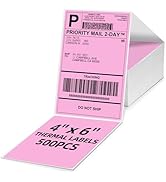
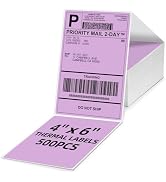
4''X6'' Color Thermal Lable

- What problem are we solving?
We always want to make printing more easier, we spend a lot to do tests and researches to achieve it.
- What makes our products unique?
Our Bluetooth label printer supports USB connection and Bluetooth connection, satisfy your different needs.
