here!
here!
I’m your shopping assistant for PC builds, upgrades, and everything tech.
Got questions? Ask away!
Start a conversation
here!
I’m your shopping assistant for PC builds, upgrades, and everything tech.
Got questions? Ask away!
Start a conversation



Any questions? Ask CelesteSM will help you find out quickly.
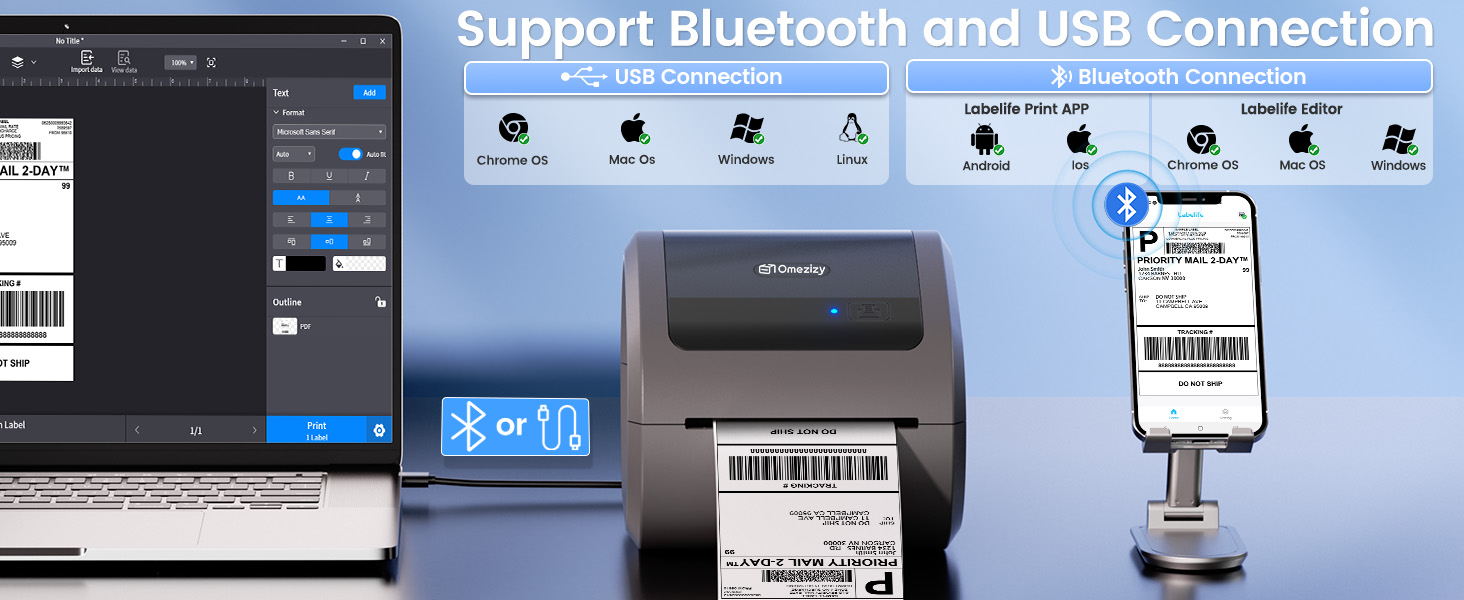
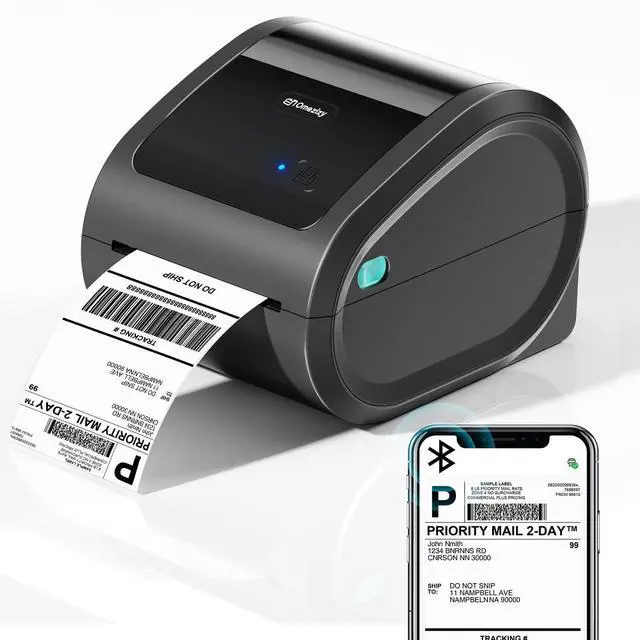
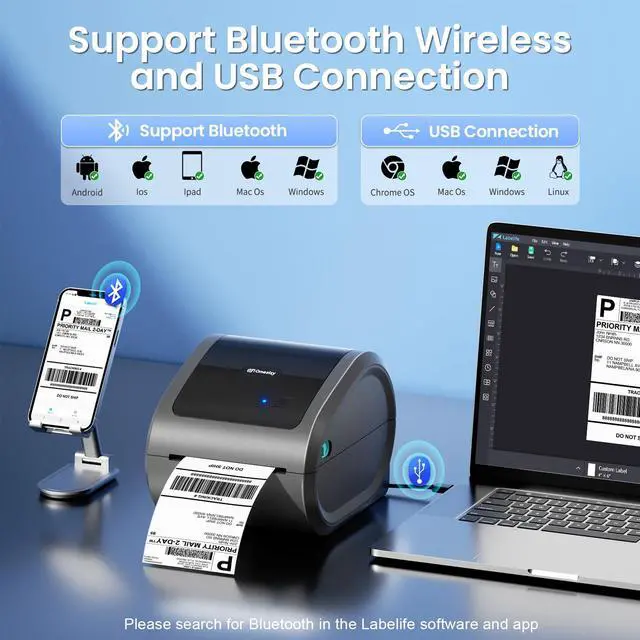
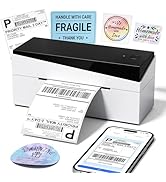
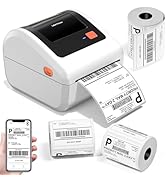
Support both Bluetooth and USB connection, use our APP to print with Bluetooth to make running a business only with a smartphone or tablet possible. Now, Windows & Mac also support printing via Bluetooth
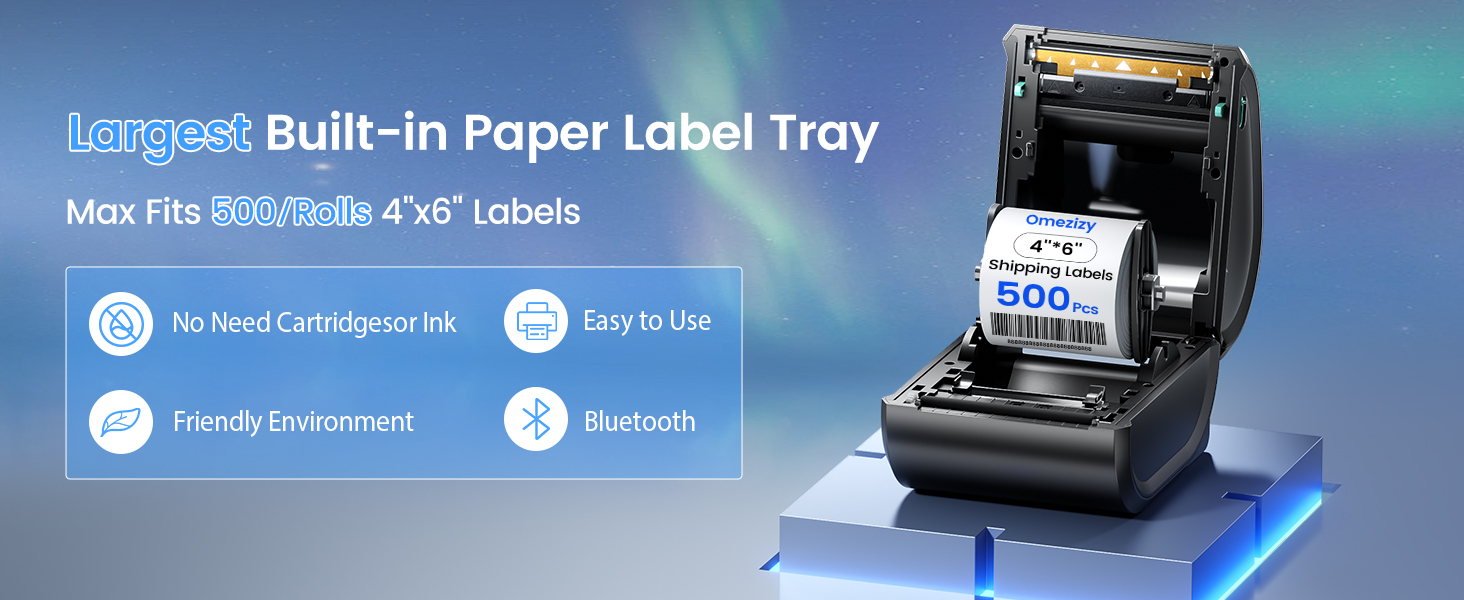
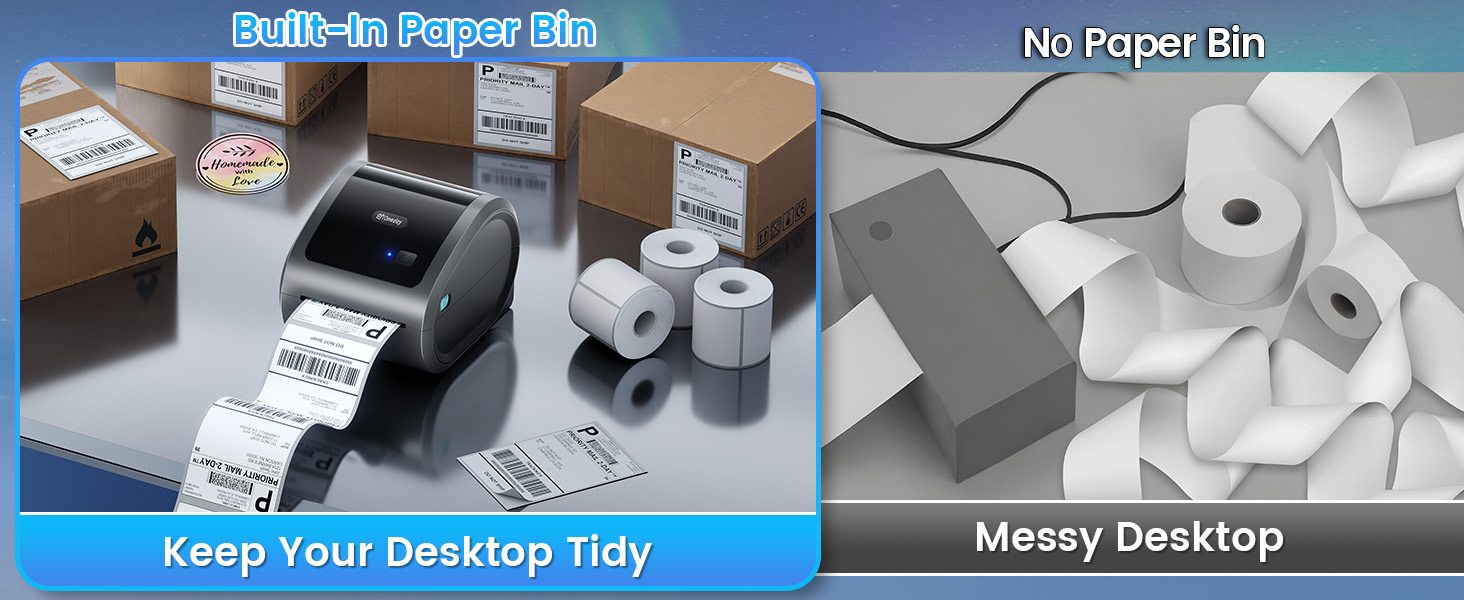
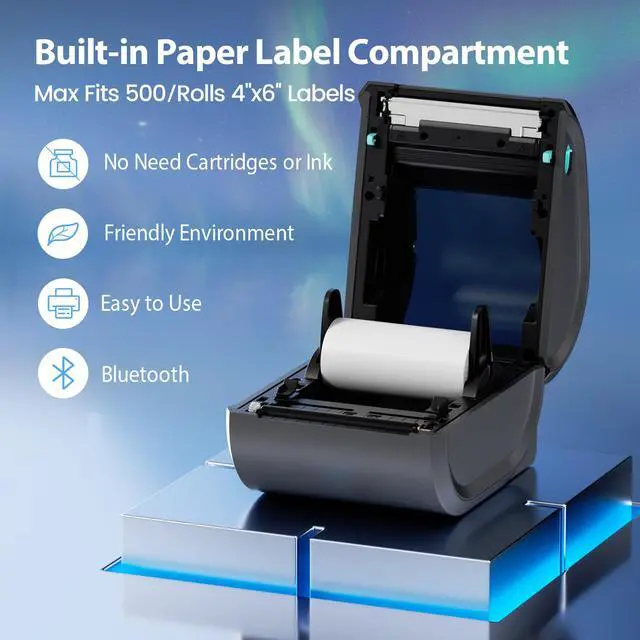
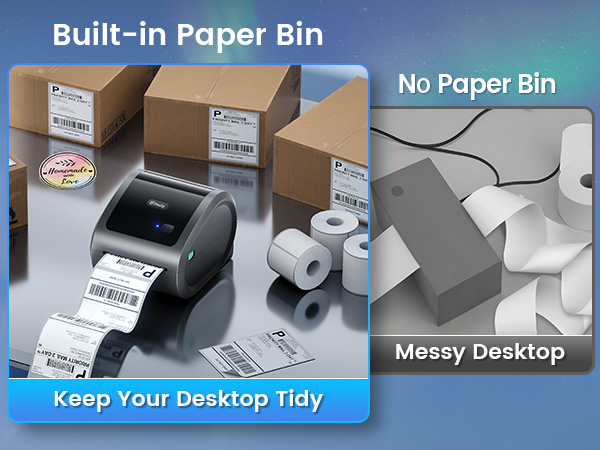
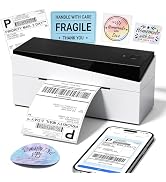
Largest Built-In Label Bin, Help You Save Space and Simplify Work
 D520BT with 500pcs Labels |  D520BT Label Printer | 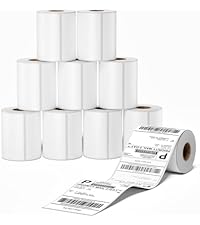 4x6 Thermal Label 2500pcs | 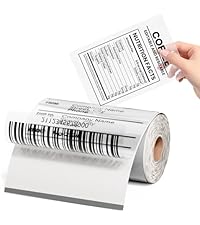 4x6 Transparent Labels | 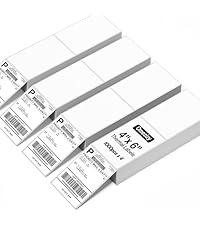 4x6 Thermal Label 4000pcs | 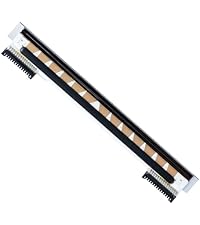 Thermal Printhead | 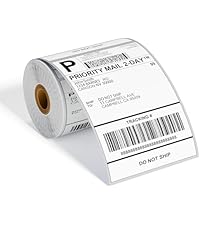 4x6 Roll Thermal Labels | |
|---|---|---|---|---|---|---|---|
Customer Reviews | — | — | — | — | — | — | — |
Price | — | — | — | — | — | — | — |
Color | Grey | White | White | Transparent | Laser | Sliver | White |
Support | Bluetooth & USB Connection | Bluetooth & USB Connection | Thermal Label Printers | Thermal Label Printers | Thermal Label Printers | Thermal Label Printers | Thermal Label Printers |
Features | Compact & Built-in Label Bin | Compact & Built-in Label Bin | Using as Shipping Labels | Transparent & Waterproof | Using as Shipping Labels | Transparent &Steady | Using as Shipping Labels |
Pack | 1 Printer+500pcs Labels | 1 | 2500 Labels | 100Pcs Labels | 4000 Labels | Small Businesses & Home Use | 250 Labels |
High Quality | ? | ? | ? | ? | ? | ? | ? |

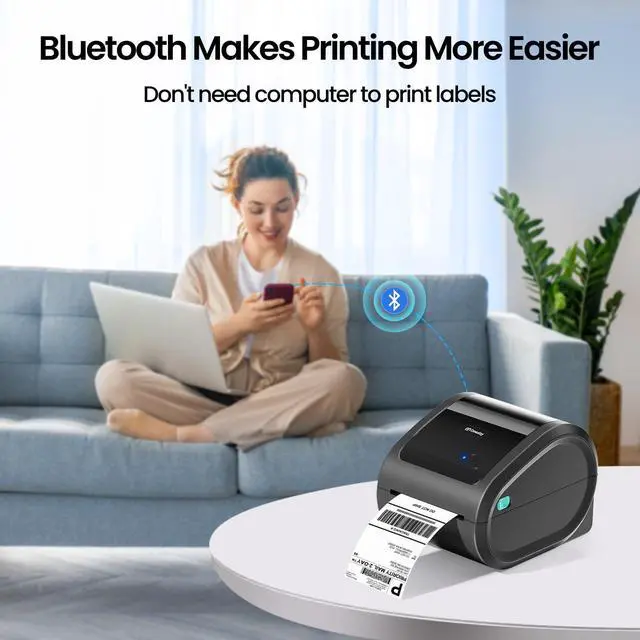
A phone will be enough to handle your business
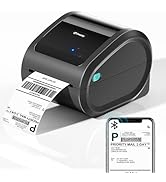
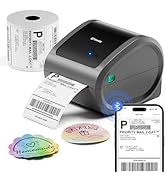
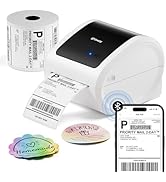
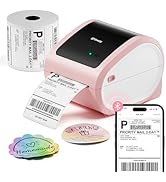
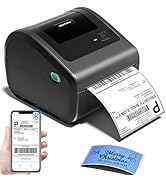
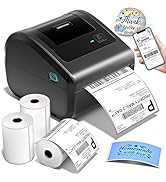
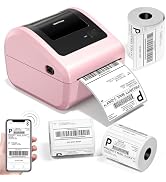
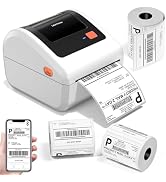
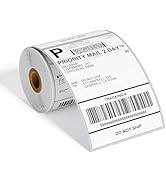
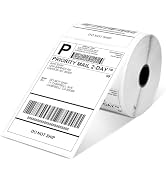
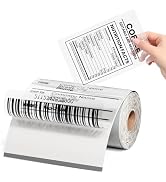
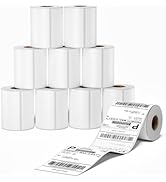
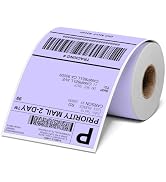
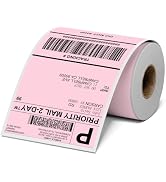
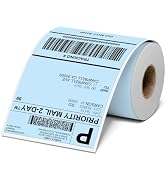
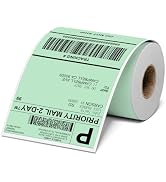
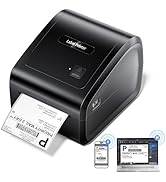
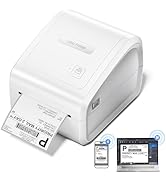
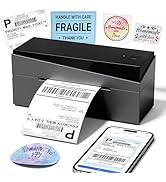
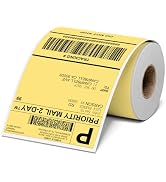
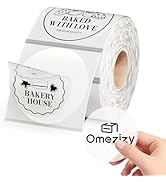
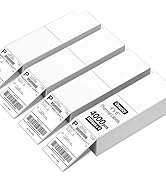
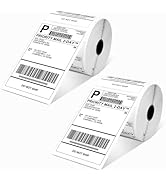
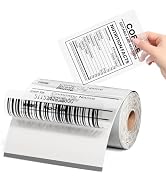
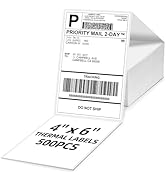
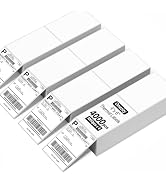
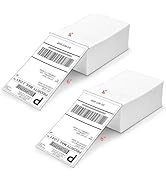
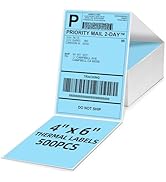
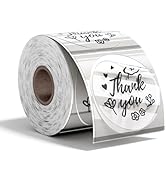
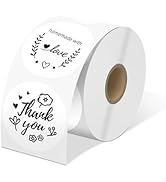
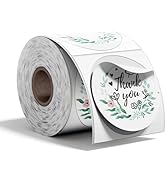
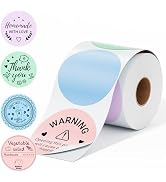
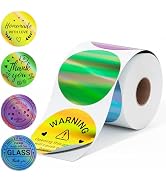
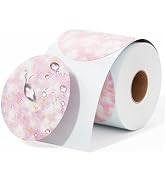

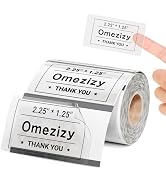
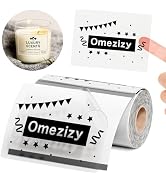
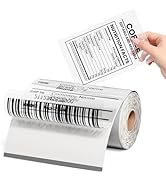
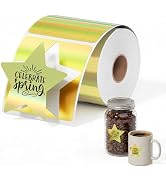
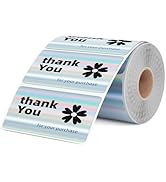
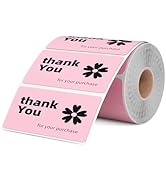
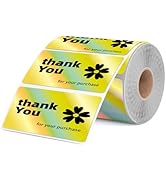
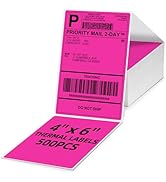

We always want to make printing more easier, we spend a lot to do tests and researches to achieve it.
Our Bluetooth label printer supports USB connection and Bluetooth connection, satisfy your different needs.
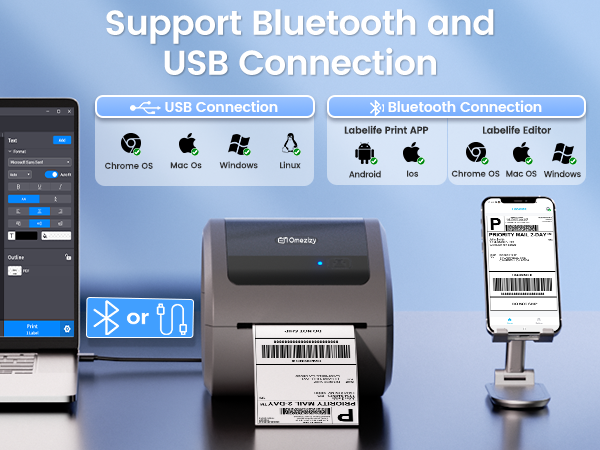
Support both Bluetooth and USB connection, use our APP to print with Bluetooth to make running a business only with a smartphone or tablet possible. Now, Windows & Mac also support printing via Bluetooth
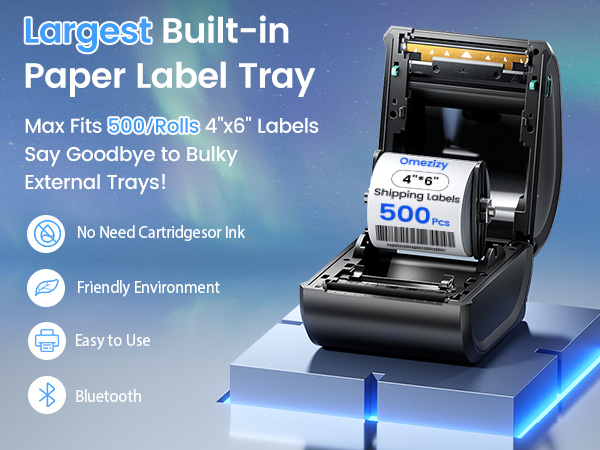
Largest Built-In Label Bin, Help You Save Space and Simplify Work
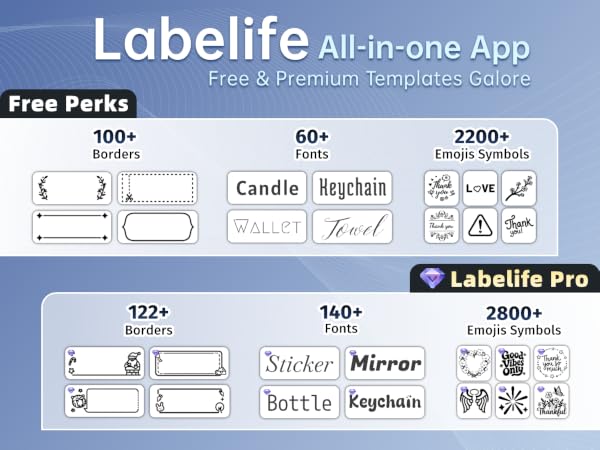
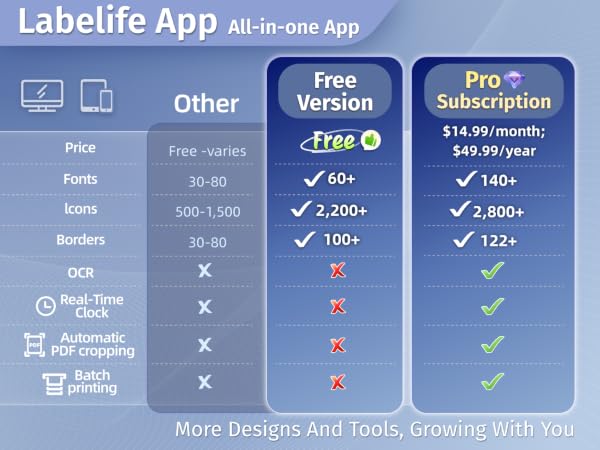
Step 1: Download the app mentioned in the guide from Google Play or the App Store
Step 2: Turn on your smartphone's Bluetooth and search for the printer in the app
Step 3: Import the printed PDF into the app and start your printing
Please Note: Do not connect via your phone's Bluetooth settings, must connect directly in the app
Step 1: Download and run the driver, then select the printer model – "D520 Printer"
Step 2: Choose “Bluetooth Connection” to finish the driver installation
Step 3: Open the Bluetooth settings on the computer, add the printer model "D520BT-Z"
Step 4: Edit labels & start printing
Step 1: Download and run the driver, then select the printer model – "D520 Printer"
Step 2: Choose “Bluetooth Connection” to finish the driver installation
Step 3: Open the Bluetooth settings on the computer, add the printer model "D520BT-Z"
Step 4: Edit labels & start printing
Step 1: Download the software mentioned in the guide from the Official Website
Step 2: Go to "Wireless Connections" in the software, select your printer, and click "Connect"
Step 3: Edit labels in the software & start printing
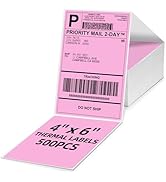
D520BT with 500pcs Labels | D520BT Label Printer | 4x6 Thermal Label 2500pcs | 4x6 Transparent Labels |  4x6 Thermal Label 4000pcs | Thermal Printhead | 4x6 Roll Thermal Labels |
|---|---|---|---|---|---|---|
| Customer Reviews | ||||||
| — | — | — | — | — | — | — |
| Price | ||||||
| — | — | — | — | — | — | — |
| Color | ||||||
| Grey | White | White | Transparent | Laser | Sliver | White |
| Support | ||||||
| Bluetooth & USB Connection | Bluetooth & USB Connection | Thermal Label Printers | Thermal Label Printers | Thermal Label Printers | Thermal Label Printers | Thermal Label Printers |
| Features | ||||||
| Compact & Built-in Label Bin | Compact & Built-in Label Bin | Using as Shipping Labels | Transparent & Waterproof | Using as Shipping Labels | Transparent &Steady | Using as Shipping Labels |
| Pack | ||||||
| 1 Printer+500pcs Labels | 1 | 2500 Labels | 100Pcs Labels | 4000 Labels | Small Businesses & Home Use | 250 Labels |
| High Quality | ||||||
| ? | ? | ? | ? | ? | ? | ? |
A phone will be enough to handle your business
We always want to make printing more easier, we spend a lot to do tests and researches to achieve it.
Our Bluetooth label printer supports USB connection and Bluetooth connection, satisfy your different needs.