here!
here!
I’m your shopping assistant for PC builds, upgrades, and everything tech.
Got questions? Ask away!
Start a conversation
here!
I’m your shopping assistant for PC builds, upgrades, and everything tech.
Got questions? Ask away!
Start a conversation




Any questions? Ask CelesteSM will help you find out quickly.
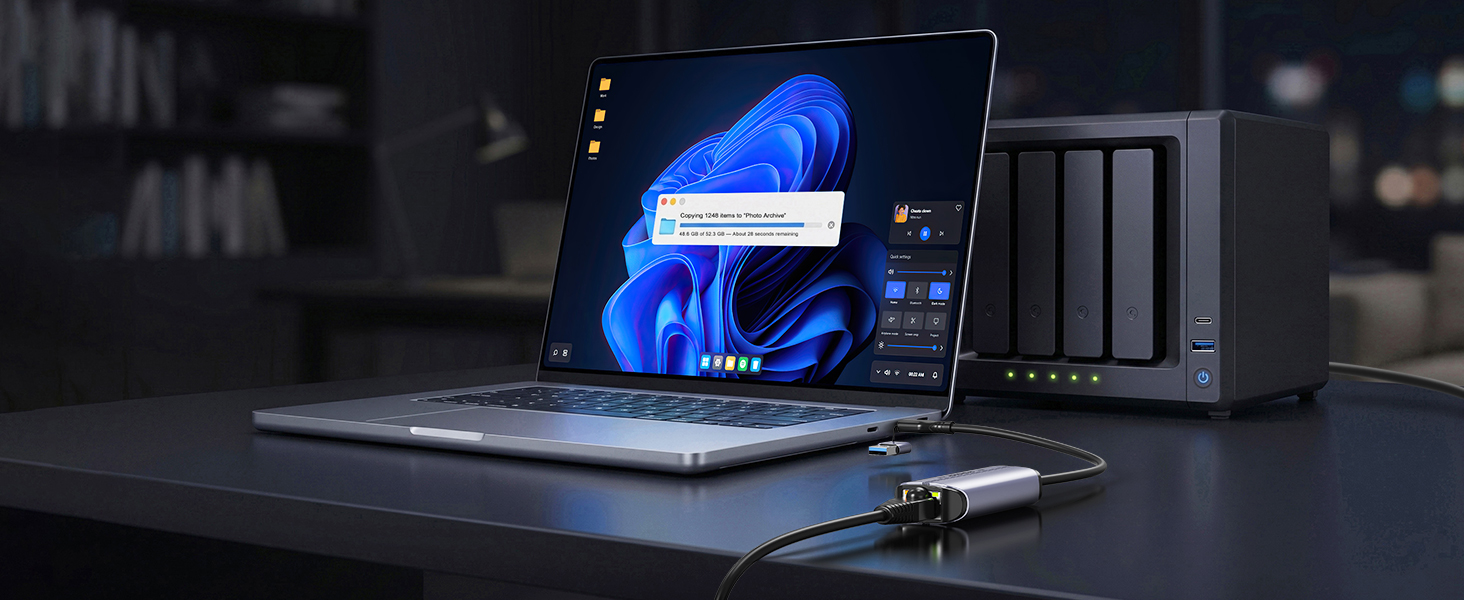
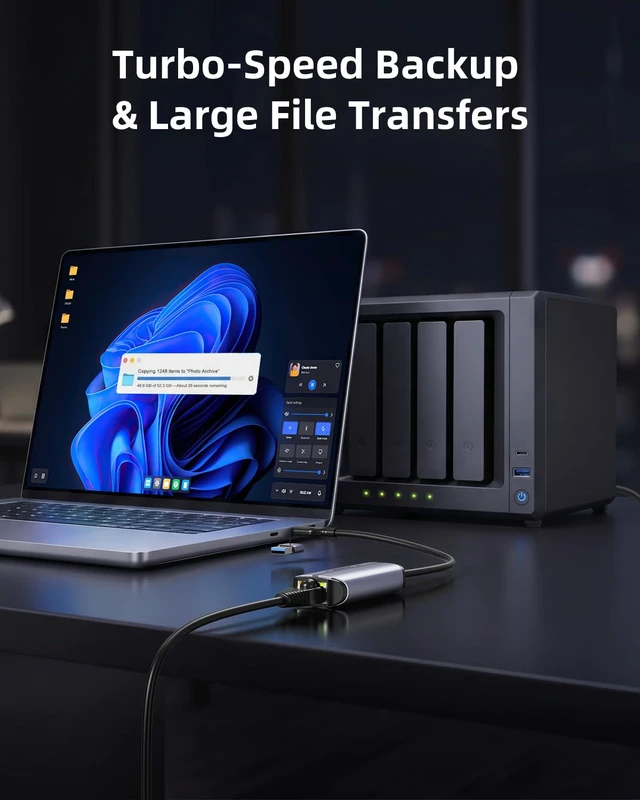
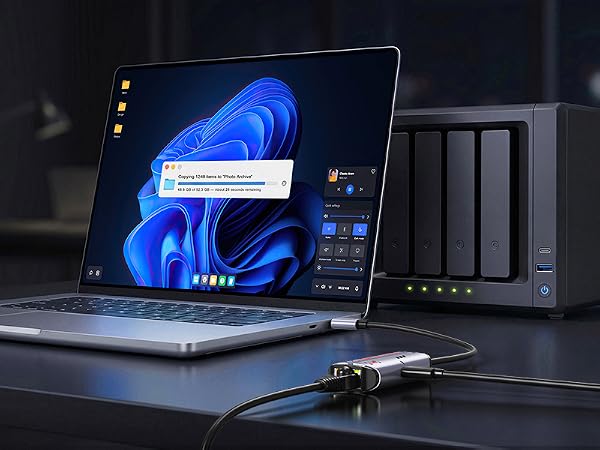
Connect to NAS and move large files faster with up to 2.5Gbps Ethernet performance.
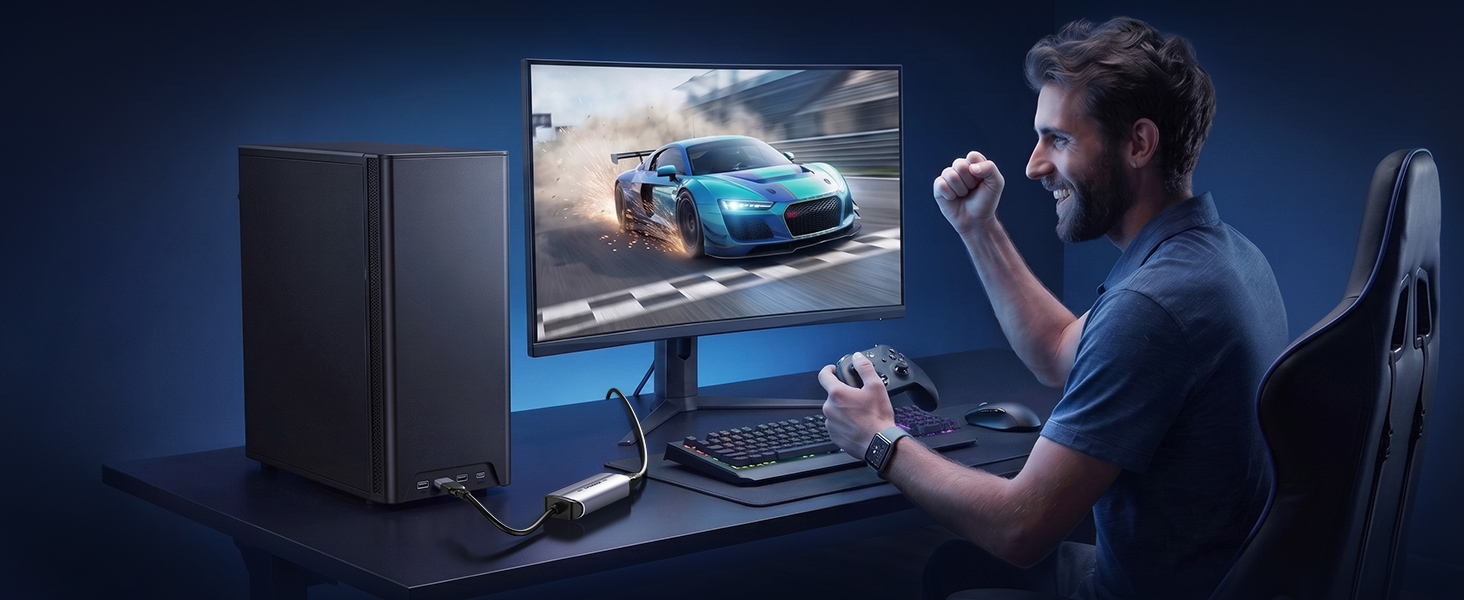
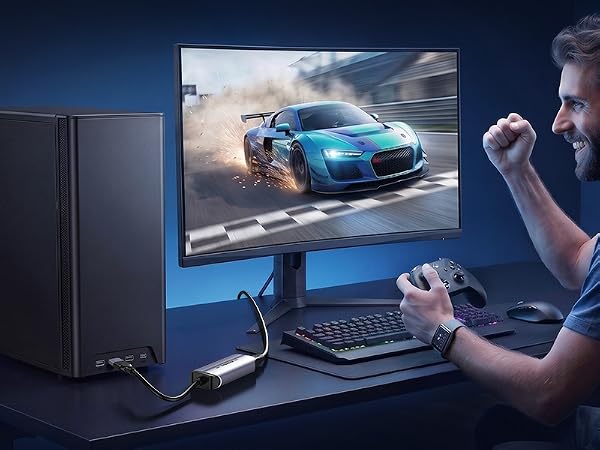
Enjoy a fast, stable wired connection for responsive gameplay and fewer network bottlenecks.

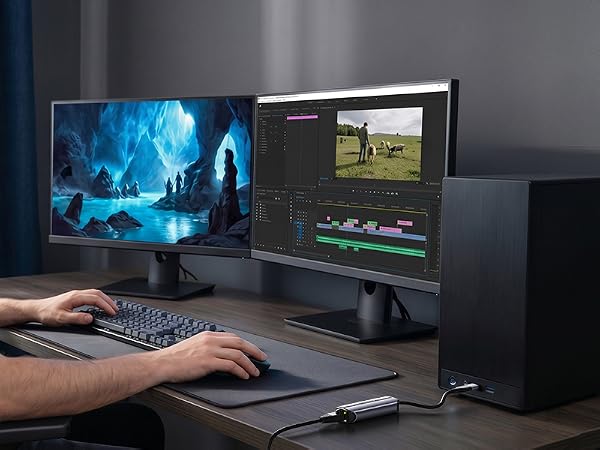
Stay connected for video calls, cloud work, and large file transfers with a reliable wired link.
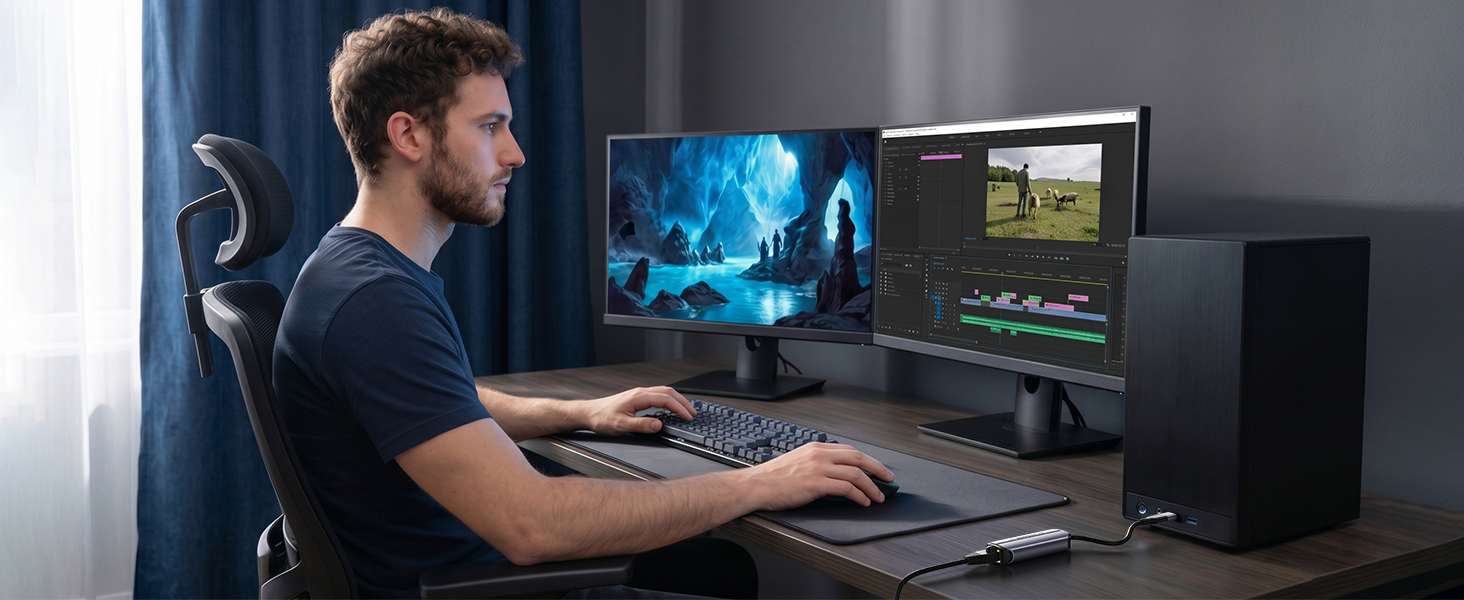
Speed up large file transfers and online workflows with a fast, reliable wired connection.
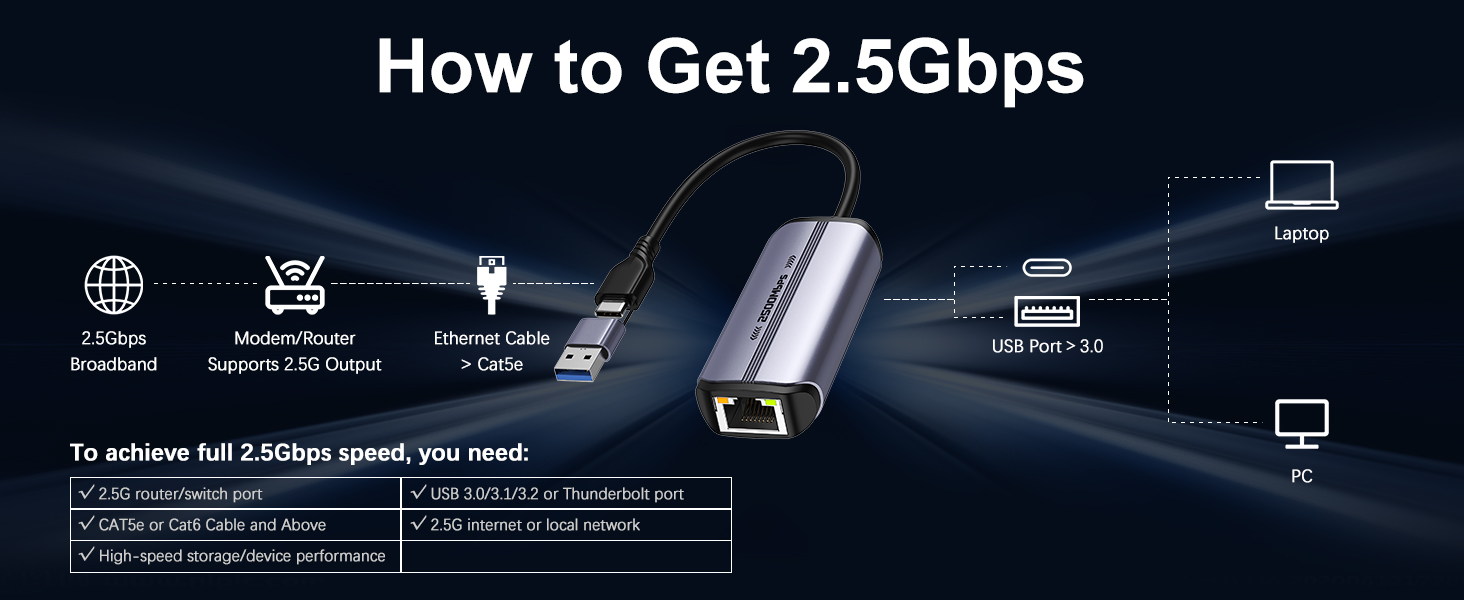
A full 2.5Gbps connection requires a 2.5G router or switch, Cat5e/Cat6 cable, USB 3.0+ or Thunderbolt port, and a 2.5Gbps-capable internet or local network.
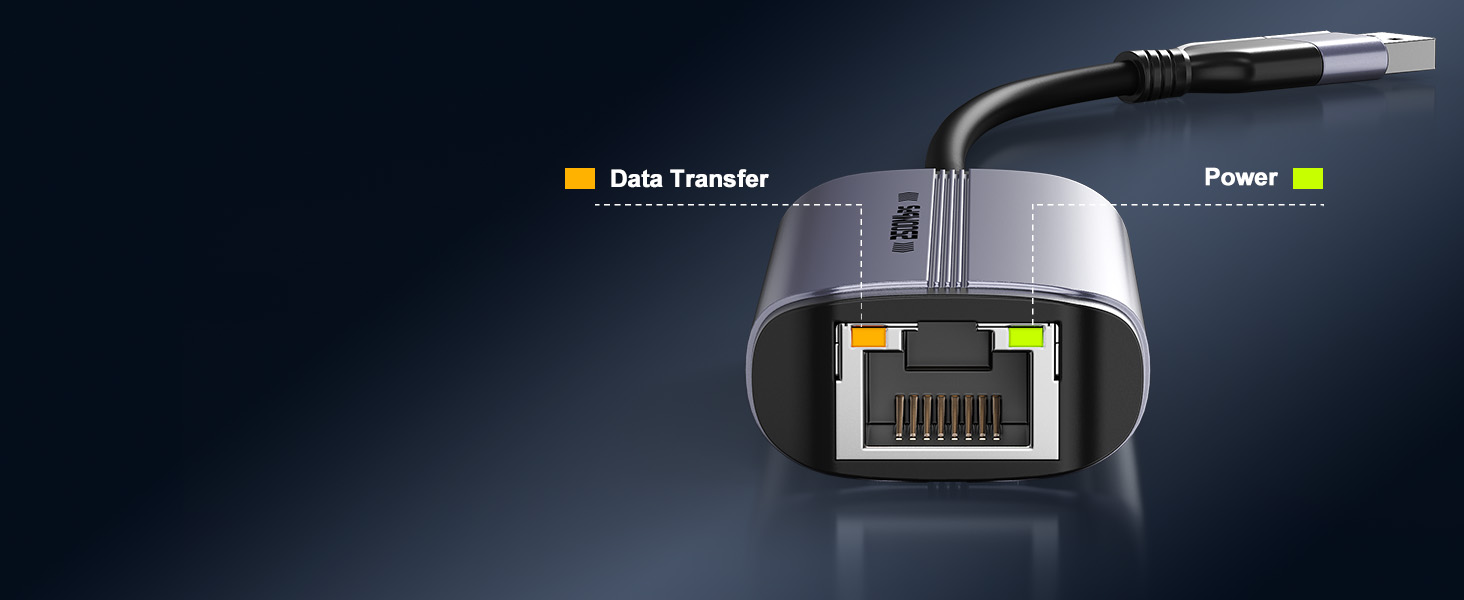
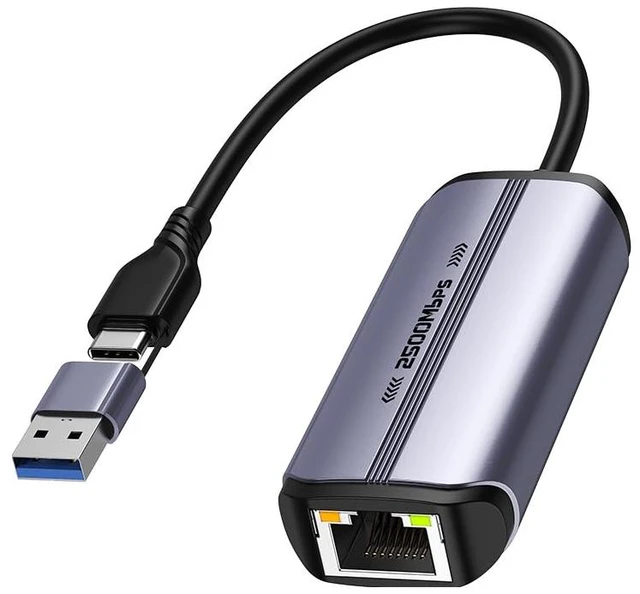
Green Light : Power / Link Ready - Solid on = Properly powered and recognized by device.
Orange Light : Network Activity & Connection Status - Flashing = Network cable is connected and data is being transmitted (upload/download) / Solid on = Cable is plugged in but no data is actively transferring.
• When the adapter is first plugged into your computer (without a network cable), both green and orange lights may stay solid – this is normal.
• Once an Ethernet cable is connected, the orange light will flash to confirm a live network connection. The green light may remain solid, but its presence is not required for network operation.
• If the green light is off or damaged, the adapter will still work flawlessly as long as the orange light is flashing.
Why can’t my 2.5G Ethernet adapter reach full speed?
Full 2.5Gbps performance requires a complete 2.5G network path. Speed may be limited by your internet plan, router or switch, Ethernet cable, Computer‘s USB port, connected device performance, or driver settings.
What should I do if the network speed cannot reach 2.5Gbps?
First, check your Ethernet link speed—make sure it‘s 2.5 Gbps. Then verify all devices (cables, switch, router, NAS) support 2.5G. Plug adapter to a native USB 3.0/USB-C port on your laptop or motherboard rear port. Update driver and restart.
What should I do if the ethernet adapter keeps disconnecting?
Reconnect the adapter and try a different USB 3.0/USB-C port. Check the Ethernet cable, disable power-saving features, restart your network devices and computer, then install the latest Realtek driver if the issue persists.
Connect to NAS and move large files faster with up to 2.5Gbps Ethernet performance.
Enjoy a fast, stable wired connection for responsive gameplay and fewer network bottlenecks.
Stay connected for video calls, cloud work, and large file transfers with a reliable wired link.
Speed up large file transfers and online workflows with a fast, reliable wired connection.

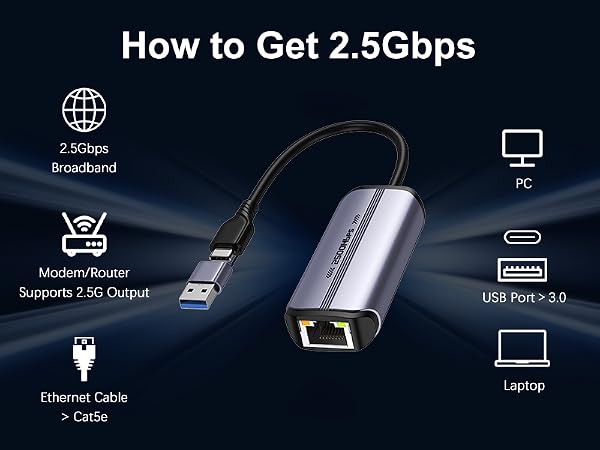
A full 2.5Gbps connection requires a 2.5G router or switch, Cat5e/Cat6 cable, USB 3.0+ or Thunderbolt port, and a 2.5Gbps-capable internet or local network.
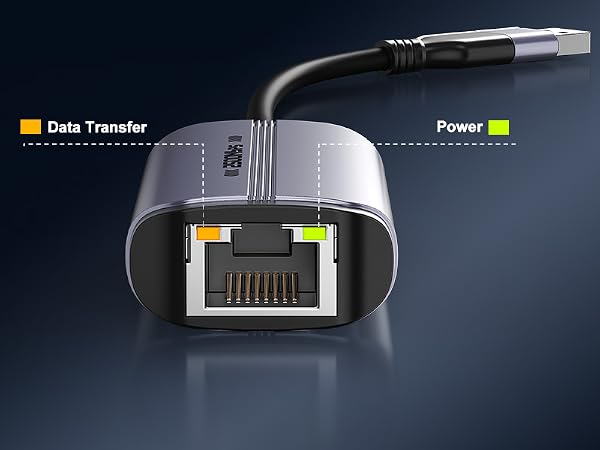
Green Light : Power / Link Ready - Solid on = Properly powered and recognized by device.
Orange Light : Network Activity & Connection Status - Flashing = Network cable is connected and data is being transmitted (upload/download) / Solid on = Cable is plugged in but no data is actively transferring.
• When the adapter is first plugged into your computer (without a network cable), both green and orange lights may stay solid – this is normal.
• Once an Ethernet cable is connected, the orange light will flash to confirm a live network connection. The green light may remain solid, but its presence is not required for network operation.
• If the green light is off or damaged, the adapter will still work flawlessly as long as the orange light is flashing.
| Driver Installation Guide | If can't work or can't reach 2.5 Gbps, or if it disconnects easily, please download driver : Realtek Official Web > Downloads > Communications Network ICs > Realtek USB FE / GbE /2.5GbE /5G / 10G Family Controller Software Quick Download Link. |
|---|---|
| Manual Install Required | Manual driver install required:Windows 8/8.1/7,macOS 10.15 (Catalina) and earlier. |
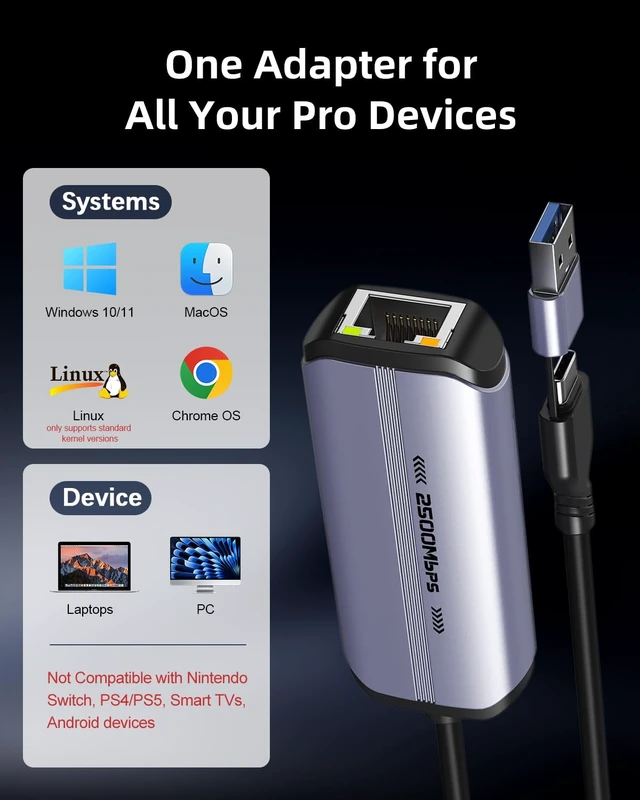
| Not Support | Not compatible with Android System, Nintendo Switch, Wii, PS4 / PS5,Samsung Galaxy Tab S7 FE / SM-P610, TV boxes, smart TVs. |
| Not recommended | Most phones and tablets do not support 2.5Gb Ethernet Adapters or cannot achieve full 2.5Gb performance. |
| Mac Compatibility Tip | If you experience lag or connectivity issues, make sure your macOS is updated to the latest version before troubleshooting further. |
Why can’t my 2.5G Ethernet adapter reach full speed?
Full 2.5Gbps performance requires a complete 2.5G network path. Speed may be limited by your internet plan, router or switch, Ethernet cable, Computer‘s USB port, connected device performance, or driver settings.
What should I do if the network speed cannot reach 2.5Gbps?
First, check your Ethernet link speed—make sure it‘s 2.5 Gbps. Then verify all devices (cables, switch, router, NAS) support 2.5G. Plug adapter to a native USB 3.0/USB-C port on your laptop or motherboard rear port. Update driver and restart.
What should I do if the ethernet adapter keeps disconnecting?
Reconnect the adapter and try a different USB 3.0/USB-C port. Check the Ethernet cable, disable power-saving features, restart your network devices and computer, then install the latest Realtek driver if the issue persists.