Your Browsing History
Meet Your Seller
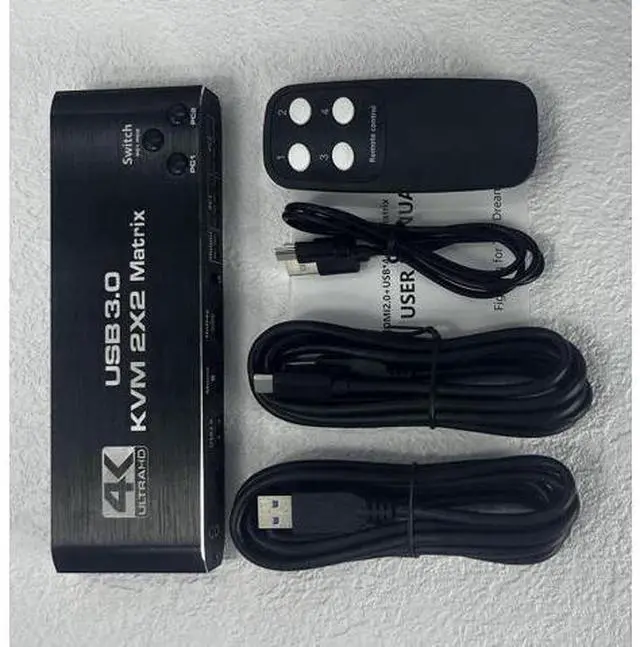
2x2 HDMI KVM Switch Matrix, 4K Dual Monitor HDMI KVM Switch Extended Display USB KVM Switch 2 in 2 Out for 2 Computers 2 Monitors with 3.5mm Audio, Support 4 USB 3.0 Share Keyboard Mouse with Hotkey
- [KVM Matrix Switch 2x2] The HDMI KVM Matrix console controls a computer or laptop that shares a set of USB keyboard, mouse and dual-monitor, and expands or copies the display. NOTE: The computer needs to support 2 screens or more Function.; [USB3.0 KVM Switch with Audio Output] The integrated 2 USB 3.0 hub ports allow you to share 2 USB peripherals between 2 computers, such as printers, scanners, with a data transfer rate of up to 5Gbp/s.Our KVM Switch comes with 3.5mm Audio Jack ports, which can be inserted into a 3.5mm device.; [UHD 4K@60Hz HDMI KVM Dual Monitor] Supports resolution 4K @ 60Hz, RGB 4:4:4 and backwards compatibility. Support 3D,HDR,HDCP, make the image display more delicate and real.; [Multiple switching modes] The USB Switch provides a variety of switching methods: manual switching through buttons, infrared remote control, keyboard hotkeys for quick channel selection.; [Wide Compatibility] Supports multiple operation systems. Windows XP/7/8/ 10/ MACos /Linux /Unix etc.,
+
+
Overview
Specs
Reviews
Any questions? Our AI beta will help you find out quickly.
Try me now
Support HDMI 2.0 b HDCP 2.3 --compliant with DVI to HDMI, DP to
HDMI - Resolution: Support 1080P/1080@144Hz, 3840x2160p, 4K/60Hz resolution, adaptive screen resolution -
Support system: Windows XP/7/8/10, MAC, Linux, Unix and other operating systems - Supports high current hard disk devices Extended /
Mirror mode Switching Method: 1. Press the Switch(PC 1 / PC 2) button on the KVM switch panel to switch between the two source devices; 2. use hotkey switch(Ctrl+Shift+ 1 / 2 to PC1 / PC2 or Ctrl + Ctrl), Ctrl+Shift+ K to turn ON/OFF hotkey; Crisscross/Matrix Mode
Switching Method: 1. Press the PC 1 Button, OUTPUT 1 is selected by PC 1, Each time press PC 1 button, it will switch to HDMI IN 1 / 2 / 3 / 4; Press the PC 2 Button, OUTPUT 2 is selected by PC 2, Each time press PC 2 button, it will switch to HDMI IN 1 / 2 / 3 / 4. 2. Press the PC 1 Button, OUTPUT 1 is selected by PC 1, Use IR remote control to press [1] [2] [3] [4] button, it will switch to HDMI IN 1 / 2 / 3 / 4; Press the PC 2 Button, OUTPUT 2 is selected by PC 2, Use IR remote control to press [1] [2] [3] [4] button, it will switch to HDMI IN 1 / 2 / 3 / 4.

HDMI - Resolution: Support 1080P/1080@144Hz, 3840x2160p, 4K/60Hz resolution, adaptive screen resolution -
Support system: Windows XP/7/8/10, MAC, Linux, Unix and other operating systems - Supports high current hard disk devices Extended /
Mirror mode Switching Method: 1. Press the Switch(PC 1 / PC 2) button on the KVM switch panel to switch between the two source devices; 2. use hotkey switch(Ctrl+Shift+ 1 / 2 to PC1 / PC2 or Ctrl + Ctrl), Ctrl+Shift+ K to turn ON/OFF hotkey; Crisscross/Matrix Mode
Switching Method: 1. Press the PC 1 Button, OUTPUT 1 is selected by PC 1, Each time press PC 1 button, it will switch to HDMI IN 1 / 2 / 3 / 4; Press the PC 2 Button, OUTPUT 2 is selected by PC 2, Each time press PC 2 button, it will switch to HDMI IN 1 / 2 / 3 / 4. 2. Press the PC 1 Button, OUTPUT 1 is selected by PC 1, Use IR remote control to press [1] [2] [3] [4] button, it will switch to HDMI IN 1 / 2 / 3 / 4; Press the PC 2 Button, OUTPUT 2 is selected by PC 2, Use IR remote control to press [1] [2] [3] [4] button, it will switch to HDMI IN 1 / 2 / 3 / 4.
Warranty & Returns
Warranty, Returns, And Additional Information
Warranty
- Please contact the Seller directly for warranty information. Warranty information may also be found on the Manufacturer's website.
- CONTACT
Return Policies
- Return for refund within: 30 days
- Return for replacement within: 30 days
- This item is covered by LUOYIMAN Return Policy
Manufacturer Contact Info
- For a directory of all our manufacturers, please click below.
- Manufacturers Directory
LOADING...