

Your Browsing History
- Free 30-day Returns
$144.99

Meet Your Seller

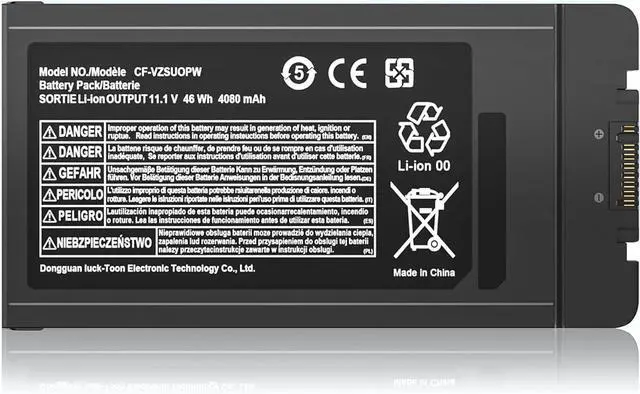
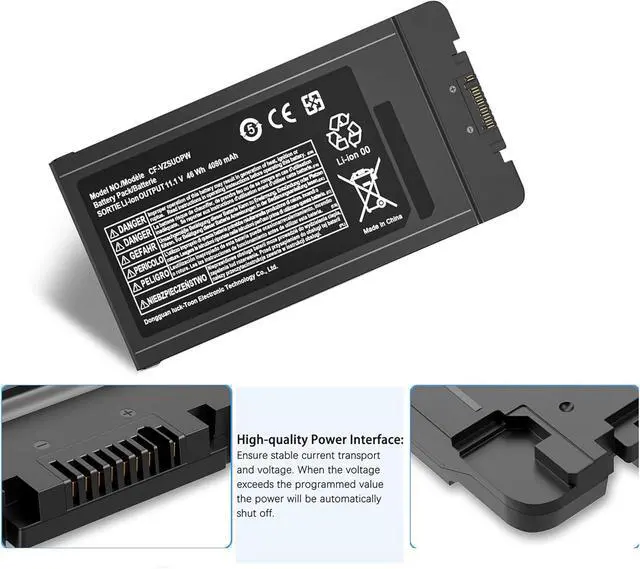
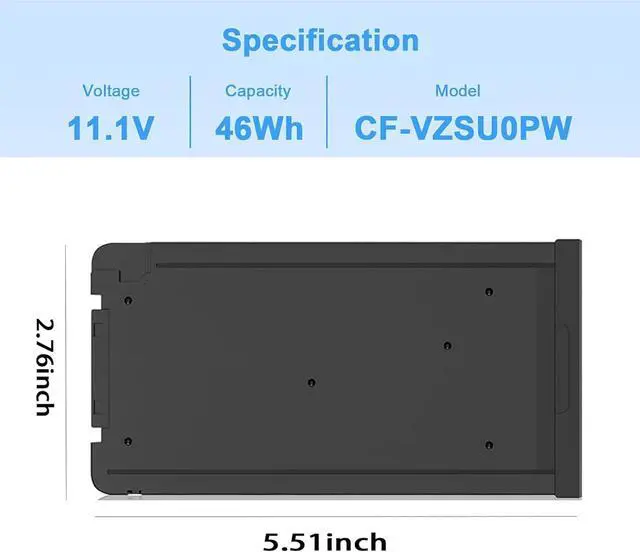
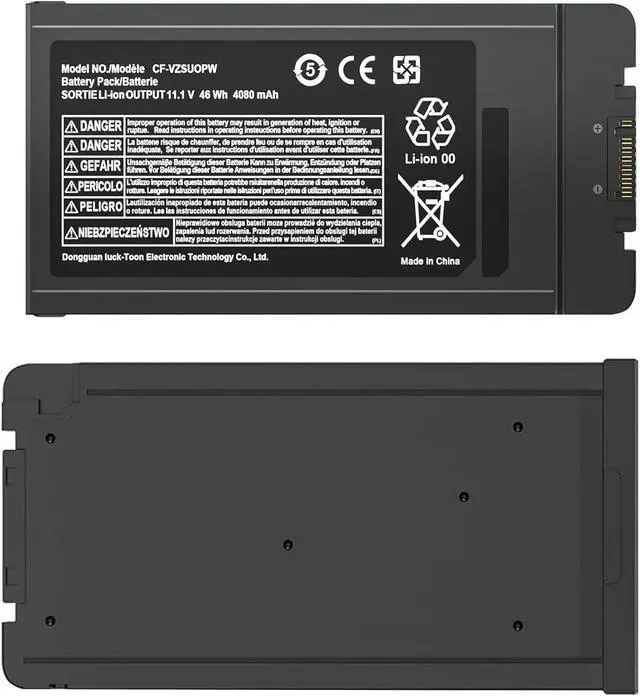



CF-VZSU0PR CF-VZSU0PW Laptop Battery Compatible with Panasonic Toughbook CF54 CF-54 Mk1 Mk2 Mk3 Series 54 Gloved Multi Touch 54 Lite 54 Performance 54 Prime CF-54F9001KM CF-VZSU0GW CF-VZSU0KR 46Wh
- SpecificationVoltage: 11.1V. Capacity: 46 Wh 4080mAh. Battery Type: Li-Polymer. Condition: Brand new, from high quality materials, top circuit boards and smart chip.
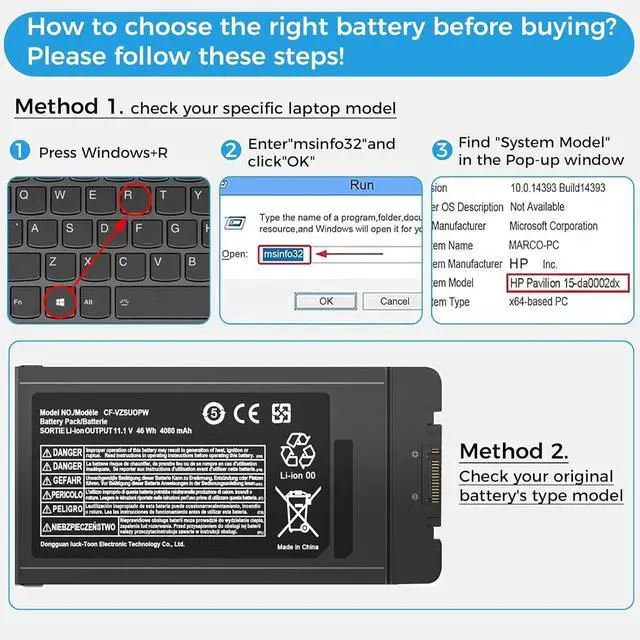
- Replace Part NumberFit for CF-VZSU0GJS CF-VZSUOPW CF-VZSU0PJS CF-VZSUOLW CF-VZSU0PW CF-VZSU0PR CF-VZSUOGW CF-VZSU0LW CF-VZSU0KJS CF-VZSU0KW CF-VZSU0KR CF-VZSU0PK CF-VZSU0GW.
- Compatible Laptop ModelsCompatible with Panasonic Toughbook CF54 CF-54 Mk1 Mk2 Mk3 Series.Panasonic Toughbook 54 Gloved Multi Touch, 54 Lite, 54 Performance, 54 Prime Series, CF-54F9001KM CF-54G2999VM CF-54F0961NE CF-54F0961VM CF-54A0005CM CF-54D2912VM CF-54D0005KM Laptop Notebook Battery.
- After Sell Service:We have always been committed to provide products of superior quality at unbeatable prices, if you have any questions about the items, please feel free to contact our customer service team, we will reply you within 24 hours
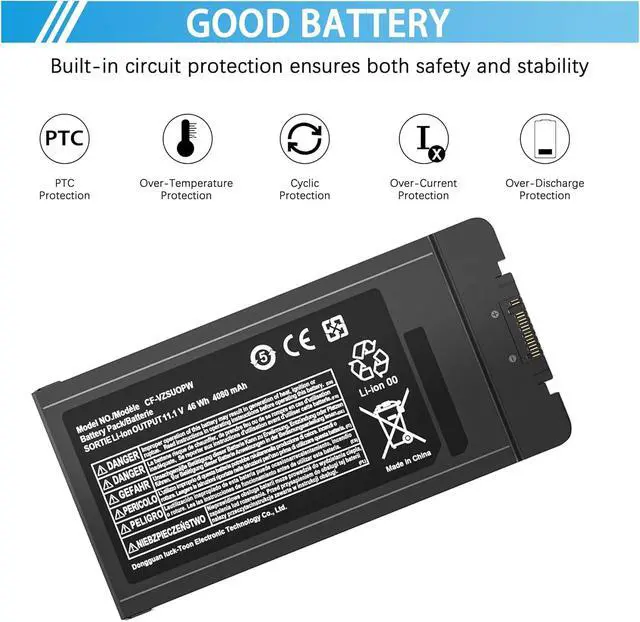
- High Safety 100% New, 100% Compatibility. Over-current protection, over-voltage protection, over-temperature pr
+
+
Overview
Specs
Reviews

Any questions? Our AI mode will help you find out quickly.
Try me now
Why the laptop does not recognize the battery
1.Could be caused by battery loose. Please re-install the battery and make sure that the battery cable and the motherboard interface are tightly inserted.
2.Maybe due to conductive material damaged which the laptop motherboard and battery anode and cathode contact position, you can try to confirm it with your original battery.
3.Check whether the battery drive is in normal condition, if not, download the corresponding driver software to update.
4.There is a problem with the computer detection software, which usually just restart the computer.
How to use the new battery correctly
1. When using your new battery for the first time, you need to prime the battery by charging it to 100% and discharging it to 20% for 3 times. If you don't know how to install a new laptop battery, you can search "How to install a new laptop battery?" on website.
2. DO NOT let the battery drain to 0%: If you constantly let it drain to 0%, the battery becomes unstable will be seriously degraded.
3. DO NOT keep your battery always fully charged: Just like emptying your battery to 0%, keeping your battery permanently charged at 100% is very harmful. As time goes by, this will increase its internal resistance and reduce its capacity.
4. Perform regular charging cycles: If you dont use your Laptop battery very often, it is important to cycle it (discharge => charge) regularly, at least once a month. Please store the unused battery fully charged. Do not store at low power to prevent reduce the lifespan of a battery.
5.The battery life depends on how you use your laptop. If you open a lot of software at the same time, in the office, while listening to music, while browsing the Internet, also watching a movie, then the battery will drain fast; If you don't have a lot of software running on your computer, and you're only on standby or browsing the web, the battery will last longer.
Easy Ways To Maximize Battery Life:
1. Change your laptop power plan settings. I would suggest you choose the power saver plan. Then Change advanced power settings, scroll down to find Processor power management. Click the On-battery option and reduce the processor state to 20%.
2. Always keep your laptop neat and clean. The dust easily enters the hardware through the vents which are meant to release the heat generated from various computer components. It then blocks the vents preventing the outflow of the heat. This damages the computer parts including the battery.
3. Close Wi-Fi, Bluetooth, and other settings. You should keep the Bluetooth and WiFi off when youre watching movies or doing other things which dont require network connectivity. This can help your computer save precious battery life.
Warranty & Returns
Warranty, Returns, And Additional Information
Warranty
- Please contact the Seller directly for warranty information. Warranty information may also be found on the Manufacturer's website.
- CONTACT
Return Policies
- Return for refund within: 30 days
- Return for replacement within: 30 days
- This item is covered by E-Transit Limited Return Policy
Manufacturer Contact Info
- For a directory of all our manufacturers, please click below.
- Manufacturers Directory
LOADING...