Method 1: Using System Information to Find Your Laptop Model
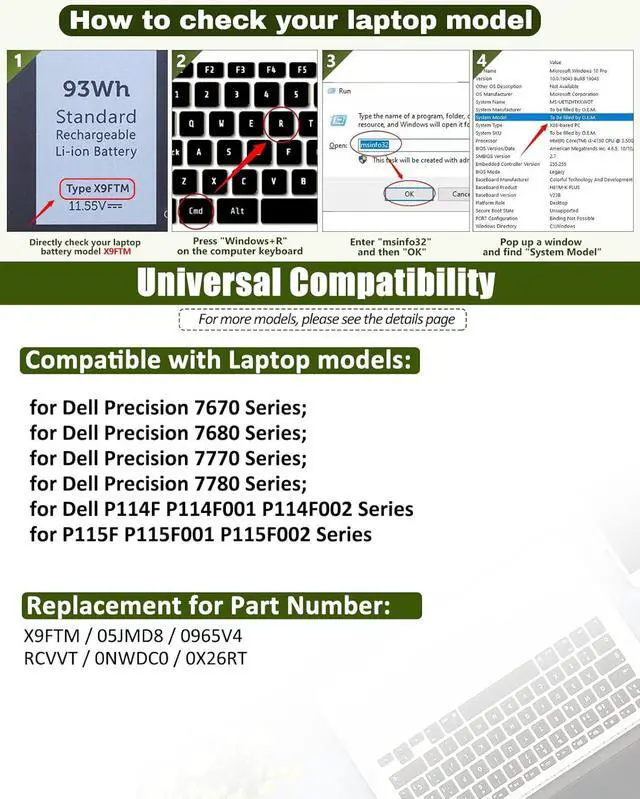
Open the Run Window: Press the Windows + R keys simultaneously to bring up the Run window.
Access System Information: Type msinfo32 into the input box and click OK to launch the System Information tool.
Locate the System Model: In the System Summary section, you will find the System Model item listed in the right pane. This will provide you with the exact model of your laptop, which is crucial for identifying the compatible battery.
Method 2: Checking the Battery and Laptop Model Directly
Power Off and Unplug: Before you begin, ensure that your laptop is turned off and the power cord is disconnected to avoid any risk of electric shock.
Remove the Back Panel: Carefully use a screwdriver to remove the back panel of your laptop. Please proceed with caution to prevent any damage to the internal components.
Disconnect and Remove the Battery: Gently disconnect the cable attached to the battery and remove it from the laptop. Once the battery is out, you can easily check its specifications, including the type, capacity, and model number.
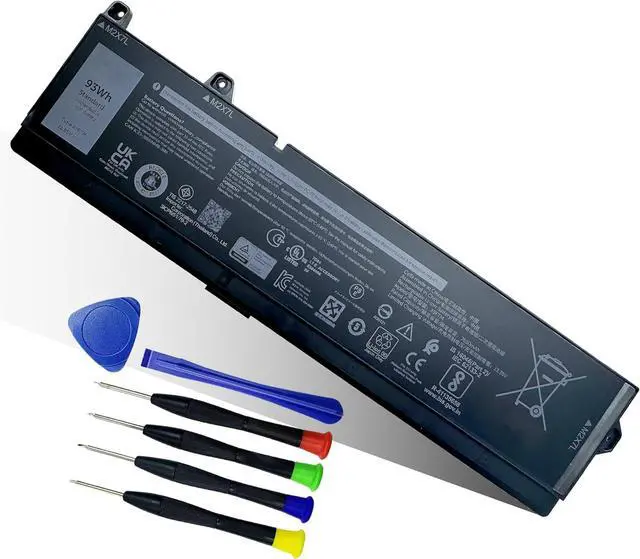
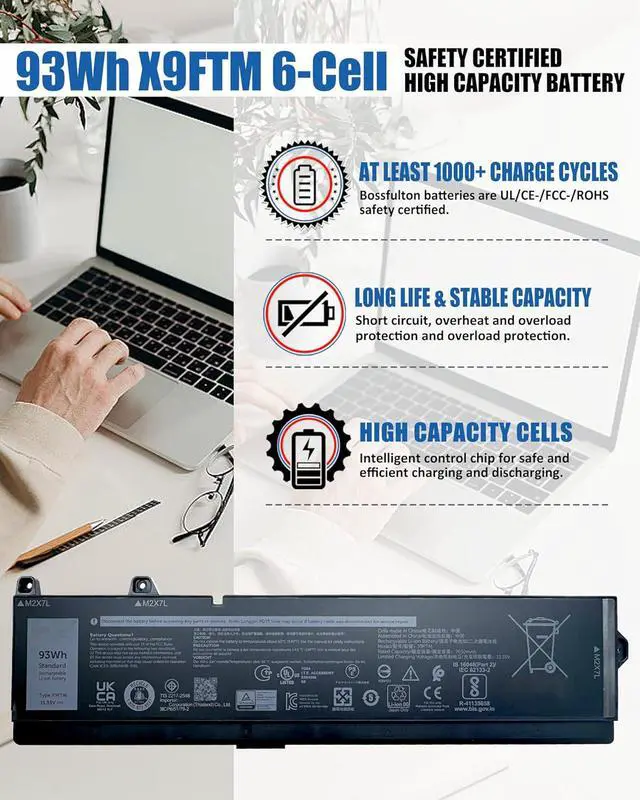
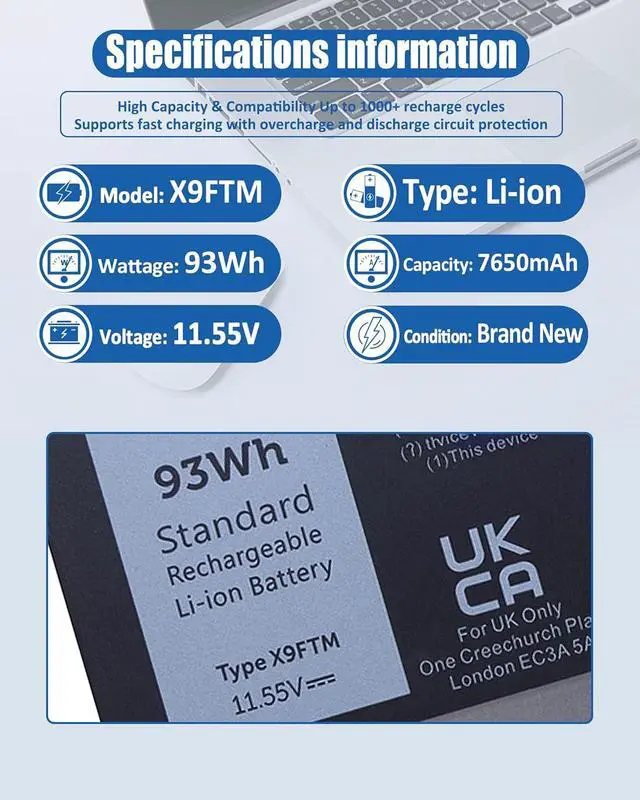
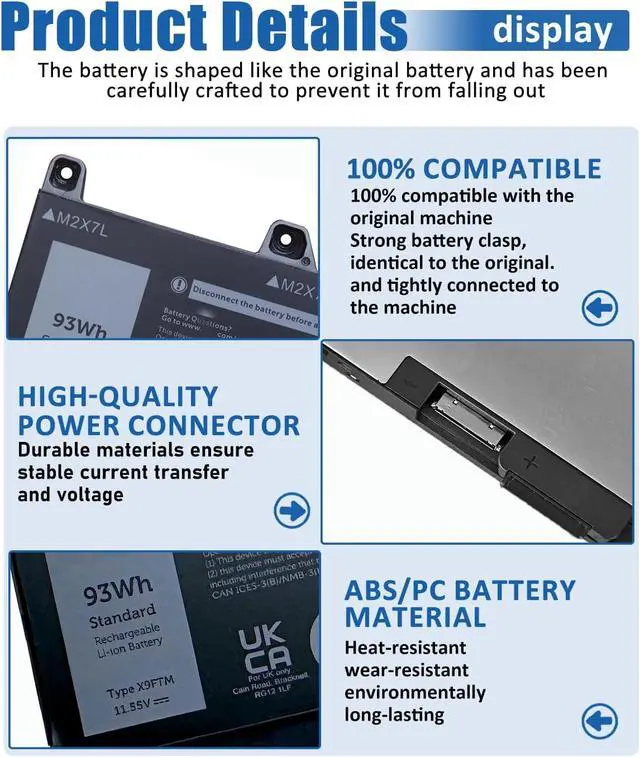
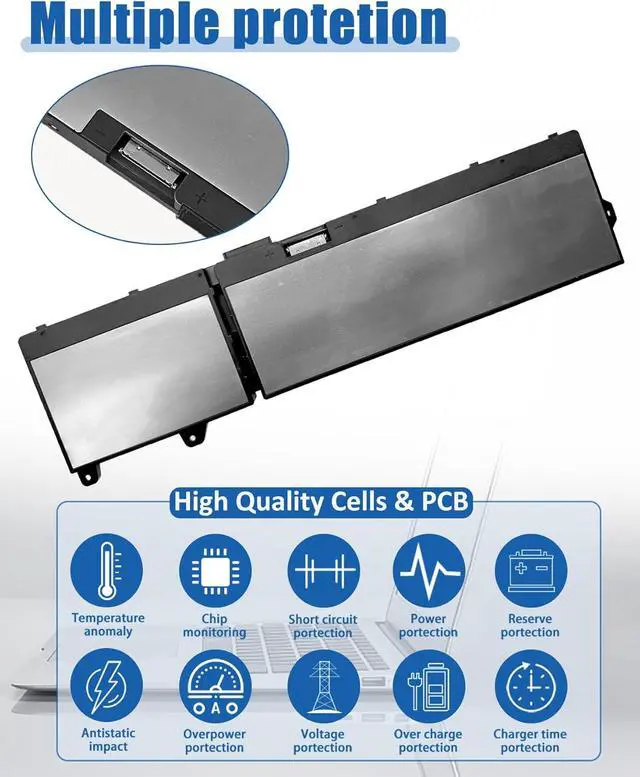
X9FTM DELL Battery
Replacement for Dell Precision 7670 Series;
Replacement for Dell Precision 7680 Series;
Replacement for Dell Precision 7770 Series;
Replacement for Dell Precision 7780 Series;
Replacement for Dell P114F P114F001 P114F002 P115F P115F001 P115F002 Series
New Batteries: When using a new battery, fully activate the battery by discharging it to 5% (not 0%) and then recharging it to 95% 3-4 times.
Overuse: Do not always use the battery at 0%, as this may damage the battery or shorten its life.
Charging sequence: When charging, install the battery first, then turn on the power, when fully charged, cut off the power first, then unplug the power.
Long-term storage: Please store the unused batteries fully charged (charging once a month), do not store them at low battery level, which may shorten the life of the batteries.
Charger: Please do not change the laptop adapter arbitrarily, do not connect the adapter for a long time when using the battery, if the original adapter can not be used due to malfunction or damage, please change the model to avoid reducing the life of the battery due to incompatibility.
Why does my laptop not recognize this battery?
It may be caused by a missing battery. Please reinstall the battery and make sure the battery connection cable is plugged tightly with the motherboard connector.
It may be due to damage to the conductive material at the positive and negative contacts between the laptop motherboard and the battery, you can try to confirm with the original battery.
Check whether the battery driver is normal, if not, please download the appropriate driver software to update.
Tips for installing a new battery:
A free removal kit is included in the package, you need to turn off your laptop and disconnect the power.
Remove the old battery, carefully install the new battery on the battery compartment and connect the wires of the new battery.
If you still don't understand the above steps, you can go to YouTube/official website to search for videos about laptop battery installation, which may help you.
Laptop Battery Instructions:
Upon receipt of the battery, first check if the battery size is the same as the original battery. When installing the battery, please pay attention to whether the battery connecting cable is fixed firmly. If the battery connecting cable is not installed correctly, the battery may not be charged.
If you use the battery for the first time after installing the battery, please do not charge the battery immediately, first use the battery to 10-20%, then charge the battery and cycle charging 5-6 times to activate the battery's maximum usage space.
It is recommended that you search for battery disassembly tutorials on the In