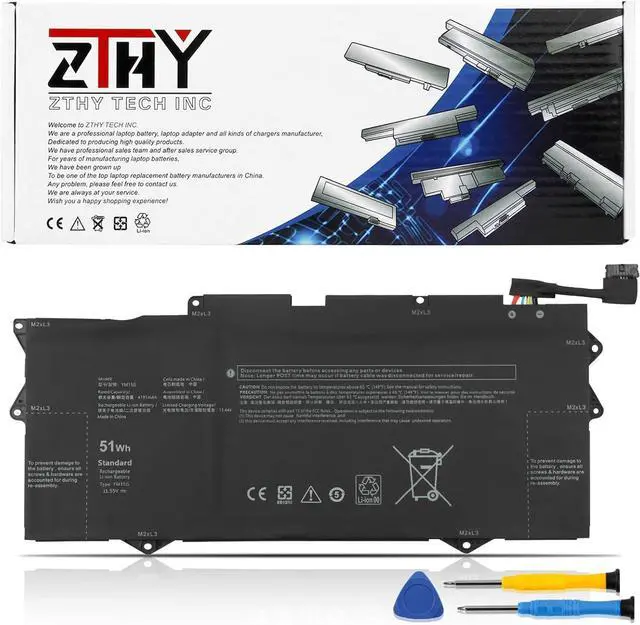
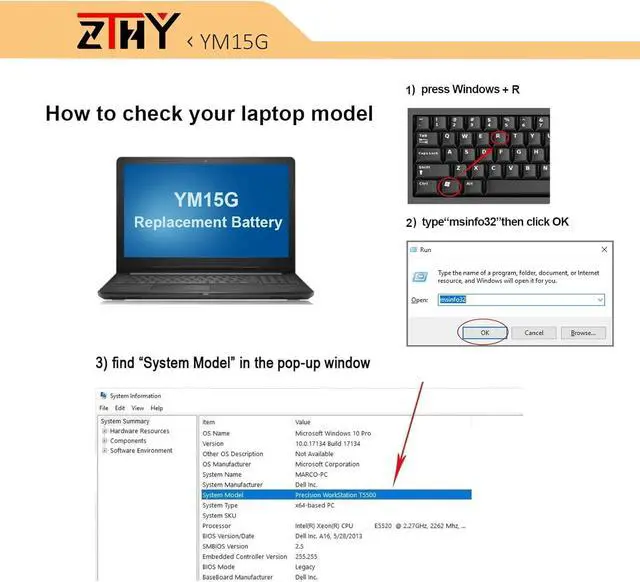
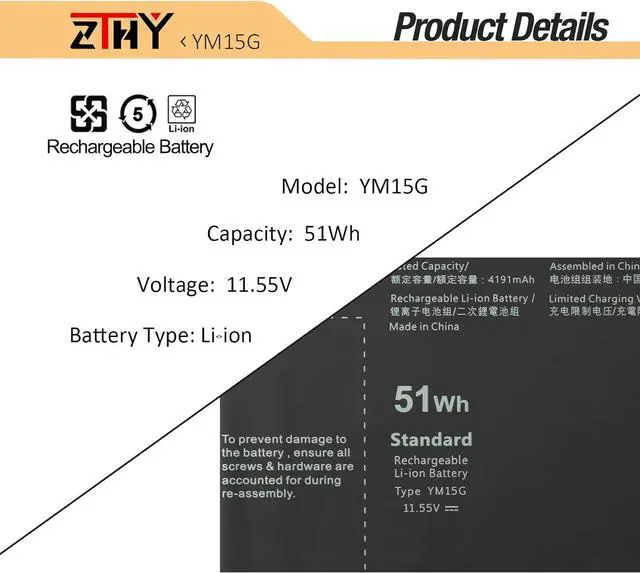
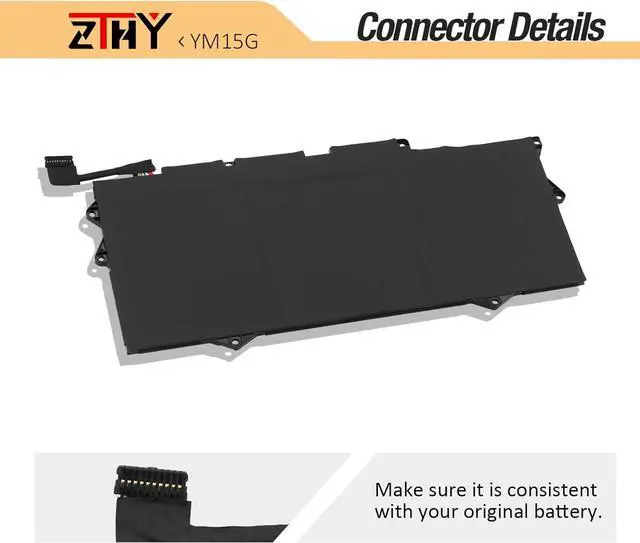
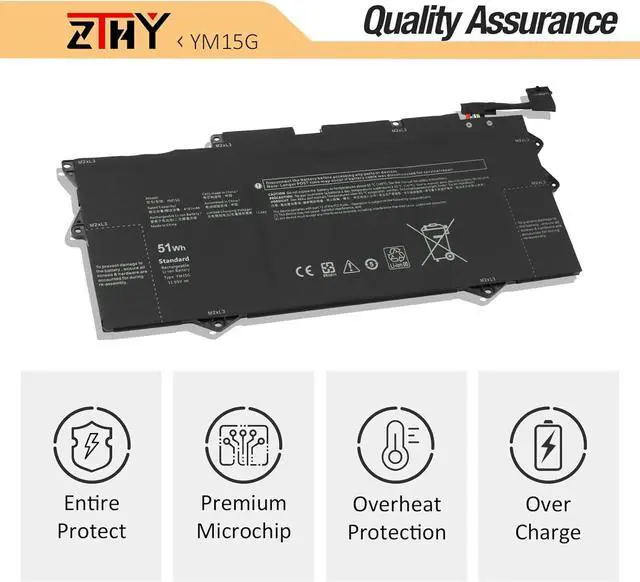
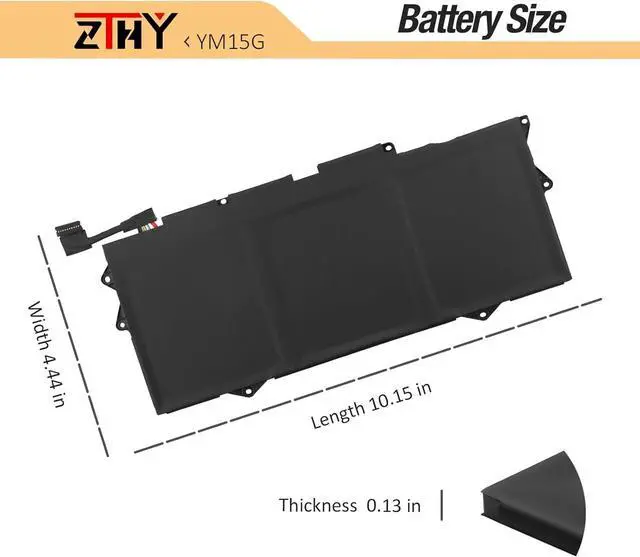
SpecificationsBattery Condition: Brand New Battery Voltage: 11.55V Battery Capacity: 51Wh/3-CellCompatible Part NumberYM15G G9FHC 0G9FHC W6D4H 0W6D4H 31CP4/78/90Compatible ModelReplacement for Dell XPS 13 9315 9315-P1708LTW 9315-D1705S 9315-C0NNP 9315-WP01KR SeriesNoteIf you install the battery, you find that the device cannot detect the battery or the battery level cannot be displayed normally. Please check whether the battery cable is installed properly. Sometimes the battery cannot be charged because the cable is not fixed properly. What do I need to be aware of when I receive a battery?
You need to check its appearance, confirm the model, read the instruction manual. Cycle and charge it 5 to 6 times to activate the maximum usage space of the battery. When not in use temporarily, charge the battery to 50%-60%.
What should I do if laptop won't boot up after installing a new battery?
1.Check if the battery is properly seated and connections are clean. 2.Try charging it or use the adapter alone to start. 3.Examine hardware links, like RAM and adapters. 4.Reset BIOS settings if needed. 5.Enter Safe Mode to fix system issues.
How should I do if the battery is not recognised?
If it is not recognised, it is recommended to update the BIOS settings or please disconnecting the old battery, and holding down the power button for 20 seconds, then connect the new battery.
What should I do if the battery expands?
1.Power off your laptop and disconnect it from any power source. 2.Carefully remove the swollen battery from the laptop in a well-ventilated area, avoid pressing or squeezing the battery during removal.
What can you do if you are not satisfied with the battery?
Please Contact ZTHY, we'll help you. Our battery have 12 months replace a new one and 30 days moeny back guarrante.
Battery Installation Guidelines
1.Prepare Before Installation: While installing a battery is generally straightforward, it is recommended to watch online installation tutorials for your specific laptop model or seek assistance from a professional.
2.Follow Installation Procedures: Handle all components with care during installation. Be particularly gentle with the battery connector on the laptop motherboard; do not use excessive force. Any damage caused by improper operation is the user's responsibility.
3.If the New Battery Doesn't Charge: If the battery isn't charging after installation, try a power reset: remove the battery, unplug the charger, hold the power button for 15 seconds, and then reinstall the battery. Repeat this process if necessary.
Battery Identification Troubleshooting Guide
1.Check the Connection: A loose battery is a common cause. Remove the battery and reinstall it, ensuring the connector is firmly seated in the motherboard interface.
2.Inspect Conductive Components: The conductive materials on the laptop's battery contact points can become damaged. Compare with an original battery to confirm (if the original battery works, the conductive components are likely the issue).
3.Update the Battery Driver: Check the device's driver status. If the battery driver is malfunctioning, download and install the latest driver for your specific laptop model.
4.Perform a Power Reset: Remove the battery and, with the power adapter unplugged, press and hold the power button for 15 seconds to discharge residual power. Reinstall the battery and attempt to power on. You may need to repeat this process if it is ineffective the first time.
Battery Usage and Maintenance Tips: 1.Activating a New Battery: New batteries often arrive with a partial charge (around 50%). To maximize initial performance, discharge the battery to 10-20% and then charge it to 100%. Repeat this cycle 3-5 times. 2.Avoid Full Discharge: Never drain the battery to 0%, as this can damage the battery cells and accelerate aging. Extreme low power may also cause the lapto





 here!
here!