

Your Browsing History
- Free 30-day Returns
$122.99

Meet Your Seller

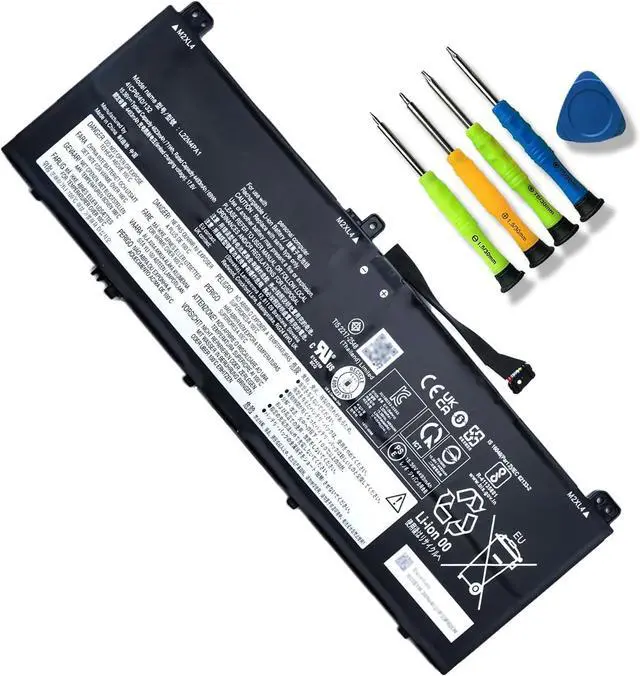
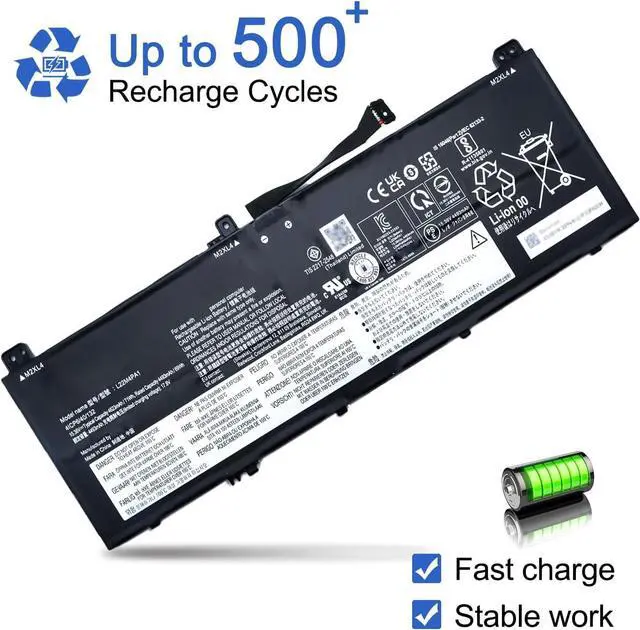


JOTACT L22M4PA1 71Wh SB11K38964 Laptop Battery Compatible with Lenovo Yoga 7 14IRL8 16ARP8 14ARP8 16IRL8 Yoga 7 2-in-1 14IML9 14AHP9 16IML9 16AHP9 Series L22C4PA1 SB11K38965 L22D4PA1 SB11K38967
- Customer SupportRest assured with 30 days Refund and 12 months Replacement,also get our friendly customer service;(Note: The return window will be closed a month after you received the Battery .If you have any problem with this battery, please Contact us - in "YOUR ORDER" options click the "contact seller")
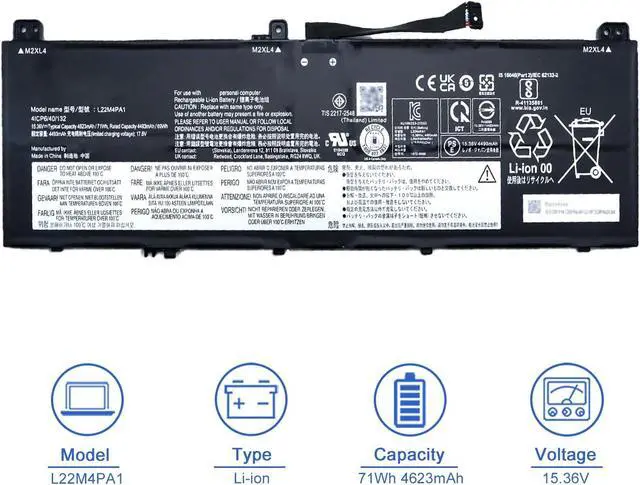
- SpecificationsProduct Type: Replacement battery; Battery Type: Li-ion; Voltage: 15.36 V; Capacity: 71Wh 4623mAh; Battery Life: Up to 500 recharge cycles over the life of the battery
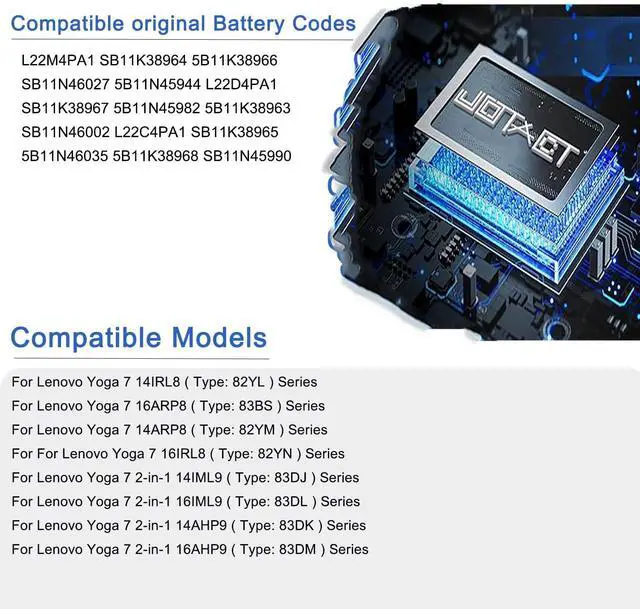
- Compatible original Battery Codes L22M4PA1 SB11K38964 5B11K38966 SB11N46027 5B11N45944 L22D4PA1 SB11K38967 5B11N45982 5B11K38963 SB11N46002 L22C4PA1 SB11K38965 5B11N46035 5B11K38968 SB11N45990
- Compatible Laptop ModelsFit for Lenovo Yoga 7 16IRL8 16ARP8 Series; For Lenovo Yoga 7 2-in-1 14IML9 14AHP9 Series; For Lenovo Yoga 7 14IRL8 14ARP8 Series; For Lenovo Yoga 7 2-in-1 16IML9 16AHP9 Series
- High Safety 100% New, 100% Compatibility. Over-current protection, over-voltage protection, over-tem
+
+
Overview
Specs
Reviews

Any questions? Our AI mode will help you find out quickly.
Try me now
Why the laptop does not recognize the battery
Could be caused by battery loose. Please re-install the battery and make sure that the battery cable and the motherboard interface are tightly inserted.
Maybe due to conductive material damaged which the laptop motherboard and battery anode and cathode contact position, you can try to confirm it with your original battery.
Check whether the battery drive is in normal condition, if not, download the corresponding driver software to update.
There is a problem with the computer detection software, which usually just restart the computer.
How to use the new battery correctly
1. When using your new battery for the first time, you need to prime the battery by charging it to 100% and discharging it to 20% for 3 times. If you don't know how to install a new laptop battery, you can search "How to install a new laptop battery?" on website.
2. DO NOT let the battery drain to 0%: If you constantly let it drain to 0%, the battery becomes unstable will be seriously degraded.
3. DO NOT keep your battery always fully charged: Just like emptying your battery to 0%, keeping your battery permanently charged at 100% is very harmful. As time goes by, this will increase its internal resistance and reduce its capacity.
4. Perform regular charging cycles: If you dont use your Laptop battery very often, it is important to cycle it (discharge => charge) regularly, at least once a month. Please store the unused battery fully charged. Do not store at low power to prevent reduce the lifespan of a battery.
5.The battery life depends on how you use your laptop. If you open a lot of software at the same time, in the office, while listening to music, while browsing the Internet, also watching a movie, then the battery will drain fast; If you don't have a lot of software running on your computer, and you're only on standby or browsing the web, the battery will last longer.
Easy Ways To Maximize Battery Life:
1. Change your laptop power plan settings. I would suggest you choose the power saver plan. Then Change advanced power settings, scroll down to find Processor power management. Click the On-battery option and reduce the processor state to 20%.
2. Always keep your laptop neat and clean. The dust easily enters the hardware through the vents which are meant to release the heat generated from various computer components. It then blocks the vents preventing the outflow of the heat. This damages the computer parts including the battery.
3. Close Wi-Fi, Bluetooth, and other settings. You should keep the Bluetooth and WiFi off when youre watching movies or doing other things which dont require network connectivity. This can help your computer save precious battery life.
1.Battery Buckle
The laptop is tightly connected to the buckle, stabilizing the battery to ensure no loosening, solid and safe.
2.Battery Connector
Interface metal and fixed insulator are made of good materials to ensure stable current input and durability.
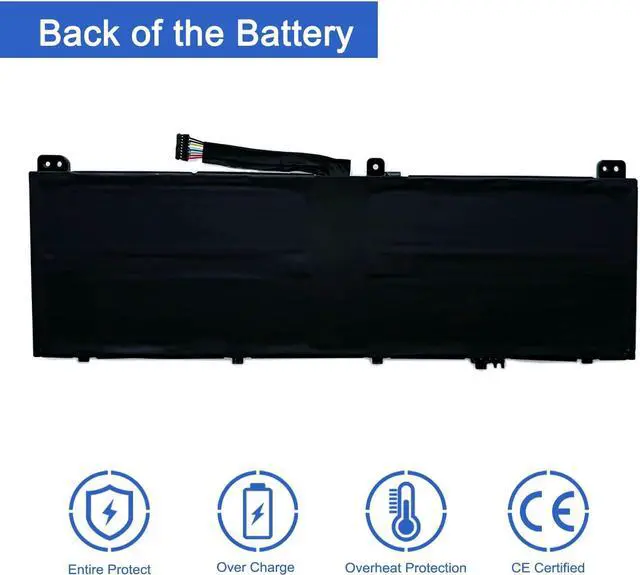
3.Back of the Battery
The shell is made of ABS + PC composite material casting, good heat and flame retardant performance, good resistance to wear and tear, safe to use. Designed same size as original battery, 100% compatible to meet OEM specifications.
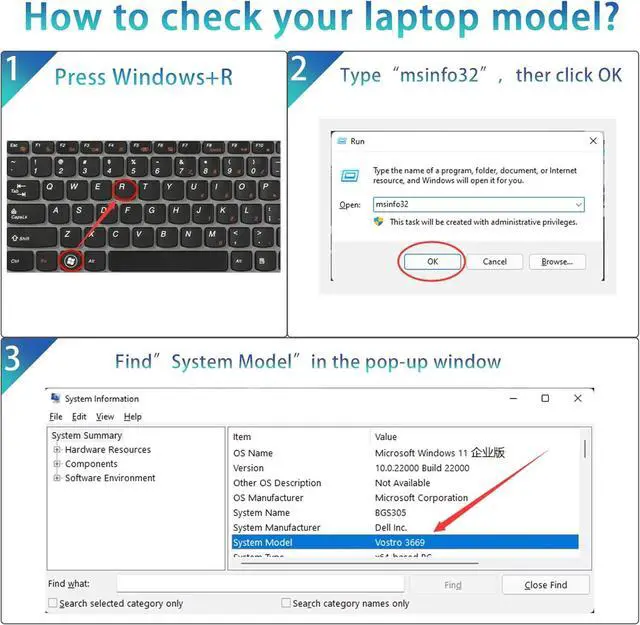
Step 1: Press Windows + R to open Run window.
Step 2: Input "msinfo32" in the empty box and click OK to open System Information.
Step 3: Keep in the System Summary section, and you will find the System Model item in the right pane.
Compatible laptop models: Please "Ctrl+F"search your laptop model
For Lenovo Yoga 7 14IRL8 ( Type: 82YL ) Series
For Lenovo Yoga 7 16ARP8 ( Type: 83BS ) Series
For Lenovo Yoga 7 14ARP8 ( Type: 82YM ) Series
For For Lenovo Yoga 7 16IRL8 ( Type: 82YN ) Series
For Lenovo Yoga 7 2-in-1 14IML9 ( Type: 83DJ ) Series
For Lenovo Yoga 7 2-in-1 16IML9 ( Type: 83DL ) Series
For Lenovo Y
Could be caused by battery loose. Please re-install the battery and make sure that the battery cable and the motherboard interface are tightly inserted.
Maybe due to conductive material damaged which the laptop motherboard and battery anode and cathode contact position, you can try to confirm it with your original battery.
Check whether the battery drive is in normal condition, if not, download the corresponding driver software to update.
There is a problem with the computer detection software, which usually just restart the computer.
How to use the new battery correctly
1. When using your new battery for the first time, you need to prime the battery by charging it to 100% and discharging it to 20% for 3 times. If you don't know how to install a new laptop battery, you can search "How to install a new laptop battery?" on website.
2. DO NOT let the battery drain to 0%: If you constantly let it drain to 0%, the battery becomes unstable will be seriously degraded.
3. DO NOT keep your battery always fully charged: Just like emptying your battery to 0%, keeping your battery permanently charged at 100% is very harmful. As time goes by, this will increase its internal resistance and reduce its capacity.
4. Perform regular charging cycles: If you dont use your Laptop battery very often, it is important to cycle it (discharge => charge) regularly, at least once a month. Please store the unused battery fully charged. Do not store at low power to prevent reduce the lifespan of a battery.
5.The battery life depends on how you use your laptop. If you open a lot of software at the same time, in the office, while listening to music, while browsing the Internet, also watching a movie, then the battery will drain fast; If you don't have a lot of software running on your computer, and you're only on standby or browsing the web, the battery will last longer.
Easy Ways To Maximize Battery Life:
1. Change your laptop power plan settings. I would suggest you choose the power saver plan. Then Change advanced power settings, scroll down to find Processor power management. Click the On-battery option and reduce the processor state to 20%.
2. Always keep your laptop neat and clean. The dust easily enters the hardware through the vents which are meant to release the heat generated from various computer components. It then blocks the vents preventing the outflow of the heat. This damages the computer parts including the battery.
3. Close Wi-Fi, Bluetooth, and other settings. You should keep the Bluetooth and WiFi off when youre watching movies or doing other things which dont require network connectivity. This can help your computer save precious battery life.
1.Battery Buckle
The laptop is tightly connected to the buckle, stabilizing the battery to ensure no loosening, solid and safe.
2.Battery Connector
Interface metal and fixed insulator are made of good materials to ensure stable current input and durability.
3.Back of the Battery
The shell is made of ABS + PC composite material casting, good heat and flame retardant performance, good resistance to wear and tear, safe to use. Designed same size as original battery, 100% compatible to meet OEM specifications.
Step 1: Press Windows + R to open Run window.
Step 2: Input "msinfo32" in the empty box and click OK to open System Information.
Step 3: Keep in the System Summary section, and you will find the System Model item in the right pane.
Compatible laptop models: Please "Ctrl+F"search your laptop model
For Lenovo Yoga 7 14IRL8 ( Type: 82YL ) Series
For Lenovo Yoga 7 16ARP8 ( Type: 83BS ) Series
For Lenovo Yoga 7 14ARP8 ( Type: 82YM ) Series
For For Lenovo Yoga 7 16IRL8 ( Type: 82YN ) Series
For Lenovo Yoga 7 2-in-1 14IML9 ( Type: 83DJ ) Series
For Lenovo Yoga 7 2-in-1 16IML9 ( Type: 83DL ) Series
For Lenovo Y
Warranty & Returns
Warranty, Returns, And Additional Information
Warranty
- Please contact the Seller directly for warranty information. Warranty information may also be found on the Manufacturer's website.
- CONTACT
Return Policies
- Return for refund within: 30 days
- Return for replacement within: 30 days
- This item is covered by E-Transit Limited Return Policy
Manufacturer Contact Info
- For a directory of all our manufacturers, please click below.
- Manufacturers Directory
LOADING...