1, You need to turn off your laptop and disconnect the power.
2, Disconnect the connection between the old battery and the motherboard to avoid unnecessary damage caused by disassembling the battery. Then unscrew the old battery screws one by one and carefully save each screw.
3, Remove the old battery, carefully install the new battery on the battery case, screw in the screw, and connect the wiring of the new battery.
4, If you don't understand the above steps, you can search for the video about laptop battery installation on YouTube. Maybe it will help you.
1. Discharge the new battery use to 10%(not to 0%) and then charge to 95%, and cycle 3-4 times.
2. Do not disassemble, crush or puncture. Do not dispose of in fire or water.
3. If you remove the battery for a long time, charge more than 80% at least one time within one month.
4. Don't connect the adapter for a long time while using the battery. It may damage the battery.
5. When using the battery, care should be taken to prevent exposure and moisture.
1. Could be caused by battery loss. Please re-install the battery and make sure that the battery cable and the motherboard interface are tightly inserted.
2. Maybe due to conductive material damage which the laptop motherboard and battery anode and cathode contact position, you can try to confirm it with your original battery.
3. Check whether the battery drive is in normal condition, if not, download the corresponding driver software to update.
1.Turn off the laptop.
2.Unplug AC power.
3.Remove the battery.
4.Replace AC power.
5.Turn on laptop,allow OS to boot.
6.Once logged in to the machine,perform a normal shut donw.
7.Unplug AC power.
8.Replace battery.
1, Change your laptop power plan settings, and choose the power saver plan. Then Change advanced power settings, and scroll down to find Processor power management. Click the On-battery option and reduce the processor state to 20%.
2, Always keep your laptop neat and clean. The dust easily enters the hardware through the vents which are meant to release the heat generated from various computer components.
3, Close Wi-Fi, Bluetooth, and other settings. This can help your computer save precious battery life.
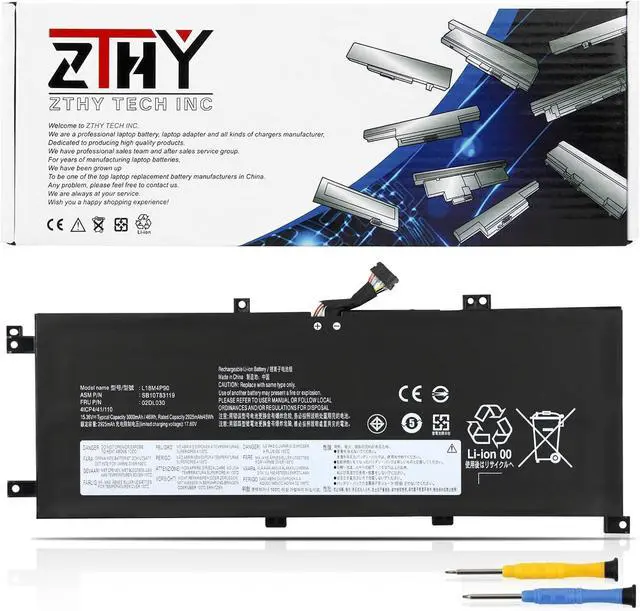
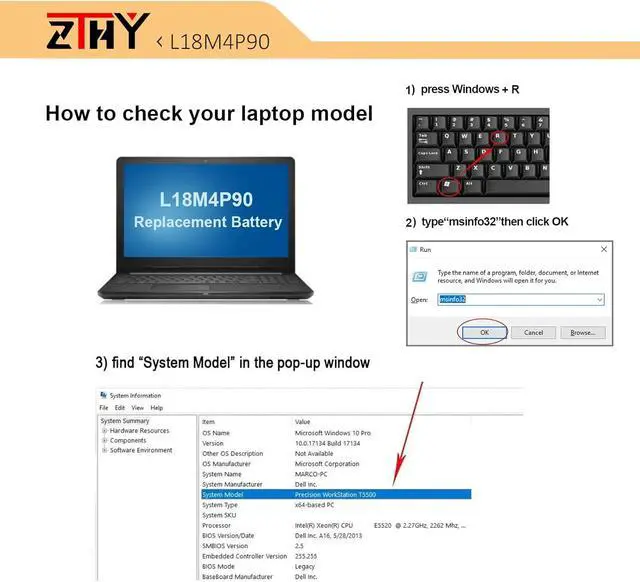
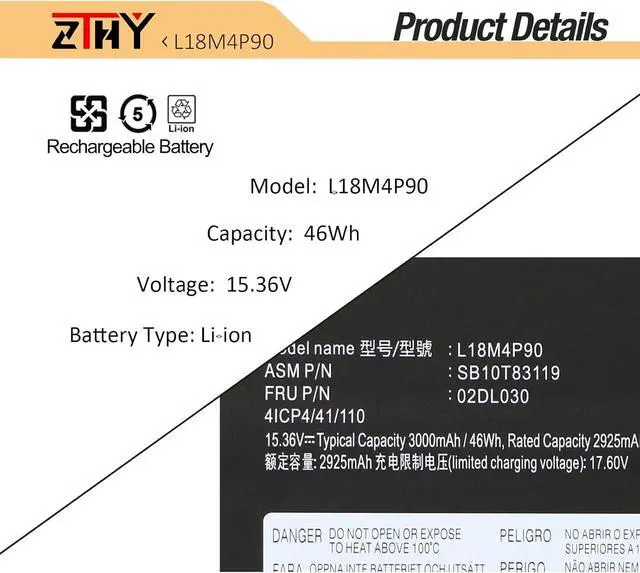
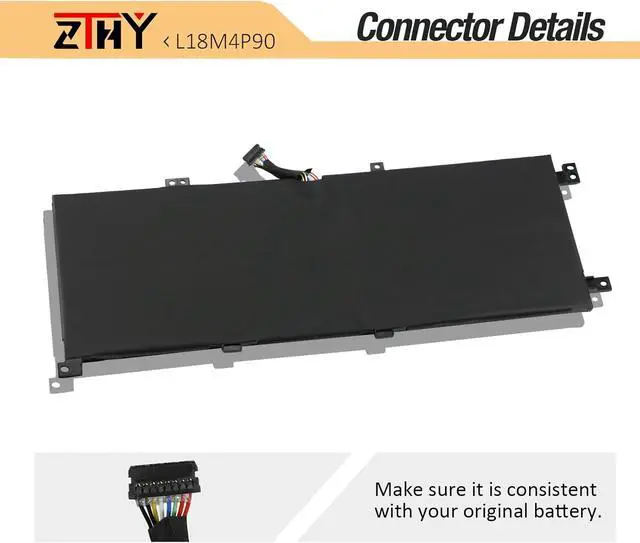
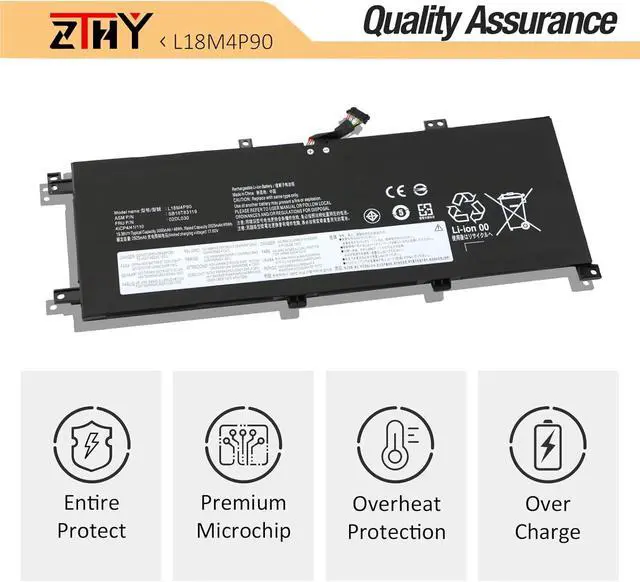
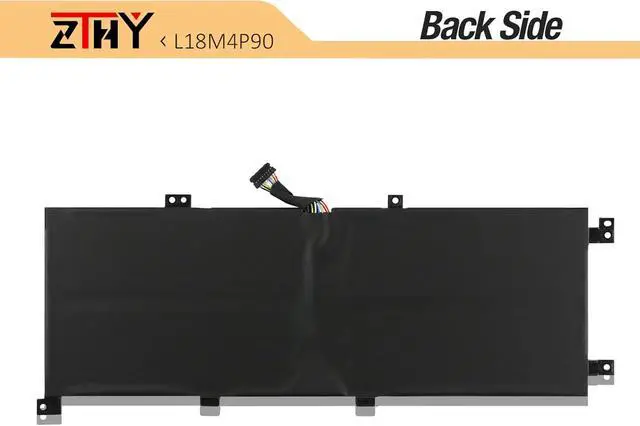
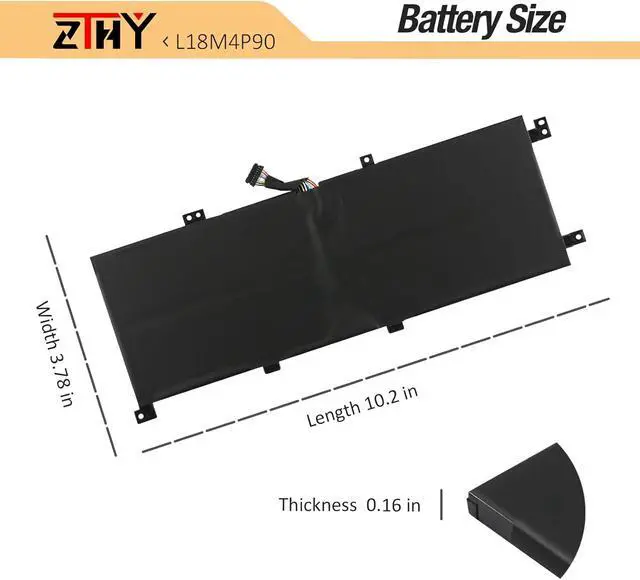
Compatible Part NumberL18C4P90 SB10T83177 5B10W13934 SB10T83120 02DL031 L18M4P90 SB10T83176 5B10W13933 SB10T83119 02DL030 L18D4P90 SB10T83178 5B10W13935 SB10T83121 02DL032Compatible ModelReplacement for Lenovo ThinkPad L13 1st Gen (type 20R3, 20R4) Series;Compatible ModelReplacement for Lenovo ThinkPad L13 Gen 2 (type 20VH, 20VJ, 21AB, 21AC) Series;Compatible ModelReplacement for Lenovo ThinkPad L13 Yoga 1st Gen Series;Compatible ModelReplacement for Lenovo ThinkPad L13 Yoga Gen 2 (type 20VL, 20VK, 21AD, 21AE) Series;Compatible ModelReplacement for Lenovo ThinkPad L13 Yoga 20R5 20R6 Series.NoteIf you install the battery, you find that the laptop cannot detect the battery or the battery level cannot be displayed normally. Please check whether the battery cable is installed properly. Sometimes the battery cannot be charged because the cable is not fixed properly. What do I need to be aware of when I receive a battery?
You need to check its appearance, confirm the model, read the instruction manual. Cycle and charge it 5 to 6 times to activate the maximum usage space of the battery. When not in use temporarily, charge the battery to 50%-60%.
What should I do if laptop won't boot up after installing a new battery?
1.Check if the battery is properly seated and connections are clean. 2.Try charging it or use the adapter alone to start. 3.Examine hardware links, like RAM and adapters. 4.Reset BIOS settings if needed. 5.Enter Safe Mode to fix system issues.
How should I do if the battery is not recognised?
If it is not recognised, it is recommended to update the BIOS settings or please disconnecting the old battery, and holding