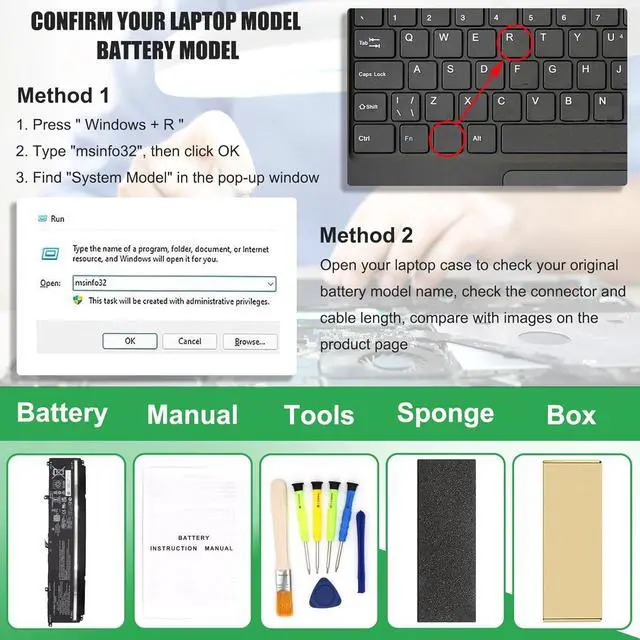
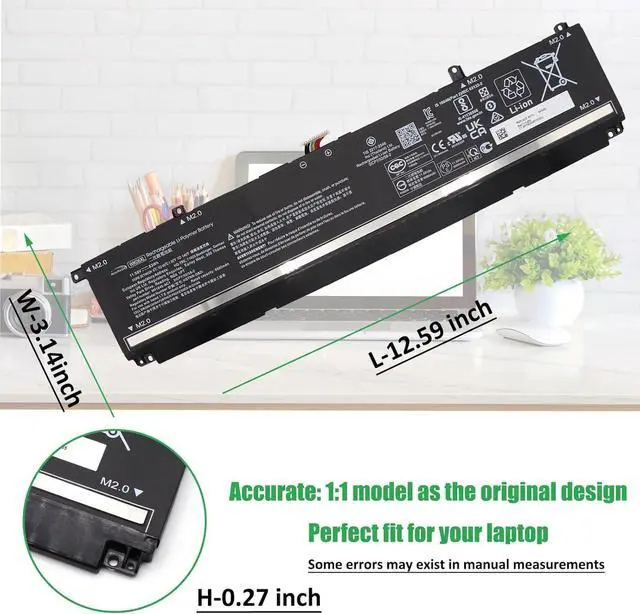
Method 1: Check your laptop model name by pressing [Win] + [R] key and entering [msinfo32] or [dxdiag], click OK to find your System Model. Then use your laptop model name to search the correct replacement battery
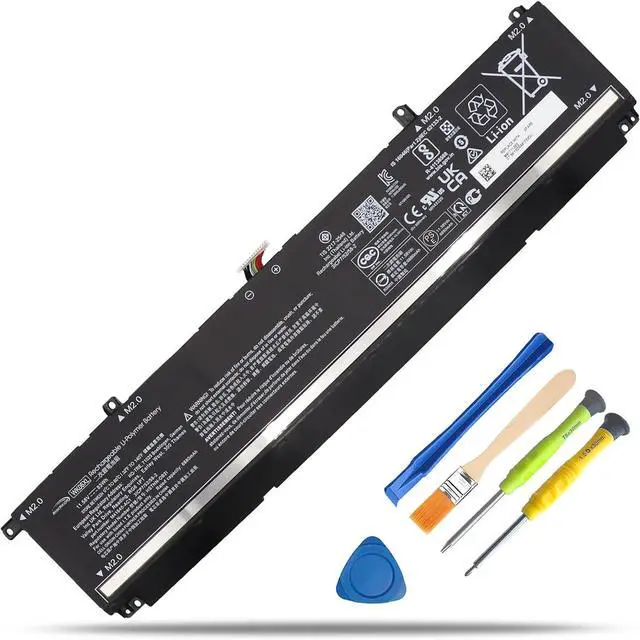
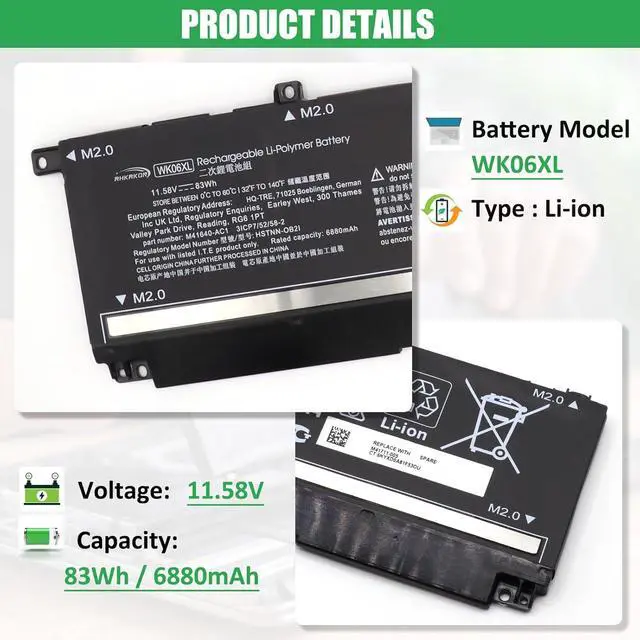
Method 2: Check your original battery model name and shape by opening your laptop back cover. Compare it with our product image
Note Before Purchasing
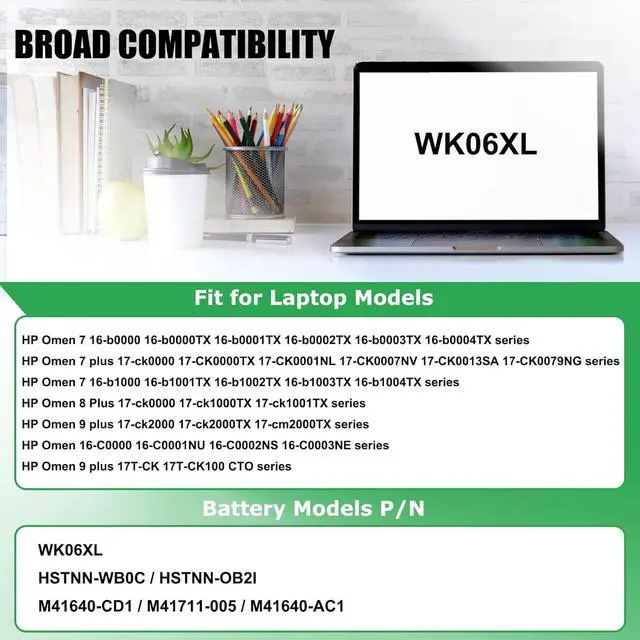
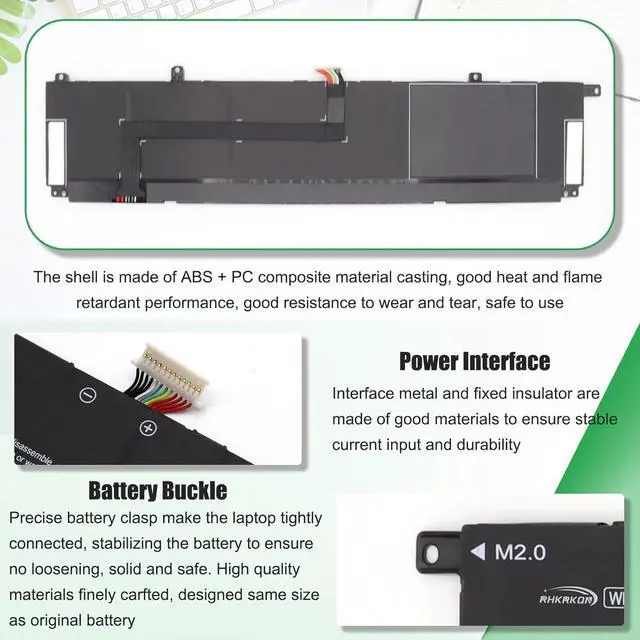
Some compatible laptop models and replacement batteries are complicated, there may be a difference in battery model name, shape, buckle location, connector type, cable length ( long or short ) etc
We suggest you open your laptop to check and confirm your original battery model and appearance, compared with our battery image, make sure that's what you need
Battery Usage Maintenance Tips
1. New battery received, please discharge to roughly 10% ~ 20%, then charge it to full. Repeat 3 ~ 5 times to maximize initial battery performance. ( Usually the battery received with about 50% charged )
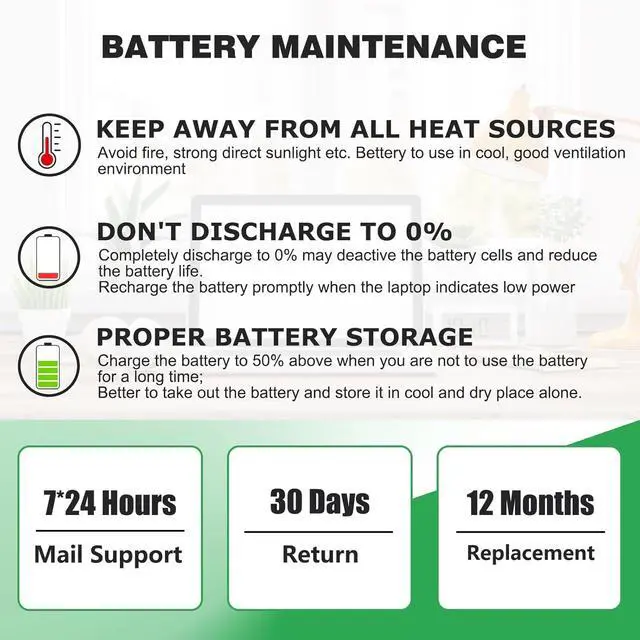
2. Do not discharge to 0%, it may damage the battery cells and accelerates the aging of battery. ( When the battery is very low, the laptop may suddenly shut down )
3. After the battery power is exhausted, please charge in time, if not charged for a long time, it may lead to battery damage
4. If you plan not to use your laptop for a long time, you need to charge it to more than 70% for storage, and the best storage time is no more than 3 months
5. If you often connect the charger to use the laptop, please use the battery power regularly, more than once a week
6. Please use the original charger or well-known brand charger, inferior charger will affect the normal charging of the battery
7. Regularly clean fan dust to increase heat dissipation and reduce power consumption, which can effectively extend the battery life
8. Percentage of remaining battery and estimate time may fluctuate up and down during battery discharge according to your operating of different software, this is normarl condition. Please pay attention to the actual use time is in the normal range
Reasons and solutions for laptop not recognizing battery
1. Could be caused by battery loose. Remove the battery and try to reinstall, make sure the connector is tighly connected ( Most batteries won't charge, you can try reinstalling the battery first )
2. May be due to conductive material damaged which the laptop motherboard and battery anode and cathode contact position, you can try to confirm it with your original battery
3. Check whether the battery drive is in normal condition, if not, download the corresponding driver software to update
4. Take out the battery and press the power button for about 15 seconds to consume the internal residual power (Do not connect the power cord), and then reinstall the battery. You can try several times
Installation Suggestion
1. Battery installation is easy, but we also recommend you to learn related installation video on the web in advance, or just find a repair technician for help
2. Please be careful when install battery. Any damage caused by improper operation will be your own responsibility, hope understand. ( Pay particular attention to the battery connector slot on the laptop's motherboard, don't push too hard )
3. If the battery cant be charged for first installation, please try: Take out the battery and press the power button for about 15 seconds to consume the internal residual power (Do not connect the power cord), and then reinstall the battery. You can try several times.
1, Turn off your laptop and disconnect the power.
2, Unscrew the laptop case screws one by one and carefully save each screw. Then be careful to disconnect the connection between the old battery and the motherboard, avoid unnecessary damage caused by disassembling the battery.
3, Remove the old battery, carefully install the new battery on the battery case, an