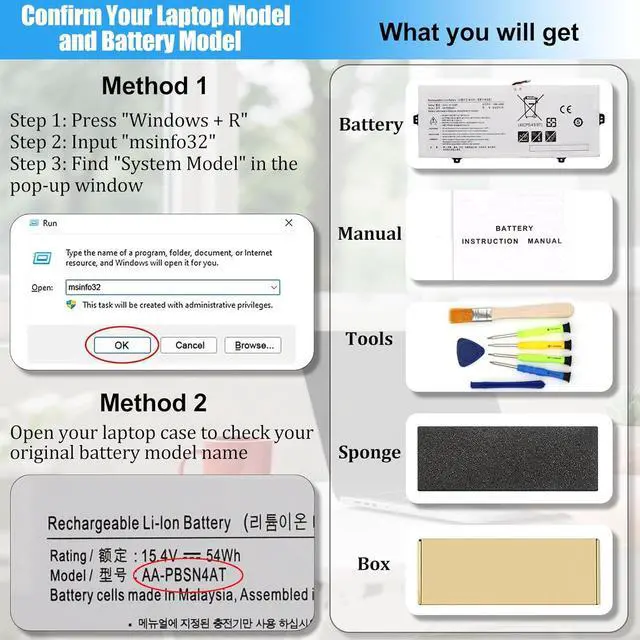
Laptop model (Printed on the A side or bottom case, such as MacBook A2289, ThinkPad T14 Gen2)
Battery Part Number or Model Name (On the label when the battery is removed, such as HP MU06, Dell 0V9HXX, R73TC, XVJNP)
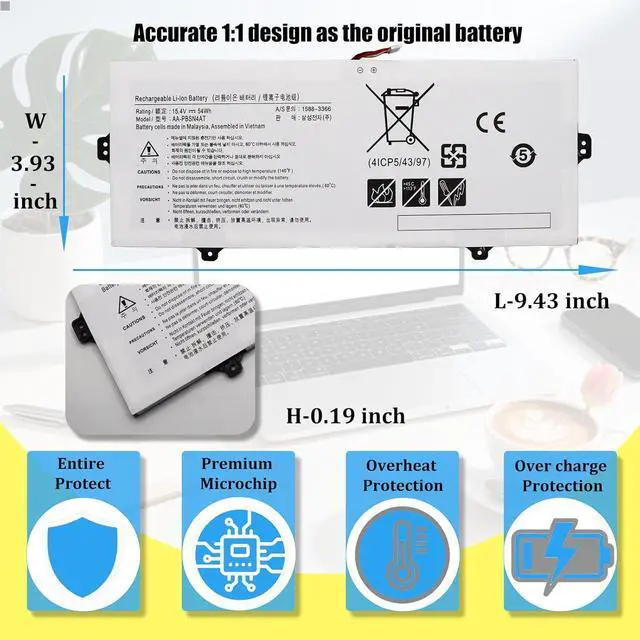
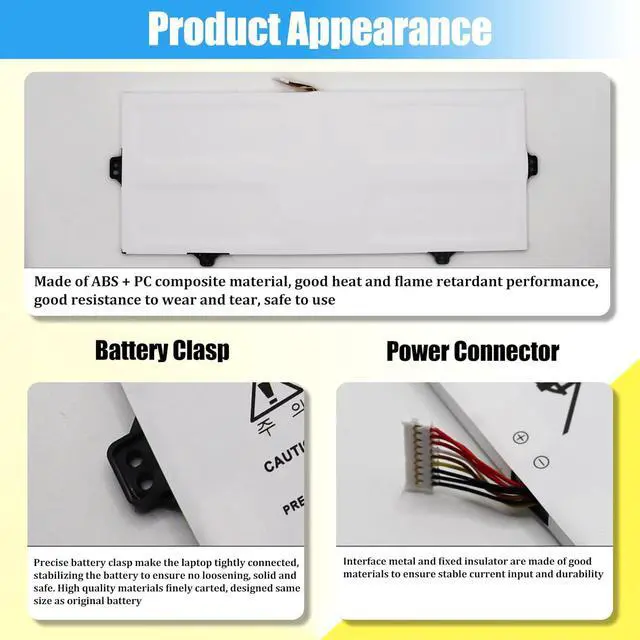
Battery shape + interface direction (card slot position, cable length, number of positioning posts)
Courteous and sincere recommendations
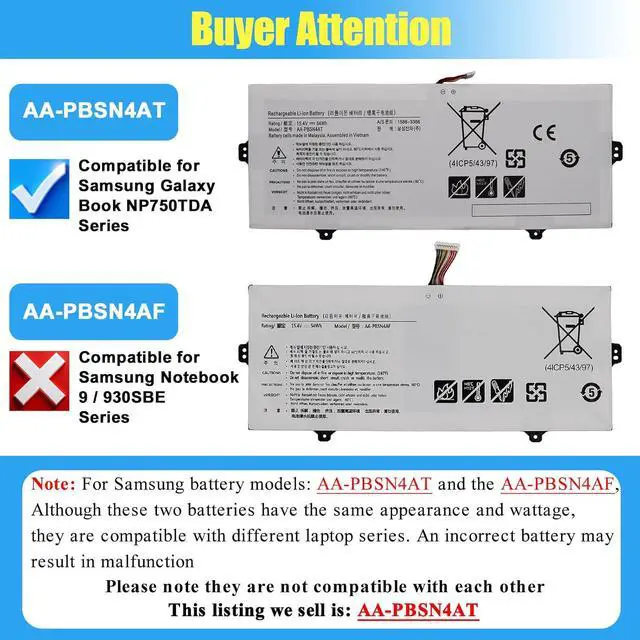
Most customers purchase the wrong batteries because some compatible laptop models and replacement batteries are complicated. Please be sure to confirm your original battery model and appearance, compared with our battery image, make sure that's what you need
If you're not sure, you can also take photos of the old battery, compare the front and back, interface, and send them to us to confirm "whether it can fit properly" to avoid the compatibility issue
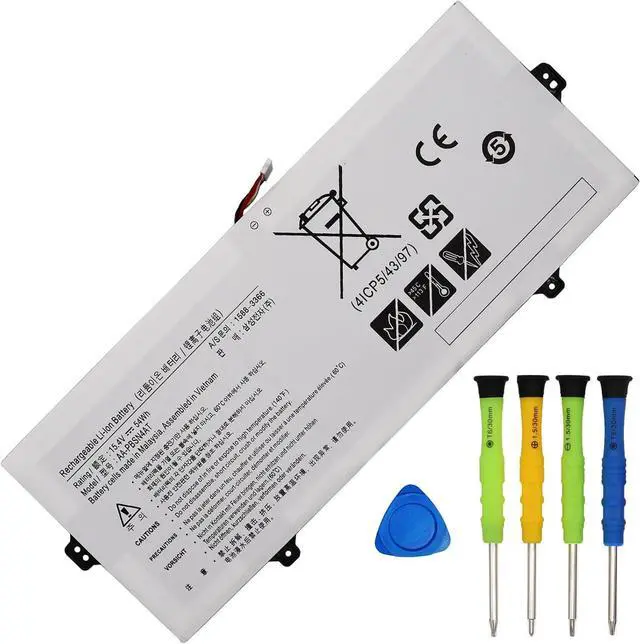
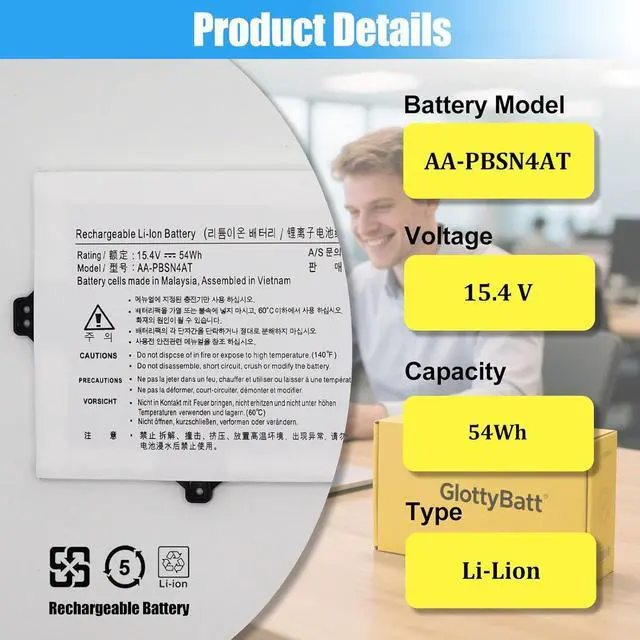
Battery ModelAA-PBSN4ATBattery TypeLi-ionBattery Voltage15.4VBattery Capacity54WBattery Condition100% Brand New From ManufacturerPackaging1* AA-PBSN4AT Battery+1*Manual+1*Tool Kits Compatible Laptop Models:
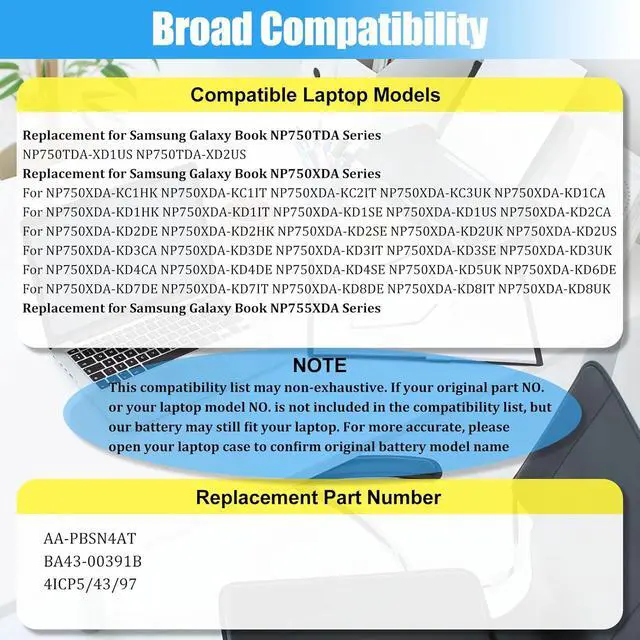
Replacement for Samsung Galaxy Book NP750TDA Series
NP750TDA-XD1US NP750TDA-XD2US
Replacement for Samsung Galaxy Book NP750XDA Series
For NP750XDA-KC1HK NP750XDA-KC1IT NP750XDA-KC2IT NP750XDA-KC3UK NP750XDA-KD1CA
For NP750XDA-KD1HK NP750XDA-KD1IT NP750XDA-KD1SE NP750XDA-KD1US NP750XDA-KD2CA
For NP750XDA-KD2DE NP750XDA-KD2HK NP750XDA-KD2SE NP750XDA-KD2UK NP750XDA-KD2US
For NP750XDA-KD3CA NP750XDA-KD3DE NP750XDA-KD3IT NP750XDA-KD3SE NP750XDA-KD3UK
For NP750XDA-KD4CA NP750XDA-KD4DE NP750XDA-KD4SE NP750XDA-KD5UK NP750XDA-KD6DE
For NP750XDA-KD7DE NP750XDA-KD7IT NP750XDA-KD8DE NP750XDA-KD8IT NP750XDA-KD8UK
Replacement for Samsung Galaxy Book NP755XDA Series
Our batteries have undergone strict testing and perfectly match the listed models, enabling plug-and-play functionality
Laptop Battery Usage and Maintenance Guide
I. Battery Usage and Maintenance Tips
Activation Method for New Batteries: After receiving a new battery (usually with an initial charge of approximately 50%), first discharge the battery to 10% - 20%, then fully charge it. Repeat this process 3 - 5 times to maximize the initial performance of the battery
Avoid Over-discharging: Do not discharge the battery to 0%, as this may damage the battery cells and accelerate battery aging. When the battery level is extremely low, the laptop may shut down suddenly
Charge in a Timely Manner: After the battery is exhausted, charge it promptly. If the battery is not charged for a long time, it may be damaged
Storage for Long-term Inactivity: If you plan not to use the laptop for a long time, charge the battery to more than 70% before storing it, and the optimal storage period should not exceed 3 months
Use the Battery Regularly: If you often use the laptop with the charger connected, it is recommended to use the battery power (i.e., disconnect the charger) at least once a week to maintain battery activity
Choose Compliant Chargers: Use original chargers or chargers from well-known brands. Poor-quality chargers will affect the normal charging of the battery and may even damage the battery
Maintain Device Heat Dissipation: Clean the fan dust regularly to improve the device's heat dissipation effect, reduce power consumption, and effectively extend the battery life
Explanation of Battery Level Fluctuations: During the battery discharge process, the remaining power percentage and estimated usage time may fluctuate up and down due to running different software, which is a normal phenomenon. Please focus on whether the actual usage time is within the normal range
II. Causes and Solutions for Laptop Battery Not Being Recognized
Loose Battery Connection: The battery may not be recognized due to loose installation. You can remove the battery and reinstall it, ensuring that the battery connector is tightly connected to the mot