




 here!
here!
I’m your shopping assistant for PC builds, upgrades, and everything tech.
Got questions? Ask away!
Start a conversation
here!
I’m your shopping assistant for PC builds, upgrades, and everything tech.
Got questions? Ask away!
Start a conversation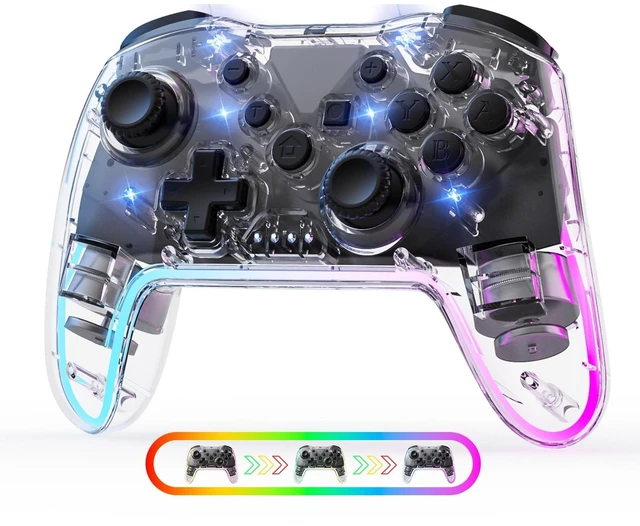



Any questions? Ask CelesteSM will help you find out quickly.
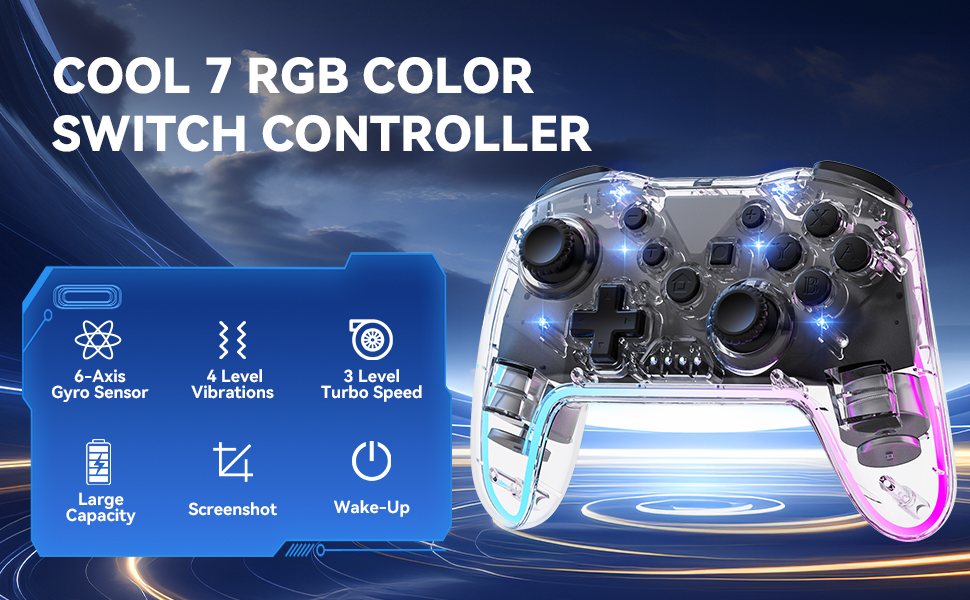
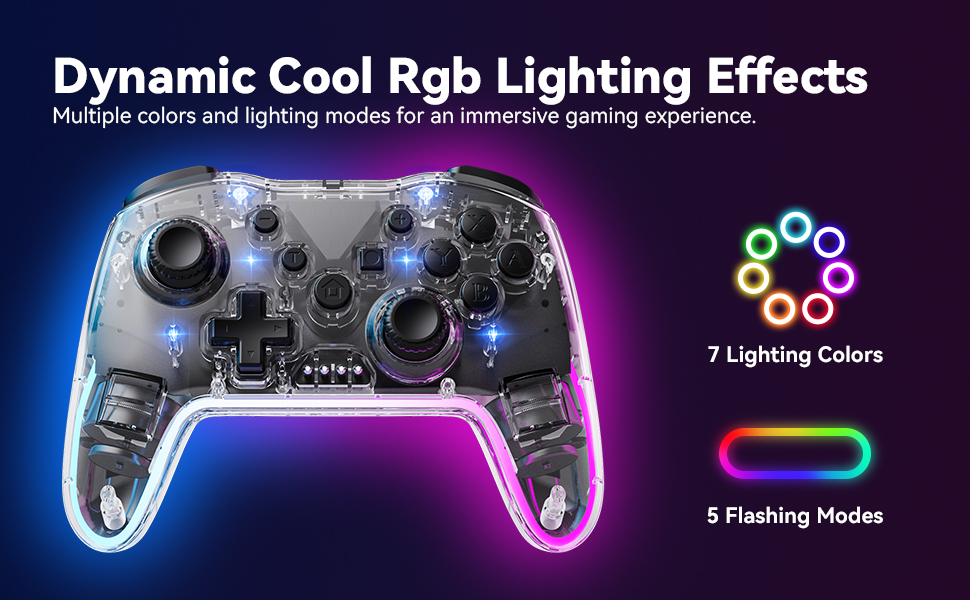
Control of RGB Light Bar
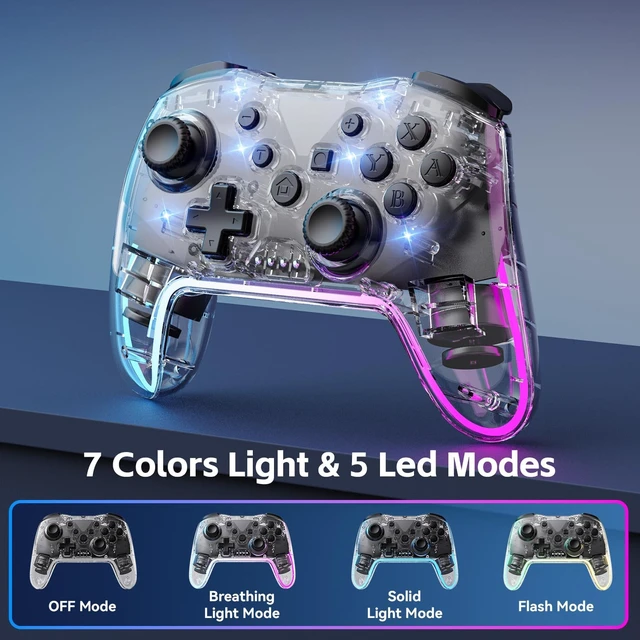
When you turn on the controller, the RGB light bar starts with both sides breathing the same colour.
Press L3 + R3 together for 0.5 seconds to cycle through the lighting modes:
Both sides change colour together ? Left and right sides change to different colours ? Both sides stay on a fixed colour (7 colours available).
Press and hold L3 + R3 for 3 seconds to turn the light bar ON or OFF.
Control of Ambient Light
The ambient light is ON by default when you power up. Press and hold Turbo + Screenshot buttons for 3 seconds to switch the ambient light ON or OFF.
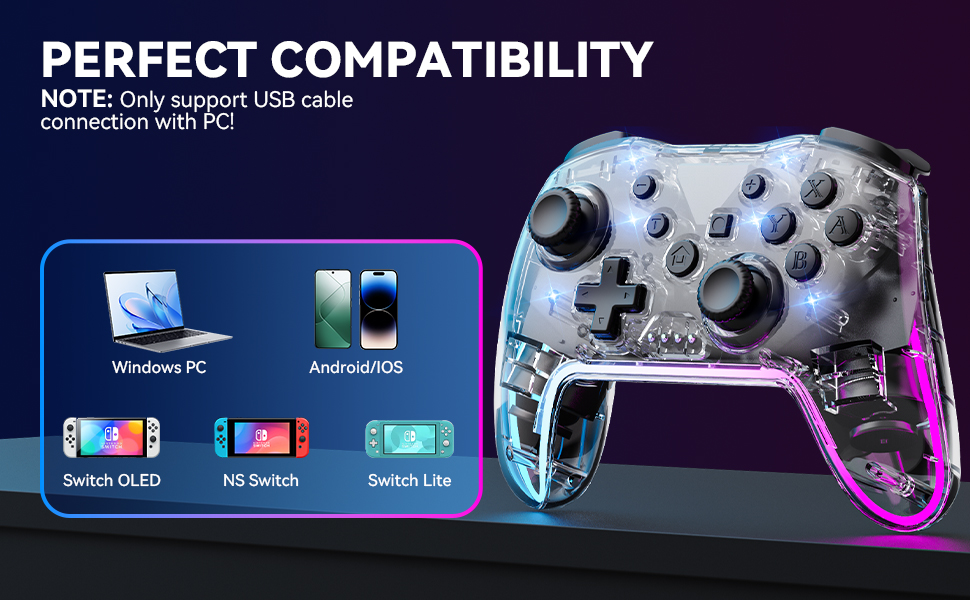
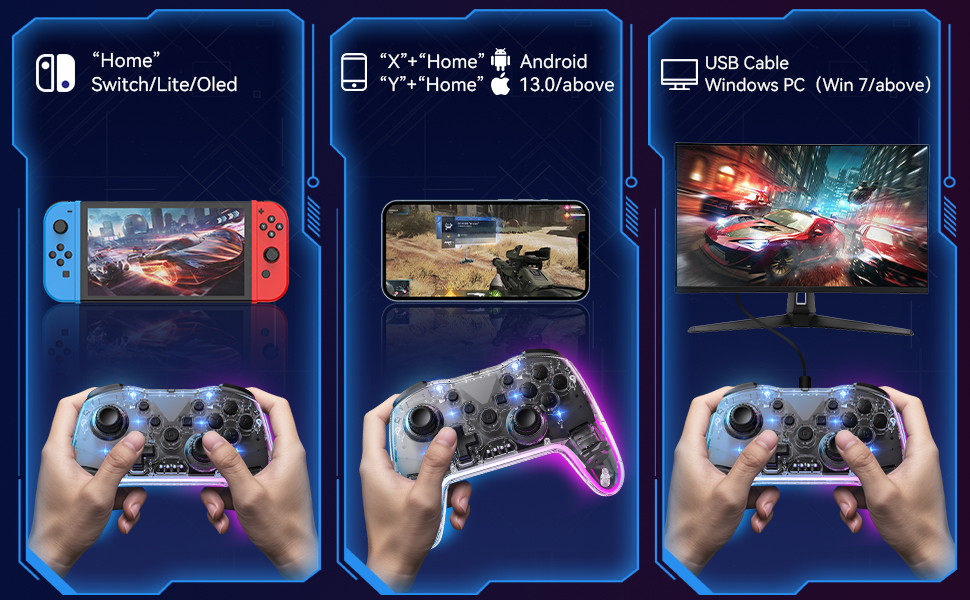
Wireless Connection Instructions
Switch Connection
First-time connection:
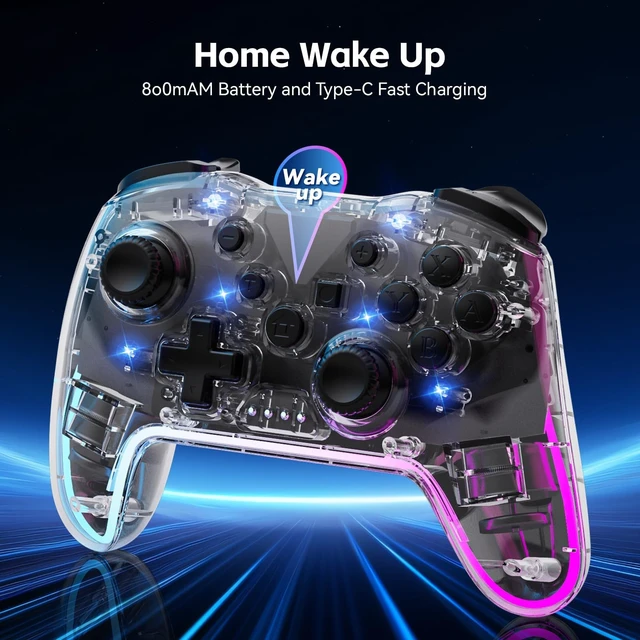
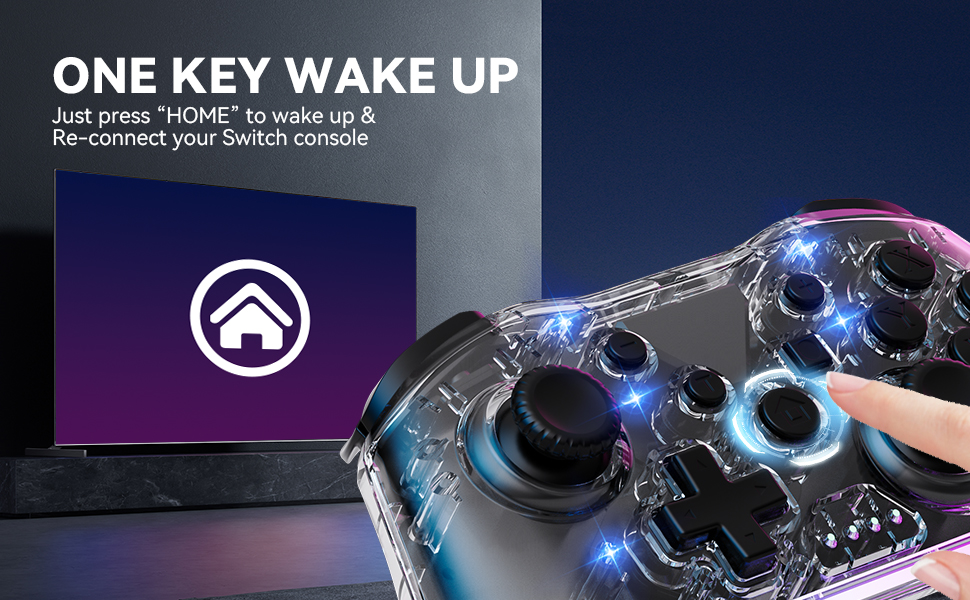
Reconnect a device you've paired before: Just press the HOME button briefly. The LEDs will flash slowly in a moving pattern, wake up your Switch, and reconnect automatically.
Android Phone/Tablet – Gamepad Mode
Press and hold X + HOME for 3 seconds. LED2 and LED3 will flash quickly at the same time. Go to your device's Bluetooth settings, find the device named "Gamepad", and pair it. Once connected, those two LEDs will stay lit.
iOS 13+ Phone/Tablet
Press and hold Y + HOME for 3 seconds. LED1 and LED4 will flash quickly at the same time. In your device's Bluetooth settings, look for "DUALSHOCK 4 Wireless Controller" and pair it. After a successful connection, these two LEDs will stay lit.
Wired Connection Instructions
Switch Wired Connection Use the included Type-C cable to connect the controller to your Switch dock. Make sure "Pro Controller Wired Communication" is turned on in the System Settings of your Switch. The corresponding LED will stay lit once connected.
PC Wired Connection Connect the controller to your computer with a USB cable. It starts in X-INPUT mode (LED1 on). Press and hold both the "–" and "+" buttons for 5 seconds to switch to D-INPUT mode – you'll see LED2 and LED3 light up at the same time.
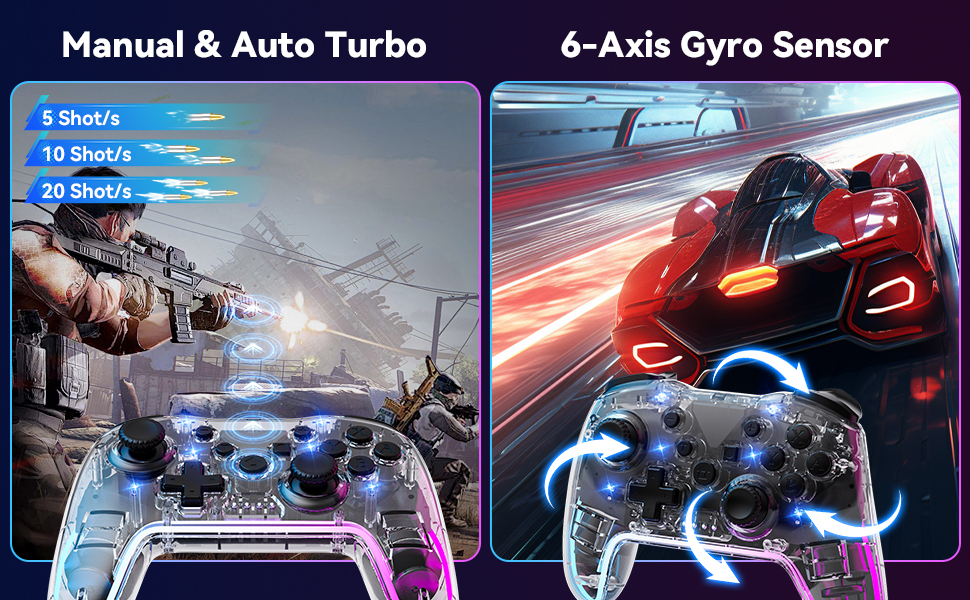
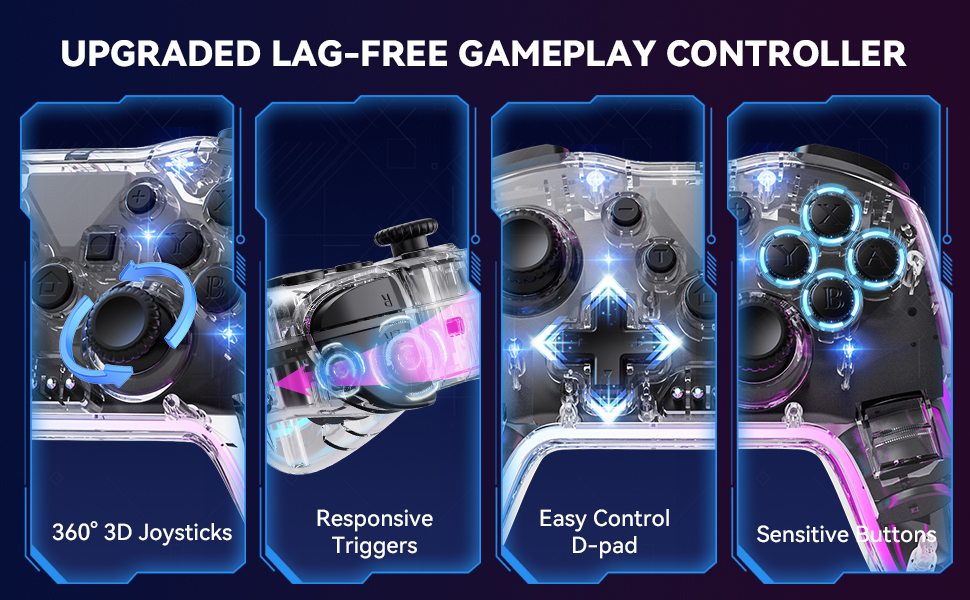
Control of RGB Light Bar
When you turn on the controller, the RGB light bar starts with both sides breathing the same colour.
Press L3 + R3 together for 0.5 seconds to cycle through the lighting modes:
Both sides change colour together ? Left and right sides change to different colours ? Both sides stay on a fixed colour (7 colours available).
Press and hold L3 + R3 for 3 seconds to turn the light bar ON or OFF.
Control of Ambient Light
The ambient light is ON by default when you power up. Press and hold Turbo + Screenshot buttons for 3 seconds to switch the ambient light ON or OFF.
Wireless Connection Instructions
Switch Connection
First-time connection:
Reconnect a device you've paired before: Just press the HOME button briefly. The LEDs will flash slowly in a moving pattern, wake up your Switch, and reconnect automatically.
Android Phone/Tablet – Gamepad Mode
Press and hold X + HOME for 3 seconds. LED2 and LED3 will flash quickly at the same time. Go to your device's Bluetooth settings, find the device named "Gamepad", and pair it. Once connected, those two LEDs will stay lit.
iOS 13+ Phone/Tablet
Press and hold Y + HOME for 3 seconds. LED1 and LED4 will flash quickly at the same time. In your device's Bluetooth settings, look for "DUALSHOCK 4 Wireless Controller" and pair it. After a successful connection, these two LEDs will stay lit.
Wired Connection Instructions
Switch Wired Connection Use the included Type-C cable to connect the controller to your Switch dock. Make sure "Pro Controller Wired Communication" is turned on in the System Settings of your Switch. The corresponding LED will stay lit once connected.
PC Wired Connection Connect the controller to your computer with a USB cable. It starts in X-INPUT mode (LED1 on). Press and hold both the "–" and "+" buttons for 5 seconds to switch to D-INPUT mode – you'll see LED2 and LED3 light up at the same time.




